

Hosting and cPanel
Getting started with your hosting: set up your website and email
If you have just ordered a hosting plan, start by finding it in the client area. Then follow the path that fits your project: create a website, move one that already exists or set up email.
1. Open the hosting you are going to use
Log in to the client area, click Hosting and find your domain. Once the service is active, click Manage in its row.
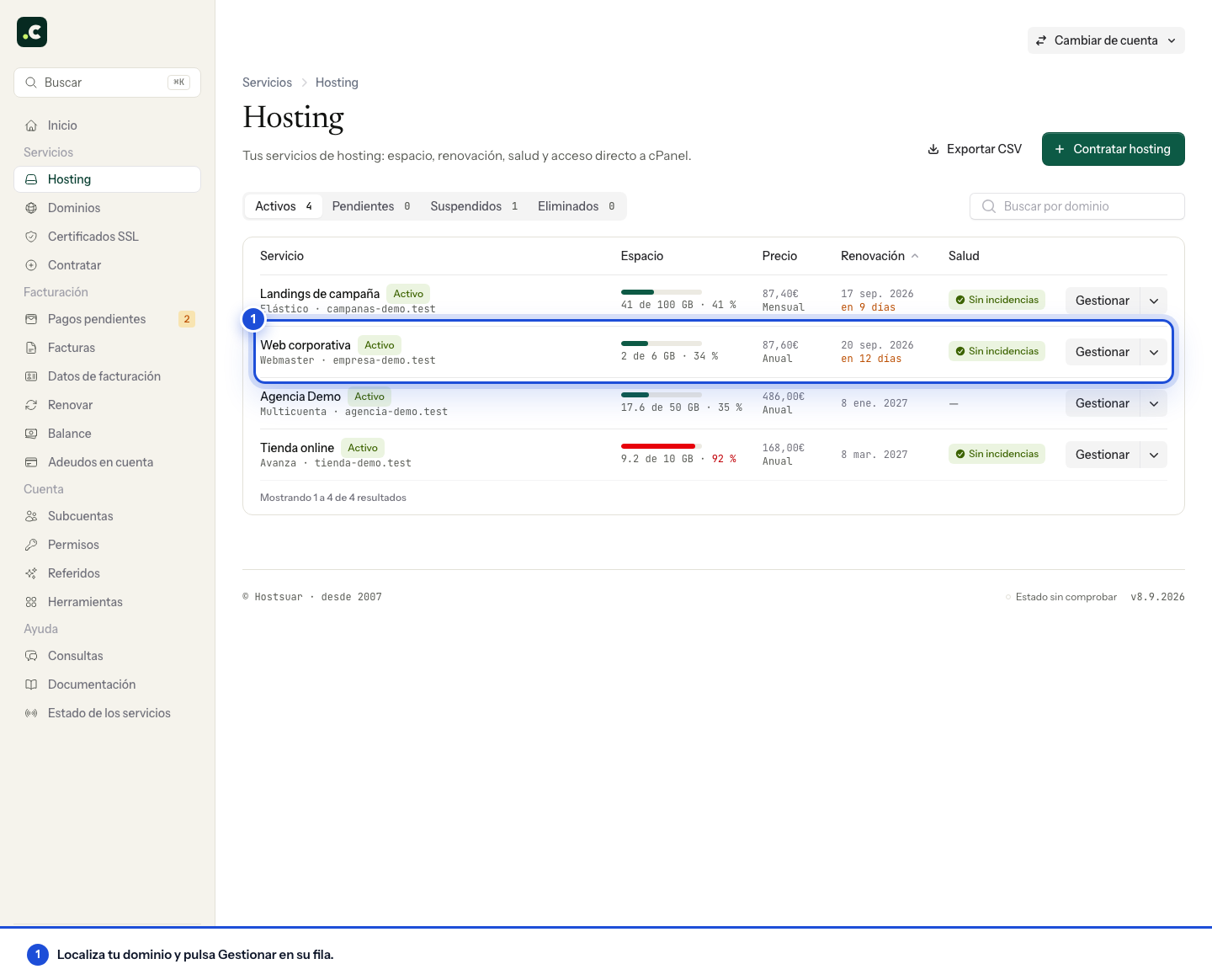
From the service page you can Open cPanel, check Login details and review space, email or backups. If you cannot find it, check the pending and suspended tabs, as well as your user's permissions.
2. Choose your starting point
| Your situation | Where to go next |
|---|---|
| I am going to create a new website | Install the application or upload your files; then connect the domain. |
| I already have a website with another provider | Prepare and check the copy on the new hosting before changing DNS. |
| I only want to use email with my domain | Create the mailboxes and prepare their access details; then check where email should be received. |
| The website or email must stay with another provider | Keep their DNS records when you connect the new service. |
Create a new website
From cPanel you can use the Softaculous application installer to start with WordPress or another application in the catalogue. Check the chosen domain and folder before installing: you must not overwrite an existing website.
If you already have files, you can upload them with the File Manager. If your application needs a database, create it with the MySQL wizard and configure its credentials in the application.
To develop without changing the final domain yet, see the free temporary subdomains. Do not delete the directories cPanel creates when the account is set up: some are needed for email and other services.
Bring over an existing website
Before changing DNS, keep a copy of the files and database and check the website on the new hosting. Include forms, images, admin access and any feature your project depends on.
If you are also moving email, prepare the mailboxes and their content before the switch. Keep the previous provider running while you verify the move. If you would like us to help you plan it, open a ticket before changing the DNS servers.
Set up email
In cPanel, open Email Accounts and create the mailboxes you need. Each one has its own password.
You can access webmail from Login details or configure your email application with the details shown there. If you already use Microsoft 365, Google Workspace or another provider, do not replace the MX records with the hosting ones: they must keep pointing to the service that receives your email.
3. Connect the domain when everything is ready
Registering or transferring a domain and changing its DNS are different operations. A domain can be registered with one company and use another company's hosting or email.
If you are going to manage the whole zone with Hostsuar, follow the DNS servers guide. Before changing the delegation, make sure you keep the records for email and any other services still in use.
If you keep the DNS with another provider, update the records the website needs there. You do not have to transfer the domain or its whole zone to use the hosting. If you are unsure which records to change, tell us where the website and email should work.
Changes can take a while to show, depending on each connection's cache. During that time, two devices may show different versions of the website.
4. Check that you can use it
Before you consider the job done:
- Open the domain over HTTPS and check the certificate, the home page and several inner pages.
- Submit a test form and check that it reaches its recipient.
- If you use email, send and receive a message with an external account.
- Review Delivery and certificates and Service health on the hosting page if something is not working.
- Find your backups and learn how to recover content before you need them.
Routine maintenance
Keep your applications up to date and use a compatible PHP version. Regularly review the space you can free up and upcoming renewals.
If you need help, open Tickets in the client area and include the domain, what you were trying to do and the result you got. That context lets us point you in the right direction from the first message.
You may also find useful
- Understanding the health of a hosting service Interpret the client area summary of performance, security, email and certificates, and open the rig...
- Access the cPanel control panel Open cPanel from your Hostsuar account without typing another password, find its credentials and fix...
- Available data centres See the hosting's main location in Amsterdam and what to check if your project requires a specific r...
- Manage a hosting service's password, label and settings Change the main cPanel access, identify the service with a label and view its technical settings fro...
Something wrong or out of date? Tell us and we will review it.