

Hosting and cPanel
Understanding the health of a hosting service
Go to Hosting, open the service and choose Service health. On a multi-account hosting plan, first open the client's account and use its own Service health section.
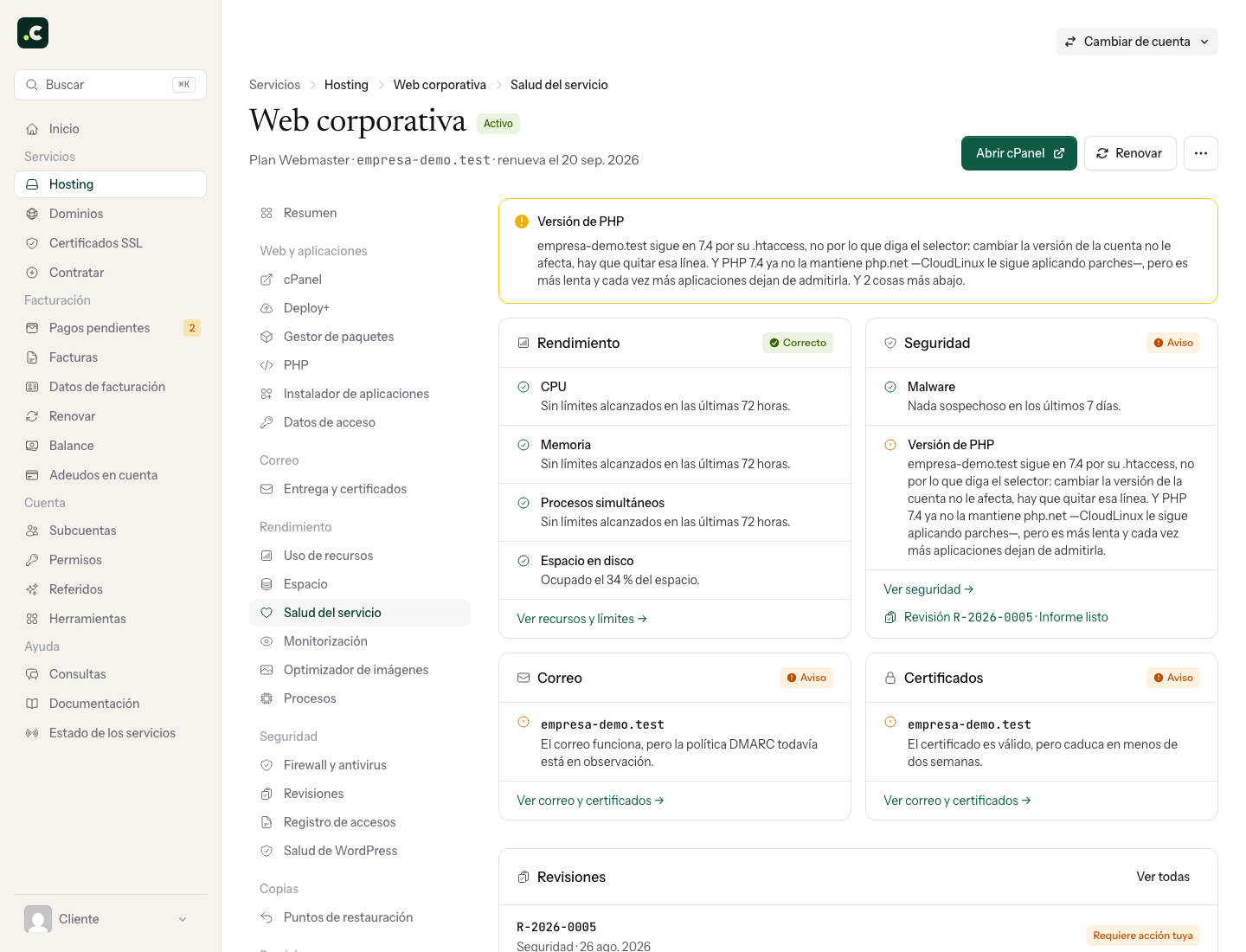
The screen brings together four blocks that previously had to be checked separately:
- Performance, with resource usage and limits.
- Security, with the account's recent signals.
- Email, with the status of the domains that use email.
- Certificates, with the validity and renewal of the domains' certificates.
How to read the status
- OK means the available checks show nothing that needs attention.
- Warning flags a situation worth reviewing, but does not on its own prove an outage.
- Problem indicates that a specific check needs attention.
- Pending means the domain is already configured in the account, but its website and email are still with the previous provider. It does not count as a fault; alerts switch on automatically when the domain points to the hosting.
cPanel temporary domains and the webalias.es and webalias.site aliases do not appear in the email block. They are development addresses and are not expected to receive messages, although their certificate and web security are still checked.
When there is a warning or problem, read the row's text first. Click the domain name or the link at the bottom of the block to open the screen that holds the data and the possible fix. Do not change several things at once: fix one cause, check again and confirm the result.
How recent the data is
The footer of the screen shows the time range: resources for the last 72 hours, security for the last 7 days and domain checks from today. An OK status does not guarantee that a fault has never occurred; it describes what those readings show.
If the problem is urgent and the detail does not let you identify the cause, open a ticket with the domain, what is happening and since when.
Confirm the issue is resolved
After fixing a warning, try the action that was failing: load a URL, send a message or complete the application's process. Wait for the next reading if the indicator still holds earlier data.
If the website fails even though the summary is OK, do not rule out the problem. Note the URL, time, message and scope —one domain or the whole account— and open the relevant detail or a ticket. The screen brings together the signals available; it does not reproduce every path a visitor takes.
You may also find useful
- Configuration details and general information for a hosting service Find your hosting's own details in the client area to connect by FTP, set up email, log in to cPanel...
- Getting started with your hosting: set up your website and email Open your hosting and follow the right path to create a website, move an existing one or set up emai...
- Access the cPanel control panel Open cPanel from your Hostsuar account without typing another password, find its credentials and fix...
- Available data centres See the hosting's main location in Amsterdam and what to check if your project requires a specific r...
Something wrong or out of date? Tell us and we will review it.