

Hosting and cPanel
Manage a hosting service's password, label and settings
Open Hosting and go to the right service. The options in the header let you change its label and password; to view its technical details, go to Technical sheet.
Change the main password
Open More actions and choose the password change. Enter the new password and repeat it. It must be at least eight characters long and include upper-case letters, lower-case letters and numbers; the form also rejects passwords known from data leaks. You can use the generator and save the result in your password manager.
The change affects the main cPanel user and any FTP or SSH connections that use its password. It doesn't change the passwords of mailboxes, additional FTP accounts or database users. Authorised SSH keys are a separate form of access: changing the password doesn't revoke them.
Wait for the result of the operation and update any saved connections that used the old password. If the option doesn't appear, check your access permissions and the status of the service.
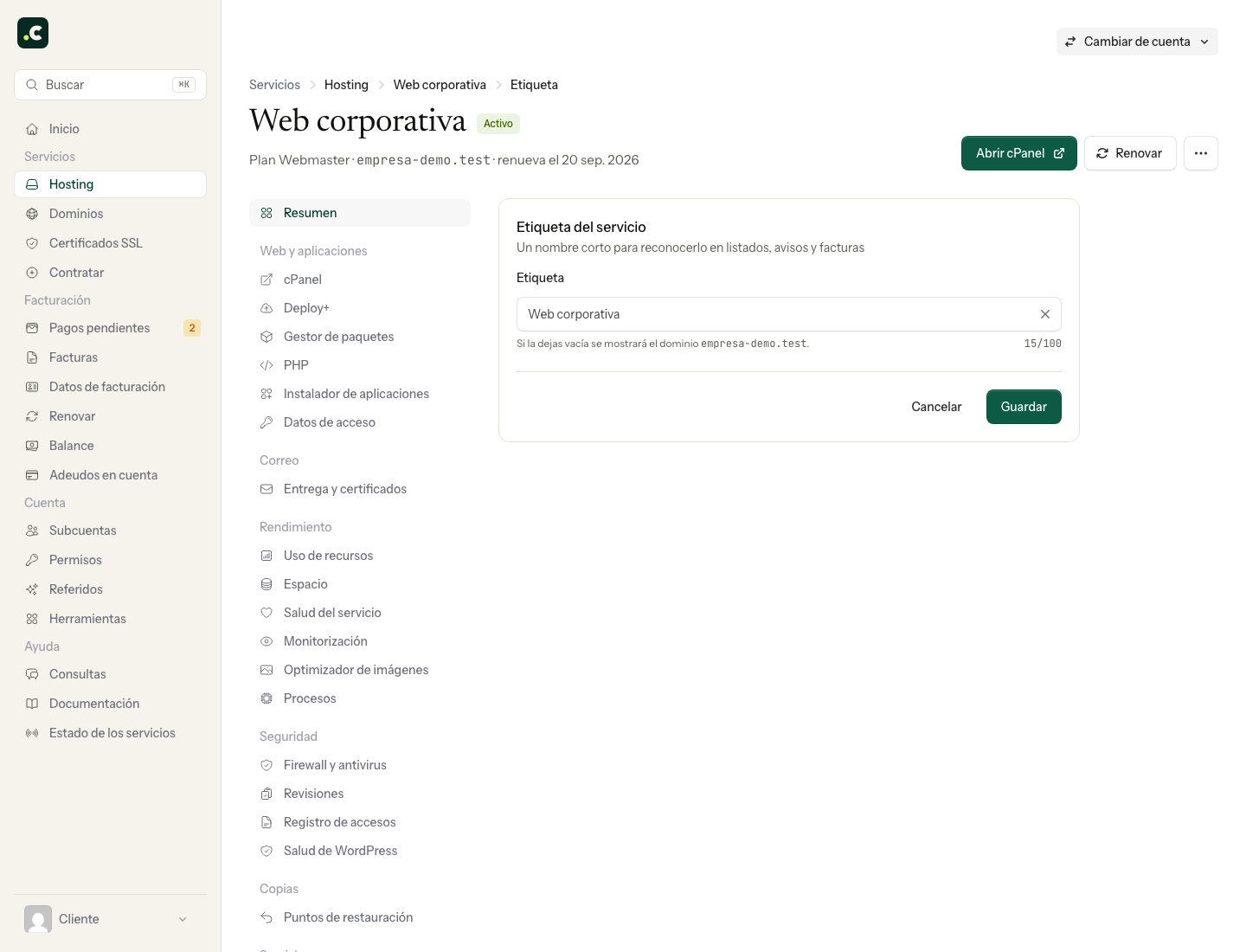
Change the label
Use Edit label in the summary or the corresponding option in the header. It accepts up to 100 characters; if you leave it empty, the primary domain is shown again.
Choose a name you'll recognise in lists and documents, such as "Company website". Changing the label doesn't change the domain, the cPanel user or your website's address.
View the settings
The Technical sheet brings together the account's settings and inventory. It's a reading of the server: check its date and update it if you've just changed something.
The old Settings address takes you to that sheet on a single hosting account. On a multi-account plan, Settings still shows the plan's nameservers; open the specific account to view its inventory.
You may also find useful
- Available data centres See the hosting's main location in Amsterdam and what to check if your project requires a specific r...
- View a hosting account's technical sheet Find on a single screen the PHP version of each website, domains, cron, forwarders, FTP, ModSecurity...
- Change the primary domain of a hosting account Prepare the primary domain change without losing email or DNS, decide what to do with the old domain...
- Control directory file listings in cPanel Set how cPanel responds when directories without an index file are opened, avoid exposing their cont...
Something wrong or out of date? Tell us and we will review it.