

Hosting and cPanel
Free up hosting space from the client area
To recover space, open Hosting > Manage > Space in the client area and select What you can free up. You will see clean-up candidates sorted by the space they can recover.
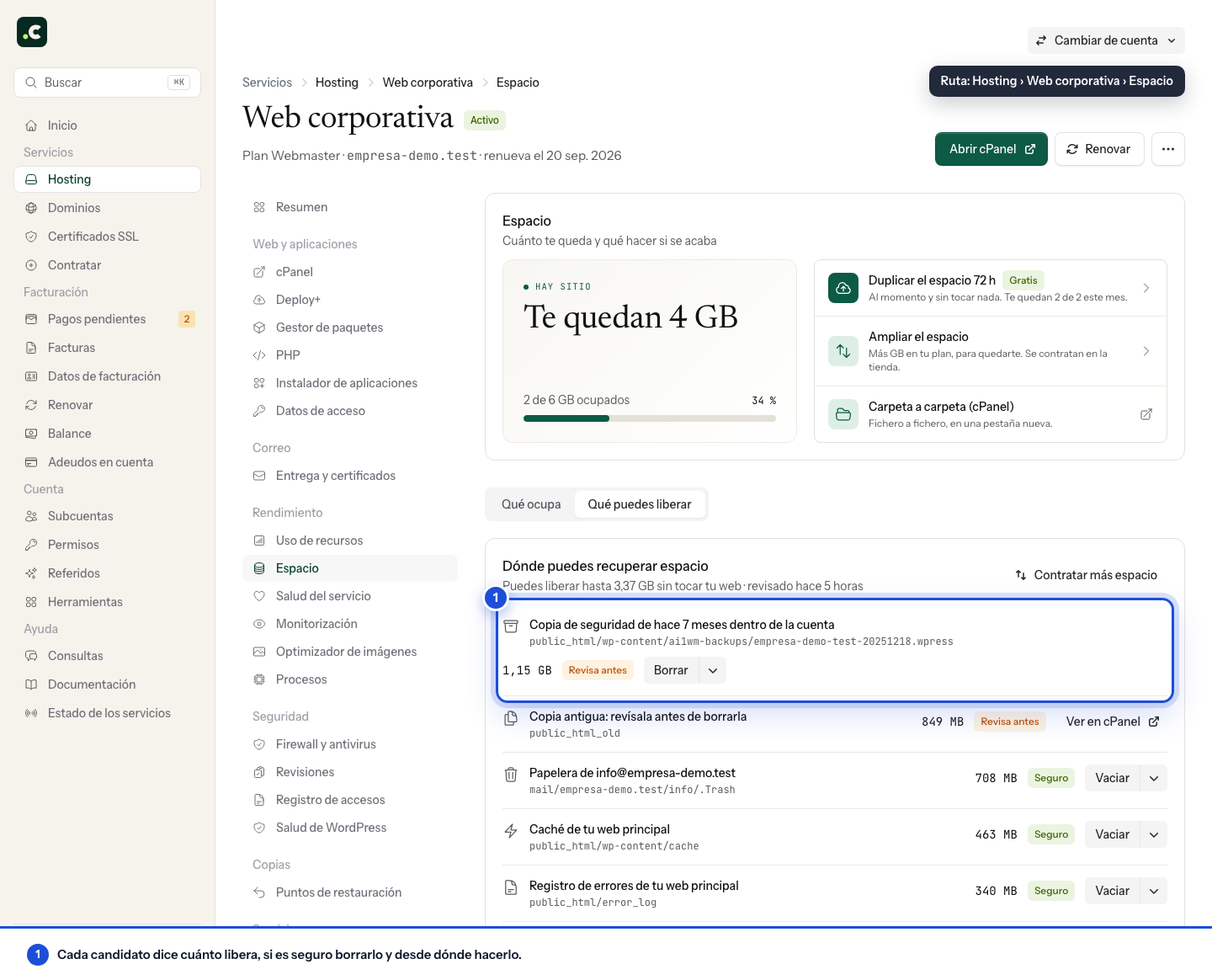
1. Identify what takes up space
The What takes up space tab shows how the account's usage is distributed. What you can free up lists specific items: caches, trash folders, logs or backups stored inside the hosting.
The analysis runs periodically. Check when the account was last scanned, and do not read the estimated space as a figure that will necessarily be recovered: the content may have changed since it was measured.
2. Read the classification before acting
| Classification | What it means for you |
|---|---|
| Safe | It is content that can be regenerated or has already been discarded. Even so, check that you do not need to recover something from that trash folder or keep a log to investigate an error. |
| Review first | You need to decide whether the content is still needed. For example, an old backup may be your only copy of something important. |
| Information only | It gives you guidance on usage but does not offer an automatic clean-up. |
For a backup stored inside the account, open the row's menu and use Download first when it is available. Check that the download has completed before deleting it. View in cPanel lets you inspect the content when you need more context.
3. Confirm the clean-up of the right item
Click Delete or Empty, depending on the type of candidate. Read the confirmation: it shows the path, the consequence and the estimated space.
The clean-up cannot be undone from that screen. If you are investigating a website fault, keep its log before emptying it. Deleting a backup package stored inside your hosting does not delete the daily JetBackup backups.
4. Check how much has been freed
Wait for the task to finish and check its status in the history. Check the space actually freed; the account total may take a while to reflect it until it is measured again.
If the task fails or you do not see the expected result, review its message before trying again. You can open a ticket with the hosting and the affected item, rather than attempting broader deletions on your own.
If what takes up space is content you need
Do not delete an active website or messages you need to keep just to reach a free-space figure. Review the content from its application or mailbox and decide what you can archive outside the hosting.
If you need to keep everything, use Increase space or Order more space on this screen. Review the capacity and price offered before confirming; the upgrade is an option when the content is needed, not a requirement for using the clean-up.
You may also find useful
- Increase the space on a hosting service Add permanent space to your hosting from the client area in blocks from 1 GB, or compare whether mov...
- Manage disk space usage Check how much space your account uses from the client area or cPanel, find the heaviest directories...
- Temporary disk space increase Get temporary disk headroom for 72 hours from the panel, check the quota applied and fix the usage b...
- Access the cPanel control panel Open cPanel from your Hostsuar account without typing another password, find its credentials and fix...
Something wrong or out of date? Tell us and we will review it.