

Account, services and billing
Transfer a service to another client on our platform
You can transfer a service to another Hostsuar client when another person or company is going to take over its management, renewal and billing. This is common when a professional hands the hosting over to the end client or when the person responsible for a domain changes.
The recipient must already have an account at Hostsuar. If they do not have one yet, they need to sign up in the client area with the email you will use for the transfer.
What changes when you transfer the service
The selected service moves to the recipient's account. From then on they can manage it from their client area and will receive its future renewals and notices.
The transfer does not on its own change:
- The hosting's files, databases or mailboxes.
- The cPanel configuration.
- The domain's DNS servers.
- The website shown publicly.
- A domain's registered ownership when that requires a specific procedure.
So changing the responsible client is different from migrating a website between two hosting accounts. If you need to split off content, databases or email into another cPanel account, check with support before transferring the service.
Check which services need to change client
The domain and the hosting may be listed as separate services. Check whether you need to transfer:
- Only the hosting.
- Only the domain.
- Both services.
- Certificates, licences or other associated products.
Transferring only one can leave renewal and management split between two clients, even if the website keeps working the same.
How to transfer the service
- Sign in to the client area.
- Find the relevant hosting, domain or service.
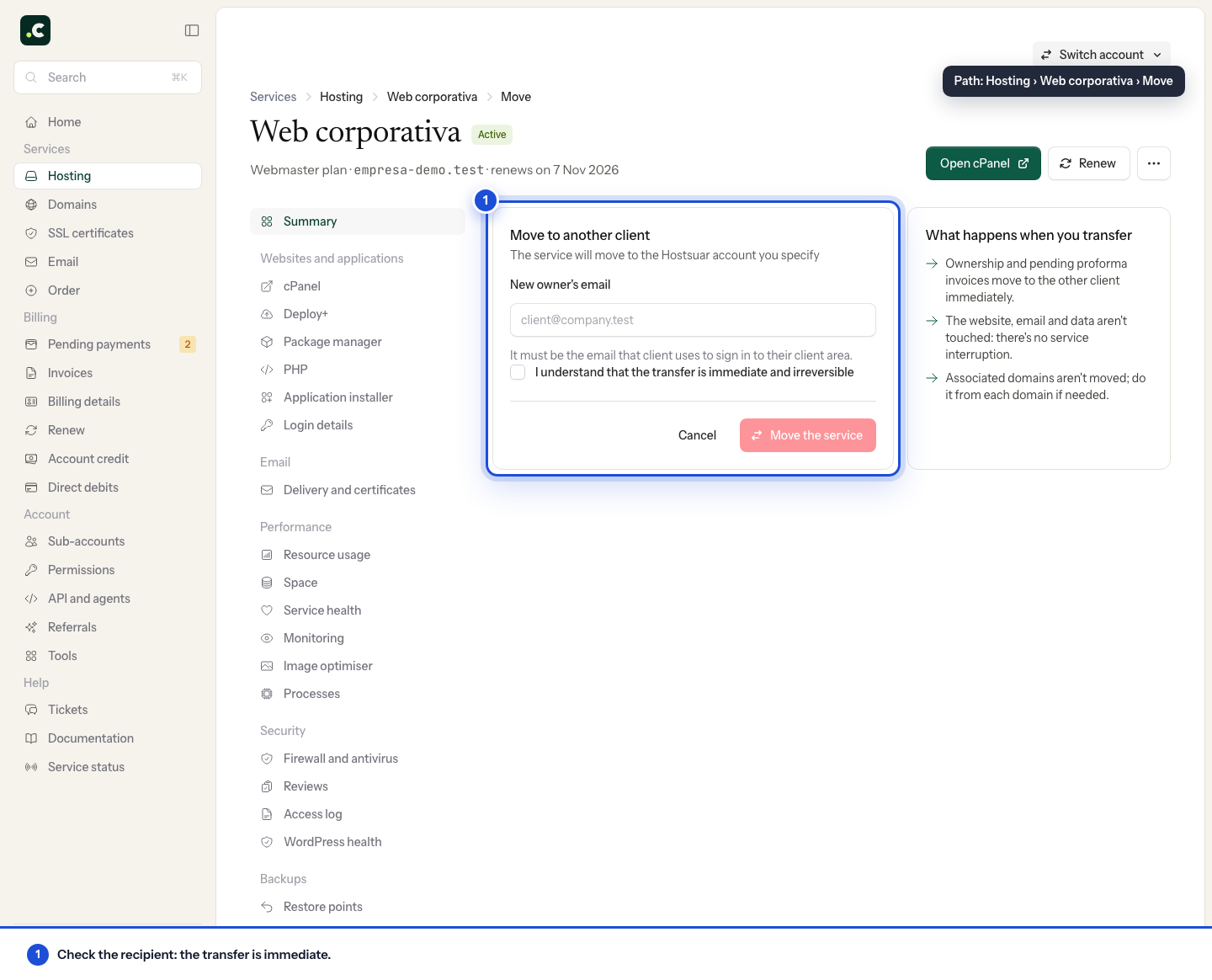
- Open its options and select Transfer.
- Enter the exact email of the destination account.
- Check the service and recipient before confirming.
The change is applied when you confirm. Do not use an email you have not checked with the recipient: the service will come under that account's control.
Before confirming
- Save any invoice or data you need to keep in your account.
- Let the recipient know and confirm the email they are registered with.
- Check who should handle future renewals.
- Check whether the domain and the hosting should move together.
- Sort out any pending payment or change on the service first.
If you only need more capacity and the client will stay the same, use the option to change hosting plan instead of transferring the service.
After the transfer
The recipient should sign in to their client area and check that the service appears correctly. If you also need to move files, databases or mailboxes, see how to move a website and email to another hosting account: changing client does not mean the content has been moved.
The hosting must be active and have no migration in progress to change client. If the screen rejects the transfer, read the message before trying again; creating another account does not remove that restriction.
Once they receive it, the recipient should check the tax profile, the renewal bank account and their team's access. Change any credentials that have been shared with people who should no longer have access: changing client does not replace that review.
You may also find useful
- Cancel a service's renewal Shows how to turn off renewal for a hosting service or domain, which reminders stop being sent and h...
- Change a service's billing period Explains how to change the renewal interval without moving the due date, when a proforma invoice is...
- Change your hosting plan How to upgrade or downgrade a hosting plan, what stays the same, when you pay the difference and wha...
- Elastic hosting: resources, automatic scaling and billing Where to adjust CPU, memory and disk, how to switch a fixed plan to Elastic without changing account...
Something wrong or out of date? Tell us and we will review it.