

Account, services and billing
Elastic hosting: resources, automatic scaling and billing
Elastic hosting lets you choose CPU, memory and disk separately. You can change the resources you have ordered, allow automatic increases for CPU and memory, or turn on a boost for a specific campaign. If you already have a fixed plan, it is converted to Elastic without changing account or moving the website: we explain how further down, in Switching a fixed plan to Elastic.
It helps to tell apart what you have ordered, which sets your monthly fee, from what you have right now, which may include temporary resources. Moving a slider to check a price does not change what you have ordered yet: you have to confirm the operation.
The amounts in this guide are excluding VAT. The service is billed month by month, without the long-cycle discounts of fixed plans.
Where to manage it
- Sign in to the client area.
- Go to Hosting and open the Elastic service.
- Select Elastic plan.
The screen starts with the CPU, memory and disk cards, and three more for automatic scaling, boost and fee. Below them are the activity for the last 30 days, the change history and the How it works section.
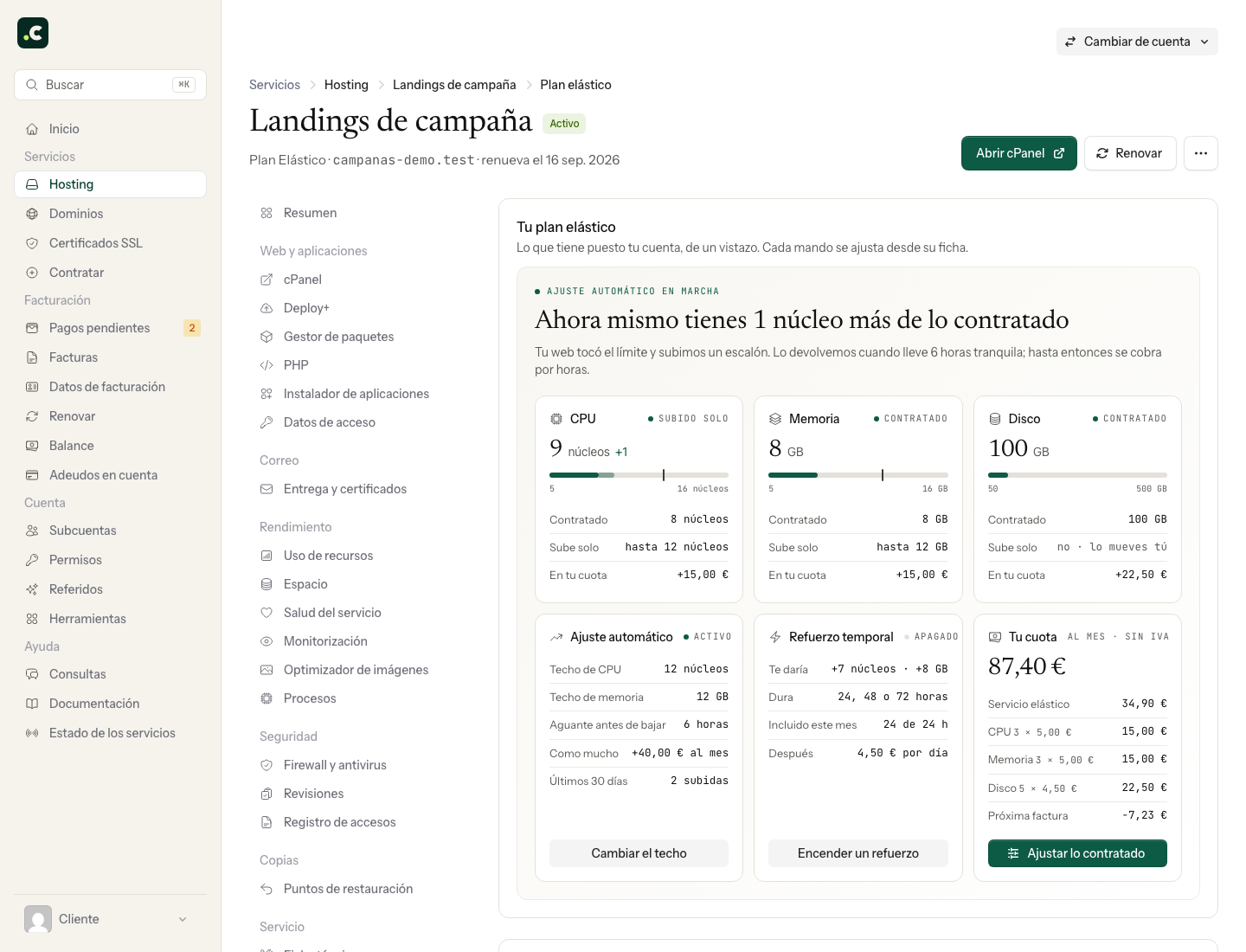
The options open in a side panel with three tabs:
| Button on the screen | What it lets you do |
|---|---|
| Adjust what you have ordered | Change CPU, memory and disk and see the resulting fee before clicking Apply. |
| Change the ceiling or Set a ceiling | Choose the automatic margin for CPU and memory and the time between step-downs. Confirm with Save. |
| Turn on a boost | Review the extra resources, choose 24, 48 or 72 hours and confirm activation. |
The account holder can manage these options. If you sign in with a sub-account, being able to see the service is not enough to change them: it also needs the Upgrade services permission.
Resources and fee
The resources have these limits and steps:
| Resource | Minimum | Maximum | Each step |
|---|---|---|---|
| CPU | 5 cores | 16 cores | 1 core |
| Memory | 5 GB | 16 GB | 1 GB |
| Disk | 50 GB | 500 GB | 10 GB |
The minimum configuration costs €34.90/month. Each extra core adds €5/month, and each extra GB of memory adds €5/month.
Extra disk is charged in tiers: each 10 GB block costs €4.50/month between 50 and 100 GB, €3.50/month between 100 and 250 GB and €2.50/month between 250 and 500 GB. Each tier keeps its price; reaching a new tier does not change the price of the earlier blocks.
The number of domains, subdomains, databases, email accounts and FTP accounts is unlimited; their content and activity do consume the account's resources. The plan includes 200 MB of Redis Cache and 5 websites with Proactive+.
If a fixed plan covers the configuration you are choosing for less money, the panel shows the alternative. You can check the conditions for changing plan.
How process limits grow
Entry processes (EP) and total processes (NPROC) grow with CPU: each core allows 10 entry processes and 20 total processes. They are not ordered separately.
| Available CPU | Entry processes | Total processes |
|---|---|---|
| 5 cores | 50 | 100 |
| 8 cores | 80 | 160 |
| 12 cores | 120 | 240 |
| 16 cores | 160 | 320 |
The rule uses the CPU available at that moment, including automatic increases and boosts. When CPU goes up or down, those limits and the disk input/output limits change too. Increasing only memory does not increase the number of processes allowed.
Automatic scaling is triggered by CPU or memory faults. Reaching only the process limit does not on its own cause an automatic increase: if that is the bottleneck, review the application's concurrency and the CPU you have ordered.
Change what you have ordered
Click Adjust what you have ordered, move the sliders and check the fee at the bottom of the panel. Apply confirms the change. The fee card keeps showing what you have ordered while you are only trying out values on the sliders.
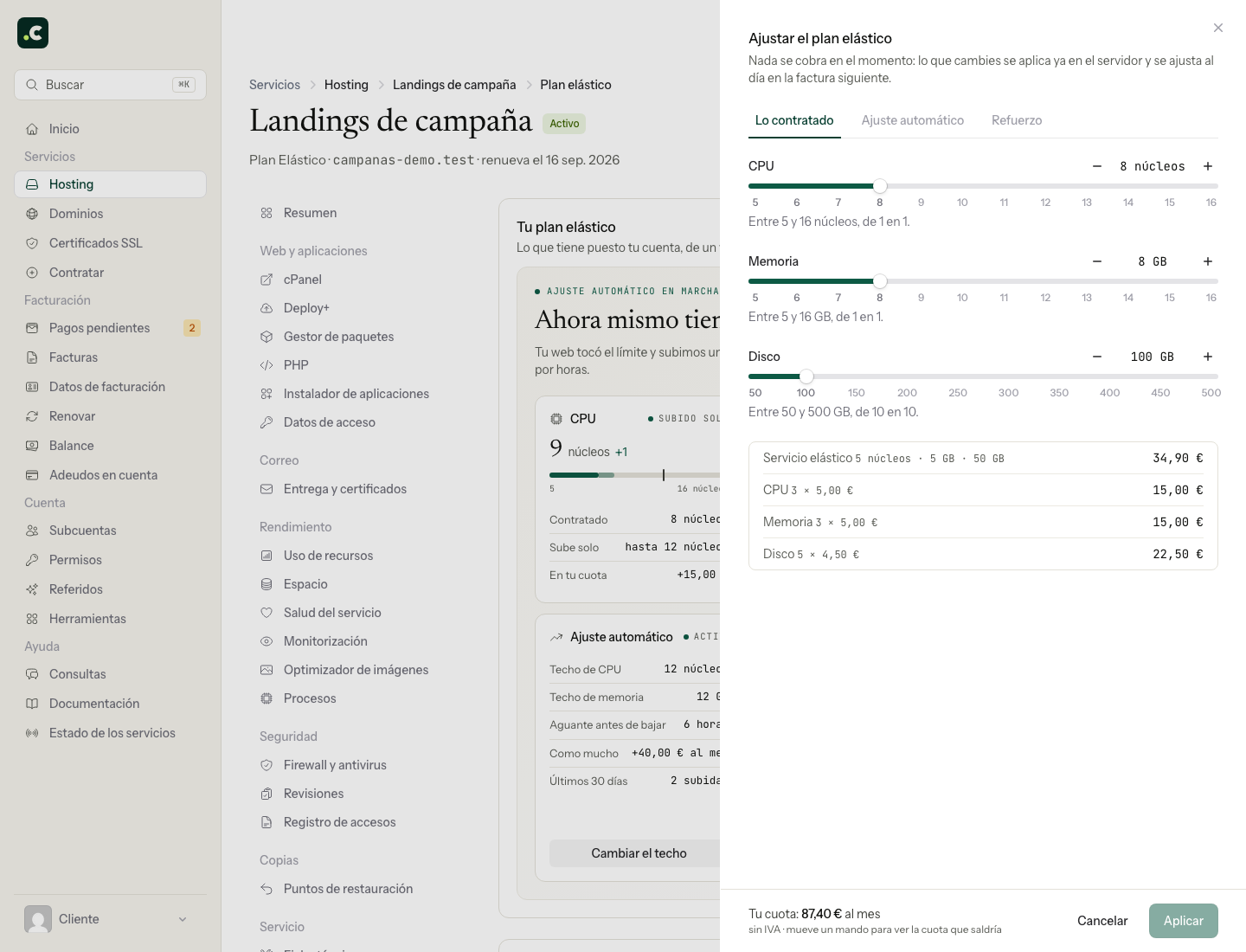
The change is applied there and then, without migrating or restarting the account. If the server does not accept it, an error appears and the panel keeps the previous configuration. Check the result message and the values that remain.
You do not pay at that moment. The difference is added to the next invoice according to how long you had each configuration. An increase may add to the adjustment and a decrease may be deducted.
Disk cannot be reduced below the used space recorded for the account, rounded up to the next 10 GB block. For example, with 72 GB used, the minimum is 80 GB. The panel shows the value that has been applied; free up space and check that it updates if you need to reduce it further.
Automatic scaling of CPU and memory
New configurations are created with one step of automatic margin per resource, as long as there is room up to the plan maximum. Check your current ceilings in Elastic plan: an existing configuration may have other values or scaling turned off.
Click Change the ceiling to choose how far you allow CPU and memory to go up, independently. The ceiling is the total that resource can reach, not the amount added. For example, ordering 8 cores and setting the ceiling at 12 allows up to 4 to be added.
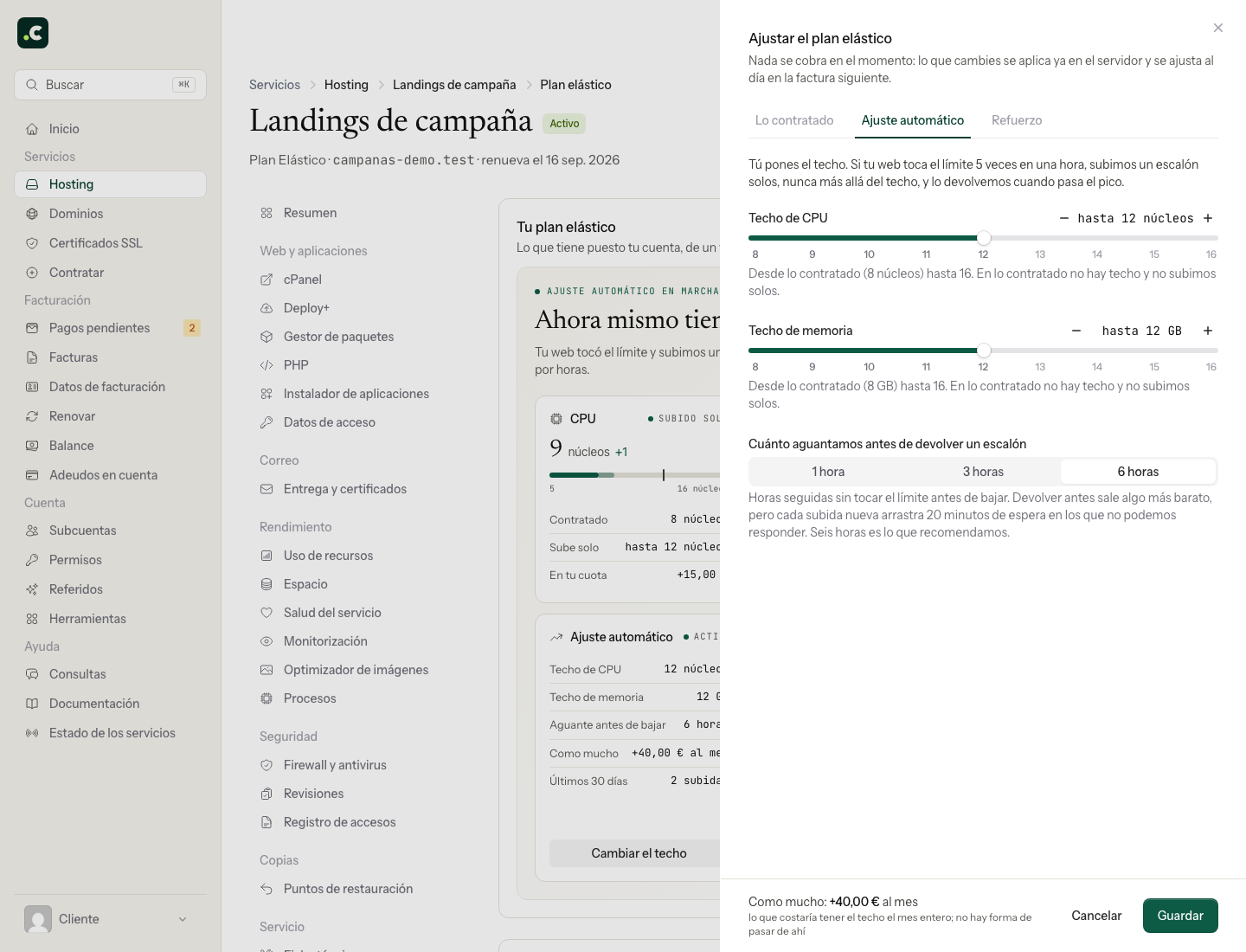
The system checks accounts every five minutes, using the limits reached during the last hour:
- With five or more CPU or memory faults, it can go up one step of the affected resource if there is authorised margin.
- It waits 20 minutes from the last automatic adjustment of that resource before going up again. CPU and memory are checked separately.
- To go down one step, the last hour must be below that threshold and the chosen time must have passed since the resource's last automatic adjustment. It does not go below what you have ordered or remove resources while a temporary boost is active.
The decision is based on the limits reached, not on average usage: a low average can hide peaks in which the application slows down.
Time between step-downs
You can choose 1, 3 or 6 hours; the default is 6. This time is counted from the resource's last automatic adjustment. Each step-down gives back one step and restarts the wait.
It does not mean that one, three or six full hours without any fault are checked: the fault check looks at the last hour and allows a step-down if it is below the threshold. A shorter wait can reduce the time billed, but it can also cause more increases and decreases.
Notices and turning it off
We send notices when scaling increases resources and when the account keeps reaching limits with no margin left to go up. Each combination of resource and notice type is limited to one every 24 hours; you will not necessarily get an email for each step. Step-downs do not send email.
To turn off new increases for a resource, bring its ceiling down to what you have ordered and click Save. The panel shows that state as no ceiling: it means automatic scaling is turned off for that resource.
Lowering or removing a ceiling does not remove temporary resources already applied. Also, with scaling turned off, its automatic step-downs do not run either. If you already have a step added, check the current resources and contact support before turning off scaling to try to reduce costs.
Cost of automatic scaling
Added resources are charged for the time used, based on 730 hours per month. For example, a €5/month core added for 24 hours generates an adjustment of about €0.16.
The panel shows a monthly figure for the chosen ceilings: it is the difference between the rate for those ceilings and the rate for what you have ordered. That figure does not currently work as an absolute monetary cap on the invoice. The calculation depends on the hours in the period: a €5/month increase kept for all 31 days of a period adds €5.09. Paid boosts and manual changes are calculated separately from the automatic margin.
Temporary boost
Click Turn on a boost to prepare for an expected peak, such as a campaign or a launch. The aim is to reach double the CPU and memory you have ordered, without exceeding the maximums of 16 cores and 16 GB. Disk does not change.
If automatic resources have already been added, they are not doubled as well: only what is missing to reach the target is added. That is why you should check What it would give you before turning on the boost.
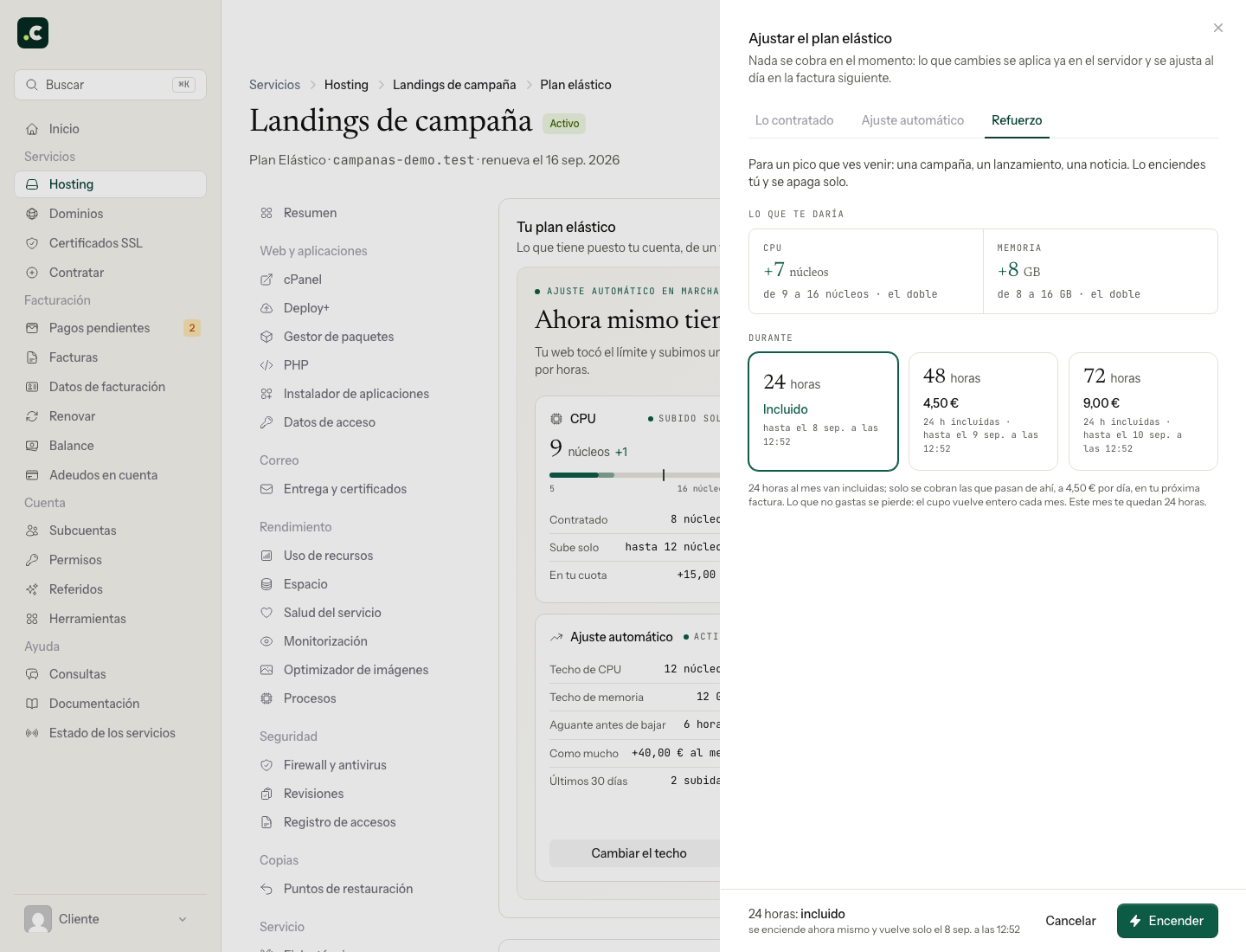
- You can choose 24, 48 or 72 hours. Only one boost can be active at a time.
- You have 24 hours included per calendar month, which do not carry over. The allowance used is that of the month in which you turn on the boost, even if it ends in the next one.
- Hours beyond the allowance cost €4.50 per 24 hours. With the 24 included hours available, a 24-hour boost costs €0, a 48-hour one costs €4.50 and a 72-hour one costs €9.
- If no gain is possible, it is not turned on and does not use up the allowance. If only part of the increase fits, check both the gain and the price shown: the price depends on the hours, not on the number of cores or GB added.
- The automatic scaling ceiling does not limit a boost you turn on deliberately.
Selecting a duration does not turn it on yet. Click Turn on and accept the confirmation that shows its cost and end time. Paid boosts are added to the adjustment on the next invoice at their stated price.
When it ends, the CPU and memory additions are removed and the account goes back to what you have ordered. The end time is checked every minute, so it should not be taken as removal to the exact second. After that, automatic scaling can act again if it is still authorised and its conditions are met.
How it appears on the invoice
The monthly renewal combines:
- The fee for the new period, calculated from the resources you have ordered.
- The pending adjustment, which adds or deducts the differences from resource changes and adds any paid boosts. If there is no pending amount, no adjustment line is needed.
The calculation compares the rates applied during each stretch with what has already been invoiced, based on the hours elapsed and the 730-hour reference. Adjustment lines are rounded down to the cent. If the discount does not fit on one invoice, the rest is left pending to be deducted from the following ones.
In Your fee you can check what has built up so far. The 30-day activity and the history help you see when resources changed; the history shows the last 20 changes and does not replace the full detail of the billed period. Amounts will keep changing while extra resources are active.
Before ordering it
Elastic can be a good fit if you need to increase one specific resource, your demand changes or fixed plans are too small. If your website fits on a cheaper fixed plan, look at that alternative.
Adding resources increases capacity, but it does not fix a faulty application or a slow query. Check the CPU usage and concurrent connections to identify which resource your website needs.
Switching a fixed plan to Elastic
If you already have a fixed plan, you do not need to order another service or move the website: the same service is converted to Elastic. You keep the cPanel account and its username, the files, the databases, the email, the domains, the server and its IP, so there is no migration and no DNS change. Only the account's limits and the way it is billed change.
- Sign in to the client area.
- Go to Hosting and open the service.
- In Plan and add-ons, open the Elastic or multi-account tab and choose Switch to Elastic.
- Choose CPU, memory and disk. The disk has to be enough for what the account already uses.
- Check the fee and confirm.
We can also do it for you if you ask us in a ticket.
The change applies straight away and nothing is charged when you confirm it. The Elastic minimum matches the CPU and memory of our largest fixed plan, so you never go down in those resources. The cycle becomes monthly, but the due date does not change: what you paid in advance for the fixed plan and the fee difference for those days are adjusted to the day on the next invoice.
To go back to a fixed plan, the route is the same: change plan from Plan and add-ons.
Review the outcome of a campaign
When it is over, compare what you have ordered with the current resources and check whether any automatic addition is still active. Review the history and Your fee to match the changes to the accumulated adjustment.
If you need boosts regularly, compare the fee for ordering those resources with the temporary use you are making. To query a billing difference, give the service, the period and the changes you noticed; the chart for the last 30 days may not cover the whole billed interval.
You may also find useful
- Cancel a service's renewal Shows how to turn off renewal for a hosting service or domain, which reminders stop being sent and h...
- Change a service's billing period Explains how to change the renewal interval without moving the due date, when a proforma invoice is...
- Kit Digital: how to use the voucher with a digitalising agent Explains how to check the deadlines of a Kit Digital voucher, formalise it with a digitalising agent...
- Renew a service early Shows how to renew hosting and domains on demand from the cart or the service's page, without waitin...
Something wrong or out of date? Tell us and we will review it.