

Account, services and billing
Change your hosting plan
You can change a hosting plan when you need more space or resources, or when the current service is bigger than you need. You request the change from the service's page and it keeps its due date. Between fixed plans, the difference up to the due date is paid with a proforma invoice; when you move to Elastic or Multi-account, or back from them, the change applies straight away and is adjusted on the next invoice.
In every case it is the same service: you do not order another one or move the website.
If you only need extra storage, first check how to increase your contracted space. It may be enough without changing the other features.
If what you are short of is one specific resource (memory but not CPU, for example), a fixed plan makes you increase all three at once. In that case, look at Elastic hosting, where each resource is ordered separately.
What changes and what stays the same
When you change plan, the limits and features tied to it change, such as space, resources or the number of items allowed. These stay the same:
- The hosting account and its username.
- Existing files, databases and mailboxes.
- The domains set up on the account.
- The current due date.
- The billing cycle, unless the process expressly indicates another change.
A plan change is not the same as transferring the service to another person or moving a domain between two cPanel accounts. To change who manages and pays for the service, see how to transfer it to another Hostsuar client.
Before upgrading the plan
Check which limit you are reaching:
- Total account space.
- CPU, memory, processes or entry processes.
- Number of databases, mailboxes or domains.
- Features that only exist on certain plans.
More space does not on its own fix high CPU or memory usage. Likewise, moving to a plan with more resources does not remove old files or backups that are taking up storage unnecessarily.
Before downgrading the plan
The service must fit within the limits of the lower plan. In particular, check:
- Space used by websites, databases, email and backups.
- Number of existing domains, mailboxes and databases.
- Resources the application needs at busy times.
- Features of the current plan that are not available on the new one.
If current usage exceeds any limit, the change may not be available or may require you to reduce usage first. Do not delete content just to complete the change without having a recoverable backup.
How to change the plan
- Sign in to the client area.
- Go to Hosting.
- Find the service you want to change.
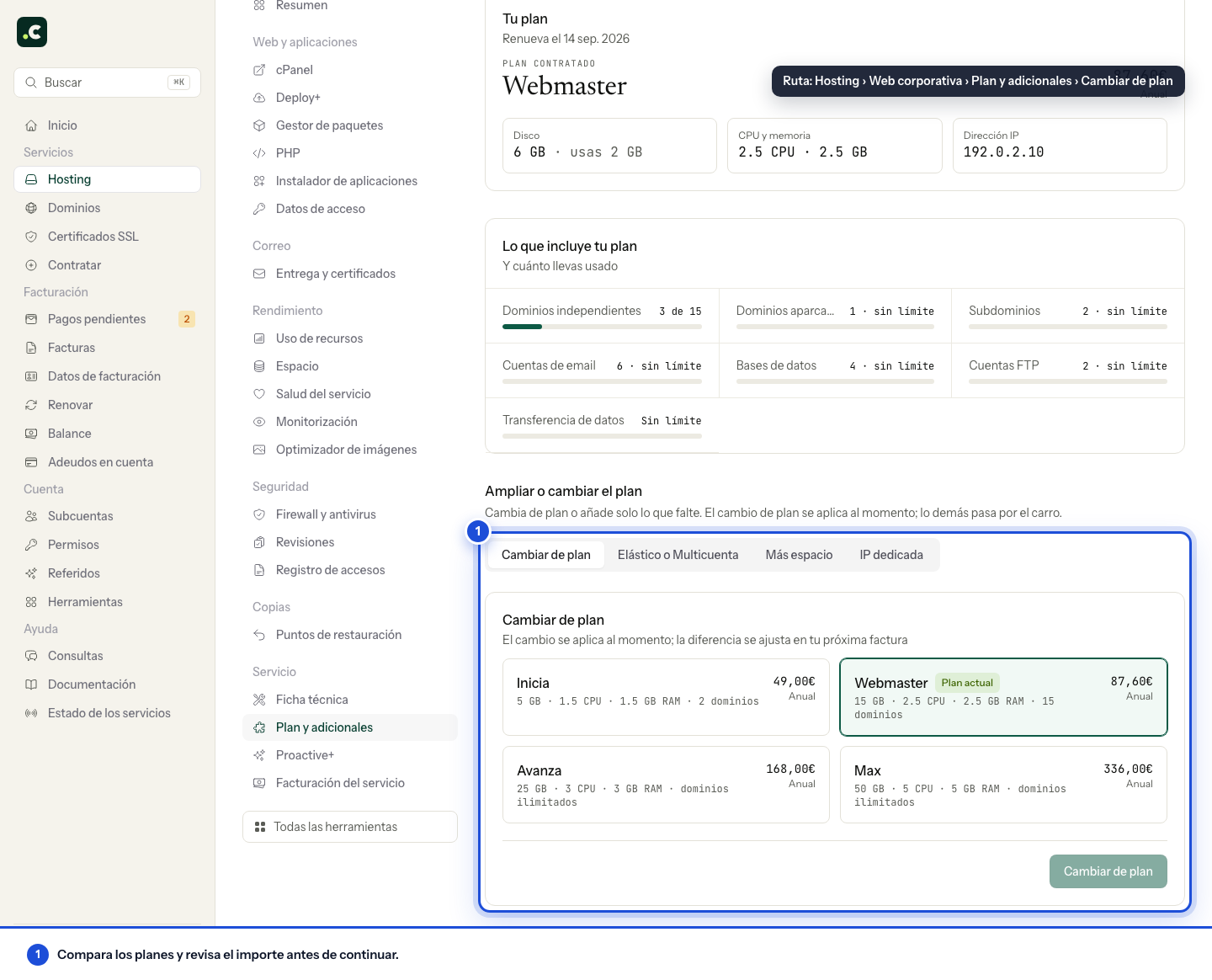
- Open its menu and select Plan and add-ons.
- To switch between fixed plans, use the Change plan tab. To move to Elastic or Multi-account, use the Elastic or multi-account tab.
- Check what the screen shows before confirming: the amount of the proforma invoice or what will be added to or taken off your next invoice.
- Confirm only when the plan and the service are correct.
Check the confirmation and the plan shown after saving. If the server rejects the change, read the message before trying again. Between fixed plans, the change goes through the cart, which generates the proforma invoice. We can also do the move to Elastic or Multi-account for you if you ask us in a ticket.
When and how you pay the difference
The difference is calculated for the days remaining up to the due date you already had, and on what you actually pay, not on the list price. If you signed up for a longer commitment, your cycle's discount is already taken into account.
The amount depends on the plan, the cycle and the time remaining, so use the figure shown in Plan and add-ons rather than working it out from full annual prices.
Between fixed plans
- If you upgrade, a proforma invoice is generated for the difference, plus VAT. The new plan is applied once it is recorded as paid, or straight away if you pay it by direct debit.
- If you downgrade, the proforma invoice comes to zero and, when the new plan is applied, what you had overpaid stays as account credit.
To or from Elastic or Multi-account
The change applies straight away and nothing is charged when you confirm it. The difference for the days you use the new plan appears as an adjustment line on your next renewal invoice, alongside the fee for the period that is starting: it adds to the total if the new plan costs more and is deducted if it costs less. There is no refund to claim.
If you change plan several times within the same period, the invoice reflects the result of all the changes: each stretch counts for the hours it was in force. When the discount is bigger than the invoice itself, it is applied until the invoice reaches zero and the rest is deducted from the following ones until it is used up.
When you cannot change
The same screen tells you why when a change is not available:
- You have an unpaid renewal invoice for that service. Pay or cancel it before changing: that invoice already states what the service will cost.
- The account uses more space than the plan you want to move down to allows.
- You have more addon domains than that plan allows.
- You have another plan change pending payment or waiting to be applied.
- There is an unfinished domain move for that service.
Moving to Elastic or back to a fixed plan
Moving to Elastic is not ordering another service: the same one is converted. You keep the cPanel account and its username, the files, the databases, the email, the domains, the server and its IP, so there is no migration and no DNS change. What changes is the limits and the way it is billed.
You do it from Plan and add-ons, in the Elastic or multi-account tab, with the Switch to Elastic option: you choose CPU, memory and disk, and the disk has to be enough for what the account already uses. Fixed plans allow a longer commitment with a discount, while Elastic is always billed month by month, so the cycle becomes monthly. The due date stays the same and what you have already paid is adjusted to the day on the next invoice.
An Elastic service goes back to a fixed plan from the same screen, with the same space and limit checks. Its resources are not changed here but from Elastic plan, where CPU, memory and disk are adjusted separately.
After the change
Check that the service shows the new plan and review the limits applied. If the reason was a space or resource problem, measure usage again: the change increases capacity, but it does not fix a faulty application, a slow query or a build-up of backups.
If what you need is to split a website and its email off into another account, do not confirm a plan change expecting the content to move. Follow the guide to moving a website and email to another hosting account.
You may also find useful
- Cancel a service's renewal Shows how to turn off renewal for a hosting service or domain, which reminders stop being sent and h...
- How an automatic renewal is generated and paid Explains when a renewal proforma invoice is created and notified, when it needs manual payment and h...
- Kit Digital: how to use the voucher with a digitalising agent Explains how to check the deadlines of a Kit Digital voucher, formalise it with a digitalising agent...
- Renew a service early Shows how to renew hosting and domains on demand from the cart or the service's page, without waitin...
Something wrong or out of date? Tell us and we will review it.