

Account, services and billing
Using the management panel for multi-account or reseller plans
From the multi-account panel you can create and manage separate hosting accounts, share out the contracted space and assign limits. Choose the right reseller plan first: each account belongs to a specific service.
Client accounts
In the client area, go to Hosting and open the multi-account plan. Its page starts on Summary, with the accounts created, the space they use between them and the plan's renewal. To work with the accounts, use the Client accounts button in the header or the entry of the same name in the Multi-account section of the sidebar.
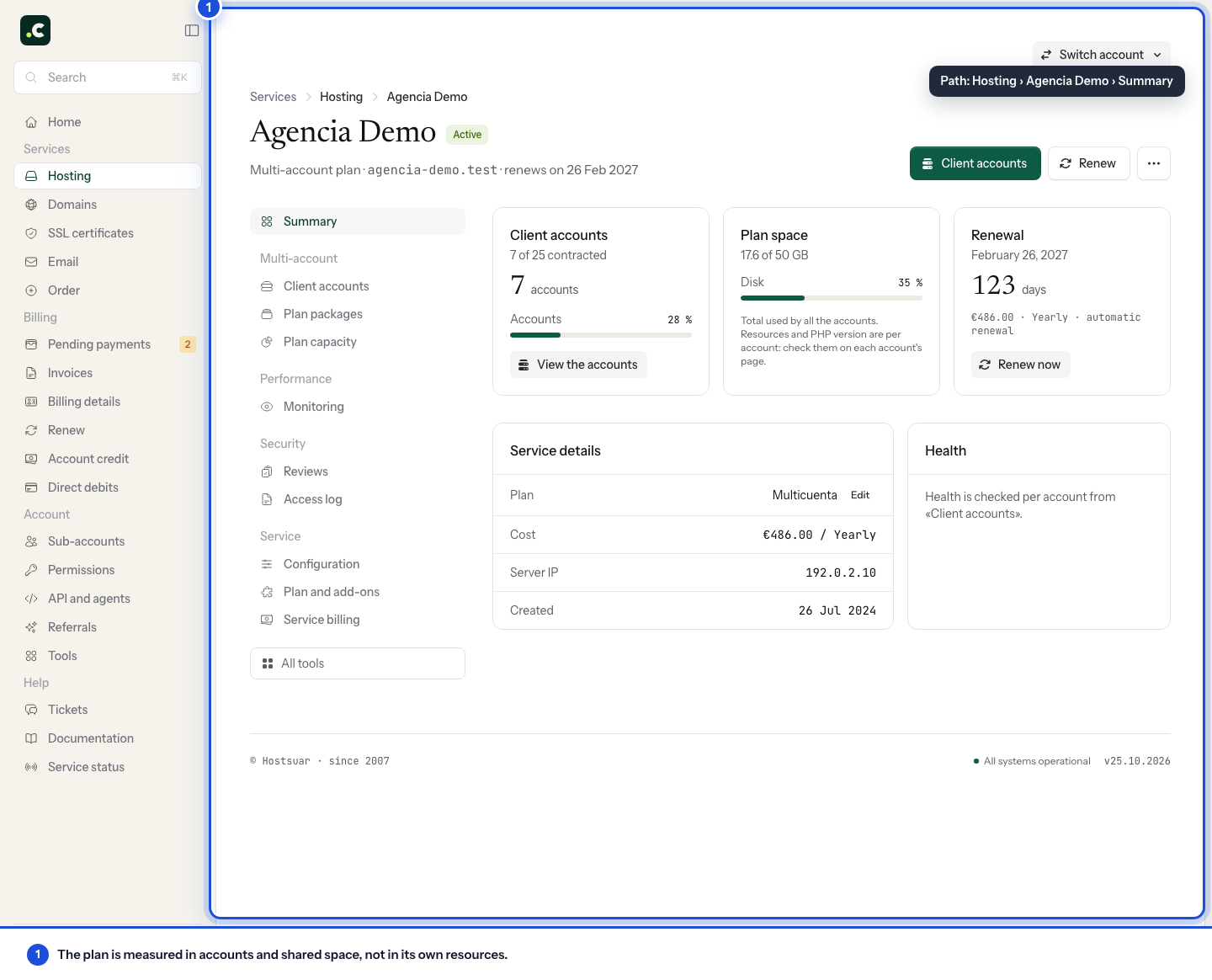
The screen opens with three cards (Accounts created out of those contracted, combined Space of all of them and Service with the renewal date) and the list below. You can switch between Active and Suspended and search by domain.
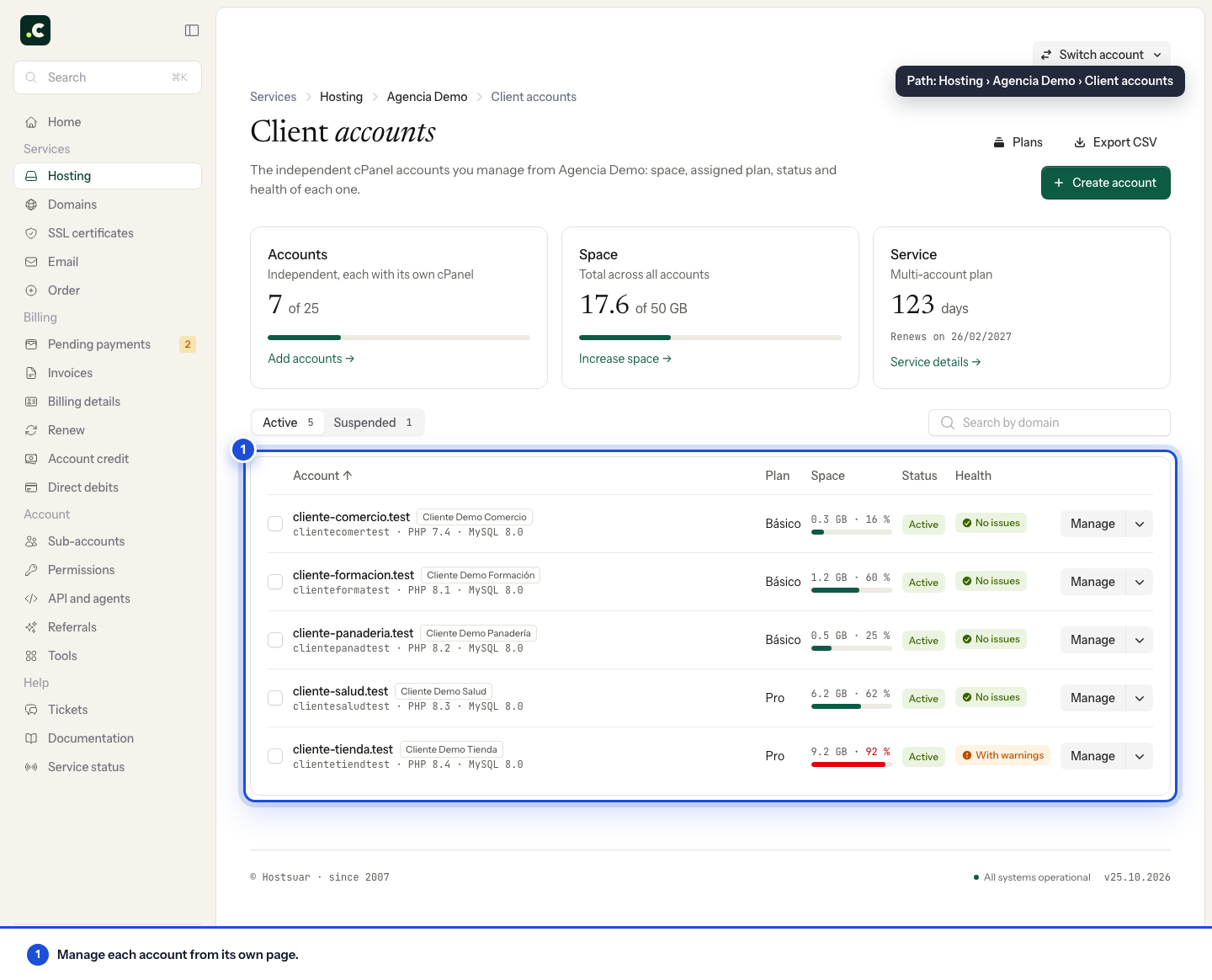
Each row shows the domain, the cPanel user, the PHP and MySQL versions, the assigned plan, the space used, the status and the health. Manage opens the account's page; its drop-down goes straight to Open cPanel, Change plan or limits, Resource usage, Space and Suspend.
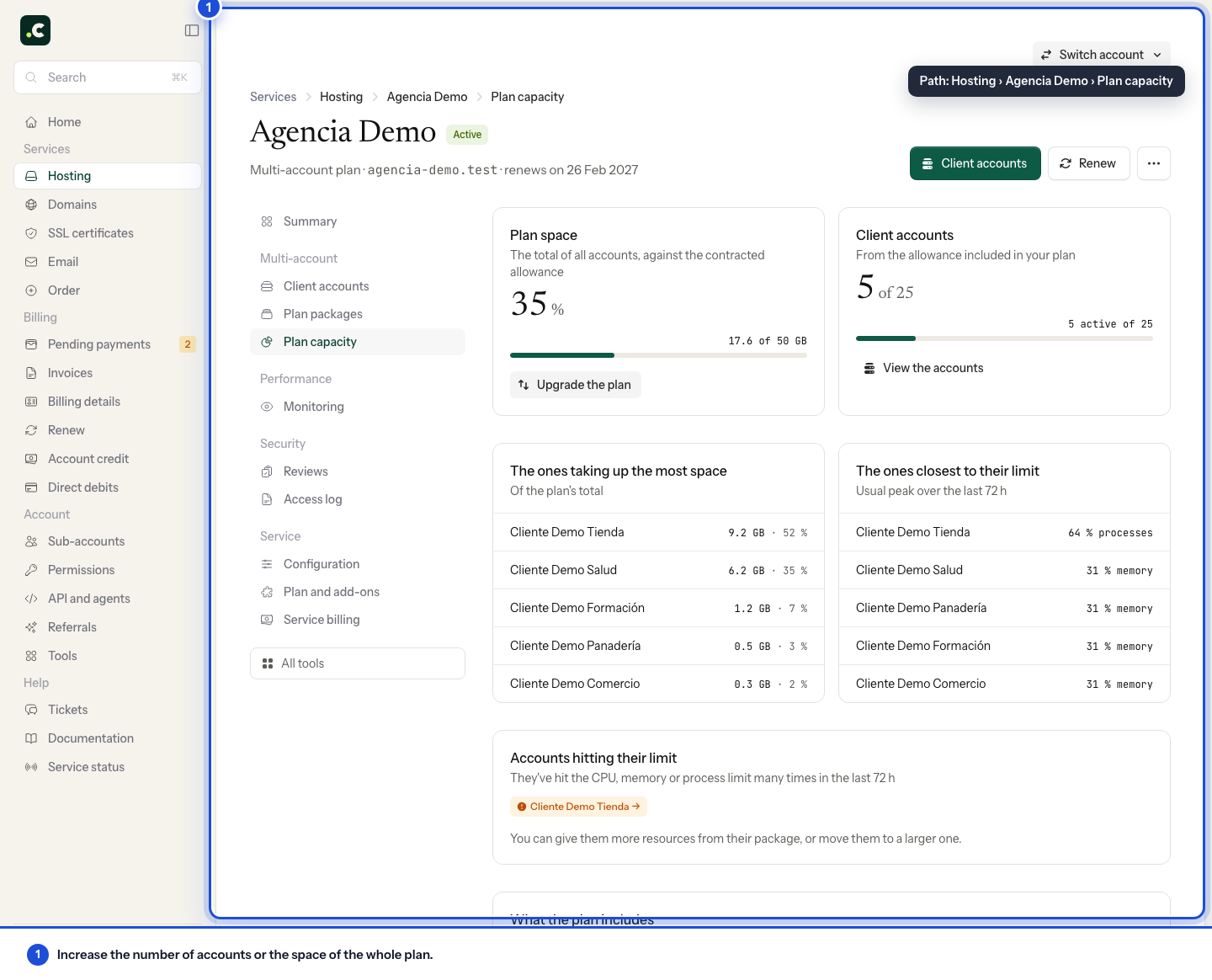
In Multi-account > Plan capacity you have the breakdown: which accounts use the most space, which use the most CPU, which are hitting their limit and what the contracted plan includes.
Plans for your accounts
From Client accounts, the Plans button opens the Plans for your accounts screen (it is also in the sidebar, as Plan packages). A plan is a reusable template of limits: when you edit it, every account it is assigned to changes at once.
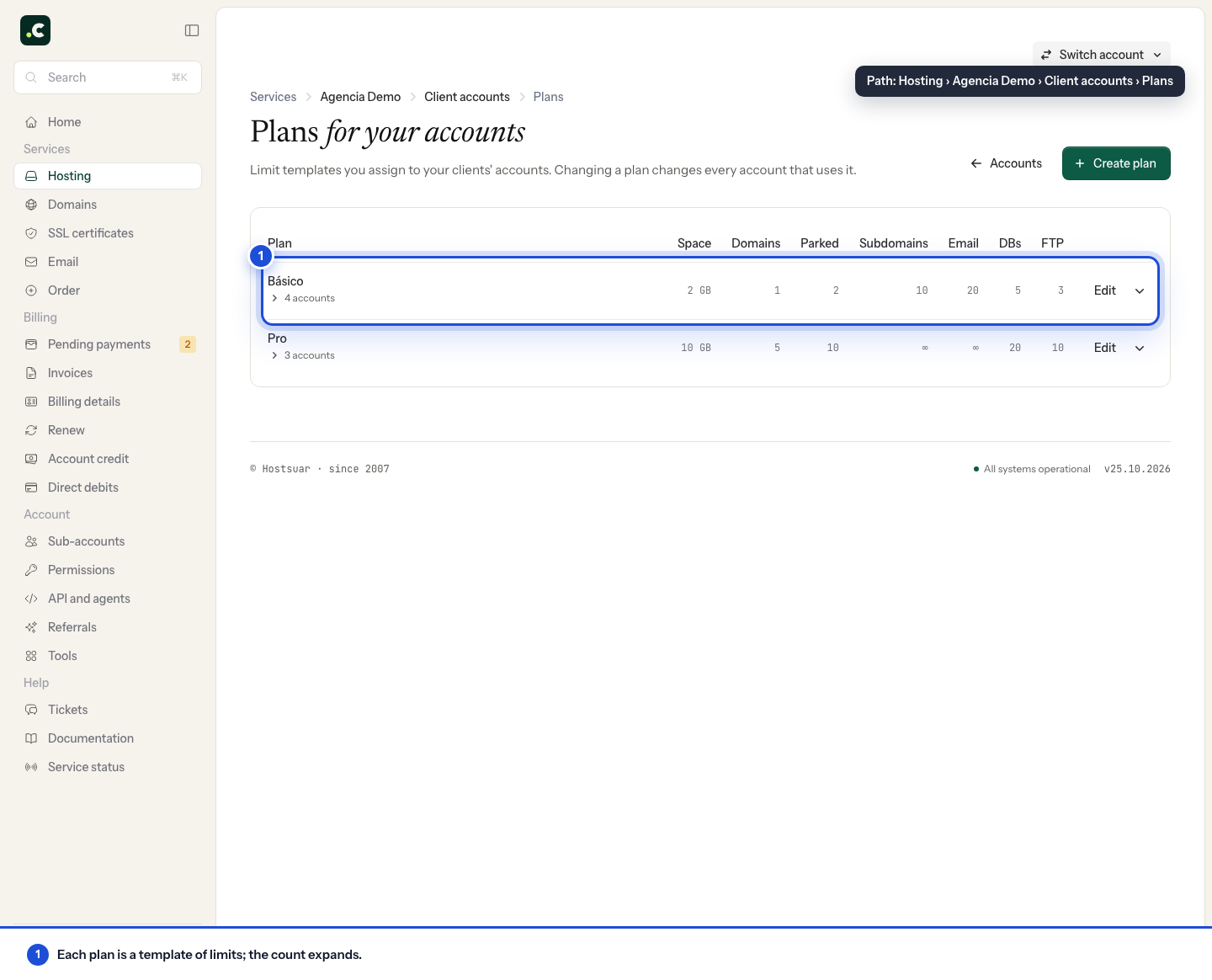
The table lists each plan with its space, addon domains, parked domains, subdomains, email accounts, databases and FTP accounts, and how many accounts use it. Create plan adds a new one and Edit changes an existing one.
It is important to understand that you do not have to use plans: you can create accounts without assigning one, setting the features each new account should have.
Creating a new account
Use Create account and fill in the form. Enter the main Domain, without www, and in Hosting plan choose one of your plans or Set limits manually. With New plan you can create one without leaving the form.
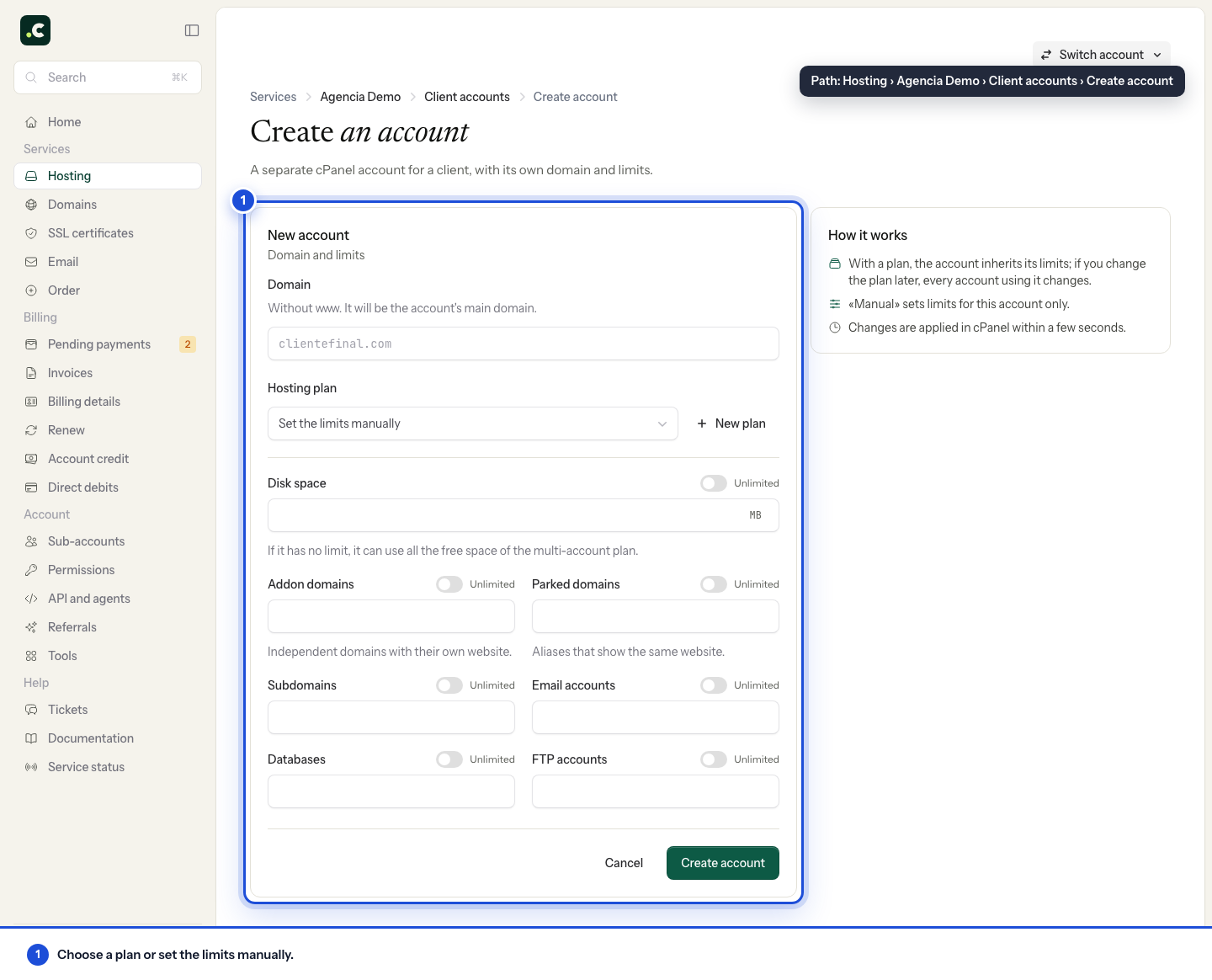
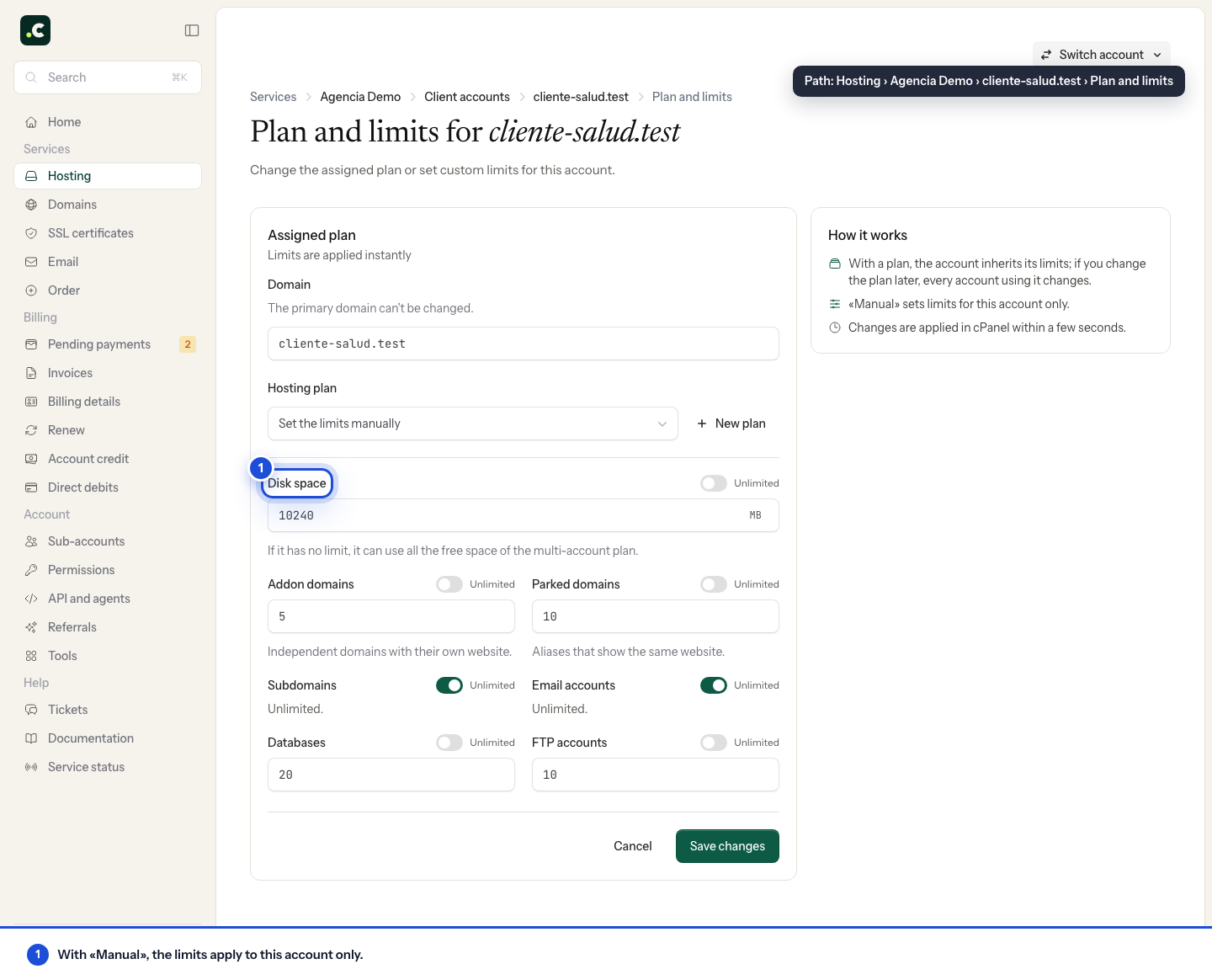
With manual limits you fill in the disk space (in MB), addon domains, parked domains, subdomains, email accounts, databases and FTP accounts. Each field has an Unlimited switch.
The Unlimited option removes the individual cap for that feature, but it does not increase the multi-account service's total contracted capacity. An account with no quota can use up the available space and affect the rest, so it is not advisable for third-party accounts.
The system generates the cPanel user and password when it creates the account, and we send them to you by email. When you finish you will land on the new account's Login details, with the user, the cPanel addresses, FTP access, email settings and SSH access. The password is not shown there again: if you lose it, set another with Change password.
Managing the details of a created account
Each created account has its own page, with a sidebar similar to that of a normal hosting plan. From it you can open cPanel, view Login details and change the password, review email in Delivery and certificates, look at Resource usage and Space, turn on SSH and blocks in Firewall and blocks, view the Access log, restore from Restore points and see the database, SSL and DNS servers in Settings.
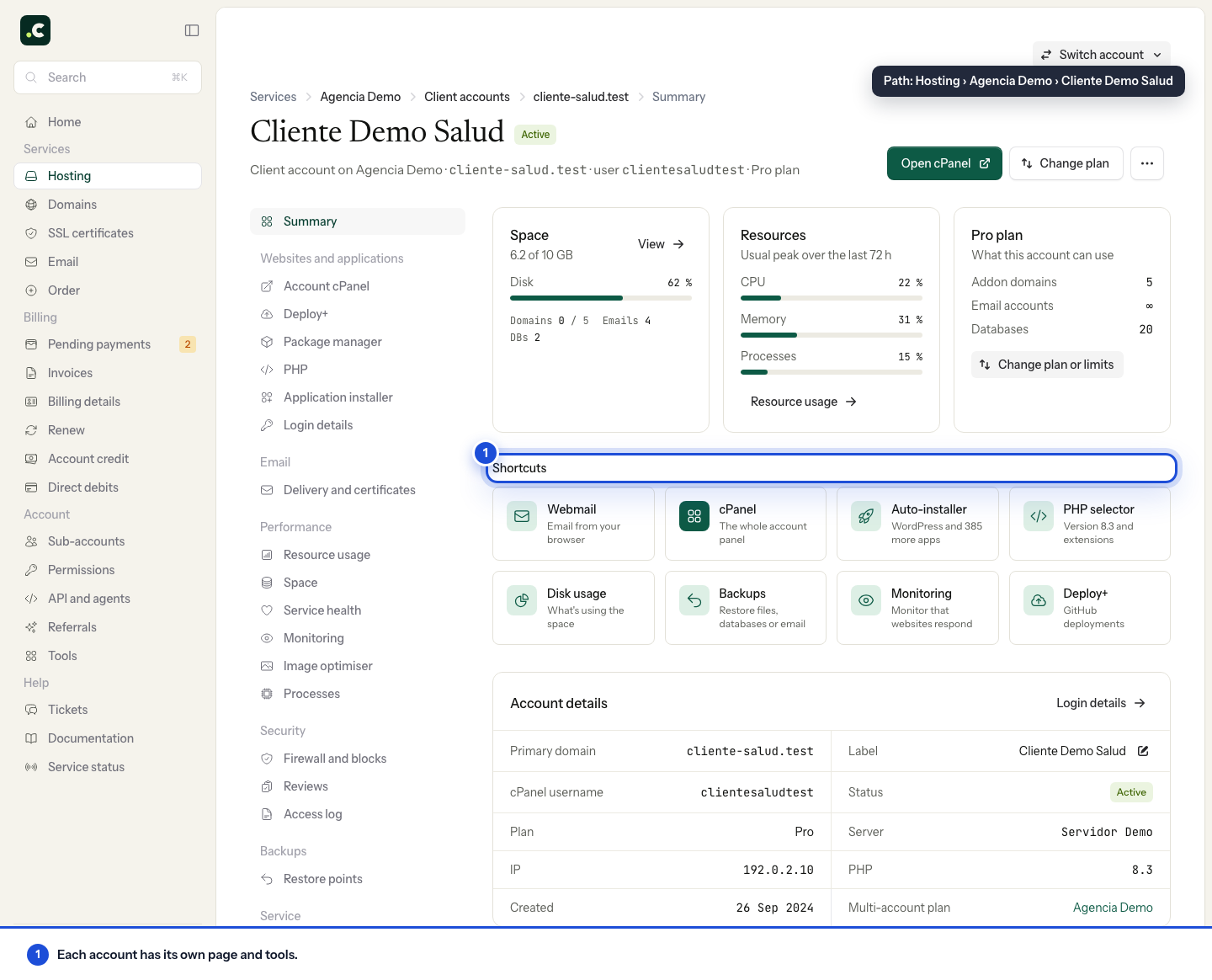
In the header, the More actions menu brings together Change label, Change password, Suspend account and the way back to All accounts.
Editing an account's features
To edit an account's features, you can work on it individually from its page or select several accounts in the list.
Individual editing
Open the account and click Change plan in the header. You can also get there from the Change plan or limits button on the plan card, in the account summary, and from the Manage drop-down in the list. In every case the Plan and limits screen opens.
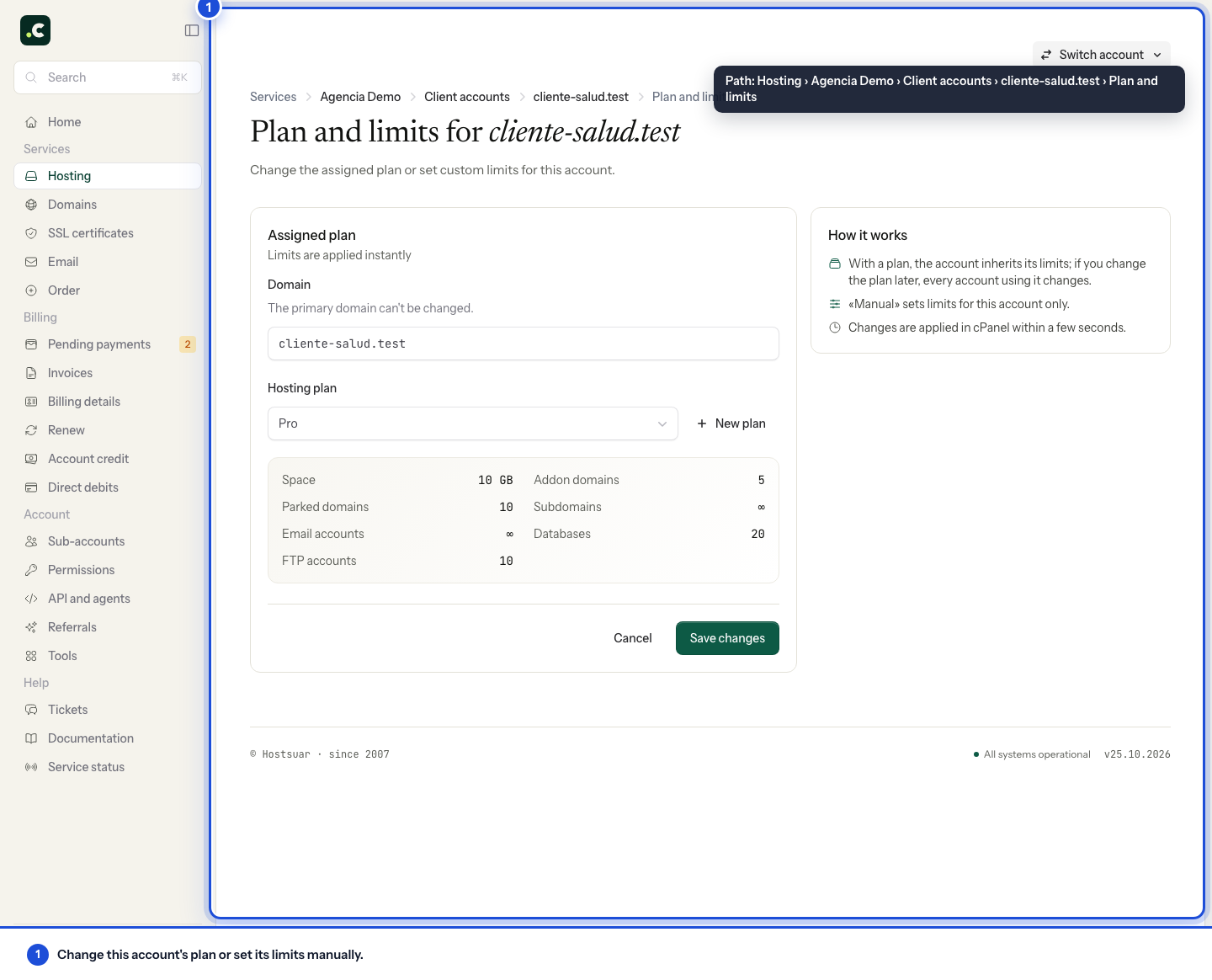
There you choose another plan or Set limits manually to set custom values for that account only. The main domain cannot be changed from this form. Check the result and the limits shown after saving. If the operation fails, keep the message before trying again.
Bulk editing
You can make the same changes from Client accounts by ticking the boxes of one or more accounts. Change plan or limits appears above the list, with the same form and the list of affected accounts.
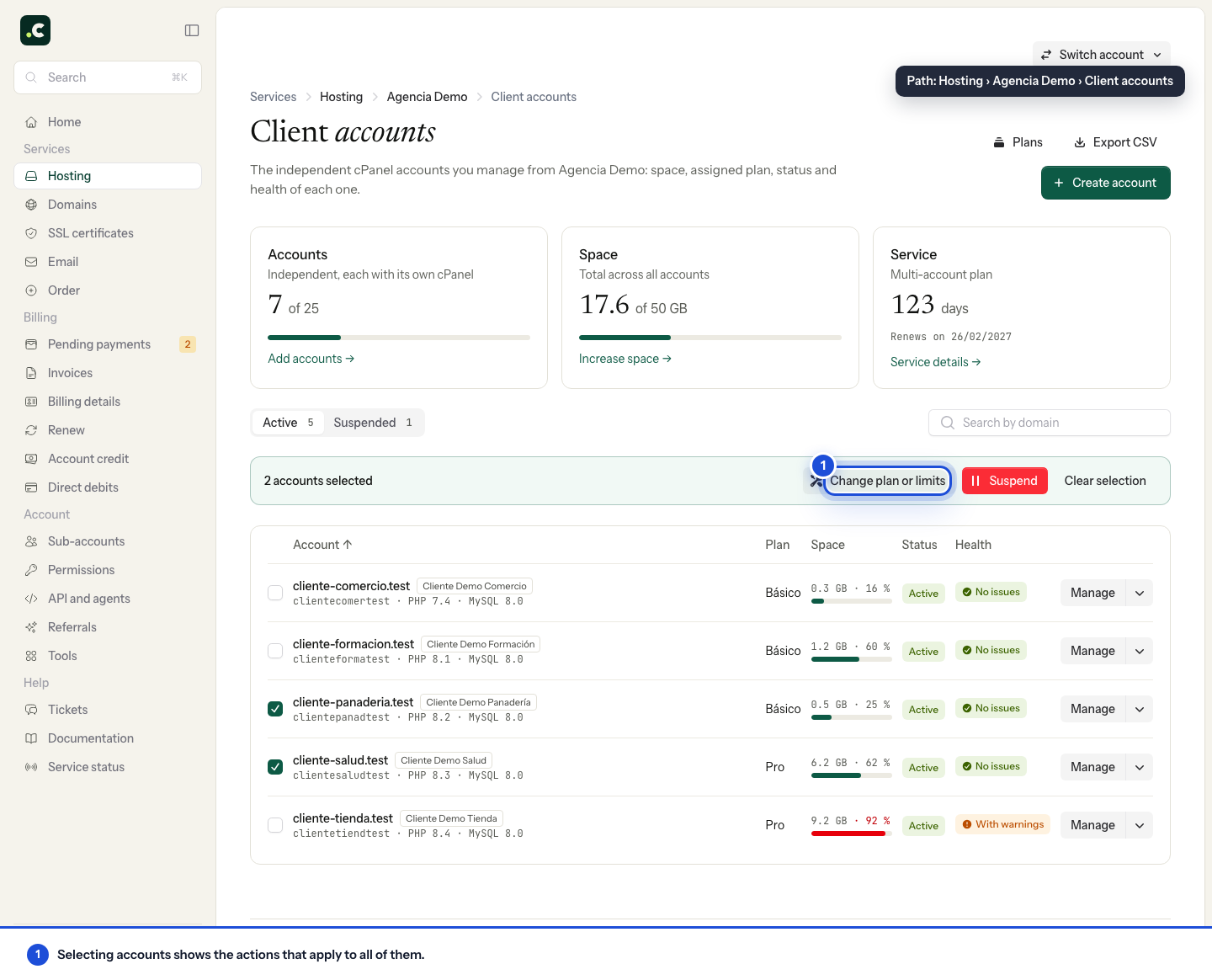
Bulk changes are applied one at a time in the background and you will see the progress on that same screen.
Suspending, reactivating and deleting accounts
To suspend an account, open its page, go to More actions, choose Suspend account and confirm. Suspension stops the website and email from working, but it does not delete anything: files, mailboxes and databases are kept so the account can be reactivated.
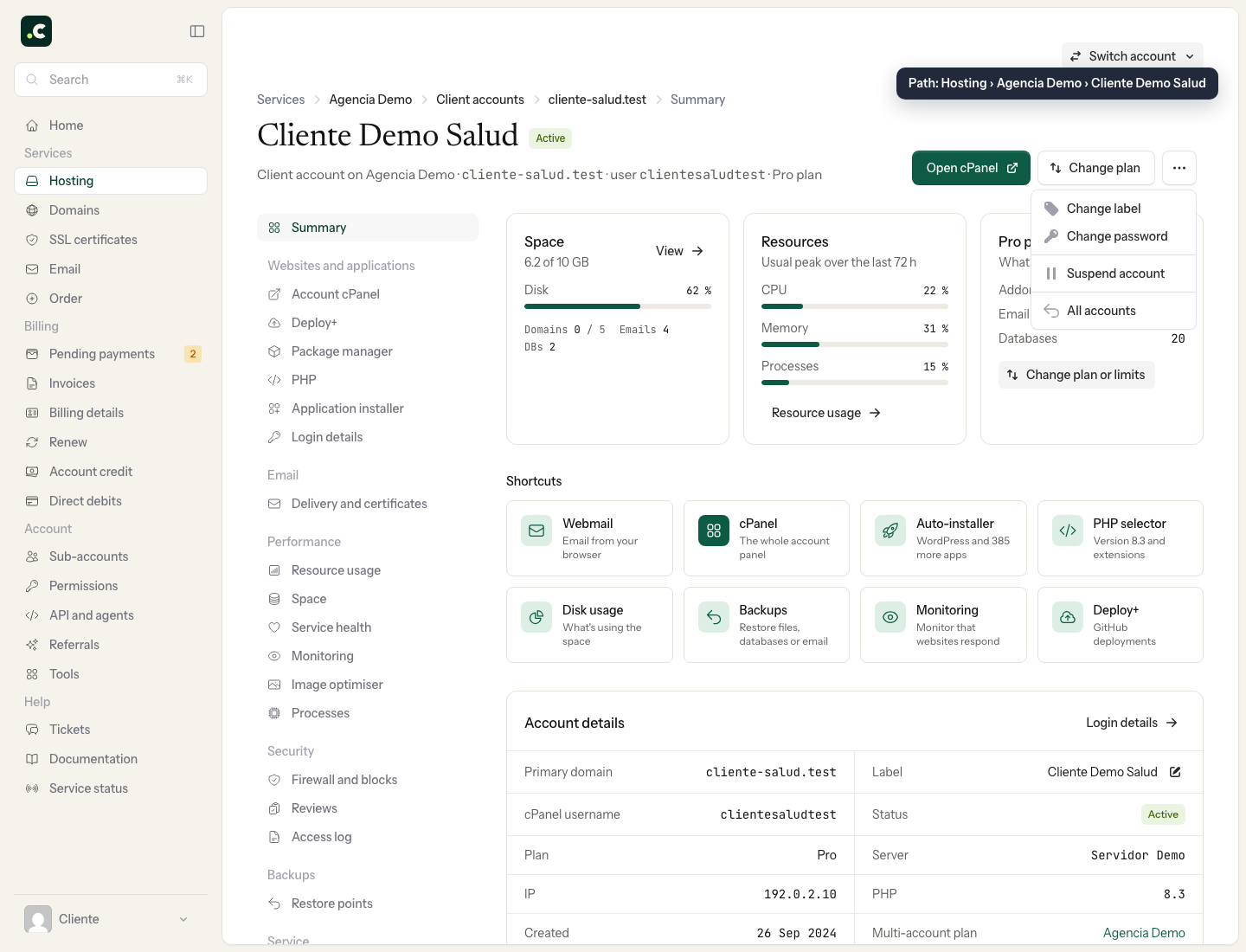
The same action is in the Manage drop-down on each row of the list and, for several accounts at once, by ticking their boxes and clicking Suspend.
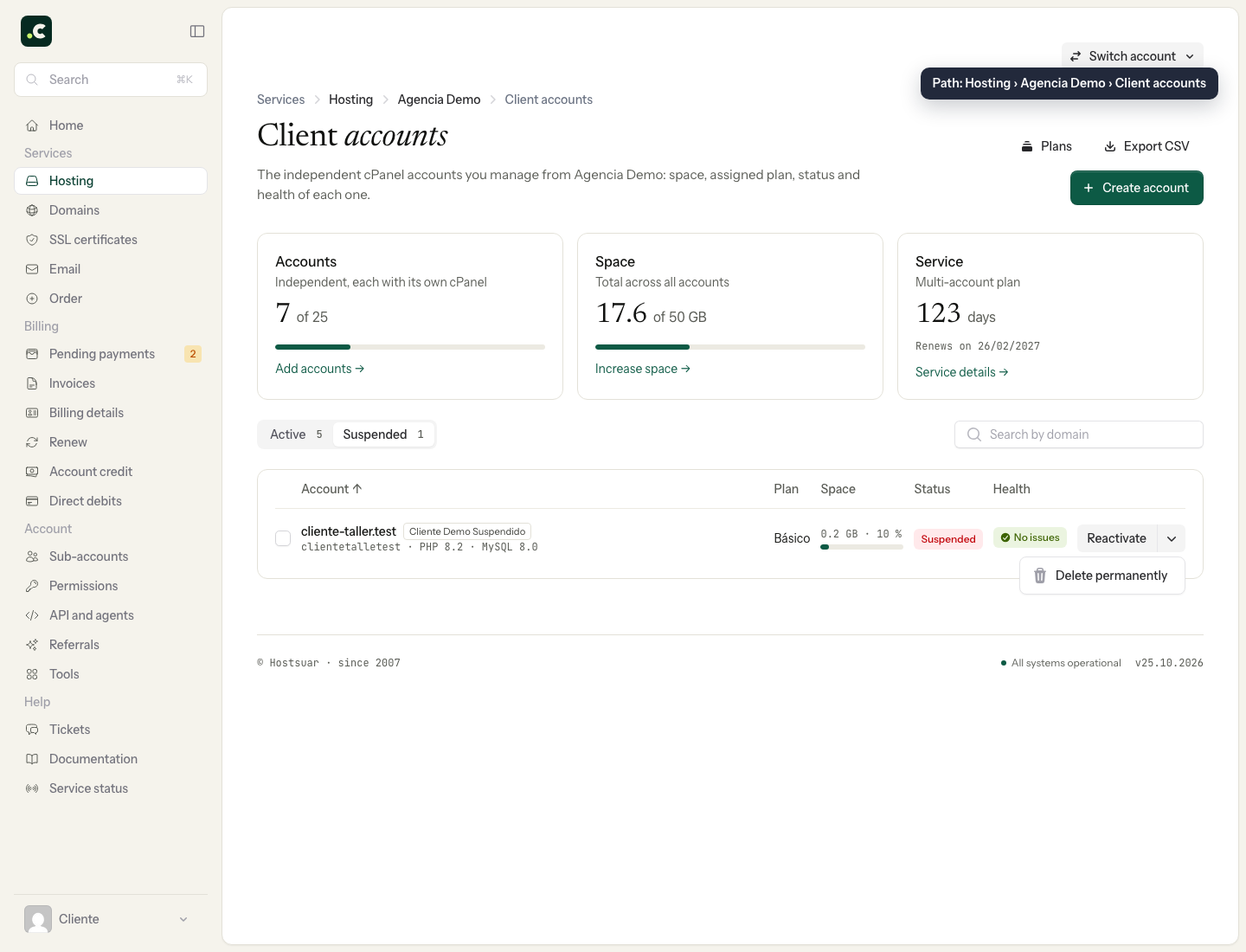
The account moves to the Suspended filter. From there, the row's Reactivate button brings it back to normal with its data intact, and its drop-down offers Delete permanently. Both actions also support multiple selection. Deletion is not on the account's page: it is always done from the list.
Delete removes the cPanel account and its files, databases and mailboxes, and cannot be undone. First keep a backup of anything that must be kept and check where the domains point and which email depends on the account. Suspending is not a substitute for a backup.
If an account keeps reaching its limit
Compare the reseller's total space with that account's individual limit. If you edited a reusable plan, review the other accounts it is assigned to; if you changed several at once, check the result of each one, including any that may have failed.
For more total capacity, see how to upgrade the multi-account plan. For a cancellation, follow the checks in suspending and deleting accounts.
You may also find useful
- Increase the space on a multi-account hosting service How to increase the total space of a multi-account hosting plan, how the prorated amount is calculat...
- Manage several client accounts with a single user How to request, approve and revoke permissions to manage several accounts with the same user, and ho...
- Sub-accounts with access to the client area How to create a sub-account, limit its scope and the operations it can perform, and keep access to b...
- Configure hosting or a reseller plan before paying Choose the cycle, domain and capacity, understand what gets added to the cart and go on to payment w...
Something wrong or out of date? Tell us and we will review it.