

Account, services and billing
Manage several client accounts with a single user
Permissions lets you manage several client accounts from a single user, switching from one to another with one click and without signing in and out of each. Access is full. During the session you can enter another account and go back to yours; the permission granted stays in place until either side revokes it. Going back to your account or signing out does not withdraw that authorisation.
If you want to give limited access to someone on your team, use sub-accounts instead of permissions.
The Permissions section is under Account in the client area sidebar.
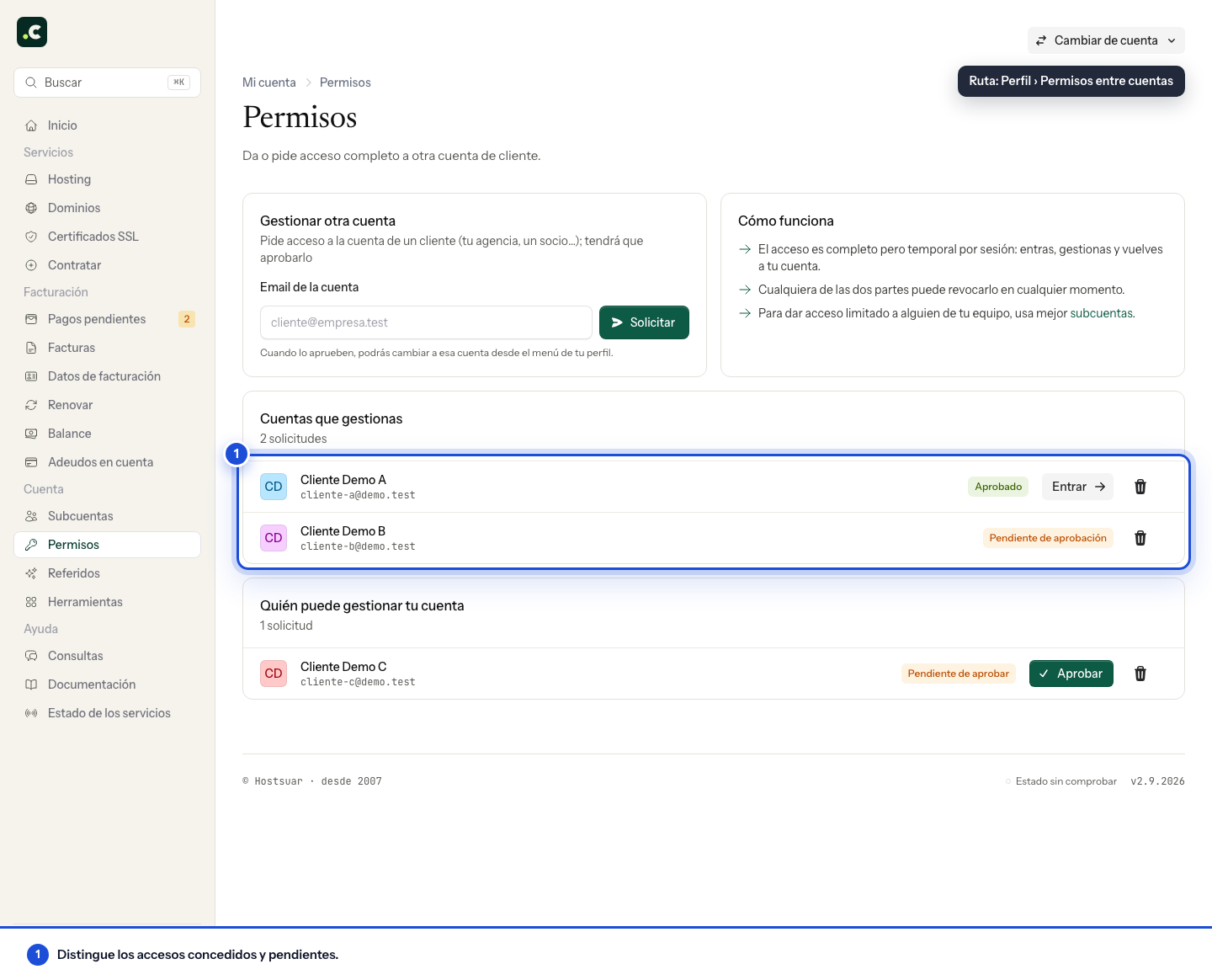
Request access to a client account
The screen opens with the Manage another account card. Enter the client's email in Account email and click Request.
The request reaches them by email and appears in their own Permissions section, where they can approve or reject it. Meanwhile, you will see it in Accounts you manage as Awaiting approval.
Approve or revoke access
In Permissions, the Who can manage your account card lists the requests received. Click Approve to grant access or the bin icon to revoke it. The screenshot above shows examples of access granted and pending requests in both directions.
Bear in mind that, once approved, that person will be able to manage every option and service on your client account.
You can revoke access whenever you like from that same card. The person who requested access can also withdraw it from their side, from Accounts you manage.
Switch between client accounts
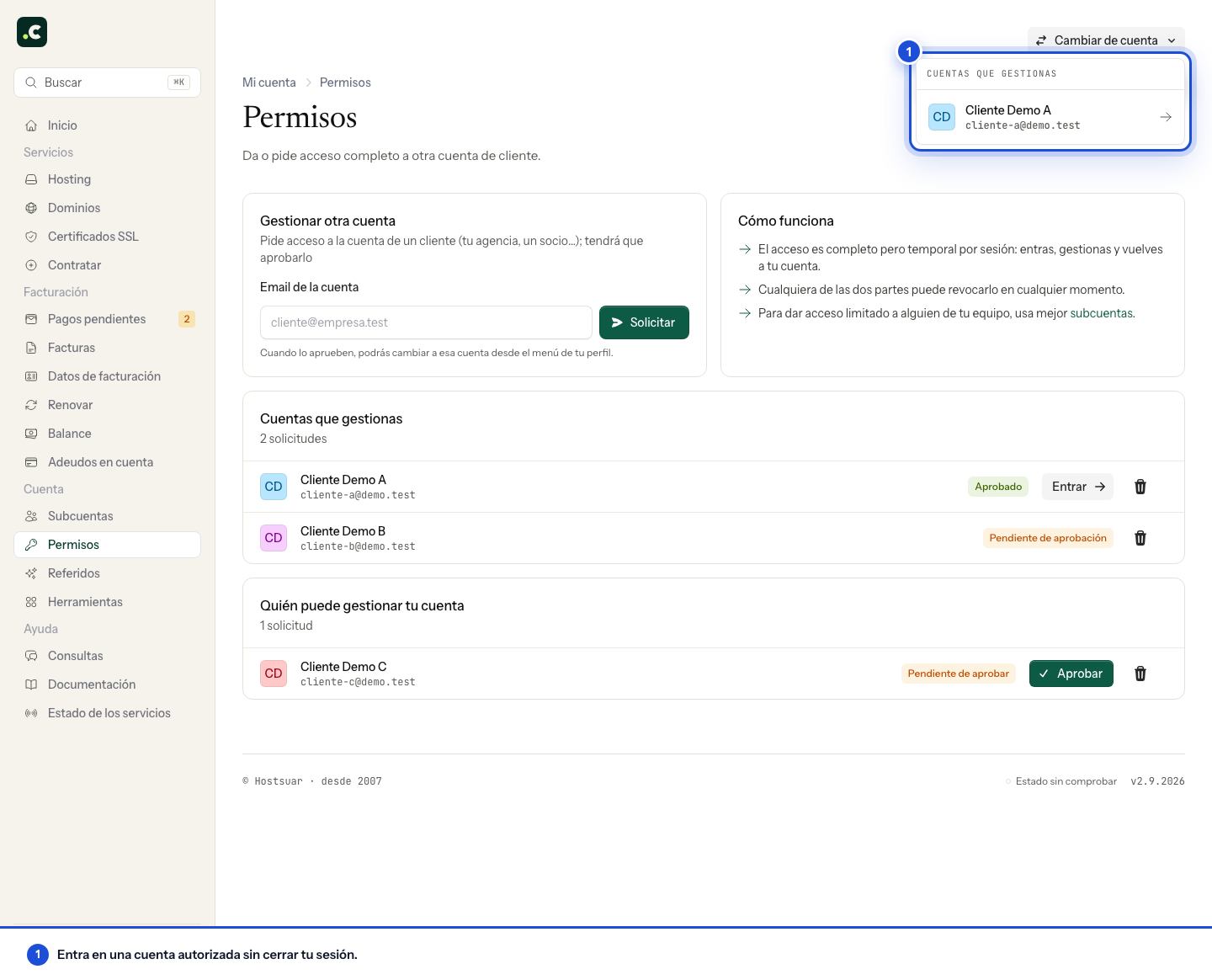
As soon as you have an approved account, the Switch account button appears at the top right of the screen. Open the list of accounts you manage and enter the one you want with one click. You can also use the Enter button on each approved account in Permissions.
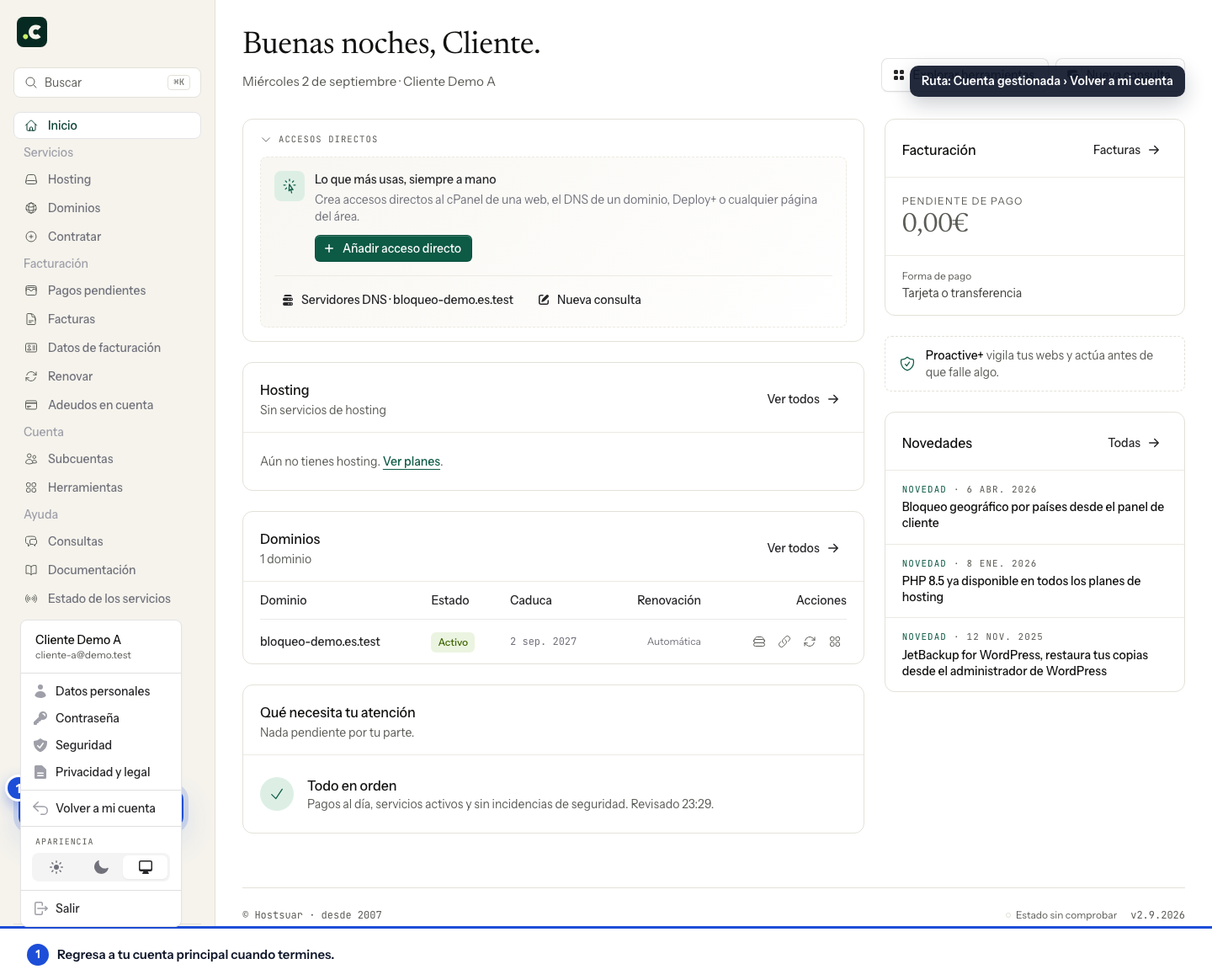
While you are working in another client's account, to go back to yours open your profile at the bottom of the sidebar and choose Back to my account.
Before paying for, cancelling or transferring a service, check which account you are working in and the domain affected. When a collaboration ends, withdraw the permission and separately review any access to cPanel, email or applications you have shared.
You may also find useful
- Using the management panel for multi-account or reseller plans A tour of the panel to create accounts and plans, view space and resources, edit limits one by one o...
- Suspend, reactivate or delete accounts on a reseller plan Stop an account temporarily, reactivate it or delete it permanently, with the checks you need.
- Add and check account credit in the client area Generate a proforma invoice to add credit, check when it becomes available and decide how to apply i...
- Assign a billing profile to a service Explains how to link a hosting service or domain to a specific profile so that future proforma invoi...
Something wrong or out of date? Tell us and we will review it.