

Account, services and billing
Sub-accounts with access to the client area
The client area lets you create sub-accounts with their own credentials so you can give someone else access without sharing the main user. You can limit the services they will see, the operations available and the notifications they will receive.
Sub-accounts are under Account in the sidebar. The list shows each sub-account with its status and last sign-in; Edit opens its permissions and its drop-down contains Delete.
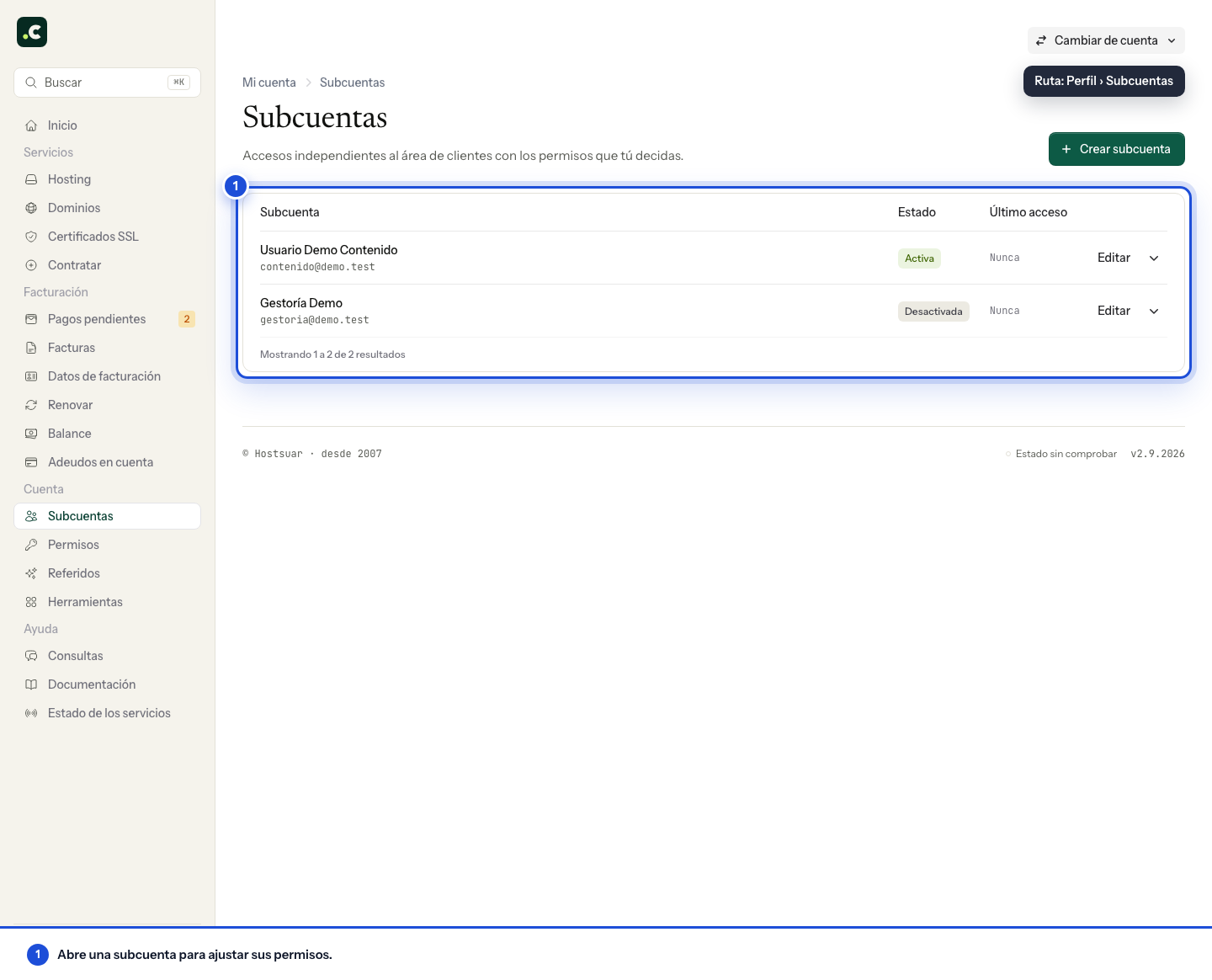
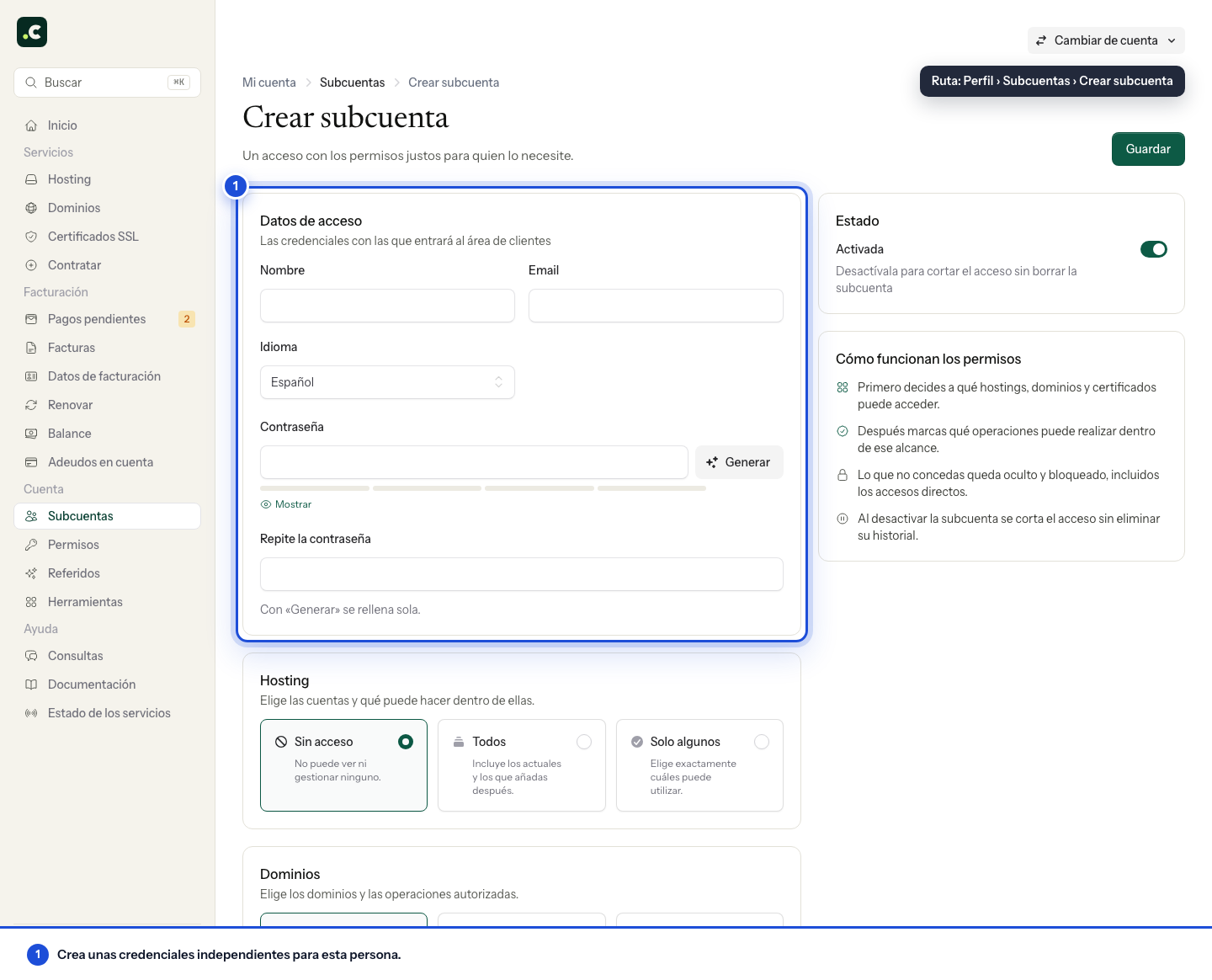
To create one, click Create sub-account. In Login details enter the name, email, language and a separate password; Generate fills it in for you.
Choose the scope
First you decide what they can access. Hosting, Domains and SSL certificates each have three options:
- No access: they cannot see or manage any.
- All: includes the current ones and any you add later.
- Only some: you choose exactly which.
In Hosting, with Only some you can choose specific plans and hosting accounts and also individual accounts of a multi-account plan without opening up the rest of the plan.
The SSL certificates block only appears if the account has certificates.
Choose the operations
Once you move away from No access, each block shows what they can do within that scope. In Hosting: view accounts, access cPanel, basic settings, technical management, email and migrations, backups, monitoring, manage reseller, service billing, renewal and add-ons, change account holder and move websites between plans. In Domains: view domains, DNS and redirects, WHOIS contacts, registry security, transfers, billing, automatic renewal and change account holder. In SSL certificates: view, billing and renewal.
Operations marked as a sensitive action (changing the account holder of a hosting plan or a domain, moving websites between plans and using account credit) are highlighted. Grant them only if they are really needed.
Then come three blocks that do not depend on the scope, because they affect the whole account:
- Billing: view and download invoices, pay invoices, manage pending invoices, billing profiles, billing preferences, view account credit and use account credit. These permissions cover all of the account's billing; they are not limited to the hosting plans or domains selected for the sub-account.
- Orders and changes: order services, renew services (only those in their scope) and upgrade services.
- Tickets: manage their own tickets, view all tickets and manage all tickets.
Assign only the permissions needed. In particular, do not turn on billing or access to all tickets if the person should only manage a website. Anything you do not grant is hidden and blocked, including direct links.
Set up notifications
Access permissions and notifications are independent. In the Notifications block:
- Domain renewal sends notifications only for the domains included in their scope.
- Billing and orders sends notifications about pending payments, credit notes, charges and orders for the whole account, not just the selected services.
Permission to manage invoices does not turn on the emails by itself, and turning on a notification does not grant access to the billing section.
Activate, deactivate and delete
On the Status card, the Active switch decides whether the sub-account can sign in. Deactivating it cuts off access without deleting the sub-account or its history.
Save with Save. From then on, the person signs in to the client area with the email and password you set. You can edit their permissions, change the password, deactivate or delete the sub-account from Sub-accounts; when deleted, it loses access immediately and its tickets and actions stay in the history.
Check the access granted
Test with the sub-account which services and operations appear, without sharing the account holder's session. Also check an action it should not be able to perform. If you choose All, remember to review the scope when you order new services.
When a collaboration ends, deactivate or delete the sub-account and review any credentials that person may have obtained outside the panel, such as application users, FTP or deployment keys. Removing access to the client area does not automatically revoke those separate credentials.
You may also find useful
- Increase the space on a multi-account hosting service How to increase the total space of a multi-account hosting plan, how the prorated amount is calculat...
- Using the management panel for multi-account or reseller plans A tour of the panel to create accounts and plans, view space and resources, edit limits one by one o...
- Add and check account credit in the client area Generate a proforma invoice to add credit, check when it becomes available and decide how to apply i...
- Assign a billing profile to a service Explains how to link a hosting service or domain to a specific profile so that future proforma invoi...
Something wrong or out of date? Tell us and we will review it.