

Account, services and billing
Change the details on a proforma invoice before paying
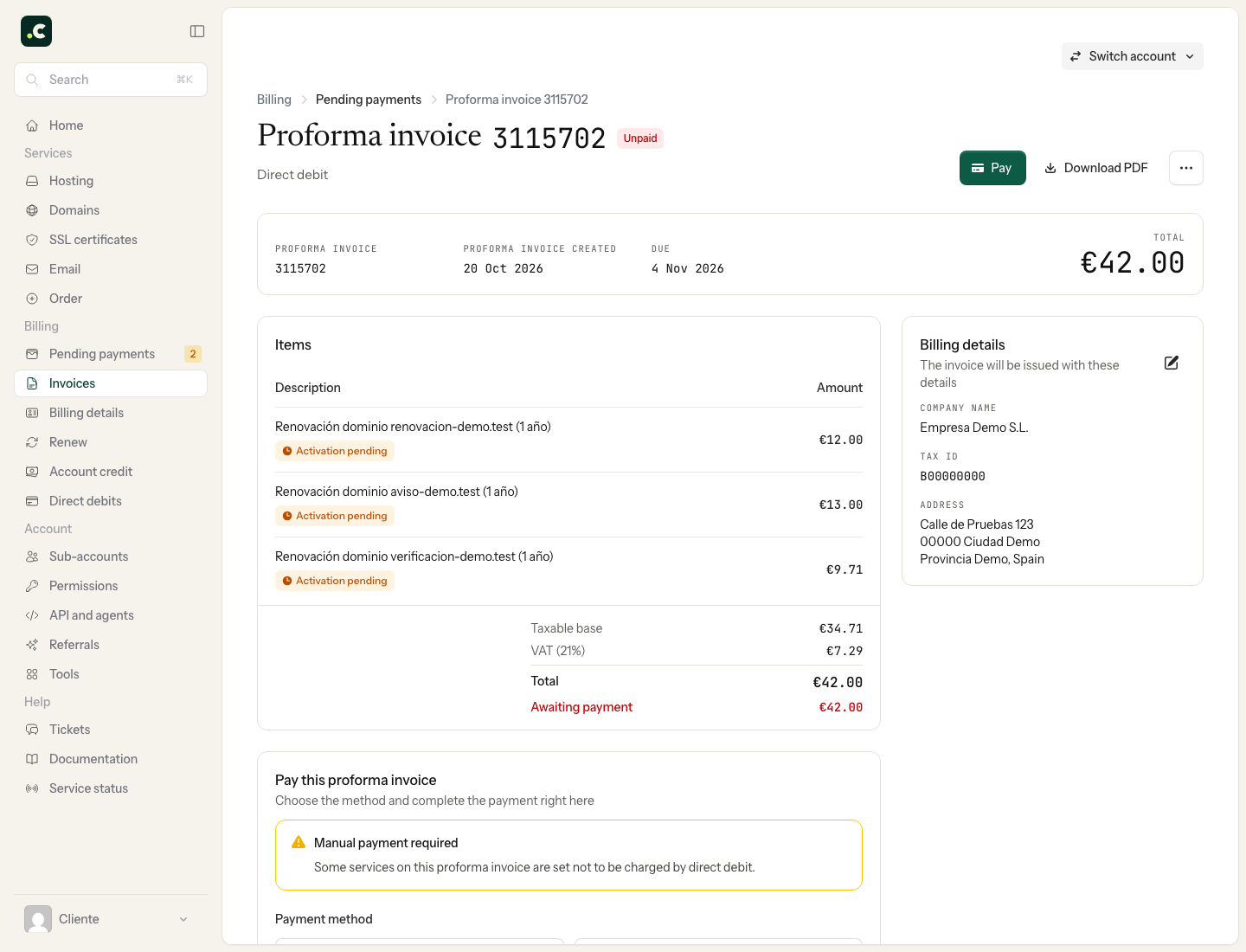
Check the tax details on a proforma invoice before paying it. Go to Billing > Pending payments, open the document and check the Billing details block.
Choose the account holder or a profile
If Edit billing details is available, select Account holder or the right profile and save. You can create a profile first if you need a different recipient. Go back to the document and check the name or company name, Tax ID, address, country and amounts.
If the mistake is in the account holder's or the profile's details, correct it in their record and then check the proforma invoice. Do not assume that changing a general detail changes a locked document.
If the change is not allowed
There may be a restriction because of the document's status, a payment in progress or access permissions. If the action does not appear or the change is rejected, ask us before paying. Do not create a duplicate proforma invoice or change country just to get around the restriction.
Upcoming renewals
This choice affects the document you are reviewing. For future renewals to use the same profile, link it to the service. Also review other proforma invoices already generated: they may keep a different selection.
If the payment has already gone through and there is an invoice, use the guide to correcting issued invoices.
You may also find useful
- Cancel a proforma invoice and check which services it affects Where to cancel an unpaid proforma invoice, and how the effect differs for renewals and new sign-ups...
- Merge several pending payments into a single proforma invoice How to select several pending payments and merge them into one proforma invoice to pay them together...
- Group or separate renewal proforma invoices How to group compatible renewals, and why billing profiles, bank accounts or exclusions can produce...
- View paid invoices and download Modelo 347 Filter invoices by tax year, open their details, download one PDF or a whole year in a ZIP and get t...
Something wrong or out of date? Tell us and we will review it.