

Account, services and billing
Client area: where to manage hosting, domains, email and payments
In the client area you can manage the services you have with Hostsuar and talk to support. When you sign in you will see Home, with shortcuts, a summary of your services and billing.
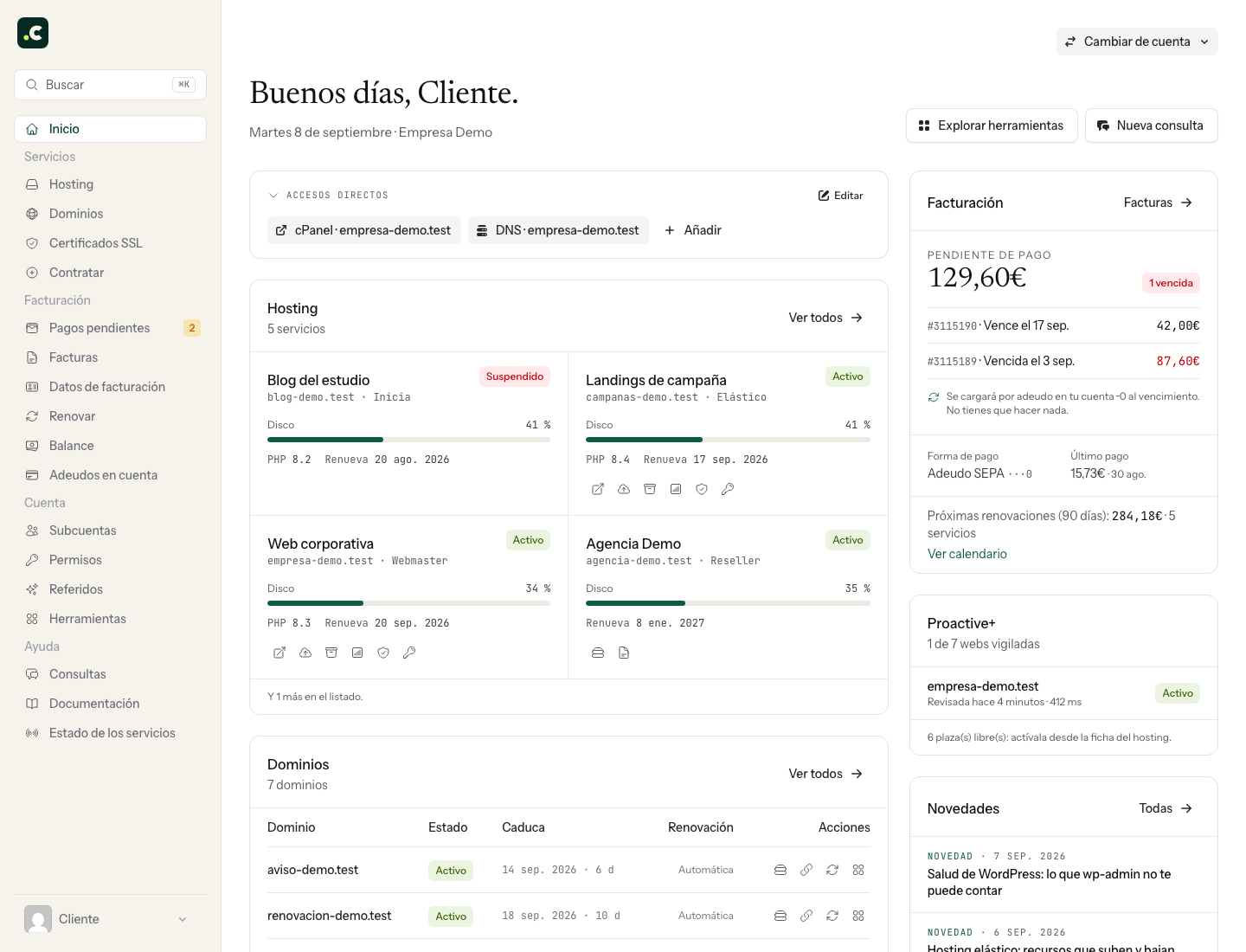
Choose what you need to do
The menu on the left stays available even when you go to another screen. These are the most common routes:
| I want to… | Where to go |
|---|---|
| Manage a website or open cPanel | Hosting > Manage, on the service's row. Then Open cPanel. |
| Create a mailbox or change its password | Open cPanel and look for Email Accounts. |
| Find out why email or a certificate is failing | Hosting > Manage > Delivery and certificates. |
| Manage a registered domain | Domains > Manage. There you will find its details, renewal and DNS options. |
| Pay for a renewal | Pending payments. To see upcoming renewals, go to Renew. |
| Download an invoice you have already paid | Invoices. |
| Download all the invoices for a year | Invoices > Download as ZIP. |
| Ask for help or reply to a technician | Tickets, or New ticket from Home. |
If you have just signed up, follow the guide to getting started with your hosting to set up the website and email in the right order.
Client area, cPanel and webmail: what each one manages
The client area brings together services, payments, support and management tools. You sign in with your login email and its password.
cPanel manages the files, mailboxes, hosted domains and databases of a specific hosting account. From the client area you can open it without typing a password again. If you sign in to cPanel directly, its credentials are different from the client area ones.
Webmail lets you read and send email from the browser. Each mailbox uses its full address and its own password.
Keep what you use often to hand
In Shortcuts, click Add; if you do not have any yet, you will see Add shortcut. Choose a hosting tool, a domain section or a page in the area, and fill in the destination the form asks for.
For example, you can create a shortcut to your website's cPanel and another to a domain's DNS zone. With Edit you can change the name and reorder the shortcuts; click Save when you are done.
If a notice appears on Home
Further down you will find What needs your attention. Each notice links to the screen where you can review it: a payment, a renewal, space to free up or a pending ticket, for example. Open the notice and follow the instructions on that screen.
If your website or email is failing even though there are no notices, open a ticket with the domain and the error. You can also check Service status, in the help menu.
If you cannot find a service
- Go to Hosting or Domains: Home only shows some of the services. Also check the pending or suspended tabs if relevant.
- If you manage several accounts, check the one selected in Switch account.
- If you sign in as a sub-account, ask the account holder to check your permissions: you only see the services and sections you are authorised for.
If you still cannot find it, give us the domain in a ticket. You do not need to order it again or create another account for us to look into it.
You may also find useful
- Cancel a service's renewal Shows how to turn off renewal for a hosting service or domain, which reminders stop being sent and h...
- Change a service's billing period Explains how to change the renewal interval without moving the due date, when a proforma invoice is...
- Change your hosting plan How to upgrade or downgrade a hosting plan, what stays the same, when you pay the difference and wha...
- Elastic hosting: resources, automatic scaling and billing Where to adjust CPU, memory and disk, how to switch a fixed plan to Elastic without changing account...
Something wrong or out of date? Tell us and we will review it.