

Hosting and cPanel
Manage disk space usage
Space is one of the resources you need to keep an eye on. If it runs out, operations that need to write can fail: receiving messages, uploading files, saving sessions or updating the application. A website that still loads does not guarantee that all those functions keep working.
How much you are using
From the client area
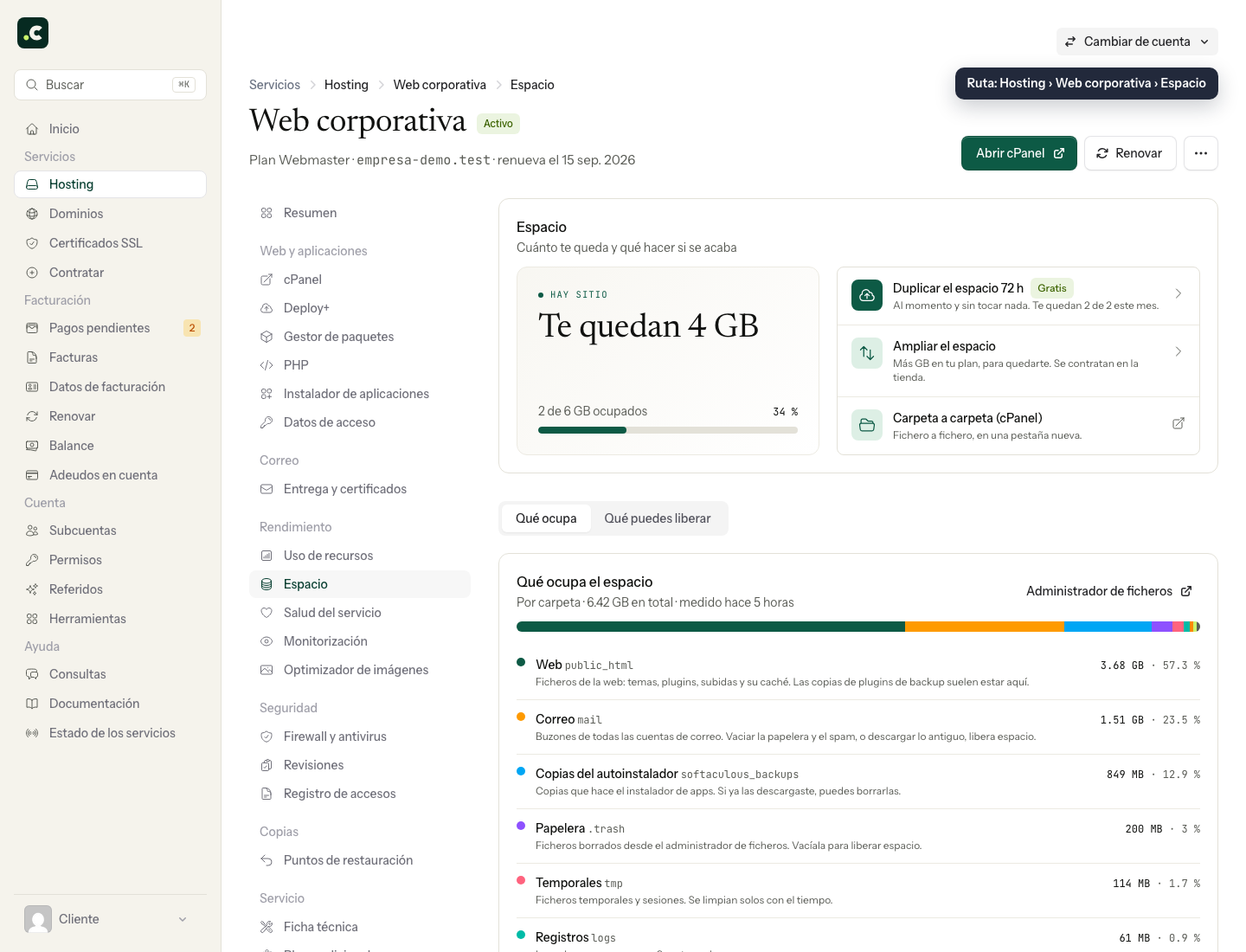
Open the service page in the client area and go to Space. At the top you will see how much of your total allowance is left; below are two tabs: What takes up space breaks usage down by folder, and What you can free up suggests clean-up candidates that you should review before confirming.
From cPanel
In the right-hand sidebar, as soon as you log in to cPanel, you will see several statistics, including disk usage.
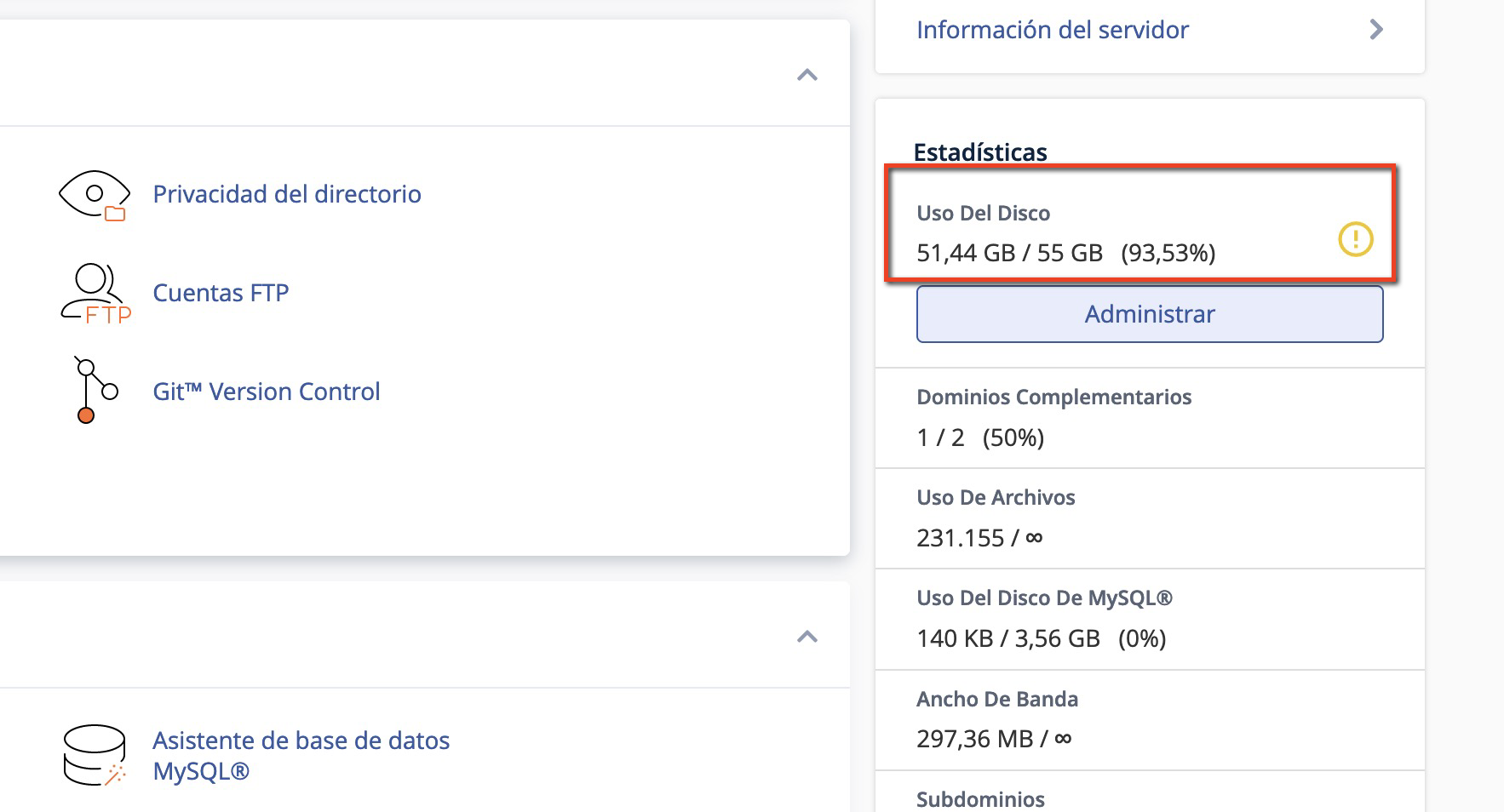
Bear in mind that both figures are recalculated periodically, so they may take a while to reflect a recent clean-up.
Analyse usage in detail
Whether you are approaching the space limit or want to know where most of the usage comes from, you need to find which directories or files take up the most space on the account. For this, cPanel has the Disk Usage tool, which you can jump to from the Folder by folder (cPanel) link on the Space screen.
The top area gives an overview of usage, showing directories such as public_html and services such as email accounts and MySQL databases, among others.
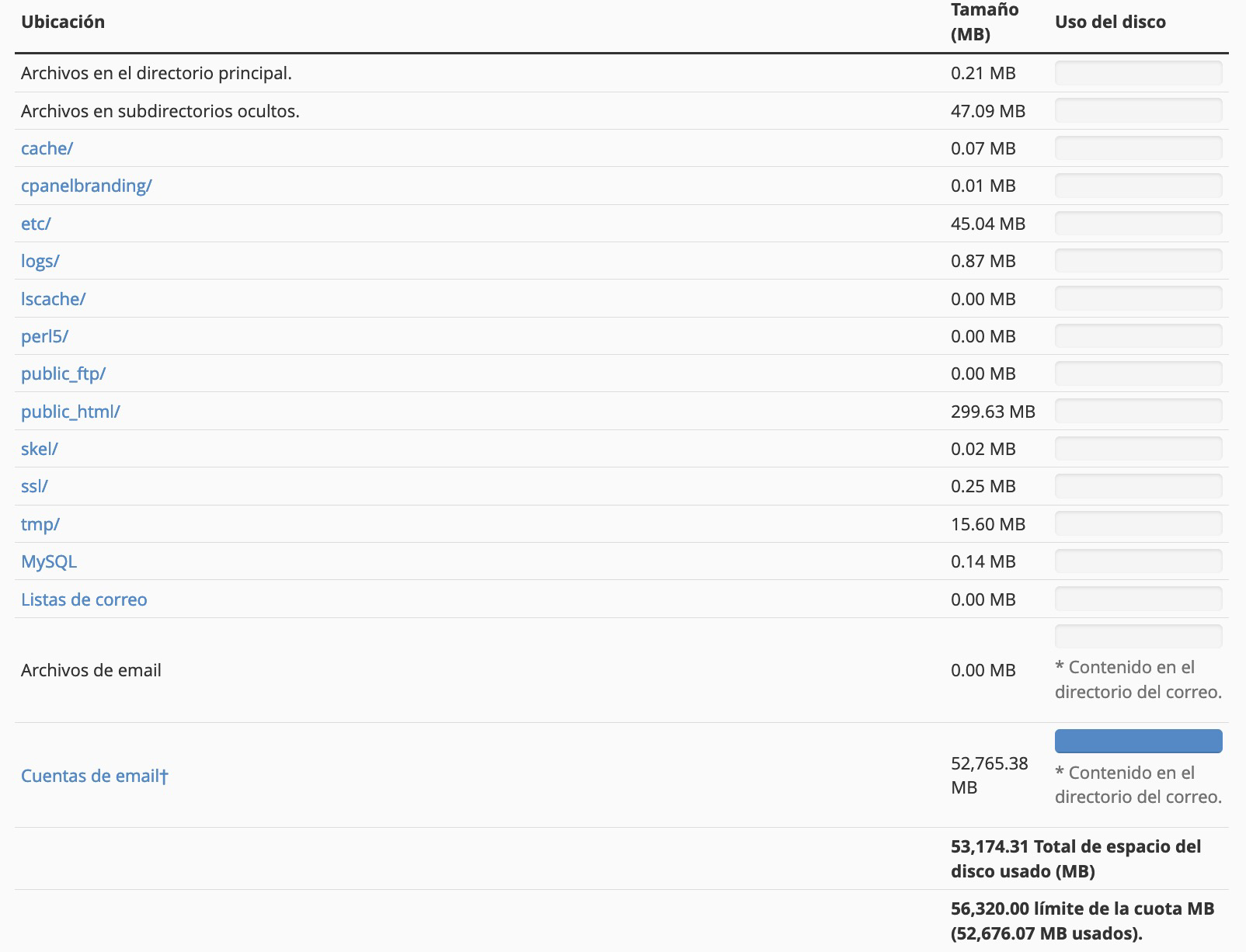
To break it down by directory, the bottom area has a tree that allows an in-depth analysis.
As a first step, use the filter to sort by disk usage.
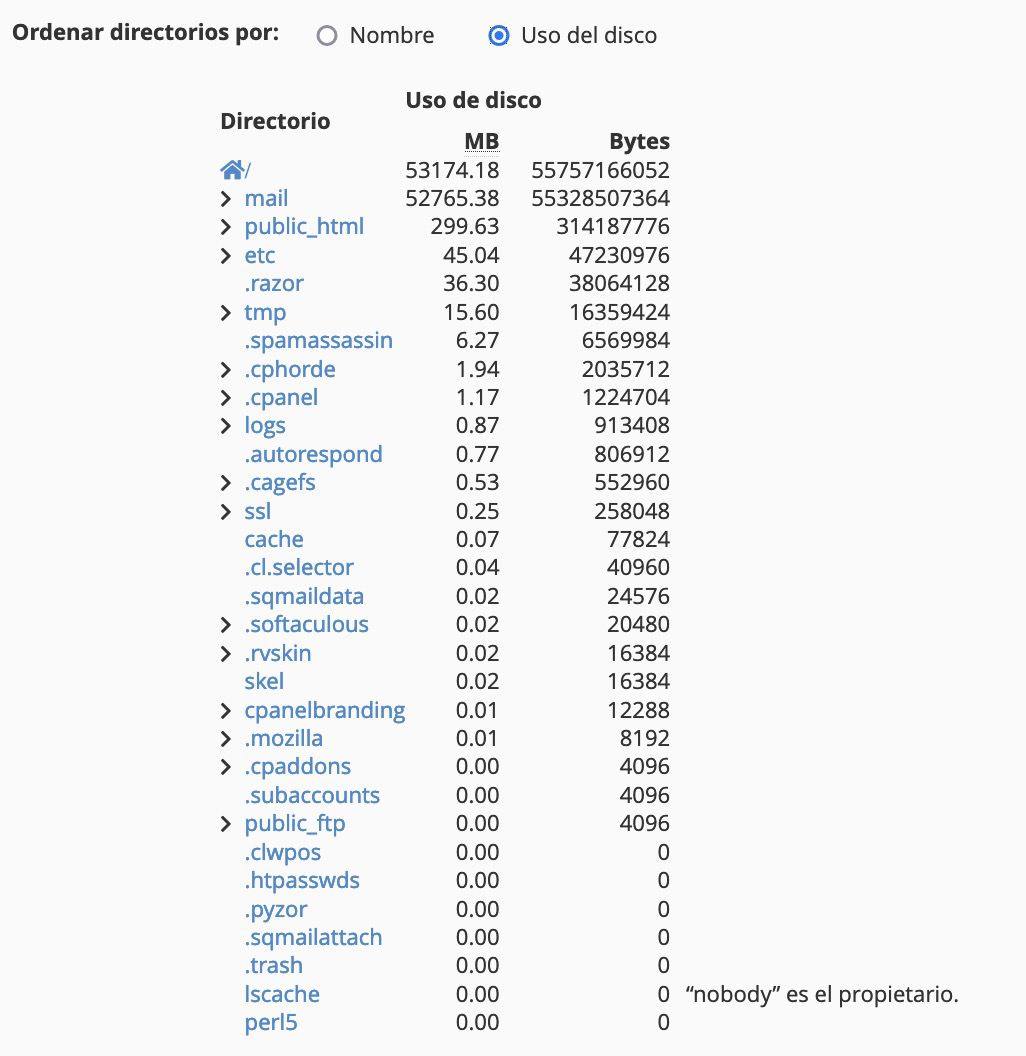
After sorting the tree from largest to smallest, look at the MB column to see the directories with the highest usage, and expand the arrow next to each directory to browse its subdirectories, so you can see the usage in each case.
Disk Usage figures may take a while to reflect recent changes. Also, the size shown for databases and other content may differ from what you get by adding up files in the File Manager, so it is best to wait for the next update before repeating a clean-up.
When we notify you
You do not need to watch it every day: cPanel and the client area send automatic warnings as the limit gets closer. In disk space notifications you will find the thresholds and sending conditions, who receives each warning and how often they repeat.
To make sure those emails reach you, check in cPanel that the contact address is correct under Preferences > Account Preferences, in the Contact Information and Contact Preferences sections.
I need more space
When the disk is filling up you have four options, from the most immediate to the most permanent:
- Free up space from the client area: the What you can free up tab suggests what to delete and what to review first.
- Double the space for 72 hours: free and instant, to give you headroom if you have already reached the limit.
- Increase your disk space: blocks of GB added to your current plan.
- Move to a higher hosting service: if you also need more CPU, memory or processes.
Check a clean-up
Note the starting usage and only delete content whose purpose you know. Backups stored inside the hosting and the trash also count towards the quota; keep anything you might need outside the account.
Wait for the reading to update before deleting again. Test the website, email and the processes that were failing. If the sum of the folders does not match the quota, check the email and database details instead of deleting system paths to make the figures add up.
You may also find useful
- Disk space notifications - cPanel and client area Understand the thresholds, recipients and frequency of cPanel and client area space alerts, includin...
- Free up hosting space from the client area Find caches, trash folders and backups that take up space, review what you can delete and check how...
- Increase CPU, RAM and concurrent processes Increase CPU, memory and processes from the client area with a higher plan or extra blocks for Avanz...
- Essential directories for the hosting service to work Identify the directories cPanel needs to host websites, email, certificates, logs and backups, and a...
Something wrong or out of date? Tell us and we will review it.