

Hosting and cPanel
Package manager
The package manager is a central tool from which you can install, configure and manage additional packages on your hosting service. It lets you extend your hosting's capabilities with specialised software such as Node.js for compiling assets, FFmpeg for video processing, Redis Cache for performance optimisation and, on the Avanza, Max and Elastic plans, persistent Redis for queues and sessions.
Accessing the package manager
Go to the client area, Hosting section, select the hosting service where you want to manage packages and click Package manager. You will see a screen with all the available packages, showing their current status and letting you manage each of them.
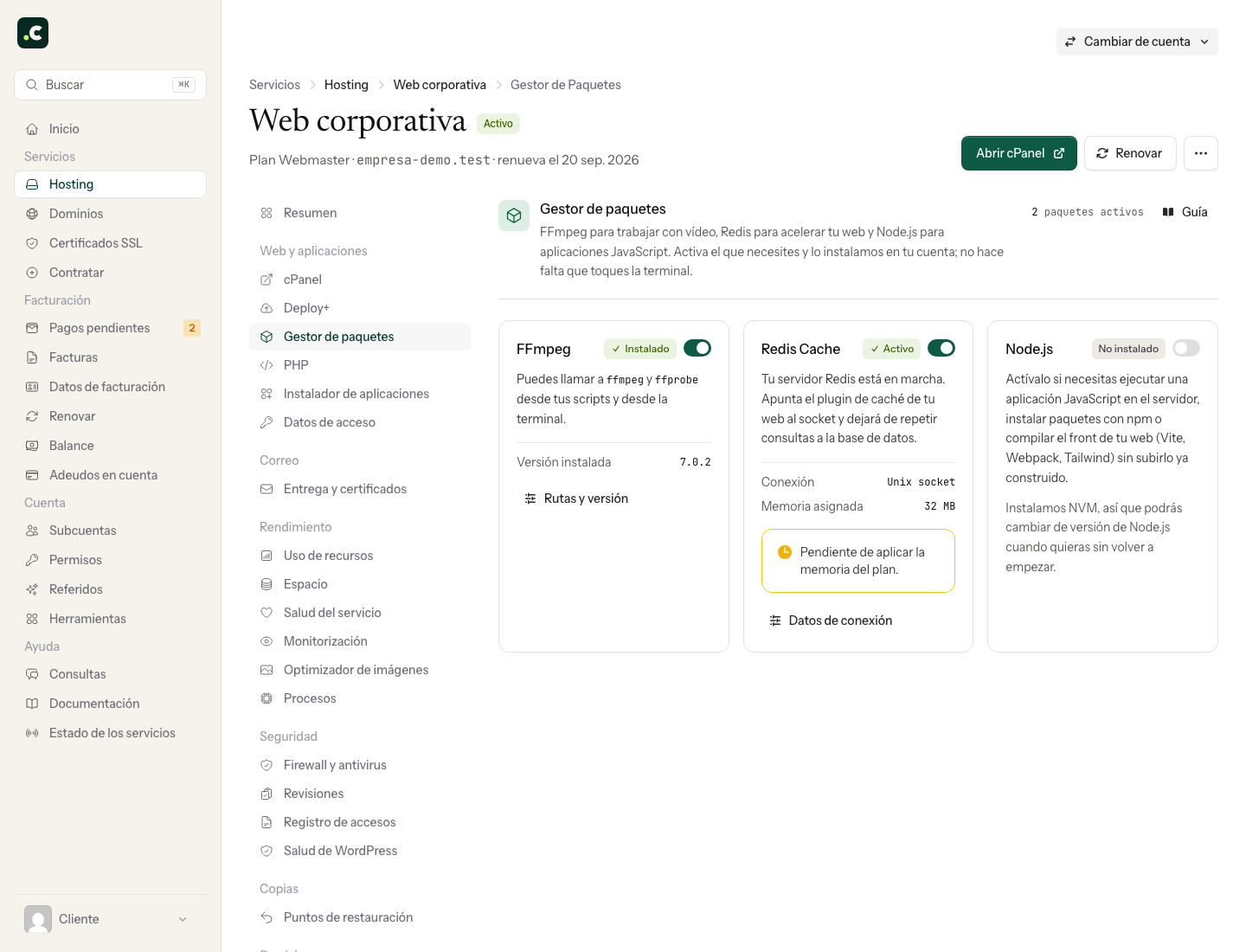
Available packages
Node.js and npm
Node.js and npm are available to help with compiling assets and running commands during deployments. Ideal for compiling CSS/JavaScript with tools such as Vite, Webpack, Tailwind, PostCSS or Sass. You can choose between different Node.js versions depending on your project's needs.
The installation provides Node.js and npm to run commands and build the project. On its own it does not publish a Node.js web application or configure its process, port or HTTP access; if you need that kind of deployment, first confirm that the project is compatible with the service. The installation automatically sets up NVM (Node Version Manager) and lets you switch versions whenever you need to. It works with the automatic deployment from GitHub to compile your assets on every deployment.
FFmpeg
FFmpeg is an open-source multimedia processing tool that lets you work with video and audio. You can convert formats, extract audio from videos, resize, crop, apply filters, generate thumbnails and much more. It is especially useful if your website or application needs to handle media files.
Once installed, you will have access to ffmpeg and ffprobe, which you can use over SSH or from PHP with specialised libraries. The installation is automatic and the package manager gives you the exact paths to the binaries so you can configure your application easily.
Redis Cache
Redis is an in-memory database that works as an object cache to optimise your website's performance. It stores SQL query results and frequently accessed data in RAM, which reduces the load on your database and speeds up response times.
Redis is especially beneficial for online shops, course platforms or any application with heavy database queries. Not every project needs Redis: a portfolio or corporate website with informational pages will probably not notice any improvement. The instance runs in the background using RAM, so it is important to assess whether it really brings benefits before keeping it active.
Each plan lets you activate one Redis instance with a different memory capacity: 16 MB on Inicia, 32 MB on Webmaster, 64 MB on Avanza, 100 MB on Max, 200 MB on Elastic and 16 MB per multi-account account. It works with WordPress, WooCommerce, PrestaShop, Laravel and any application that supports a Unix socket connection.
See the full Redis Cache guide →
Persistent Redis
A Redis of the account's own that saves its data to disk and does not discard it when it fills up: the place for an application's queues, sessions and Horizon, such as Laravel. It is Valkey 8, compatible with Redis, and is available on the Avanza, Max and Elastic plans.
On the Persistent Redis card, click Activate and choose the memory (64 MB by default; up to 128 MB on Avanza, 256 MB on Max and 512 MB on Elastic), the persistence (Every second, the default, or No persistence) and what to do when it fills up (Do not lose data, the default, or Discard least used, for cache only). It connects through the socket /home/USUARIO/.hostsuar/redis/redis.sock, with port 0 and no network access. From the card you can change the settings, restart it, flush it or deactivate it.
It counts as one of the plan's persistent processes. Its data lives in your account and is included in the daily backups. You can have it alongside Redis Cache: the cache in one, and queues and sessions in the other.
See the full persistent Redis guide →
Managing packages
Installation
For each package you will see a card with its current status. Use the card's switch, or the Activate button for persistent Redis, to open the installation or activation options, and confirm the parameters it asks for. Wait for the operation to finish; the time depends on the package. Once it is complete you will see a success message with the relevant information about the installed package.
Updating
Open Paths and version for FFmpeg or Change version for Node.js to review the available options. Review the version offered and check the application after updating; a new version may change the options your code uses.
Uninstalling
If you no longer need a package, its switch opens the uninstall or deactivation confirmation. Before uninstalling, remove or adapt the application's references to the package. Uninstalling the tool does not automatically change your website's code, nor does it guarantee that all the files it generated disappear. For Redis Cache it is especially important to uninstall it if you are not using it, because it uses RAM continuously. Before deactivating persistent Redis, change the .env of the applications that store their queues or sessions in it; if you flush it, pending jobs are deleted too.
Compatibility with automatic deployment
The package manager is designed to integrate seamlessly with the automatic deployment from GitHub. You can use Node.js in your deployment scripts to compile assets automatically on every push, combining it with Composer and other commands for a professional workflow.
Packages by plan
Check the packages and actions available on the specific account; some have limits depending on the plan. For example, Redis Cache has different amounts of memory allocated depending on the plan (16 MB on Inicia, 32 MB on Webmaster, 64 MB on Avanza, 100 MB on Max and 200 MB on Elastic), and persistent Redis is only available on Avanza, Max and Elastic, with a maximum of 128 MB, 256 MB and 512 MB. Node.js and FFmpeg commands use the account's resources, so the plan and the load affect how they run.
Check that the application uses it
Installing a package and connecting it to the application are separate steps. For Node.js, check the version your deployment script loads; for FFmpeg, use the path shown and test a small file; for Redis, configure that account's socket and check that the cache works.
The Redis limit stated for the cache does not represent all the memory its process can use. If you deactivate it, first change the configuration of the applications that depend on it. Redis does not save anything to disk: when the service or server restarts it starts empty, and when it fills up it discards keys. Use it for caching only; sessions, queues and any data you cannot lose belong in the database or in persistent Redis.
On a multi-account plan, open the client's account to manage its packages. Do not assume that installing a tool on one account installs it on the others.
If Redis shows Plan memory pending, the ordered figure does not yet confirm the process's effective limit. Wait for the update and review the status; do not deactivate it just to try to force that synchronisation.
You may also find useful
- Managing add-on services View, cancel or reactivate hosting add-ons, understand when each resource ends and reduce usage befo...
- Access the cPanel control panel Open cPanel from your Hostsuar account without typing another password, find its credentials and fix...
- Available data centres See the hosting's main location in Amsterdam and what to check if your project requires a specific r...
- Change the cPanel language Change the language of the whole cPanel interface from Account Preferences and select the translatio...
Something wrong or out of date? Tell us and we will review it.