

Hosting and cPanel
Order a dedicated IP
Before ordering, read about the difference between a dedicated and a shared IP.
To order one, go to the client area, then to the Hosting section and open the service page; in its side menu go to Plan and add-ons.
In the Upgrade or change plan block, open the Dedicated IP tab. There you have the recurring cost and the Request dedicated IP button.
On standard hosting, one dedicated IP is allowed for that account. On a multi-account or reseller service, the same tab first asks for the account to assign the IP to, so different accounts on the same service can have their own IP.
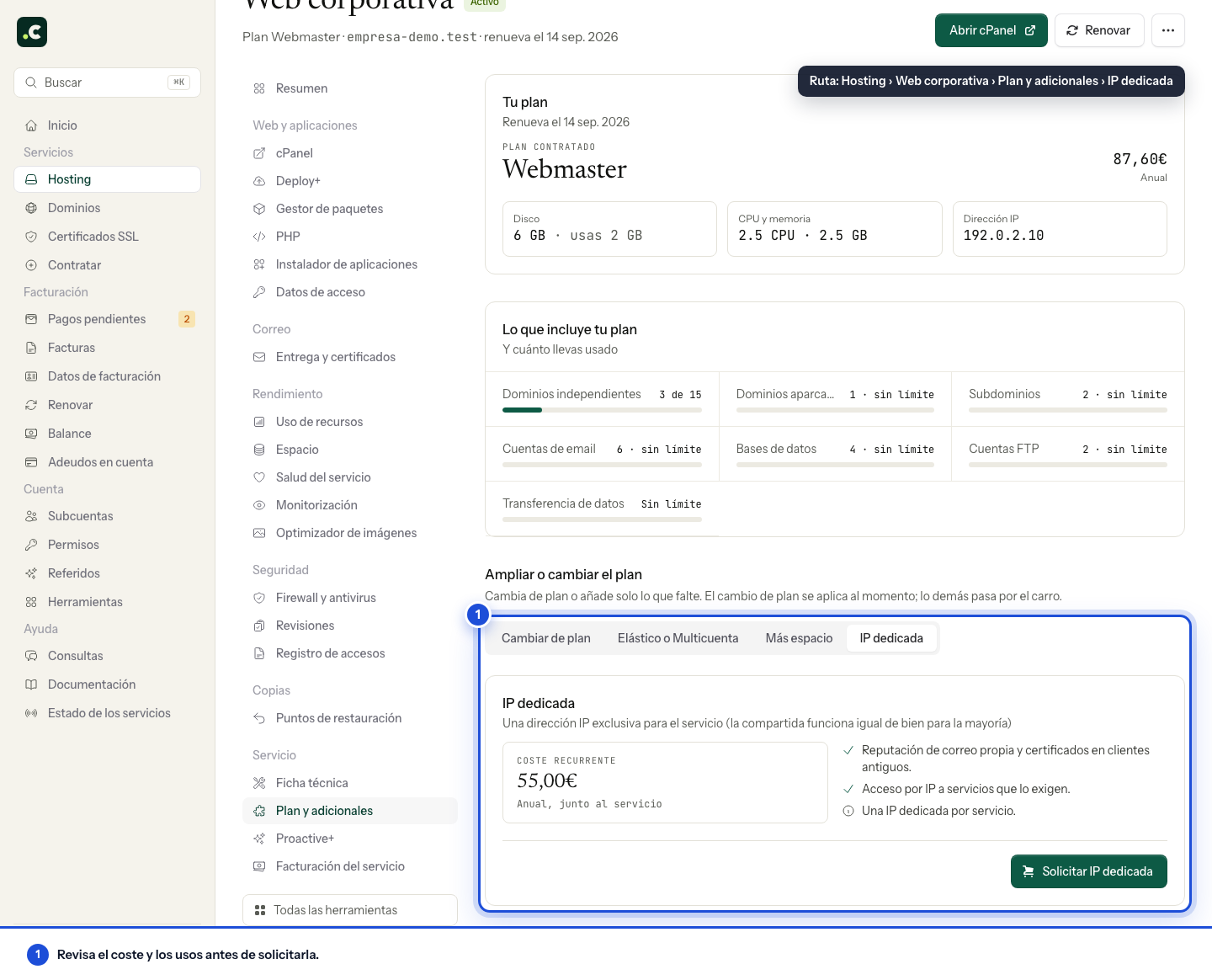
The cost shown is for the same payment interval as the hosting service; however, when you add it to the cart you only pay the difference up to the service's current renewal date.
Prepare and check the change
First confirm what the integration requires: an exclusive IP for the website does not on its own guarantee that it will be the outgoing IP for every process or for email.
Wait for the assignment and check whether you need to update records in an external DNS or access lists. Keep a copy of the previous values and check the website, HTTPS and external connections after the change. Do not request a second IP just because the cart is still awaiting activation.
You may also find useful
- Difference between a shared IP and a dedicated IP Tell a shared IP apart from an IP exclusive to one account and check the technical requirement, inco...
- Access the cPanel control panel Open cPanel from your Hostsuar account without typing another password, find its credentials and fix...
- Available data centres See the hosting's main location in Amsterdam and what to check if your project requires a specific r...
- Change the cPanel language Change the language of the whole cPanel interface from Account Preferences and select the translatio...
Something wrong or out of date? Tell us and we will review it.