

Development and databases
Install Node.js and npm to build assets
Node.js and npm are available on all hosting services to help with building assets and running commands during deployments. This tool is meant for building CSS/JavaScript and running build commands, not for running Node.js applications as a server.
Go to the client area, Hosting section, select the hosting service where you want to install Node.js and open the Package manager section.
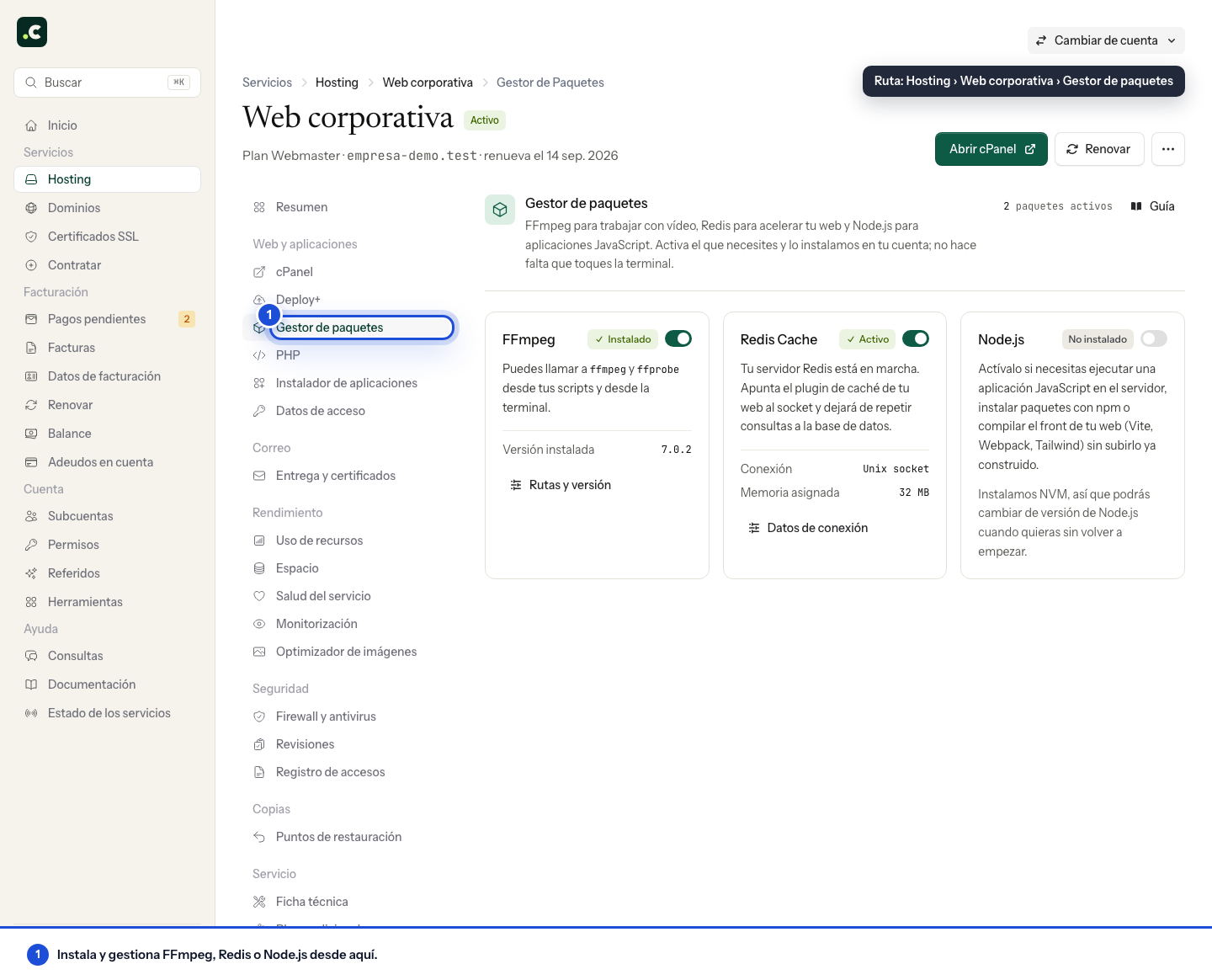
Install Node.js
If Node.js is not installed, you will see a card with the status Not installed and a switch turned off. Turn it on and the Node.js panel opens with the versions available at that moment.
The panel itself tells you which one to choose if you have no preference; follow that recommendation unless the engines.node property in your package.json requires another. Before deciding, also check the official Node.js release lifecycle: LTS labels and end-of-support dates change over time, so this guide does not fix version numbers.
EOL versions should not be used for new projects or normal deployments. If the panel keeps one to make a migration easier, use it only temporarily, isolated and without persistent services, with a set date to update dependencies and retire that environment.
Select the version and click Install NVM and Node.js with the version number. The process installs NVM (Node Version Manager), downloads and installs Node.js, configures npm automatically, adds the configuration to your .bashrc and checks the installation. When it finishes you will see a success message with the installed versions.
Change version
On the Node.js card in the Package manager, click Change version, select the new one and click Switch to vX.x. The system downloads the new version if it is not installed, sets it as the default and checks that it works correctly.
Changing the version affects every project on the same hosting service. If you need different versions for different projects, use
nvm usemanually in your scripts.
Usage examples
Installing Node.js automatically adds the configuration needed to your .bashrc, which makes Node.js available in interactive SSH sessions and in the panel's command runner. In custom deployment scripts and cron jobs, however, you need to activate NVM manually, because those contexts do not load .bashrc automatically.
The build examples assume that package.json and package-lock.json are in the repository and in sync. Install or update dependencies in development, test the result and commit both files. npm ci rebuilds node_modules from the lock file; --include=dev includes the build tools even when the environment is production.
From deployment scripts
The main use case is combining it with the automatic deployment tool from GitHub. The editor runs one command per line and each line opens its own shell: activate NVM on the same line that uses npm or npx, not on a separate line.
Laravel with Vite:
export NVM_DIR="$HOME/.nvm" && . "$NVM_DIR/nvm.sh" && npm ci --include=dev
export NVM_DIR="$HOME/.nvm" && . "$NVM_DIR/nvm.sh" && npm run build
Laravel Mix:
export NVM_DIR="$HOME/.nvm" && . "$NVM_DIR/nvm.sh" && npm ci --include=dev
export NVM_DIR="$HOME/.nvm" && . "$NVM_DIR/nvm.sh" && npm run production
Project with Tailwind CSS and its CLI already declared as dependencies:
export NVM_DIR="$HOME/.nvm" && . "$NVM_DIR/nvm.sh" && npm ci --include=dev
export NVM_DIR="$HOME/.nvm" && . "$NVM_DIR/nvm.sh" && npx @tailwindcss/cli -i ./src/input.css -o ./dist/output.css --minify
WordPress with a custom theme:
export NVM_DIR="$HOME/.nvm" && . "$NVM_DIR/nvm.sh" && cd wp-content/themes/mi-tema && npm ci --include=dev
export NVM_DIR="$HOME/.nvm" && . "$NVM_DIR/nvm.sh" && cd wp-content/themes/mi-tema && npm run build
From SSH and the command runner
When you connect interactively over SSH or use the deployment panel's command runner, Node.js is available automatically without exporting anything. Just connect over SSH or use the command runner and run directly:
Build assets manually:
cd /home/usuario/apps/mi-proyecto &&
npm ci --include=dev &&
npm run build
Build Tailwind CSS with its dependencies already declared:
npm ci --include=dev
npx @tailwindcss/cli -i ./src/styles.css -o ./public/styles.css --minify
Optimise images with sharp, if the project includes that dependency and the script shown:
npm ci --include=dev
node optimize-images.js
Run tests:
npm ci --include=dev
npm test
Compile TypeScript, if it is declared and configured in the project:
npm ci --include=dev
npx tsc
Uninstall
Turn off the switch on the Node.js card and confirm with Uninstall Node.js. This removes all Node.js versions, NVM, global npm packages stored in NVM and the NVM configuration lines in .bashrc. Your projects' local node_modules are not removed. Before uninstalling, review the deployments and cron jobs that depend on Node.
Important limitations
This tool is meant to assist deployment by building assets and running commands, not to run Node.js applications as a server. Valid uses include building CSS/JavaScript with PostCSS, Sass, Tailwind, Webpack, Vite or Rollup, optimising images, running tests and generating documentation. You can also host React, Vue or another static website connected to an external API: once built, the hosting only serves its files and the browser or a PHP backend can talk to the API over HTTPS.
It is not suitable for Express servers, Next.js in server mode, WebSockets or REST APIs that need to run constantly. For those cases you need an environment that supports persistent Node processes and manages their HTTP publishing, restarts and ports. Installing Node from this card does not set up that service; confirm your project's compatibility before ordering another environment.
The persistent processes on the Avanza, Max and Elástico plans keep queue workers, Horizon or your own commands running, but they are for background jobs: we do not support a Node.js server or other programs that listen on a port. If what you need is WebSockets for a Laravel application, connect it to a Pusher-compatible service, as we explain in WebSockets in Laravel.
npm commands are subject to the hosting plan's CPU and RAM limits, and to the maximum run times of the runner you use. If your builds need a lot of resources, consider building locally or in a CI/CD system and uploading only the built assets. Some npm packages that need to compile native code may fail if they require system dependencies that are not available.
Troubleshooting
"NVM not found" or "npm command not found" in deployment scripts: Load NVM on the same line that uses npm or npx, as the deployment examples show. If it does not appear in an interactive session either, check that NVM has been loaded.
"npm command not found" in interactive SSH: Check that Node.js is installed correctly in the Package manager. If it is installed but does not work, close and reopen your SSH session so that .bashrc is loaded, or run source ~/.bashrc.
Very slow package installation: The first time you run npm install it can take several minutes, because npm downloads every dependency. The cache can reduce later downloads, although building and install scripts still use resources.
"EACCES: permission denied" error when installing a global package: This usually means NVM is not active in that shell and npm is trying to write outside your account. Activate NVM with . "$HOME/.nvm/nvm.sh" and try again; with NVM, global packages are installed inside $HOME/.nvm.
The Node.js version does not match: If node --version shows a different version, make sure you have changed the default version in the Package manager, or use nvm use VERSION to switch temporarily.
Integration with other tools
You can use Node.js with the automatic deployment system from GitHub to build assets automatically on each deployment without committing them to the repository. You can combine Composer and npm in the same deployment script:
composer install --no-dev --optimize-autoloader
export NVM_DIR="$HOME/.nvm" && . "$NVM_DIR/nvm.sh" && npm ci --include=dev
export NVM_DIR="$HOME/.nvm" && . "$NVM_DIR/nvm.sh" && npm run build
php artisan config:cache
php artisan route:cache
php artisan view:cache
You can also use Node.js in cron jobs for scheduled tasks. As with deployment scripts, you need to activate NVM manually because cron jobs do not load .bashrc:
export NVM_DIR="$HOME/.nvm" && . "$NVM_DIR/nvm.sh" && cd /home/usuario/public_html && node scripts/tarea.js
Before automating, run a test build and check that the expected directory is generated and that the website loads its resources.
You may also find useful
- Host React, Vue and static websites connected to external APIs Check whether your JavaScript frontend fits on shared hosting, connect it to Supabase, Firebase or o...
- WebSockets in Laravel: Reverb, Pusher and alternatives Why Reverb is not hosted on the hosting and how to add real-time features to your Laravel applicatio...
- Accessing your account over SSH Connect to your hosting over SSH from Windows, Linux or macOS using Ed25519 keys, port 93 and finger...
- Apache handlers Set from cPanel which Apache handler should process a given extension, and learn why this option cal...
Something wrong or out of date? Tell us and we will review it.