

Development and databases
Install, update and use FFmpeg on your hosting
The client area's Package manager lets you install, update and uninstall FFmpeg easily. You do not need the terminal to install it.
Install and manage FFmpeg
Go to the client area, Hosting section, open the page of the hosting service where you want FFmpeg, and go to Package manager:
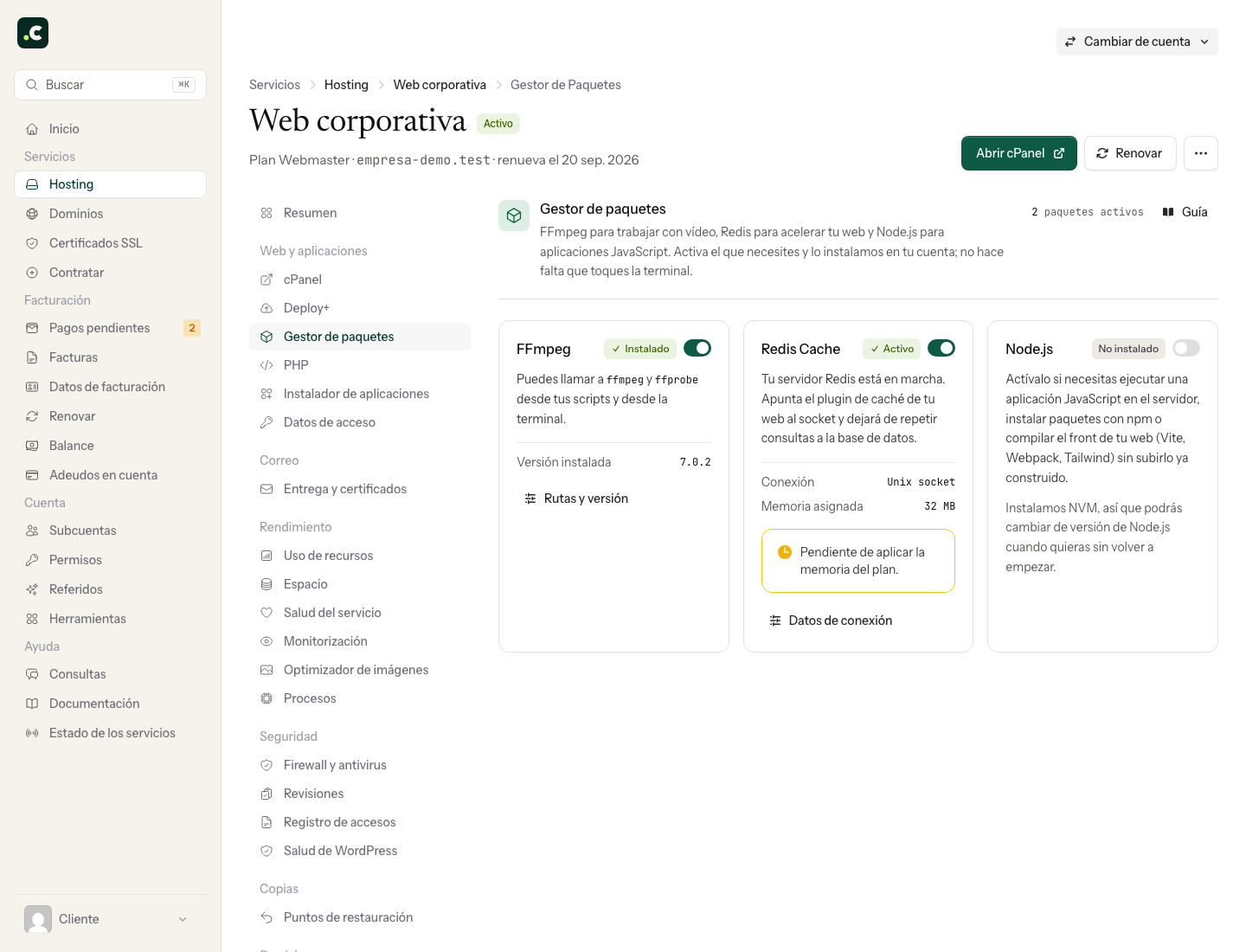
Each package is a card with its status and a switch. Turn on the FFmpeg one and its panel opens, showing the version to be installed and the path where it will go; to start, click Install FFmpeg with the version number. Wait for the operation to finish and check its result before requesting it again.
Once installed, the card changes to Installed and the Paths and version link opens the panel with the version in use and the binary paths, ready to copy. If there is a newer version, Update appears right there (the paths do not change). To remove it, turn off the card's switch and confirm.
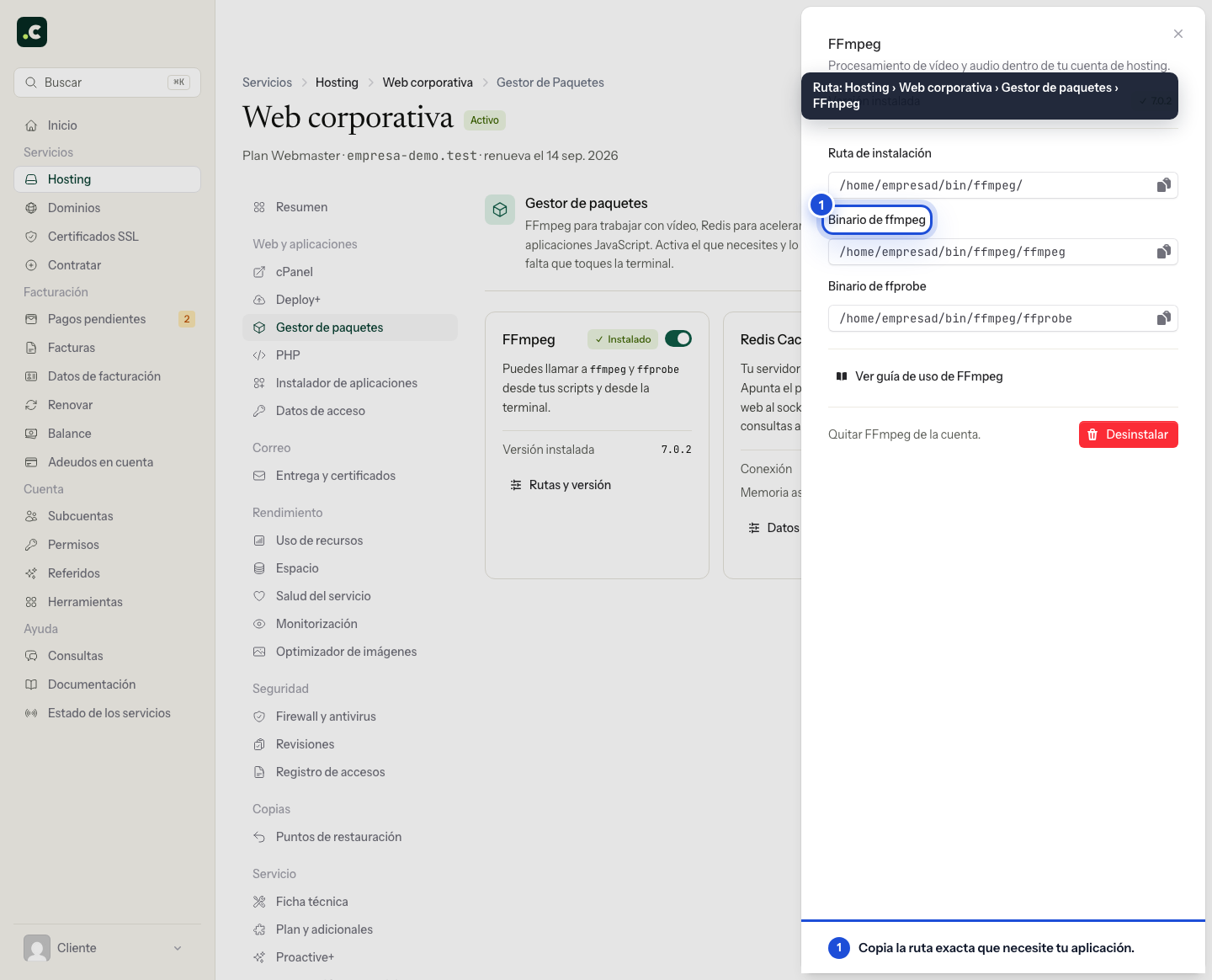
When the installation finishes successfully, use the ffmpeg and ffprobe paths shown in the panel. Installing the binaries does not automatically configure the plugin that will use them.
Using FFmpeg
There are two usual ways to use it. One is over SSH (terminal), with commands or bash scripts that run /home/usuario_cpanel/bin/ffmpeg/ffmpeg followed by the options you want. The other is from PHP, using a library such as PHP-FFMpeg or an application that implements it; in these cases all you have to do is provide the path to the relevant binary.
For example, with PHP-FFMpeg, you initialise it with the path as follows, according to its documentation:
$ffmpeg = FFMpeg\FFMpeg::create(array(
    'ffmpeg.binaries'  => '/home/usuario_cpanel/bin/ffmpeg/ffmpeg',
    'ffprobe.binaries' => '/home/usuario_cpanel/bin/ffmpeg/ffprobe',
));
If it is an application or plugin that uses FFmpeg, the developer will provide a way to set the ffmpeg path, either through a configuration file or from the application's interface.
Test before processing large videos
After installing the PHP library with Composer and loading its autoload, replace the paths in the example with your account's. To check the binary first over SSH:
/home/usuario_cpanel/bin/ffmpeg/ffmpeg -version
/home/usuario_cpanel/bin/ffmpeg/ffprobe -version
Then test with a small file and a new output name. Check the generated format and the CPU, memory and disk usage; a conversion can need much more space than the original file. For long jobs, use a controlled task and avoid relying on a web request's maximum execution time.
Before updating, check that the parameters and the plugin are compatible. Before uninstalling, remove or change the application features that call the binary. If the installation or a conversion fails, keep the error message and the versions used.
You may also find useful
- Available binaries and tools - FFmpeg, Tesseract, ImageMagick, cURL and more See which binaries are available for video, images, PDF, OCR, networking, DNS, version control and o...
- Apache handlers Set from cPanel which Apache handler should process a given extension, and learn why this option cal...
- Create and run cron jobs in cPanel Set up cron jobs in cPanel, define intervals and commands, manage notifications, call URLs with cURL...
- Customise 404 and other error pages Customise from cPanel the responses for errors such as 404, with request codes and tags, and tell wh...
Something wrong or out of date? Tell us and we will review it.