

Performance and monitoring
Set up Redis as an object cache
Redis lets you keep data in memory that the application can reuse. To benefit from it you need to activate the service on the hosting and connect a compatible application. Turning on Redis does not make every SQL query get cached automatically.
Redis Cache is cache only: it starts empty every time it restarts and discards keys when it fills up. For queues, sessions or other data that cannot be lost, the Avanza, Max and Elastic plans have persistent Redis, which saves its data to disk.
It can be useful for shops, courses or admin areas with repeated activity. An informational website with good page caching may not notice a difference. The explanation of the WordPress object cache will help you tell the two cases apart.
Activate Redis in the client area
- Open the hosting and go to Package manager.
- On the Redis Cache card, turn on the switch.
- Review the allocated memory and click Activate Redis Cache.
- Wait for the panel to confirm the activation. Open Connection details to see the values.
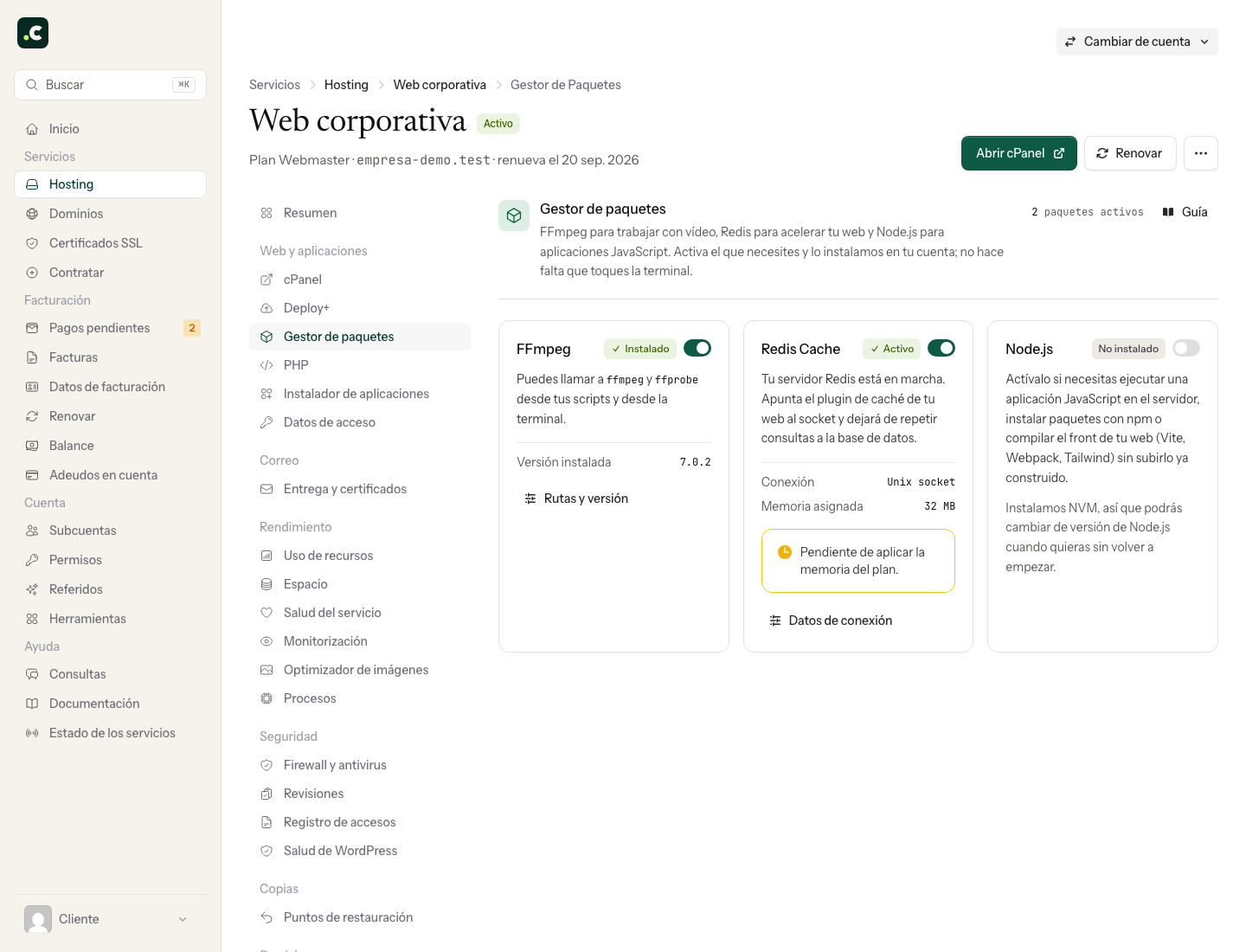
All plans include Redis for caching. The configured limits are 16 MB on Inicia, 32 MB on Webmaster, 64 MB on Avanza, 100 MB on Max, 200 MB on Elastic and 16 MB per multi-account account. Check the memory your service shows; after changing plan it may appear as pending.
This limit applies to Redis data, not to all the RAM used by the process. Several websites on one account share that capacity. There is no universal optimal size: it depends on how much they store and reuse.
Connection details
| Field | Value |
|---|---|
| Type | Unix socket |
| Host or path | /tmp/redis.sock |
| Port | 0 |
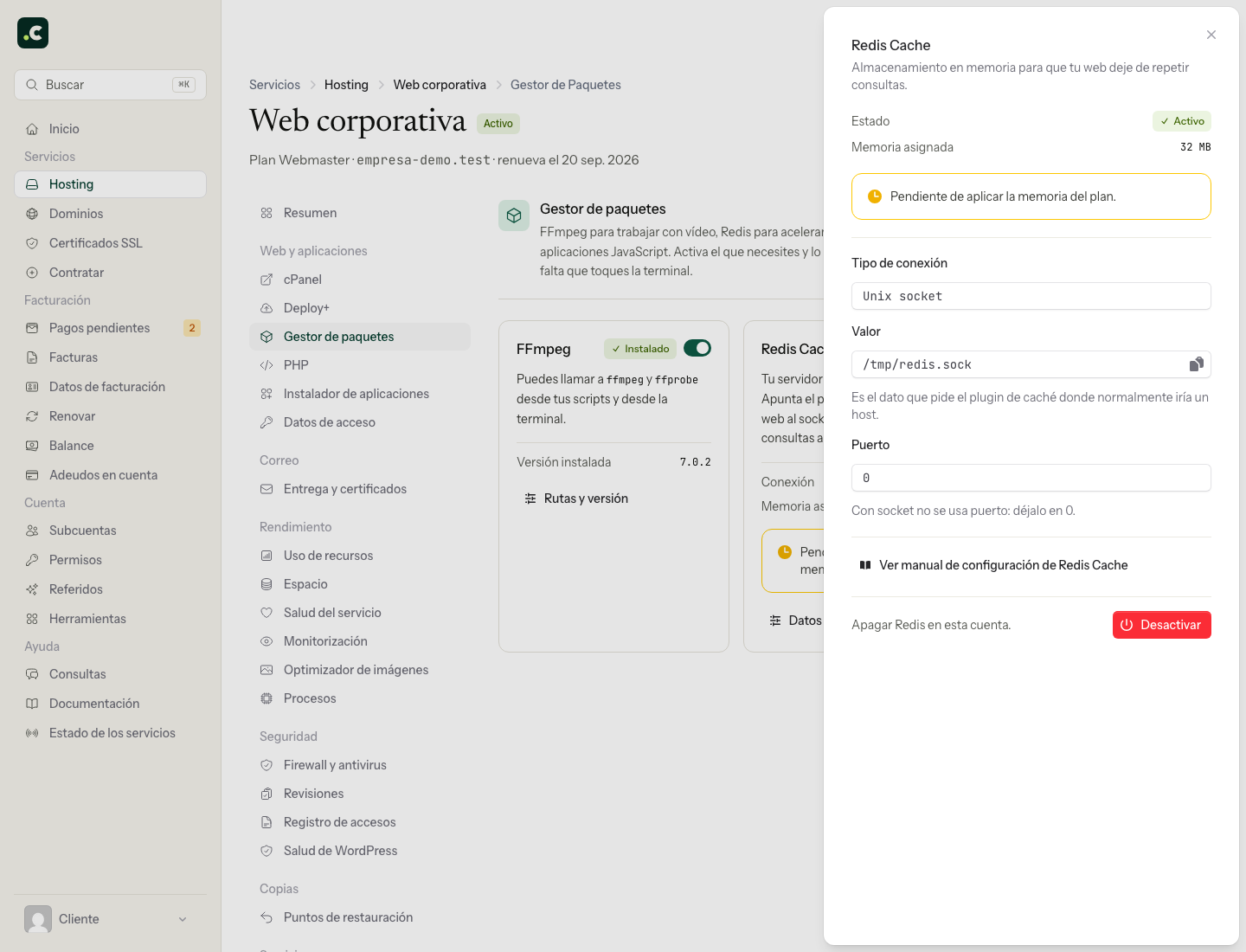
The path is the one your account sees inside its isolated environment. Another account showing the same path does not mean it shares your instance. The application must run on this hosting; it is not an address to connect to from your computer.
WordPress and WooCommerce with LiteSpeed Cache
Use a single object cache integration per installation. If another plugin manages wp-content/object-cache.php, first deactivate its integration following its instructions.
- Install and activate LiteSpeed Cache.
- Go to LiteSpeed Cache > Cache > Object.
- Select Redis as the method and set the host and port from the table above.
- Assign a Redis Database ID different from the other websites on the account.
- Turn on Object Cache, save and check the connection status. If the Redis extension is missing, enable it in the PHP version that website uses before continuing.
Check the front end, the admin area and content updates. The object cache does not replace the page exclusions for cart, checkout and private areas.
WordPress with Redis Object Cache
Alternatively, install Redis Object Cache. Before activating its object cache, save a copy of wp-config.php and add these lines before WordPress loads its configuration. Change the existing constants if they are already defined; do not duplicate them.
define('WP_REDIS_SCHEME', 'unix');
define('WP_REDIS_PATH', '/tmp/redis.sock');
define('WP_REDIS_PORT', 0);
define('WP_REDIS_DATABASE', 1);
The 1 is an example: choose a free identifier on that account. Open the plugin's settings, check the connection and activate the object cache. Review its diagnostics if it cannot create the integration file or detects another one already installed. See the plugin options for special configurations.
PrestaShop and other applications
The module must be compatible with your version of the application and support Unix socket connections. It is not enough for it to advertise Redis support if it only accepts a TCP host and port. Before buying a module, confirm these requirements with its developer.
Set the path and port from this guide, keep each website's data separate and check the result with the module's diagnostics. Do not adapt a remote Redis guide by opening a port on the server.
Laravel
With the PhpRedis extension available for the application's PHP, configure the connection in .env:
REDIS_CLIENT=phpredis
REDIS_HOST=/tmp/redis.sock
REDIS_PORT=0
Keep the keys in config/database.php that read these values. To use it as a cache store you must also select Redis in config/cache.php: current projects usually read CACHE_STORE, while older projects may use CACHE_DRIVER. Check which variable your project reads; changing only the connection does not change the store.
Give the cache connection its own Redis index, for example through REDIS_CACHE_DB if your configuration uses that variable, and a project-specific prefix. Refresh the configuration cache with your deployment procedure and test saving, reading and removing a temporary test key from the application.
Sessions and queues do not belong in this instance: Redis Cache does not save anything to disk and discards keys when it fills up, so a session or a pending job could disappear without warning. Store them in the database, which is the default configuration since Laravel 11; in older projects, first create their tables with php artisan session:table and php artisan queue:table and migrate:
CACHE_STORE=redis
SESSION_DRIVER=database
QUEUE_CONNECTION=database
On Avanza, Max and Elastic you can also move queues and sessions to persistent Redis and keep the cache on this instance: both work at the same time, each with its own socket. Horizon only works with queues on Redis, so with Redis Cache it is not a safe option: use queue:work on the database or Horizon on persistent Redis. Follow the Laravel connection documentation for the installed version.
Several websites on the same hosting
Redis usually has 16 logical databases, numbered 0 to 15. Assign a different one to each integration: Redis Database ID in LiteSpeed Cache, the constant from the example in Redis Object Cache, or the cache connection in Laravel.
These databases are not a security boundary and do not have separate memory. An operation that flushes the whole instance would affect the other websites. Avoid global commands such as FLUSHALL and check the scope of each integration's purge button.
Measure and deactivate
Compare the same operations before and after, with several repetitions. Review hits, misses, memory and evictions when the plugin offers that data. A freshly flushed cache needs to fill up again.
Redis keeps data in memory only: when the service or the server restarts, the instance starts empty and the application fills it again. That is why it is suitable for caching and not for data that must be kept; persistent Redis is there for that.
The intended policy is allkeys-lru: when it reaches the limit, Redis can evict keys that have not been used recently, even if they have no expiry. It does not necessarily remove the oldest ones. Continuous evictions can reduce the usefulness of the cache; review what is being stored before upgrading the plan.
To stop using it, first deactivate the integration in every application on the account, check that they work and then turn off Redis from the Package manager. Turning off the service first can cause connection errors on the website.
You may also find useful
- AccelerateWP: features, availability and configuration Details the free and premium AccelerateWP features for WordPress, including caching, file optimisati...
- Is Memcached available? Clarifies the difference between the Memcached PHP extension and the cache server, and explains that...
- LiteSpeed Web Cache Manager in cPanel Manage your applications' LiteSpeed cache from cPanel, install the compatible plugin and purge conte...
- Persistent Redis for queues, sessions and Horizon Enable your own Redis that stores its data on disk for your application's queues, sessions and Horiz...
Something wrong or out of date? Tell us and we will review it.