

Development and databases
Automatic deployment from GitHub, GitLab or Bitbucket with instant rollback
The automatic deployment system connects your repositories on GitHub, GitLab, Bitbucket, Gitea/Forgejo or any Git server reachable over HTTPS to your hosting, preparing a new version of the code before activating it through a symbolic link. You can quickly go back to a retained version. The application's continuity also depends on its migrations, shared files and scripts; switching code does not roll back that data.
If your repository contains React, Vue or another frontend that ends up as HTML, CSS and JavaScript files, also see how to host a static site connected to an external API.
Open the tool from the client area in Hosting → select your service → Deploy+.
Connect a repository
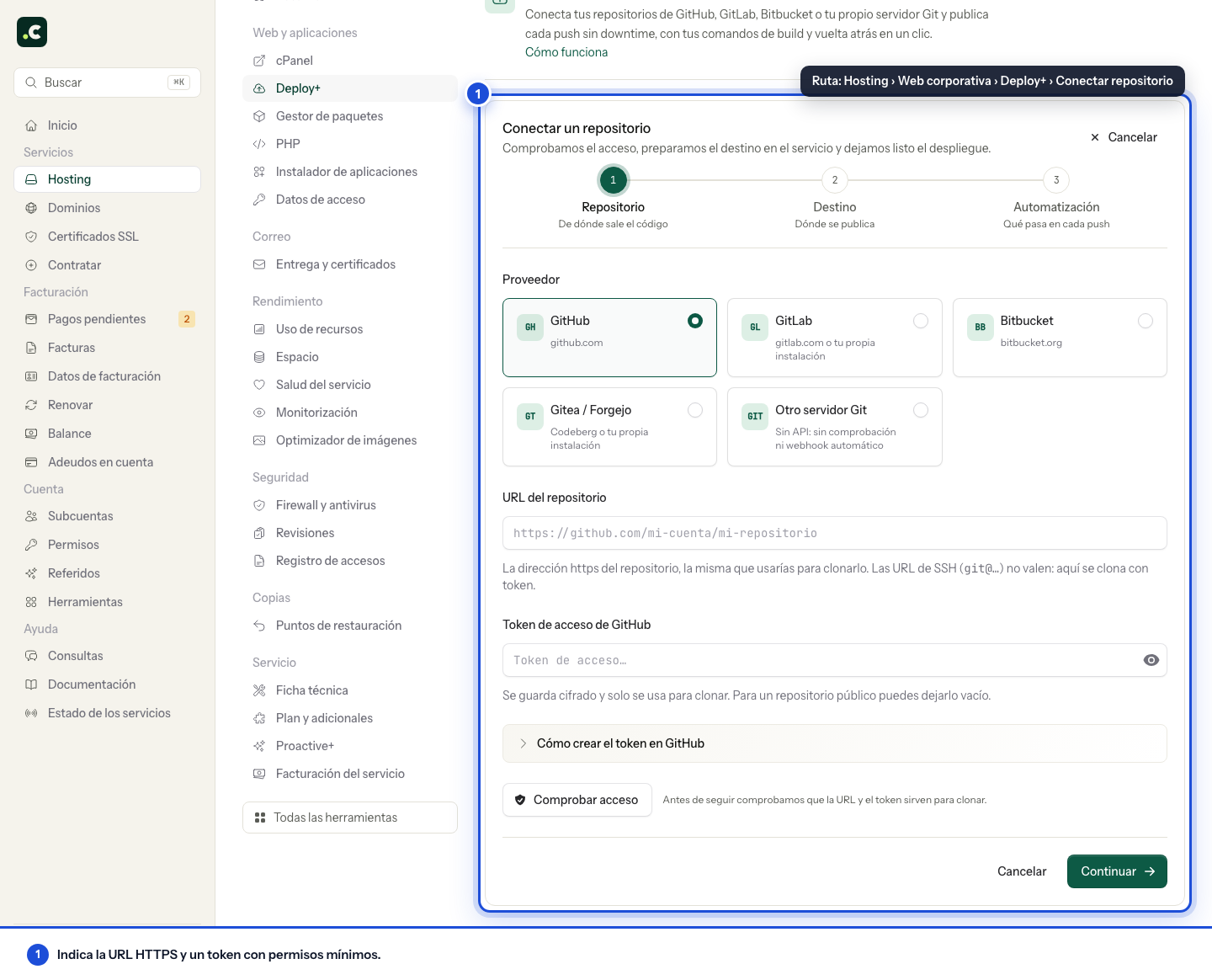
Click Connect repository. Setup takes three steps within the same card; you cannot move on to the next step until the current one is resolved, so errors appear where you fix them.
Step 1 · Repository
- Provider: GitHub, GitLab, Bitbucket, Gitea/Forgejo or "Other Git server". GitLab and Gitea support self-hosted installations: the URL just needs to point to your server.
- Repository URL: the repository's
https://address, the same one you would use to clone it. SSH URLs (git@servidor:cuenta/repo.git) do not work: the deployment clones over HTTPS with a token. - Access token: stored encrypted and used to access the repository and, where applicable, query the provider's API and manage the webhook. For a public repository you can leave it empty. The "How to create the token" drop-down shows, for the chosen provider, where to create it and exactly which permissions it needs.
- Check access: queries the provider's API and returns the repository, whether it is public or private, the default branch and the list of branches. If the token is missing a permission, it tells you here and not halfway through the first deployment.
- Branch to deploy: chosen from the drop-down with the branches read from the repository.
Permissions each provider asks for:
| Provider | To clone | To create the webhook |
|---|---|---|
| GitHub (fine-grained token) | Contents: Read, Metadata: Read |
Webhooks: Read and write |
| GitLab | scope read_repository |
scope api |
| Bitbucket (repository access token) | Repositories: Read |
Webhooks: Read and write |
| Gitea / Forgejo | repository read | repository or webhook write |
| Other Git server | user and token with read access | not applicable |
With Other Git server there is no API to query: access is not checked, branches are not read and the webhook cannot be created automatically. Deploying on each push is done by calling the manual URL from your own integration. You will also be asked for the user your server accepts for HTTPS authentication (check the user your provider requires).
Always create the token with the shortest expiry that works for you, revoke it when you delete the deployment and renew it before it expires without widening its permissions. On GitHub, do not use a classic token with the global repo scope.
Step 2 · Destination and project
- Project type: choose Laravel, Symfony, WordPress, PHP/Composer, Built frontend, Static HTML or Other project. The profile suggests a web root, shared files and a suitable script, which you can review before saving.
- Repository name: an identifier to recognise it in the list; it is filled in automatically with the repository's name.
- Publish folder:
public_htmlfor the main domain,subdominios/appfor a subdomain. Below the field you can see the full final path and what that folder serves. - Web root inside the repository: the profile sets it to
publicfor Laravel and Symfony,distfor a built frontend or the root for projects that do not use a public subfolder. Change it if your build generates another directory, such asbuildorout. - Shared files and folders: one path per line; they are stored outside each release and linked into all of them.
- Releases to keep: how many previous releases are kept so you can go back. By default, 5.
Step 3 · Automation
- Deploy on push: if the provider has an API and the token can manage webhooks, we create it for you when connecting the repository. If not, the repository page gives you the URL (and the secret, if you ask for a signature) to paste into the provider's webhook settings.
- Check each notification's signature: only notifications signed by the provider are accepted. GitHub and Bitbucket sign with HMAC-SHA256, so does Gitea, and GitLab sends the secret in the
X-Gitlab-Tokenheader. - Schedule the Laravel scheduler: ticked by default in a Laravel project. When the first deployment finishes successfully, we add
php artisan schedule:runto your cron jobs every minute in the application'scurrent, with the absolute path of the PHP your account has selected. We explain this in The Laravel scheduler. - Deployment script: review the one the profile suggests or choose Only build assets with Node, PHP with Composer or No script. You can also write your own commands; whatever is left in the text box is saved.
The step ends with a summary of your choices and the Connect repository button.
Run a deployment
When you click Connect repository, the system checks SSH access (enabling it automatically if needed), validates the configuration and saves the repository. It now appears in the list with a Deploy now button.
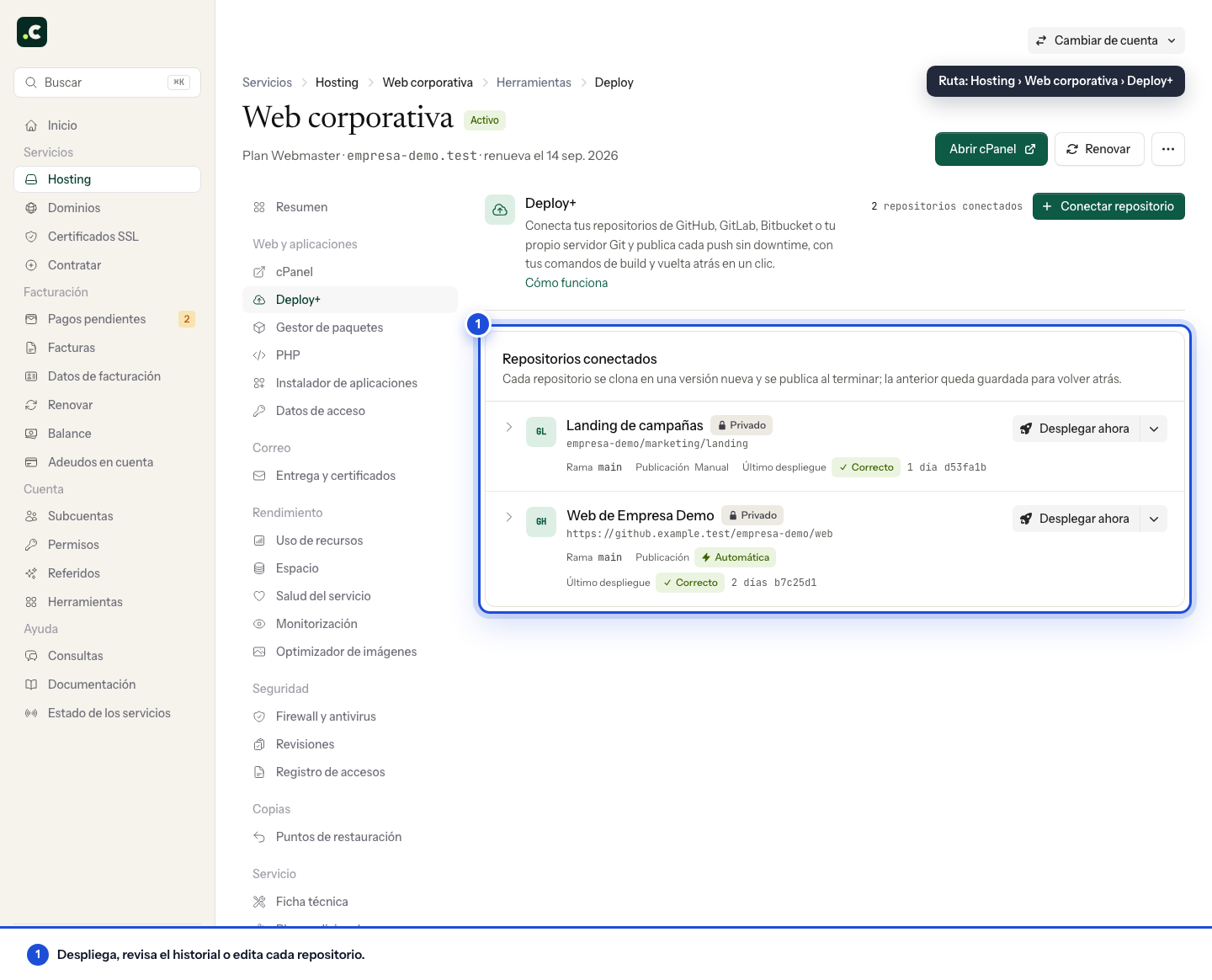
Click Deploy now for the first deployment. The path must be empty: if it contains a previous website, the system will ask you to make a copy and remove that content before continuing.
While it runs, the progress card shows the steps one below the other (connection, clone, shared files, script, activation and clean-up), with the time each one took and the total. The console is folded away behind View console: if something fails, the broken step opens by itself with the last lines of the output, an explanation of what happened and buttons to retry or correct the token or the URL. If the error happens before the new code is activated, the previous version stays published. Check the step that failed: scripts may have changed shared data, and an error after activation means you need to check which version the website is serving.
The repository details also show a manual deployment URL for external integrations. That URL contains a secret that can start deployments: do not publish it, do not include it in screenshots or logs, and regenerate it immediately if it is exposed.
Custom scripts
Most projects need to run commands during deployment to install dependencies or build assets. Open the editor by clicking the repository menu (three dots) → Edit script.
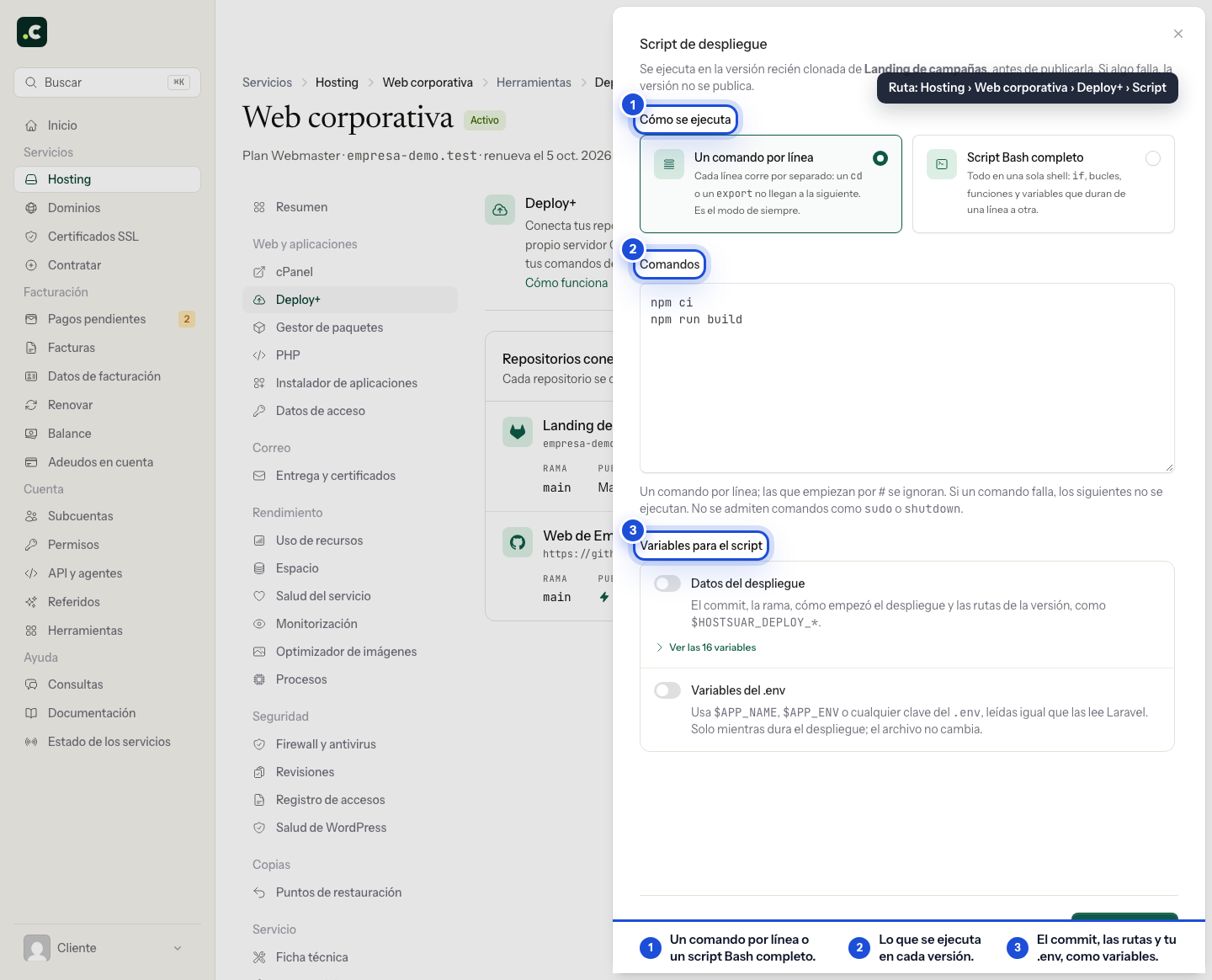
How the script runs
The editor offers two modes, and you can switch between them whenever you like without the script text changing:
- One command per line: the original mode, and the one kept by all repositories connected before the option existed. Each line runs separately, in its own shell and from the new release's folder, so a
cdor anexportdoes not carry over to the next line. If a command fails, the following ones do not run. - Full Bash script: the whole script runs in a single Bash shell, from top to bottom, with conditionals, loops, functions and variables that last from one line to the next. It stops at the first command that fails, as with
set -e, and the log shows which one it was, exactly as written. A failure in the middle of a pipeline (comando | otro) does not stop it unless you start the script withset -o pipefail. When you save, the editor checks that Bash understands the script.
In Bash mode, NVM is loaded once and works for the rest of the script:
composer install --no-dev --optimize-autoloader --no-interaction

if [[ "$HOSTSUAR_DEPLOY_TRIGGER" == "webhook" ]]; then
    php artisan migrate --force
fi

export NVM_DIR="$HOME/.nvm"
. "$NVM_DIR/nvm.sh"
npm ci --include=dev
npm run build
An exit 0 ends the script early without marking the deployment as failed. A command that waits for keyboard input will not get it: add the option that makes it non-interactive, such as --no-interaction in Composer.
Variables for the script
Below the script there are two independent switches. They work in both modes.
Deployment data makes these variables available to the script. It is on by default in repositories connected since 23 September 2026; in older ones it is off until you turn it on.
| Variable | Content |
|---|---|
HOSTSUAR_DEPLOY_ID |
Deployment number in the history |
HOSTSUAR_DEPLOY_TRIGGER |
manual, webhook or rollback |
HOSTSUAR_DEPLOY_PROJECT |
Repository name in the panel |
HOSTSUAR_DEPLOY_REPOSITORY |
Repository URL, without credentials |
HOSTSUAR_DEPLOY_BRANCH |
Branch being deployed |
HOSTSUAR_DEPLOY_COMMIT |
Full hash of the cloned commit |
HOSTSUAR_DEPLOY_COMMIT_SHORT |
The first 7 characters of the hash |
HOSTSUAR_DEPLOY_COMMIT_MESSAGE |
Commit subject |
HOSTSUAR_DEPLOY_COMMIT_AUTHOR |
Commit author |
HOSTSUAR_DEPLOY_BASE_PATH |
Folder with releases, current and shared |
HOSTSUAR_DEPLOY_RELEASE_PATH |
Release being prepared |
HOSTSUAR_DEPLOY_PREVIOUS_RELEASE_PATH |
Release published at that moment; empty on the first deployment |
HOSTSUAR_DEPLOY_CURRENT_PATH |
current link |
HOSTSUAR_DEPLOY_SHARED_PATH |
shared folder, with the .env |
HOSTSUAR_DEPLOY_PUBLISH_PATH |
Folder the website publishes, for example public_html |
HOSTSUAR_DEPLOY_WEB_ROOT |
Published subfolder (public, dist…) or empty |
None of them contains secrets: they do not include the Git token or the webhook secret. A rollback that has to rebuild a deleted release runs the script with HOSTSUAR_DEPLOY_TRIGGER=rollback and that release's commit.
.env variables passes the keys from the shared .env to the script and to everything it launches, such as a bash scripts/deploy.sh, Composer, npm or Artisan. The file is not modified and the variables only exist for the duration of the deployment:
- They are read with
vlucas/phpdotenv, the same reader Laravel uses, with its rules for quotes, comments and${VARIABLE}interpolation. If Laravel would not accept the file, the deployment stops before the script and the log explains why without showing its content. - A key that already exists in the account's environment, such as
PATHorHOME, keeps its value, just as in Laravel. - Keys that Bash does not accept as a variable (with a dot or hyphen, or shell names such as
IFSorUID) and those starting withHOSTSUAR_DEPLOY_are not passed. The log says which ones were left out. - The values travel in a temporary file only your account can read, which is deleted at the end, even if the deployment fails. They never appear on the command line. If the process is abruptly interrupted halfway, the file is deleted by a later deployment with this option turned on, after two hours.
- If there is no
.env, the script runs without these variables and the log says so.
Bear in mind two effects before turning it on:
- What the script prints is saved in the history. Deploy+ hides values whose keys look secret (they contain
PASSWORD,SECRET,TOKENorKEY, among others) and addresses with a user and password, such asmysql://usuario:clave@host, but it cannot recognise them all, and values shorter than 8 characters are not hidden. Do not print secrets or turn onset -x, which shows every command with its values. - The framework sees the variables too. In Laravel, if
APP_ENVarrives as a variable (from the.envor from your own account) and the repository includes a.env.production(or the file matching its value), while the script runs Laravel reads that file instead of.env, including inphp artisan config:cache. But it does not replace keys that already arrive as variables: if the.envsaysAPP_DEBUG=trueand the.env.productionsaysAPP_DEBUG=false, it keepstrue. The log warns you when it detects that file. In Symfony, system variables take priority over.env.localand.env.prod.local: if you use those files to override the.env, leave this option off.
Examples
Examples for projects that include their lock files (composer.lock or package-lock.json) and the build scripts shown. npm ci --include=dev also installs the build tools; it requires the lock file to be in sync. Check the PHP and Node versions the project needs first:
Laravel with Composer and npm:
composer install --no-dev --optimize-autoloader
php artisan config:cache
php artisan route:cache
php artisan view:cache
export NVM_DIR="$HOME/.nvm" && . "$NVM_DIR/nvm.sh" && npm ci --include=dev
export NVM_DIR="$HOME/.nvm" && . "$NVM_DIR/nvm.sh" && npm run build
Do not add php artisan queue:restart: the script runs before the release is activated, and Deploy+ already restarts your workers afterwards. We explain this in Queue workers and persistent processes.
WordPress with npm:
export NVM_DIR="$HOME/.nvm" && . "$NVM_DIR/nvm.sh" && npm ci --include=dev
export NVM_DIR="$HOME/.nvm" && . "$NVM_DIR/nvm.sh" && npm run build
Simple PHP project:
composer install --no-dev
Scripts run in the new release before it is activated, so a script failure prevents that new code from being activated. Even so, their operations on a database, external services or shared paths may affect the published website and are not undone automatically. The editor will not save a script that uses blocked commands such as sudo, chmod 777, dd, mkfs, fdisk, shutdown, reboot or halt: it points out the line so you can remove it. It does allow pkill and kill, which only affect your account's processes. You do not need them to restart queue workers: php artisan queue:restart makes them finish the current job cleanly before exiting. Until 23 September 2026 those lines were removed on save without warning, as were others that merely contained those letters inside a word, such as git add. If you saved your script before that date, open it and check that it still has all the lines you intended.
Deploy+ checks for Node.js before running these commands and installs it automatically if it is missing. If the project requires a specific version, select it first from the Package manager.
Shared files and .env
The .env file is preserved automatically between deployments. To share additional files or folders, go to Shared files (menu → Shared files) and enter the relative paths, one per line.
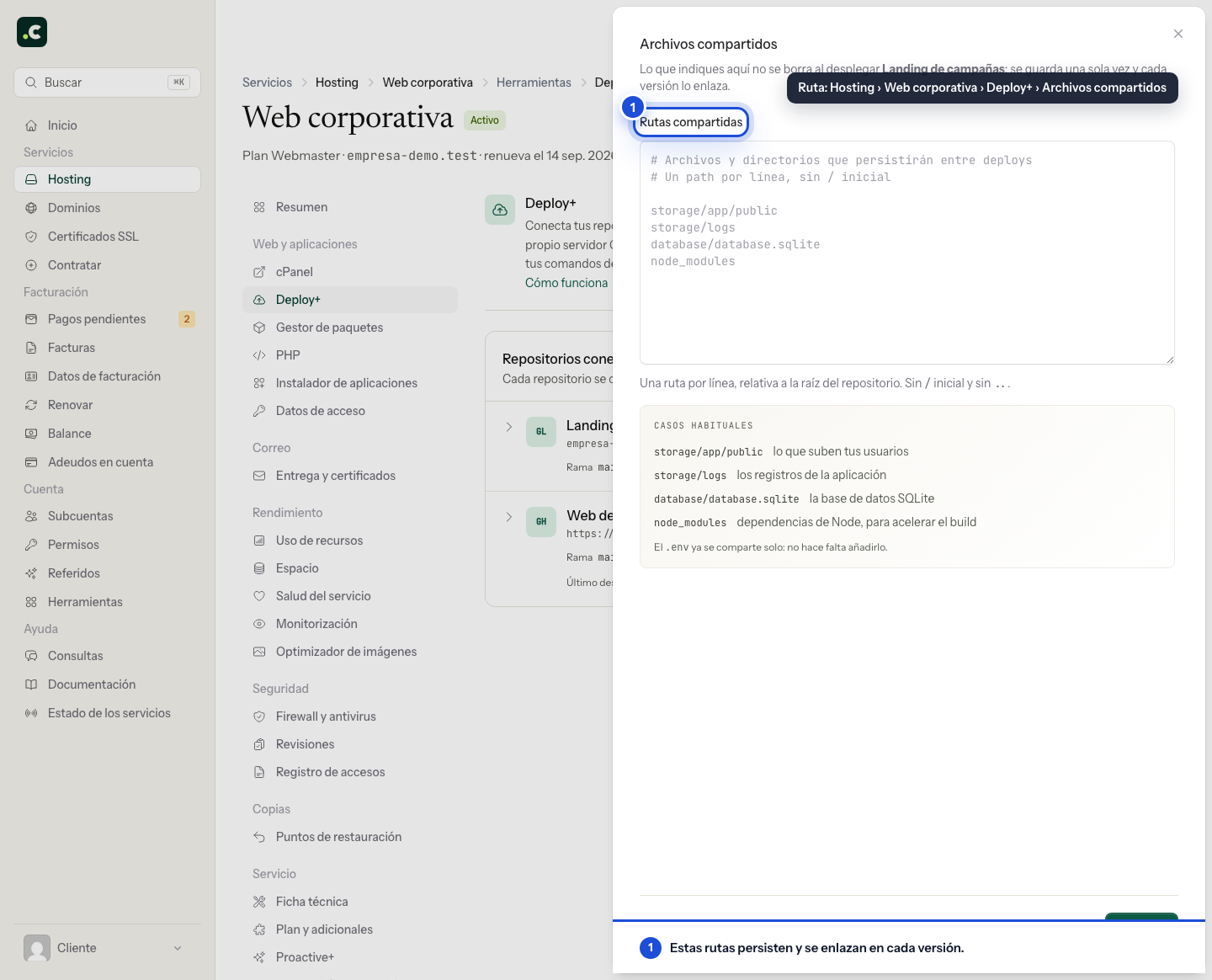
For example:
storage/app
storage/logs
uploads
Shared files are stored in ~/deploy/nombre-repo/shared/ and linked automatically into each release. You can edit the .env directly from the menu → Edit .env. The shared file is updated immediately and, in Laravel applications, the caches are cleared automatically. In a built frontend, variables compiled into the JavaScript only change when a new build runs, so you then need to launch another deployment.
Deploy+'s environment variables option manages that .env file; it is not a global store of server variables and does not automatically export its values to every process. Each application must load the file with its framework's mechanism or an equivalent library. Laravel, for example, uses vlucas/phpdotenv. Web PHP or a cron job can read the values if it boots the application or its configuration loader; a standalone command that does not load the .env will not receive them as system variables. The exception is the deployment script: with the .env variables switch on, its commands receive the values as variables (see the Variables for the script section).
LiteSpeed and PHP Selector do not offer, within the account, a secrets manager shared between web PHP, cron and Deploy+. Variables the server administrator may provide to web PHP are not carried over to the other two contexts because of that. Deploy+ does not currently include a built-in integration with external managers such as 1Password either: if the application uses one, it must implement the lookup itself and deliver the values to each process.
Variables are loaded inside each process and are not transferred to other applications on their own. However, all the applications in the same cPanel account run as the same user: a process in that account could read the .env if it knows where it is. Keeping it outside the web root prevents it from being downloaded over HTTP, but it does not create a security boundary between the account's applications. For full isolation you need a separate hosting service, with a different system user.
To check all three contexts, you can first use a variable with no secret information. The test should make web PHP, cron and the deployment command start the same loader; you do not need to change real credentials or restart the server. If a context does not load the file, the missing variable describes that process, not a loss of the shared .env.
Prepare the persistent content before publishing it. An existing shared path takes precedence over the file that arrives in the repository; adding it to the list does not automatically merge both versions. Do not put code you want to update with each deployment inside a shared folder. Avoid sharing node_modules if you use npm ci: that command deletes and rebuilds the folder, and could affect other releases pointing to it. Keep a copy before changing this configuration.
The shared .env affects the active application. In an existing Laravel installation, keep its APP_KEY; changing it is not part of a normal deployment. Do not put secrets in variables a frontend compiles into the public JavaScript. Before editing the .env, keep a private copy: rollback changes the published code, but it does not recover a previous version of this file.
History and rollback
The Deployment history opens from the repository menu and appears within its own page, in a table with date, trigger (Manual, Push, Rollback or Scheduled), deployed commit with its message and author, duration and status. The All / Failed filter lets you see only what broke. Click View details to expand the steps with their timings and the full console output.
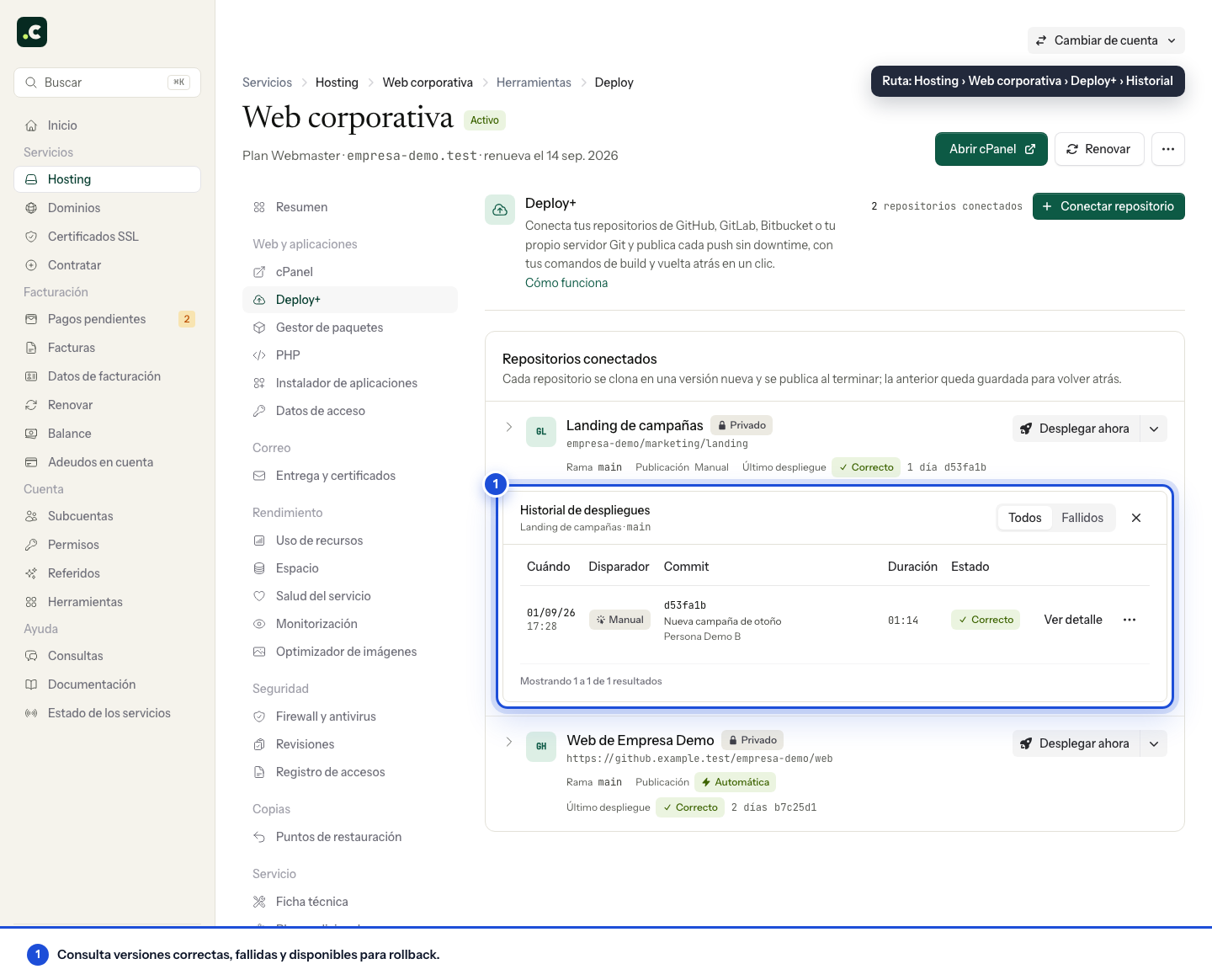
To roll back to a previous release, find the deployment in the history and choose Go back to this version from its menu; you are asked to confirm before anything is touched. The system checks that the release exists, switches the symbolic link to point to it and updates the directory. When the release is still available, it does not need to clone the code again and the switch is usually quick. Afterwards, check that the main pages and operations work with the current data.
If the release is no longer on the server because automatic clean-up deleted it, the system rebuilds it: it clones the repository and asks your Git provider for that specific commit. It takes longer than a normal rollback and requires the provider to allow the commit to be retrieved and the credentials to still be valid. It also runs the configured script again, which must still be compatible with that code and its dependencies.
Going back to a release that is still on the server does not run the script. The application's persistent processes do move to the restored release: Deploy+ restarts them when it finishes, just as after a deployment, and the log of that rollback shows how each one ended up.
Rollback does not restore the database, the .env or the shared files. Plan separately how to recover from a migration or from changed data. Saved releases are not a substitute for a backup.
If a deployment is in progress and you need to cancel it, click Cancel deploy. Wait until the status confirms the cancellation and check the website. The request may arrive when an operation is already under way; cancelling does not revert its data changes or replace a rollback after activation.
The Laravel scheduler
The tasks Laravel schedules in routes/console.php only run if something launches php artisan schedule:run every minute. When you connect a Laravel project, Schedule the Laravel scheduler is ticked by default: when the first deployment finishes successfully we add this job to your cron, and that deployment's log confirms it.
* * * * * /opt/alt/php84/usr/bin/php /home/tu_usuario/deploy/nombre-repo/current/artisan schedule:run >/dev/null 2>&1 # hostsuar-deploy-12
It uses the PHP version your account had selected when it was scheduled, and the number at the end identifies the repository. Because it goes through current, each run uses the release published at that moment: you do not need to touch it on each deployment. It is your job like any other: you can see it in cPanel > Cron Jobs and change or delete it. If you later change the account's PHP version, the job keeps its own: change it there as well.
If your cron already has a job with schedule:run, for example the one from the previous installation, we do not add another: with two, each scheduled task would run twice. The deployment log tells you which one it found and which command to use. If it was the one from the previous installation, change it to point to Deploy+'s current. Those of other applications published with Deploy+ in the same account do not count.
If you delete the repository configuration, the job stays, just like the published website.
Queue workers and persistent processes
On the Avanza, Max and Elástico plans, a queue worker, Horizon or your own command can stay running as persistent processes, from Tools > Processes. For an application published with Deploy+, the process folder is deploy/nombre-repo/current: on every start it enters current, which always points to the active release.
A worker loads the code when it starts and does not read it again. That is why, as soon as each deployment finishes, Deploy+ restarts the persistent processes working on that application, those whose folder is its current or a folder inside it. It also does this when going back to a previous release from the history. Each worker finishes the job it has in hand and starts again within a second with the published code.
The deployment log reports it with one line per process, for example "Restarted "Orders worker": running with the new version". If one could not be restarted, the line says so and the deployment still counts as completed, because the release is already published: restart it from Tools > Processes.
If the application has processes, its page in Deploy+ shows them in the Processes for this application block, with their status and what they run. In a Laravel project without a worker, the repository menu (the arrow next to Deploy now) has Add queue worker, which opens the setup in Processes with the application folder and your account's PHP version already filled in. When connecting a new Laravel project you can tick Keep a queue worker running: it is created when the first deployment finishes successfully, with the default queue, and that deployment's log confirms it or explains why it could not be created, for example if there are no free processes left on the plan.
You do not need php artisan queue:restart or horizon:terminate in the script: the script runs in the new release before it is activated, so a restart from there would start the worker again on the previous release.
If you do not have persistent processes and you process the queue from the scheduler, each run starts with the code published at that moment and nothing needs restarting.
PHP version
The PHP version of a website published with Deploy+ is not changed from the PHP section of the client area, because each deployment replaces the published folder. Set it in the .htaccess in your repository's web root or use the account's default version. We explain this in PHP version on a website published with Deploy+.
How the deployment tool works
The system creates a structure in ~/deploy/nombre-repo/ with three main directories: releases/ contains each deployed release with a timestamp, current is a symbolic link to the active release, and shared/ contains shared files such as .env and storage/. Your web directory (public_html or another) points to current, which in turn points to the active release in releases/.
When you run a deployment, a new folder is created in releases/, the code is cloned, the scripts run and, when everything is ready, current is updated to point to the new release. Switching the link is quick, but on its own it does not guarantee that every request, process or schema change is compatible during publishing. Rollback works the same way: it simply switches current to a previous release that already exists.
The clone is made at depth 1: each release gets the files from the branch's latest commit, not the repository history. In a repository that is years old, the history weighs far more than the code itself, so deployment is much faster and each release takes up less space in your account. If your deployment script needs the history (for example git describe or git rev-list --count to generate a version number), it will not find it. If identifying the commit is enough, use $HOSTSUAR_DEPLOY_COMMIT or $HOSTSUAR_DEPLOY_COMMIT_SHORT; if you need a version number, save it to a file from your continuous integration system or work it out another way.
Troubleshooting
The account has no SSH access: The tool tries to enable it automatically. If the server rejects the key even after reinstalling it, run the deployment again and contact support with the log; the tool uses a managed key and does not depend on the cPanel password.
A deployment is already in progress: There can only be one active deployment per repository; wait for it to finish or cancel it.
Custom scripts fail: check the deployment log to identify which command failed; in Bash mode, the last line shows the exact command where it stopped. If a script written for Bash fails in one-command-per-line mode (a cd or an export that does not carry over to the next line, an if spread over several lines), switch the mode to Full Bash script. A failure before activation prevents the new code from being published; also check for possible changes to shared data.
The webhook does not fire: check in the provider's webhook settings (on GitHub, Settings → Webhooks) that it exists and review the recent deliveries. If the repository page says "Webhook pending", use Install; if it says "Manual webhook", copy the URL shown in the details and paste it into the provider yourself.
The provider rejects the token when cloning: each provider says it differently ("HTTP Basic: Access denied" on GitLab, a 403 on GitHub, "Invalid or expired token" on Bitbucket). The deployment log translates those messages and says which permission is missing or whether the token has expired.
You may also find useful
- Clone and deploy from a private remote repository Authorise a hosting SSH key on GitHub, clone a private repository, check the connection and apply ch...
- Deploy Laravel from GitHub with Git and cPanel's .cpanel.yml Set up a Laravel deployment workflow from GitHub to cPanel with dedicated keys, .cpanel.yml, verifie...
- Deploy WordPress and Laravel on cPanel with Deployer Set up release-based deployments with Deployer, configure shared files and check what a rollback can...
- Git, graphical interface with cloning, history and automatic deployment Manage Git repositories from cPanel; create or clone projects, update branches, deploy with .cpanel....
Something wrong or out of date? Tell us and we will review it.