

Performance and monitoring
Media servers for a CDN in PrestaShop: step-by-step setup
PrestaShop's media servers let the shop's images, CSS and JavaScript load from another domain instead of the main one. Today they are used to connect a CDN, which delivers those files from the server closest to each visitor.
A CDN speeds up resource loading, especially for visitors far from Spain. It does not speed up the shop's queries or the checkout: that depends on the hosting and on PrestaShop's cache.
Domain sharding: no longer useful
Media servers used to be used to spread files across several subdomains on the same server (cdn1.tutienda.com, cdn2.tutienda.com), a technique called domain sharding. It got round HTTP/1.1's limit on connections per domain.
Our servers use HTTP/2 and HTTP/3, which load many files at once over a single connection. With them, domain sharding improves nothing and adds extra connections. If your shop has cdn1 and cdn2 set up pointing to the same hosting, empty those fields (where to find them is explained below) and clear the cache.
Step 1: enable CCC
Media servers should be used with CCC (Combine, Compress and Cache) enabled. In the PrestaShop admin, go to Advanced Parameters > Performance and, in the CCC section, set:
- Smart cache for CSS: Yes
- Smart cache for JavaScript: Yes
- Apache optimization: No. Our LiteSpeed servers already compress with Brotli and Gzip on their own.
PrestaShop 1.6 also shows the options to combine and minify CSS and JavaScript and Move JavaScript to the end; enable those too.
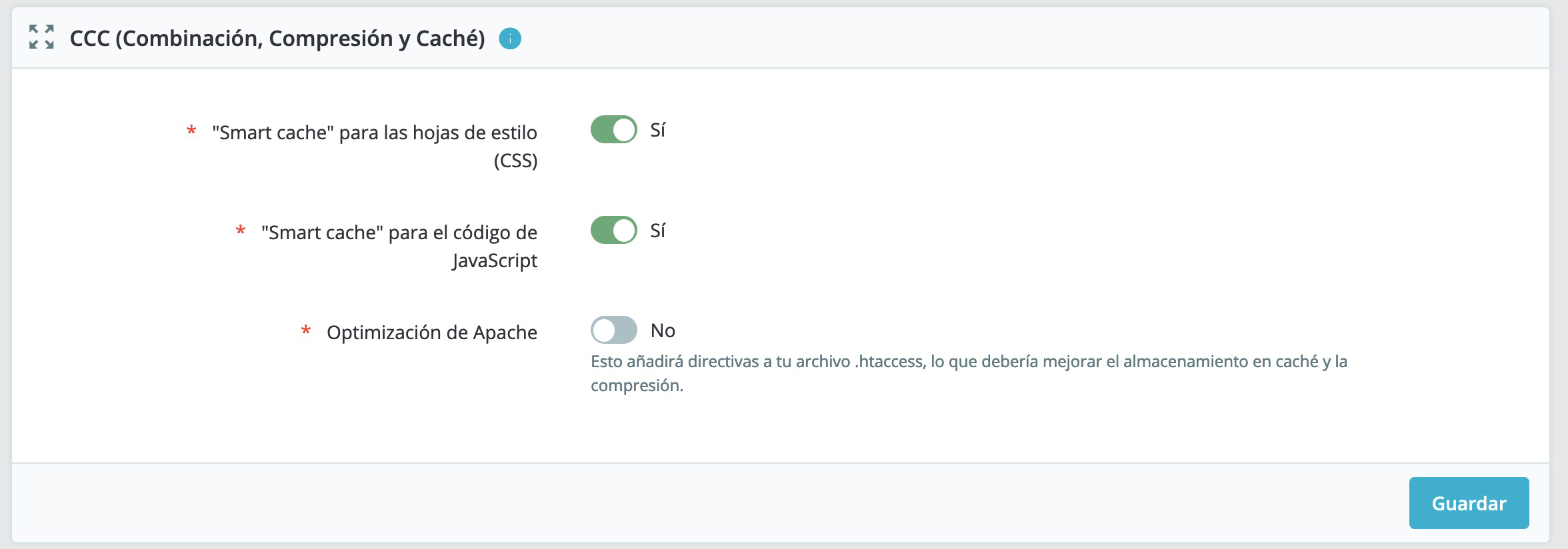
Save and check the shop: menus, filters, product variants, cookie banner and cart. Combining JavaScript can cause conflicts between modules that break drop-down menus, modal windows or the cart. If that happens, turn off Smart cache for JavaScript, clear the cache and check whether it is fixed.
Step 2: create the CDN (example with Bunny)
We recommend a Pull Zone type CDN, such as Bunny: you do not have to upload anything. When a visitor requests a file the CDN does not have, it downloads it from your shop, stores it and serves it from its network to the next visitors. KeyCDN, Amazon CloudFront and others with the same model also work.
- In the Bunny dashboard, create a Pull Zone.
- In Origin URL, enter your shop's address with HTTPS:
https://tutienda.com. - Bunny assigns you a name such as
tutienda.b-cdn.net. Check that it works by opening an image from the shop with that name, for examplehttps://tutienda.b-cdn.net/img/logo.jpg.
To use your own name such as cdn.tutienda.com:
-
In the Pull Zone, go to General > Hostnames and add
cdn.tutienda.com. -
Create a CNAME record in the domain's DNS (in cPanel, Zone Editor, if it uses our DNS):
cdn.tutienda.com. CNAME tutienda.b-cdn.net.
-
Once the CNAME has propagated, go back to Bunny and click Verify & Activate SSL so that it generates the subdomain's certificate.
If the domain's DNS is on Cloudflare, leave the cdn record with the grey cloud (DNS only, no proxy). Bunny's guide to custom hostnames has more detail.
Do not set cdn.tutienda.com itself as the Pull Zone's origin: you would create a loop.
Step 3: configure PrestaShop
-
Go to Advanced Parameters > Performance, Media servers section.
-
In Media server #1, type only the name, without
https://or slashes:cdn.tutienda.com
PrestaShop checks that the name exists in DNS when you save: if you include the protocol or the CNAME has not propagated yet, it will say that media server #1 is invalid. If you do not use your own name, enter Bunny's (
tutienda.b-cdn.net). -
Leave #2 and #3 empty.
-
Save and click Clear cache at the top right.
Check that it works
Open the shop in a private window, press F12 and go to the Network tab. Reload the page: images, CSS and JavaScript should load from cdn.tutienda.com with a 200 code and over HTTPS. The page's HTML still comes from your domain.
If images are missing or the layout breaks
- Images do not load and the browser says it cannot find the server: the CNAME does not exist or has not propagated yet. Check it in the DNS zone.
- Certificate error: the hostname's SSL has not been activated on the CDN. Do it with Verify & Activate SSL.
- 404 error on the CDN: open the same path on your domain. If it works there, check the Pull Zone's Origin URL.
- Icons or fonts do not show: the browser blocks them because of CORS. In Bunny, check under Headers that Add CORS headers is enabled with the
woff,woff2,ttfandeotextensions. - The menu, cart or filters fail even though everything returns 200: it is a JavaScript conflict caused by CCC. Turn off Smart cache for JavaScript and clear the cache.
- You change an image or a CSS file and the old version still appears: the CDN keeps its copy until it expires. Purge it in Bunny (Purge Cache) or clear PrestaShop's cache so that it generates files with new names.
To go back, empty the Media server #1 field, save and clear PrestaShop's cache.
You may also find useful
- LiteSpeed Cache for PrestaShop: install and configure Install the LiteSpeed Cache module in PrestaShop 1.7, 8 or 9, enable it, check that the shop is serv...
- AccelerateWP: what it is, how to turn it on in cPanel and what each option does Turn on AccelerateWP for your WordPress from cPanel, understand what each section of the plugin does...
- Advanced Cloudflare management from its own interface Walks through the full Cloudflare dashboard to view statistics and manage the domain's DNS, HTTPS, f...
- Cloudflare: set up CDN, security and DNS for your website Explains how Cloudflare sits between visitors and the hosting to provide CDN, caching, filters and b...
Something wrong or out of date? Tell us and we will review it.