

Domains and DNS
Set up records with the DNS assistant
Go to Domains, click Manage on the domain and open DNS zone: at the very top is the card Have you been asked to create some records? with the Open the DNS assistant button. The drop-down menu on the domain's row in the list also leads to the DNS assistant, and for a hosting account you can reach it from Technical details or Email and certificates. All these entry points work on the same domain zone.
Before you continue, check the notice about nameservers. If the domain delegates its zone to another provider, the wizard can still work out what you need, but the change must be made wherever those nameservers are.
Choose the mode
The first step, What do you want to do, offers three options:
- Paste what I've been asked for: copy in the block your provider gave you. The wizard recognises the records and lets you correct the name, type, value and priority.
- Choose a recipe: pick a well-known service and fill in the details it asks for. Check the recipe's date and any verification notice.
- Add a record manually: opens the zone editor so you can create or edit records one by one.
Don't paste instructions, passwords or private keys. The block must contain DNS records only.
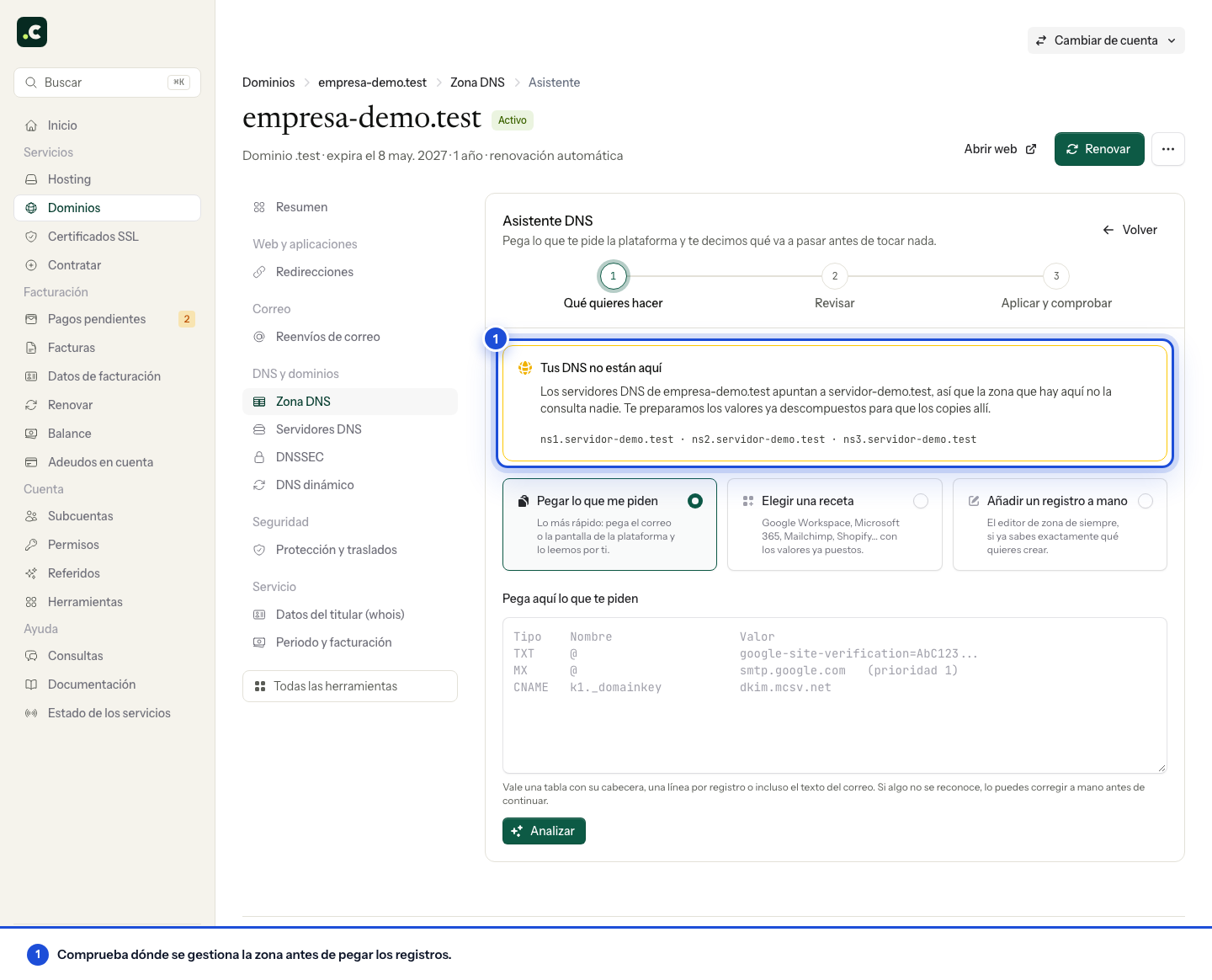
In this example, the notice says the DNS is external: the wizard prepares the proposal, but the records have to be copied to the authoritative provider.
Review the impact
The second step, Review, compares the proposal with the current zone and marks each result as a creation, replacement, merge, deletion, no change or ignored. Pay particular attention to the email and website warnings: replacing an MX record, an SPF record or the main address can interrupt an existing service.
Check the before and after for each record. If the wizard includes a record for another domain, remove it and open the right domain.
Apply and check
Confirm only when the summary matches what your provider asked for. The last step, Apply and check, applies the changes and checks that they are publicly visible. Propagation and caching can mean an old answer keeps appearing for a while; don't duplicate records to try to speed it up.
If the proposal isn't what you expected
Don't apply the change while there is a name, value or deletion you don't recognise. Check whether the provider completes the domain automatically and whether @ stands for the root. A recipe is a starting point: unique verification or DKIM values must come from your account with the provider.
If you already have SPF or DMARC, check how their policy ends up; adding a sending source must not remove the others. To move email to Google Workspace or Microsoft 365, set up the users and mailboxes first and also check the local mail routing.
Final check
Keep the change summary. Confirm the values appear in public DNS and complete the validation with the provider that requested them. Also test the website or email affected: a record being visible doesn't prove the service is configured correctly.
You may also find useful
- Add DNSSEC keys to a domain at Hostsuar Complete the registrar's DNSSEC link with the correct public key and check it is published before ch...
- Change a domain's nameservers Prepare the new zone, change the nameservers from the client area and check your website and email d...
- Create and edit DNS records with Zone Editor Edit the DNS zone in cPanel, understand each record type and check the impact before replacing or de...
- Delegate a subdomain with NS records Prepare a subdomain delegation to other nameservers without changing the main domain's nameservers.
Something wrong or out of date? Tell us and we will review it.