

Websites and applications
Google does not show my favicon in search results
Google shows your website's favicon next to its name in search results. If it cannot fetch it, it puts a generic globe-shaped icon in its place; if it fetched it a while ago, it may keep showing the old icon.
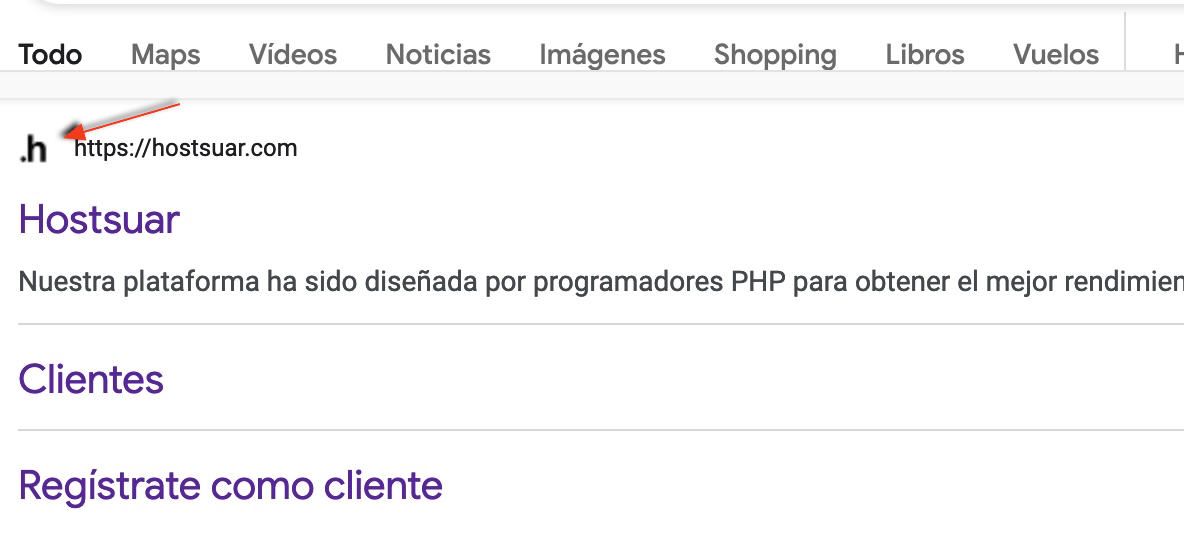
Google does not read the favicon in real time: it downloads it when it crawls your home page and stores it in its systems. That is why, even if your browser already shows the new icon, Google keeps showing the one it had stored until it crawls the home page again.
1. See which favicon Google has stored
Open this address, replacing tudominio.com with your domain:
https://www.google.com/s2/favicons?domain=tudominio.com&sz=64
You will see the icon Google has stored for that domain. If you get the globe or the old icon, follow the steps below. Also try www.tudominio.com: Google treats each hostname separately, and the search result uses the icon of the one it has indexed.
2. Check that your website declares the icon
Open the home page, press Ctrl + U (or Cmd + Option + U on a Mac) to view the source code and search for rel="icon". There should be a line like this inside <head>:
<link rel="icon" href="https://tudominio.com/favicon.png" type="image/png">
If it is not there, add it to your website's template. In WordPress you do not need to touch any code: go to Appearance > Customize > Site Identity and upload the icon under Site Icon (since WordPress 6.5 it is also in Settings > General, which is where you will find it with block themes). Then look at the source code again: some themes or SEO plugins declare their own icon and override yours.
3. Check that the file meets Google's guidelines
Open the icon's URL in a private window. The image should be displayed, with no errors or redirects to a login page. According to Google's favicon guidelines:
- The image must be square (1:1 aspect ratio) and at least 8 × 8 pixels; use 48 × 48 or more, for example 96 × 96 or 192 × 192.
- Any supported image format is fine: PNG, ICO, SVG, GIF or JPG.
- The icon's URL must be stable: do not change it every time you update the design.
- The icon must represent your brand. Google does not show inappropriate icons.
- Googlebot must be able to crawl the home page, and Googlebot-Image the icon file. Check that your
robots.txtdoes not block the icon's path or the folder it is in.
If you use a caching plugin or a CDN such as Cloudflare, purge its cache so that it serves the new version of the home page and the icon.
4. Ask Google to crawl the home page again
Google updates the favicon every time it crawls your home page, so all you need to do is ask it to visit again.
- Log in to Google Search Console with your domain's property. If you do not have it yet, follow how to add your domain to Search Console.
- In the search bar at the top, Inspect any URL, enter the home page:
https://tudominio.com/. - When the check finishes, click Request indexing.
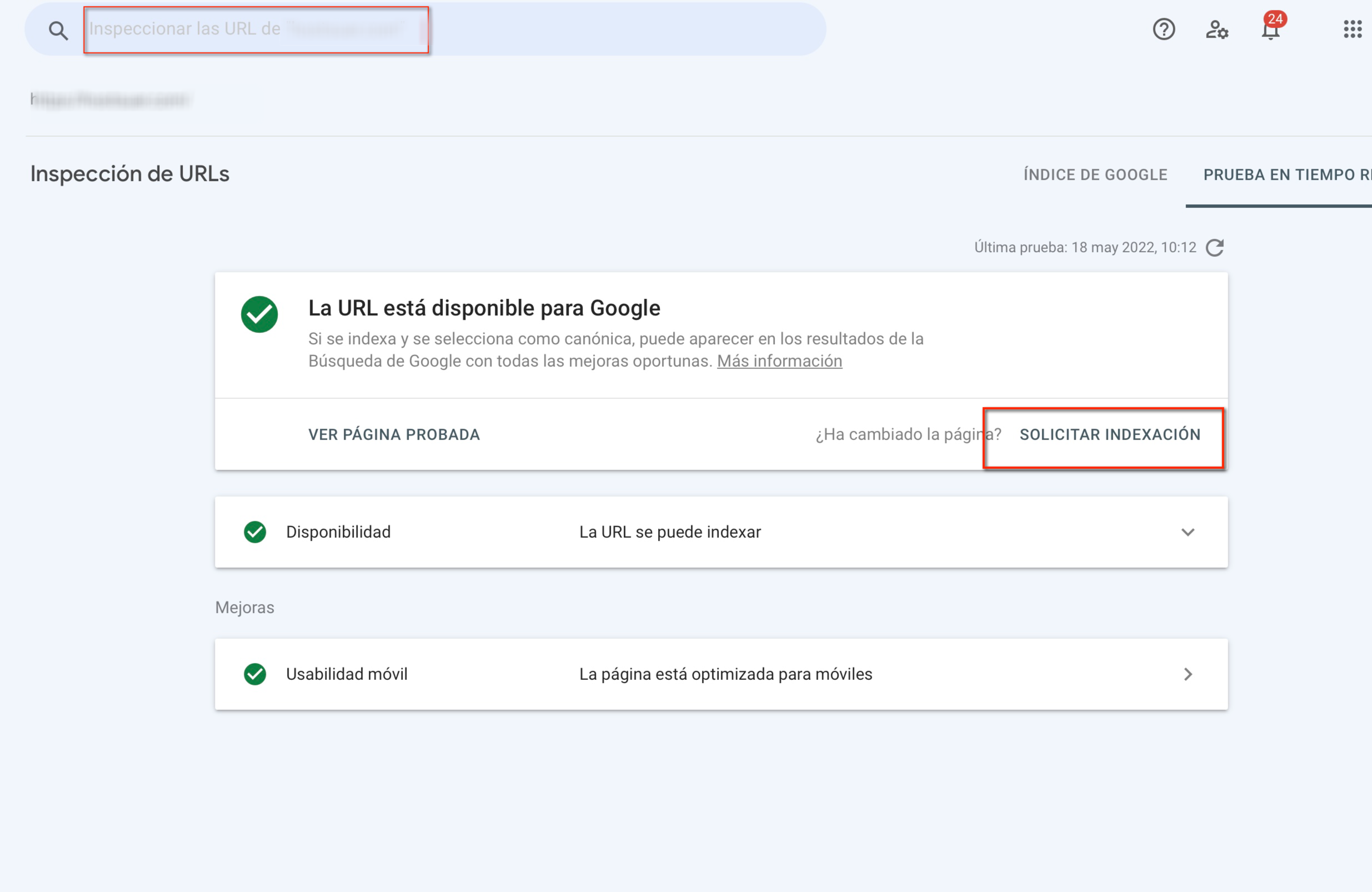
You do not need to request it for the other pages: the favicon is taken only from the home page.
How long it takes to change
Usually a few days, although Google says it can take a few weeks. You can follow progress with the address in step 1: once the new icon appears there, it will gradually appear in the search results.
| What you see | What to check |
|---|---|
| The old icon in your browser too | The published file, the website's or CDN's cache and the browser cache. |
| Correct on your website, old in Google | That Google has crawled the home page again (step 4) and the hostname, with or without www. |
| The globe | The rel="icon" line, that the image is square and that it is not blocked in robots.txt. |
Different with and without www |
Which hostname Google has indexed and which icon each one's home page declares. |
You may also find useful
- Change your domain while minimising the impact on rankings Explains how to map URLs, apply permanent redirects, use Search Console's Change of Address tool and...
- Does server location affect search engine rankings? Sets out how much weight server location carries in geographic SEO and which signals, performance, C...
- How to interpret and fix indexing alerts in Search Console Helps you tell normal exclusions apart from indexing errors, test a live URL in Search Console and v...
- Subdomain created automatically when setting up a new domain Explains why cPanel creates a subdomain when you add another domain and how to keep it from being in...
Something wrong or out of date? Tell us and we will review it.