

Websites and applications
How to add a domain to Google Search Console
Google Search Console is Google's tool for seeing how your website is doing in the search engine: which pages are indexed, which searches you appear for, crawl errors and security warnings, such as a hack or malicious content being detected. All you need is a Google account (any Gmail will do).
1. Add the domain
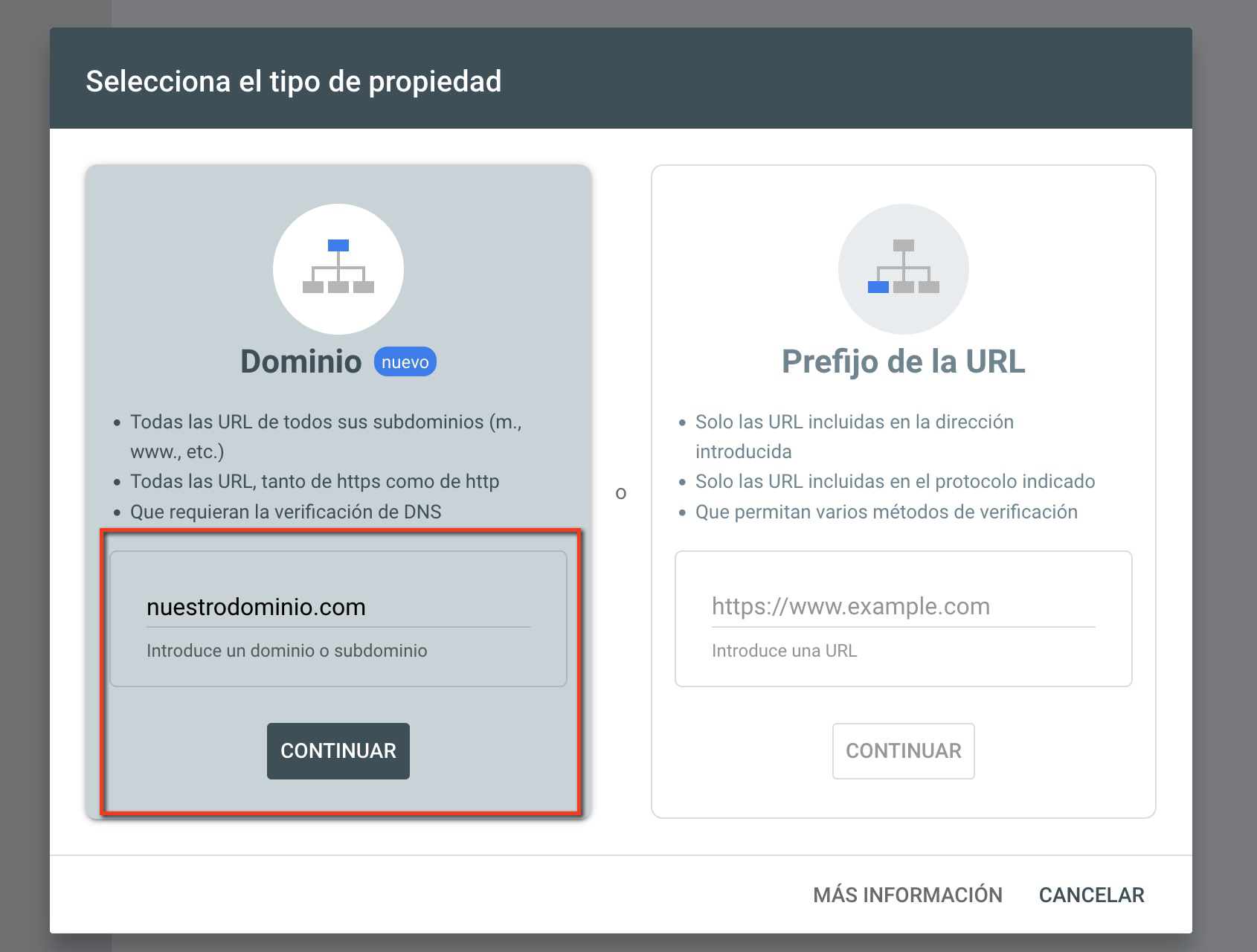
The first time you go in, Search Console asks you to add a property. If you already have others, open them in the selector at the top left and click Add property. There are two options:
- Domain: covers every variant of your website (with and without
www,httpandhttps, and subdomains) in a single profile. This is the one we recommend. - URL prefix: covers only the exact address you type. You would have to add each variant separately and the data would be split up.
In Domain, type just the name, without https:// or www: for example tudominio.com. Click Continue.
2. Copy the TXT record
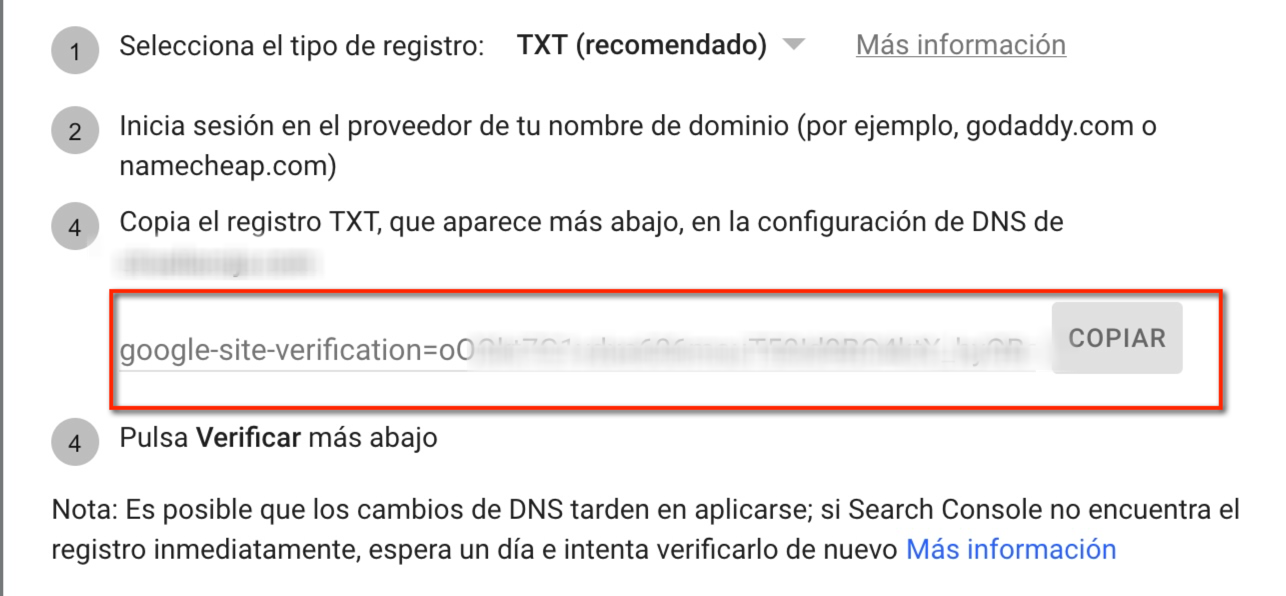
Google asks you to prove that the domain is yours by adding a TXT record to its DNS. Click Copy next to the value, which starts with google-site-verification=. Do not close this window: you will come back to it at the end.
3. Add the TXT in cPanel
- Log in to cPanel and open Zone Editor (Domains section).
- Click Manage next to the domain.
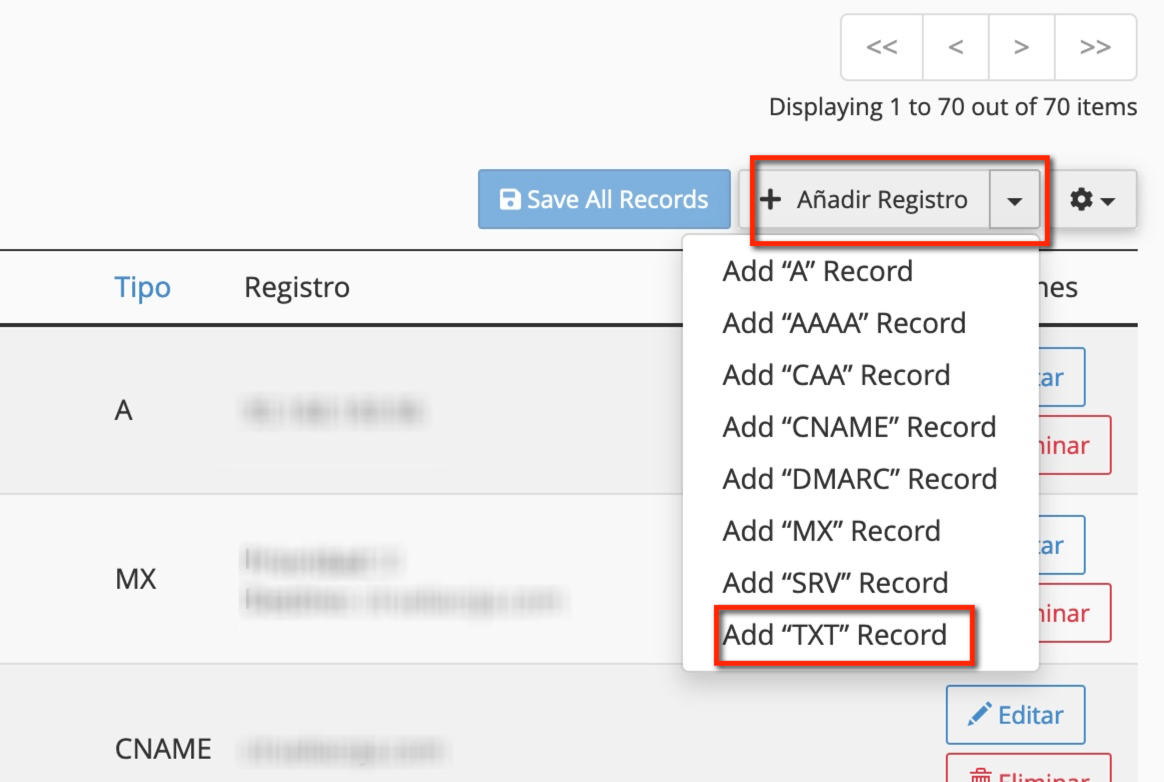
- At the top right, open Add Record and choose Add TXT Record.
- In Name, type your domain without
www(tudominio.com). - In Record, paste the full value you copied from Google.
- Click Save Record.
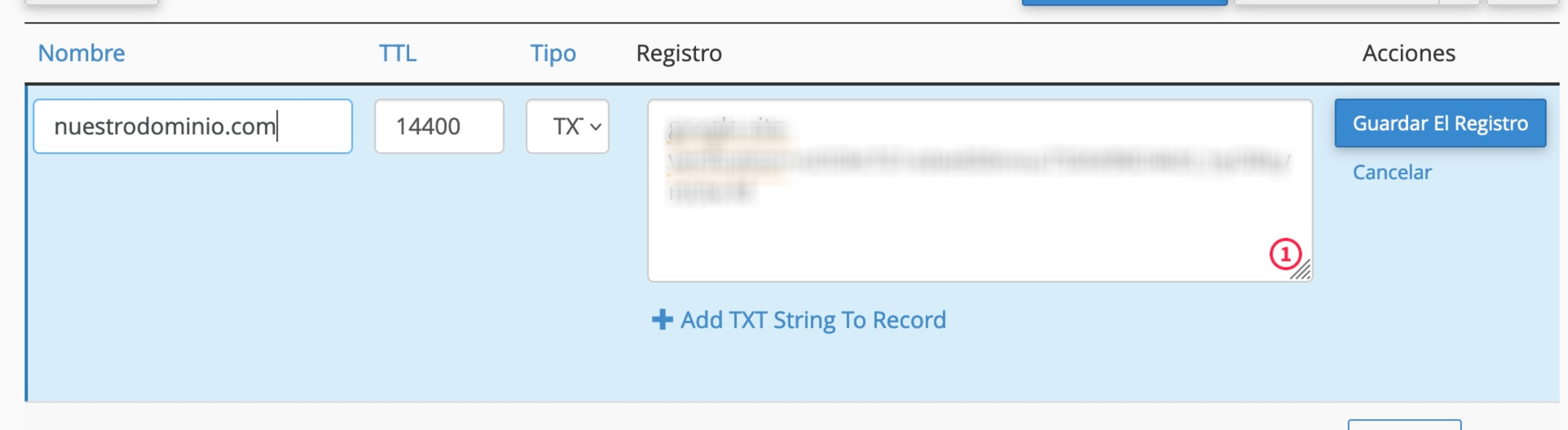
This is a new record: do not edit or delete any existing TXT records, such as SPF (v=spf1 …). And do not delete it after verifying, because Google checks it from time to time.
If your domain uses another provider's DNS, such as Cloudflare, add the TXT in that provider's panel with the same details: anything you put in the cPanel Zone Editor would have no effect. Google's verification help has instructions for the most common providers.
4. Verify
Go back to Search Console and click Verify. It normally completes in a few seconds and you then have access to the whole dashboard.
If you get an error:
- Check that the TXT value in cPanel is identical to Google's, with no spaces at the beginning or end.
- Check that the record name is the root domain and not, for example,
tudominio.com.tudominio.com.. - Wait an hour or two for DNS caches to update and click Verify again.
After verifying
- Submit your sitemap in Sitemaps (in WordPress it is usually
https://tudominio.com/wp-sitemap.xml, orsitemap_index.xmlif you use Yoast or Rank Math). - Use URL inspection to check a specific page or ask Google to crawl it again.
- To give someone else access, go to Settings > Users and permissions and add them with their Google account. Do not share your password.
Performance data takes a few days to appear. If you receive warnings about pages not being indexed, see how to resolve Search Console indexing alerts.
You may also find useful
- Change your domain while minimising the impact on rankings Explains how to map URLs, apply permanent redirects, use Search Console's Change of Address tool and...
- Does server location affect search engine rankings? Sets out how much weight server location carries in geographic SEO and which signals, performance, C...
- Does using a shared IP or hosting environment affect SEO rankings? Explains why sharing an IP with other websites does not in itself harm rankings and when a dedicated...
- Subdomain created automatically when setting up a new domain Explains why cPanel creates a subdomain when you add another domain and how to keep it from being in...
Something wrong or out of date? Tell us and we will review it.