

Performance and monitoring
Bulk image optimisation
The client area's optimiser processes JPG, JPEG and PNG images in the account, a domain or a directory. It aims to reduce the space they take up without changing their pixel dimensions. It does not automatically convert images to WebP or AVIF.
Keep a copy of the originals before you start. The tool changes the files, and ticking an option again does not bring back the quality that was discarded.
Quality and the "lossless" option
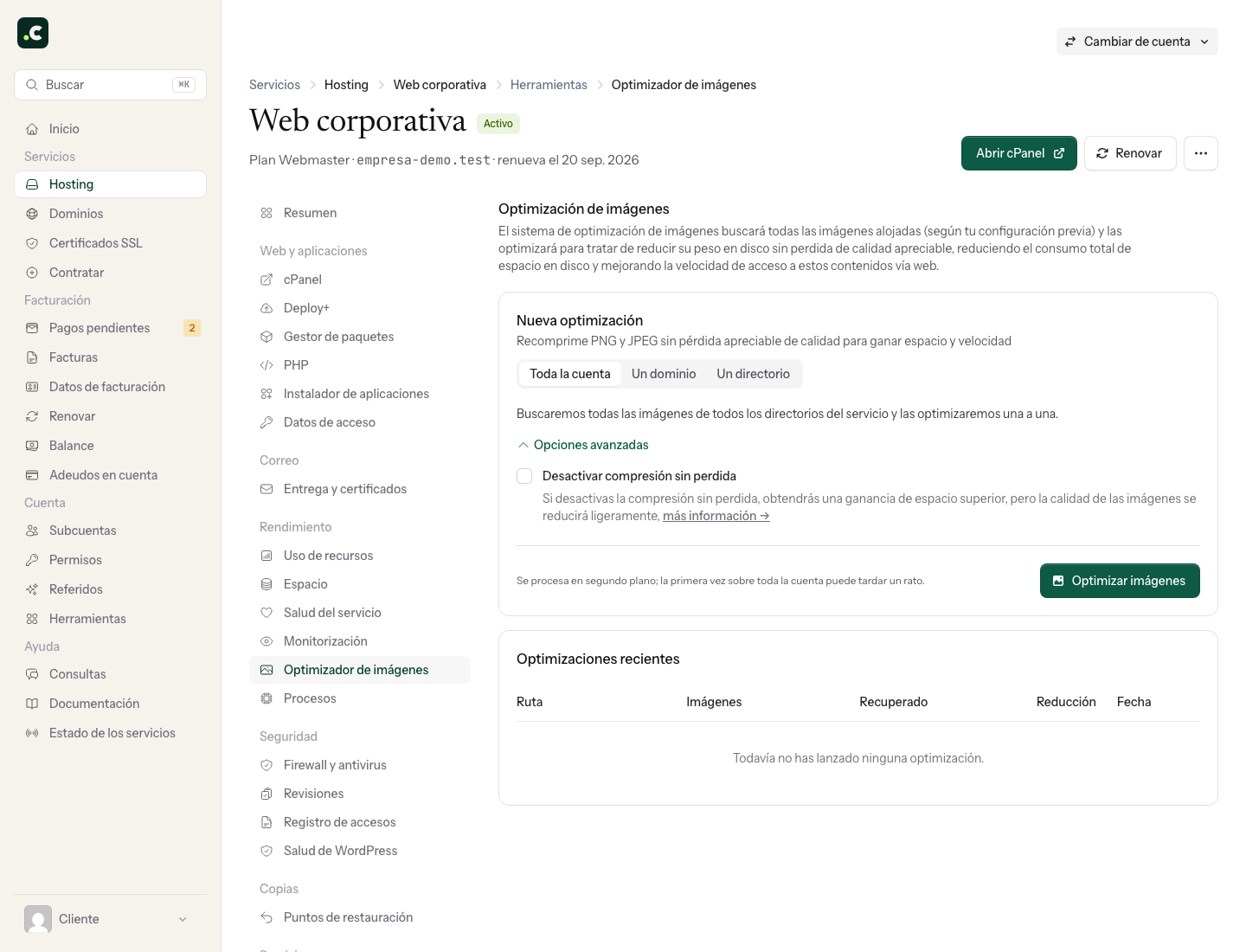
For JPG and JPEG, the usual mode tries to optimise without reducing quality. Ticking Disable lossless compression allows more aggressive JPEG compression.
PNG files can suffer colour reduction and quality changes even without ticking that option. If you need to keep them exactly as they are, do not include those originals in the processing: try with copies first or use a tool that guarantees lossless PNG optimisation.
Reducing quality is not the same as reducing resolution. The tool keeps the dimensions, but that does not guarantee that every pixel or colour stays identical.
Choose what to optimise
- In the client area, open the hosting and go to Performance > Image optimiser.
- Start a New optimisation and choose the scope.
- For the first test, select a small directory with copies of representative images.
- Check Advanced options and the effect of the compression option before starting the task.
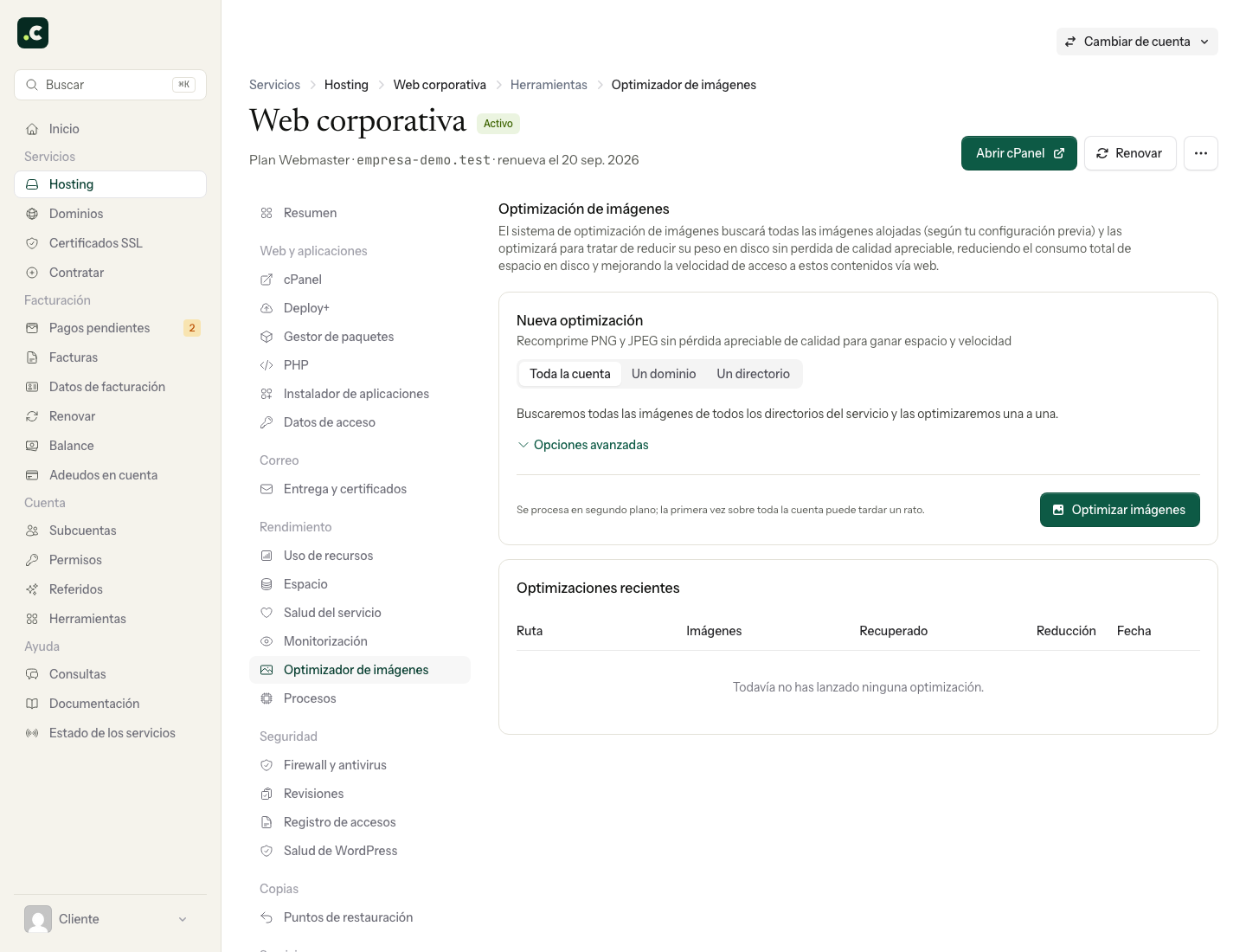
| Scope | What you should check |
|---|---|
| Whole account | It may include several websites and other directories with images |
| Domain | That its root is the installation you want to process |
| Directory | The selected path and the images in its subdirectories |
Review the result
Wait for the task to finish and check the result shown. How long it takes depends on the number of files, their size and the resources available. A finished task does not mean every image has got smaller.
Compare a sample with the originals: a photo, a logo, transparency, small text and gradients. Also check the real website, where thumbnails, plugins or CDN copies may be involved.
The space recovered depends on how optimised the images already were. It may be small or nothing at all; there is no guaranteed percentage. A change in the space taken by the whole folder does not by itself prove how much was saved on each image if other changes happened during the task.
Recover or carry on
If the sample is fine, widen the scope while keeping the copy. If not, restore the affected files from the originals and purge any cache or CDN copies still showing the processed version.
To improve loading, also check the dimensions at which images are served and avoid downloading a huge photo to show a thumbnail. Bulk compression does not replace that adaptation or guarantee better search rankings.
You may also find useful
- Gzip compression, saving transfer and speeding up access Explains how Gzip and Brotli reduce the size of text content and why LiteSpeed applies them automati...
- Temporarily disable Gzip and Brotli from .htaccess Disable the server's compression to diagnose a response, check Content-Encoding and then restore the...
- Web compression with Brotli and Gzip Clarifies which content LiteSpeed compresses automatically and how the server chooses Brotli or Gzip...
- AccelerateWP: features, availability and configuration Details the free and premium AccelerateWP features for WordPress, including caching, file optimisati...
Something wrong or out of date? Tell us and we will review it.