

Security and SSL
Enable two-step verification in the client area
Two-step verification (2FA) adds a temporary code to your client area password. Use an app that supports TOTP and also protect the device or account where you sync its secrets.
Enable it and test a login
- Log in to the client area and open My account > Security.
- Under Two-step verification, click Enable two-step verification.
- Scan the QR code with the app or add the key manually. Do not share that QR code or include it in screenshots: it can be used to generate login codes.
- Enter the code shown by the app and confirm. The device's time must be synchronised.
- Keep the current session open and test a login from another window before closing the setup.
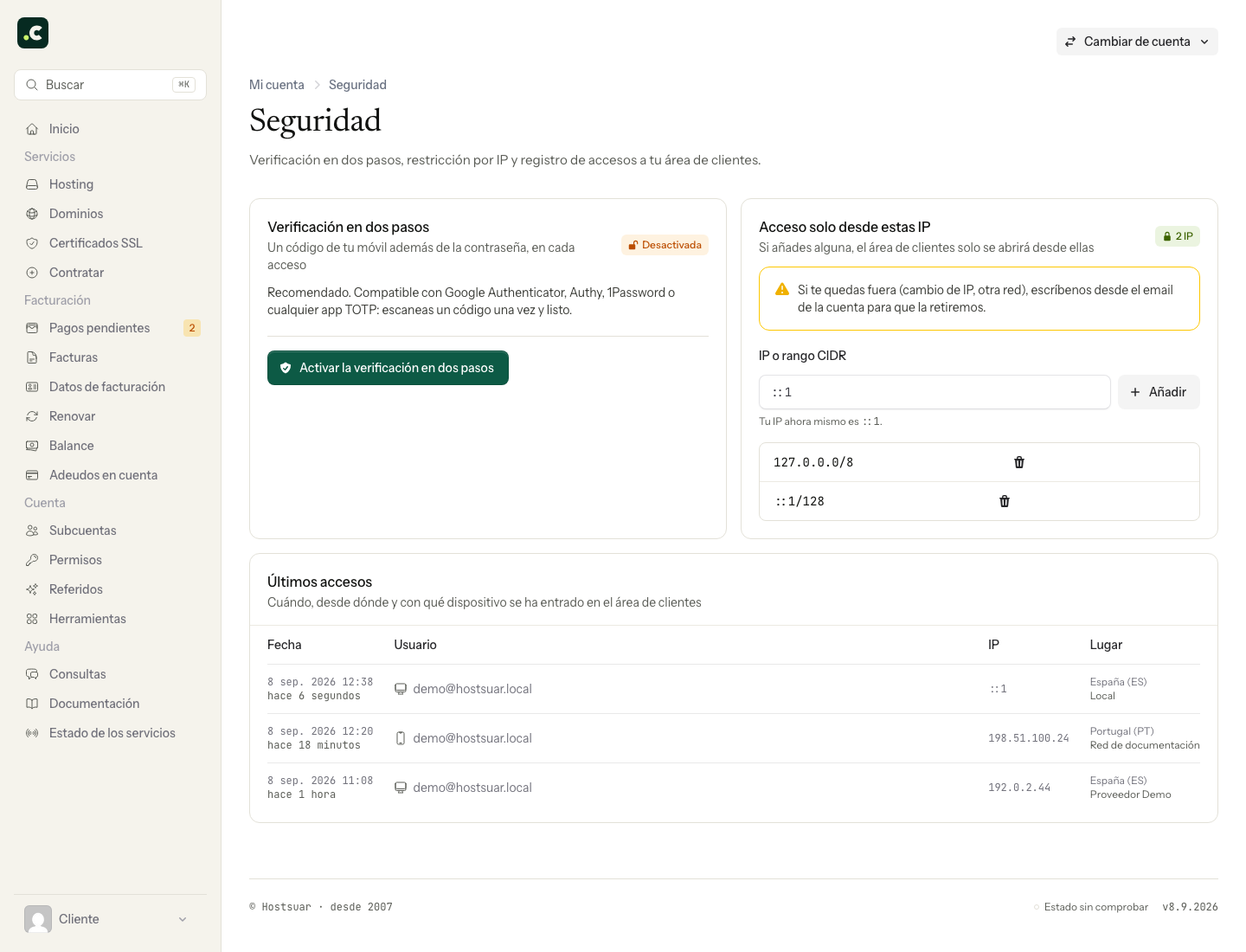
The codes change periodically. Use the entry in the app that corresponds to Hostsuar and a recent code. The screenshot shows where to start, not a reusable setup secret.
If you change phone
In My account > Security, Regenerate lets you set up a new secret after confirming your password. The previous code stays active until you validate the new one, according to the panel's process. Check that you can log in with the new phone before retiring the old one.
If you lose the app and have no recovery method available, contact support through your account's channel so that we can verify ownership. Do not assume that the panel offers recovery codes if it does not show them.
Which login it protects
This option protects the client area. On its own it does not enable 2FA in WordPress or on IMAP, POP or SMTP email connections. For web access to the mailbox, see webmail 2FA.
Disable removes this barrier and leaves the login protected only by the password and any other restrictions you have set up. Do it only if that is the change you need, and check the status shown afterwards.
You may also find useful
- Two-factor authentication in webmail Explains how to link webmail to an authenticator app with a QR code so that a temporary code is requ...
- View a hosting account's access log Find out when, from which IP and with which protocol cPanel, FTP, SSH, webmail or email accounts wer...
- What to do about a suspicious login alert for cPanel or email Helps you check an unusual login to cPanel or email, tell legitimate activity apart and secure crede...
- Change the main cPanel, FTP and SSH password Change the hosting's main credential and check which connections need updating afterwards.
Something wrong or out of date? Tell us and we will review it.