

Backups and migrations
Restore a website or recover email from the client area
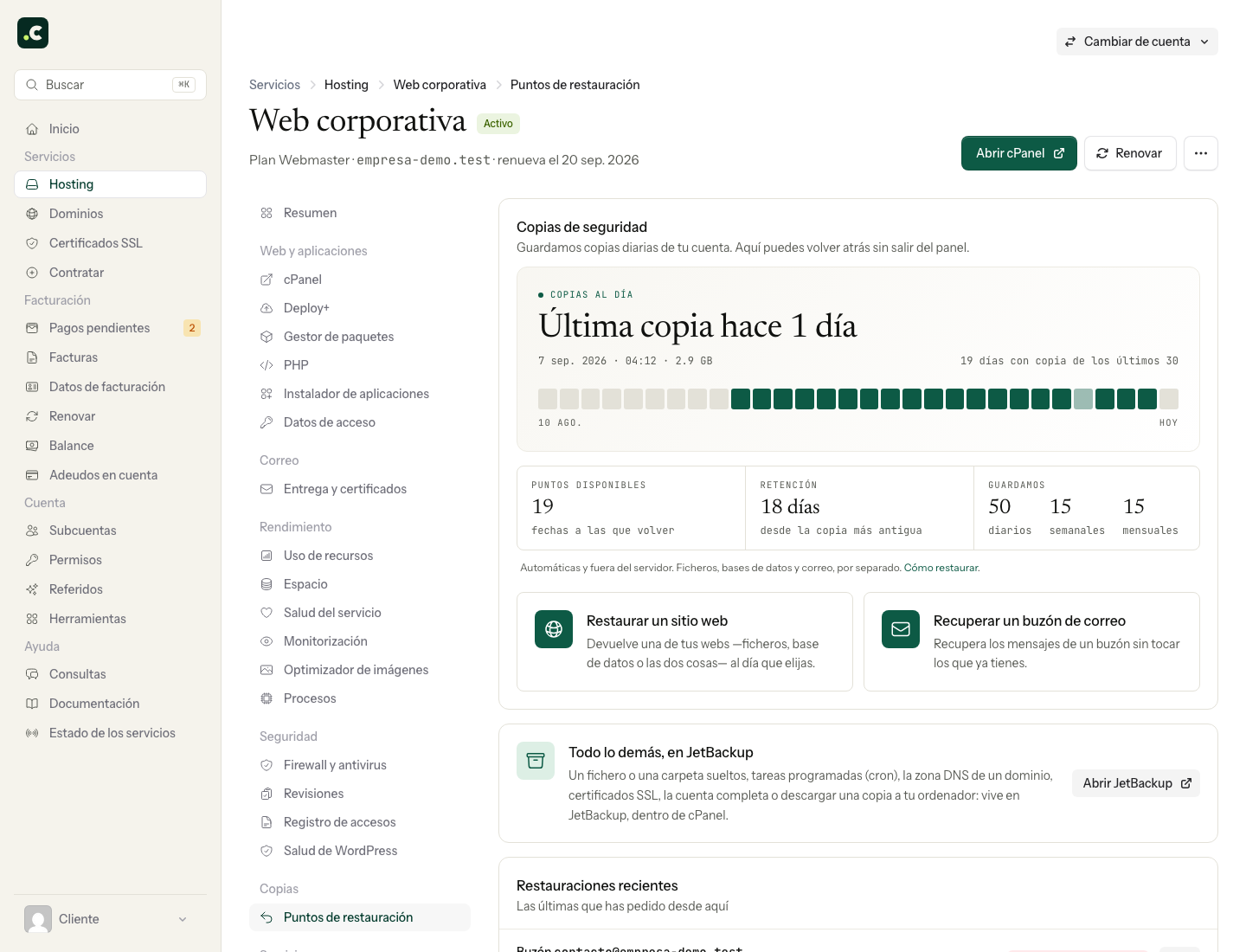
In Hosting > Manage > Backups > Restore points you can recover a website or a mailbox without leaving the client area. On a multi-account plan, first open the relevant client's account.
The screen shows the latest backup and the available points. Check the actual date of the point you choose, especially if the problem started several days ago.
Before restoring a website
Keep a copy of any current state you might need later. The panel does not create an automatic way back from the restore. If the website receives orders, sign-ups or edits, coordinate a pause in writes during the recovery.
A restore does not fix the cause of an intrusion on its own: if you recover a backup after an attack, you will also need to review the vulnerability and access.
Restore a website
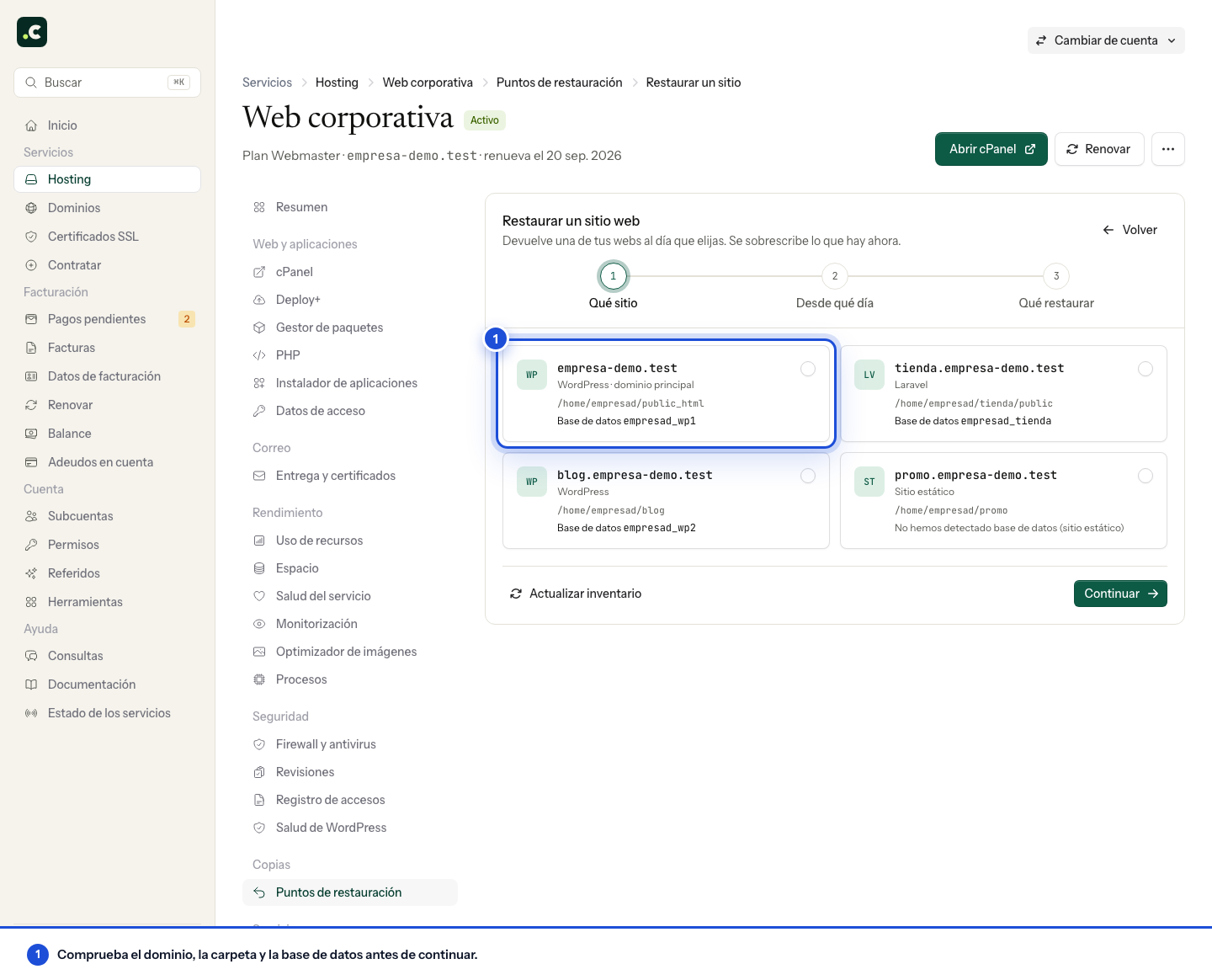
- Click Restore a website and choose the domain.
- Check the folder and database detected. If they do not belong to that website or the inventory is out of date, request Update inventory and wait for it to complete.
- Click Continue and choose a backup from before the problem.
- Check whether you are recovering files, database or both. If no database is detected, do not assume it will also be restored.
- Check the summary, tick the overwrite confirmation and click Restore now.
To return a complete application to an earlier point, its files and its database must both come from that point. Restoring only files keeps recent data, but can leave code that is incompatible with it. Restoring the database can delete orders, users and other changes made after its date.
If several applications share a folder or database, ask support before continuing: the name of the selected site does not on its own limit the shared data.
Recover a mailbox
- Click Recover a mailbox and select the full address.
- Choose the backup date and continue to the recovery mode.
- Review the summary, tick the confirmation and click Recover now.
| Mode | Expected result |
|---|---|
| Add what is missing | Adds messages from the backup while keeping the current ones; this is the recommended mode for recovering deleted email |
| Put the mailbox back as it was that day | Replaces its content with the backup's and may delete later messages |
If the mailbox does not appear, the inventory may not include it or it may already have been deleted. Use Open JetBackup to view the backup's resources, or ask for help giving the address and the approximate date of the messages.
Check the result
Open Recent restores to follow progress. Wait for the final status and check any warnings; a completed task does not on its own prove that the item you were looking for has been recovered.
- For a website, test the affected content, access, images and forms, as well as the home page.
- For email, look for the recovered message and check that recent messages and their folders are still there.
If something fails, keep the error and avoid chaining restores without knowing what has been applied. For individual files, cron jobs, DNS, certificates, the full account or downloads, follow the JetBackup guide.
You may also find useful
- cPanel Backup Wizard: create and restore backups Generate a full or partial backup with Backup Wizard and check which files it can restore.
- Automate backups with cPanel and cron Request backups with UAPI and decide how to check they have finished, transfer them and keep version...
- Hosting backups: what to keep and how to restore it Choose between Hostsuar's backups and your own, check what they contain and plan a recovery with the...
- How to migrate from Wix to WordPress or another hosting Rebuild or move your Wix content, keep your domain and email, and prepare URLs and checks before can...
Something wrong or out of date? Tell us and we will review it.