

Websites and applications
Change the PrestaShop shop and back office language to Spanish
If your PrestaShop is in English, you need to change two things separately: the language of the shop, which your customers see, and that of your user, which you see the back office in.
1. Import Spanish
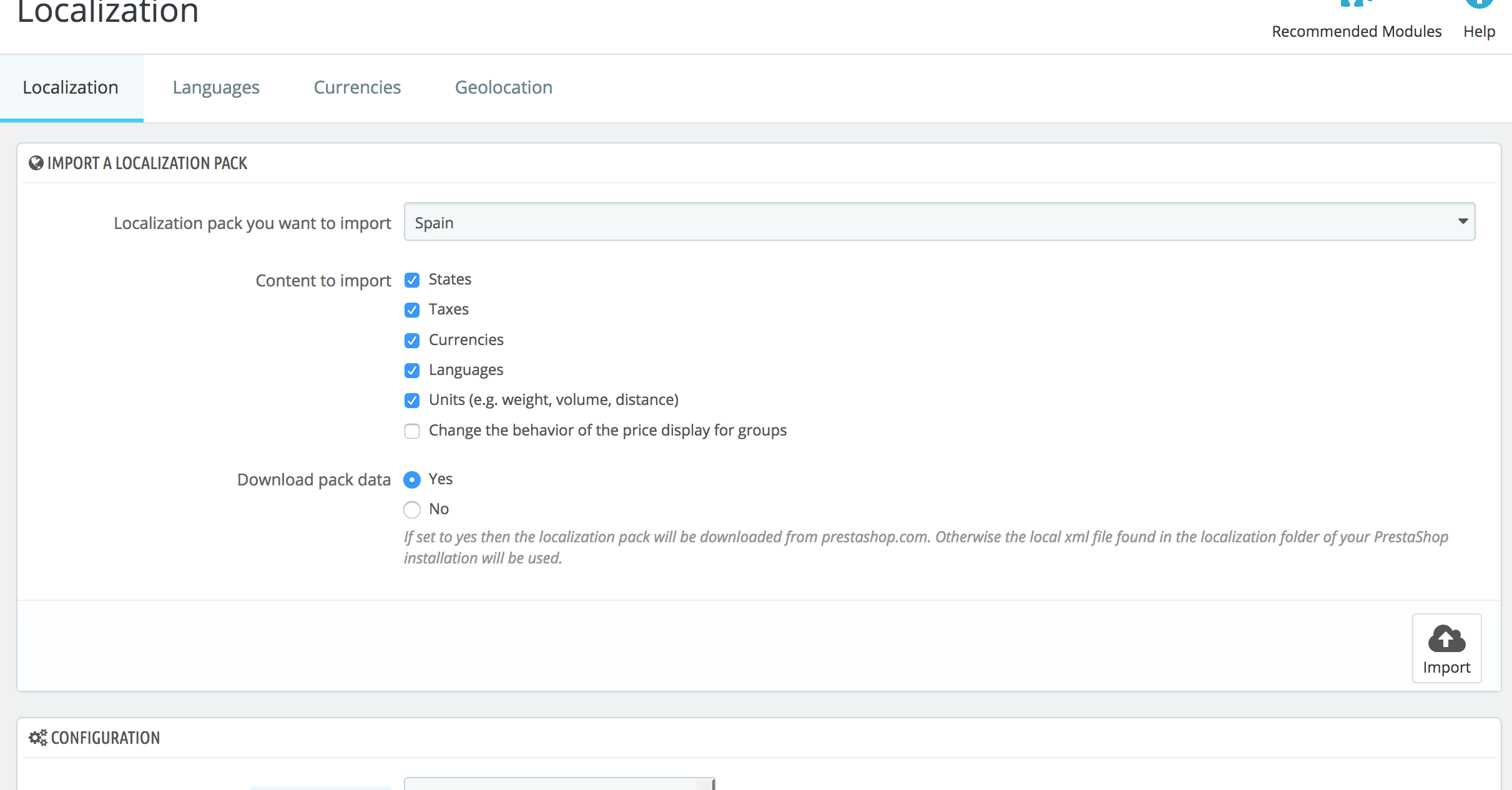
In the back office, go to International > Localization. In Import a localization pack, choose Spain and tick what you want to import:
- In a new shop, you can tick everything (language, states, taxes, currency, units): the shop will be adapted to Spain.
- In a shop that is already selling, tick only Languages. Importing taxes, currencies or units can change the configuration you already use to calculate prices.
Click Import.
If you only need the language, you can also install it in International > Translations, under Add / Update a language: choose Español and click Add or update a language.
2. Set Spanish as the shop language
When the import finishes, on the same page, under Configuration:
- Default language: Español (Spanish).
- Default country: Spain.
- Default currency: Euro.
- Time zone: Europe/Madrid.
Click Save. From then on the shop will be shown in Spanish.
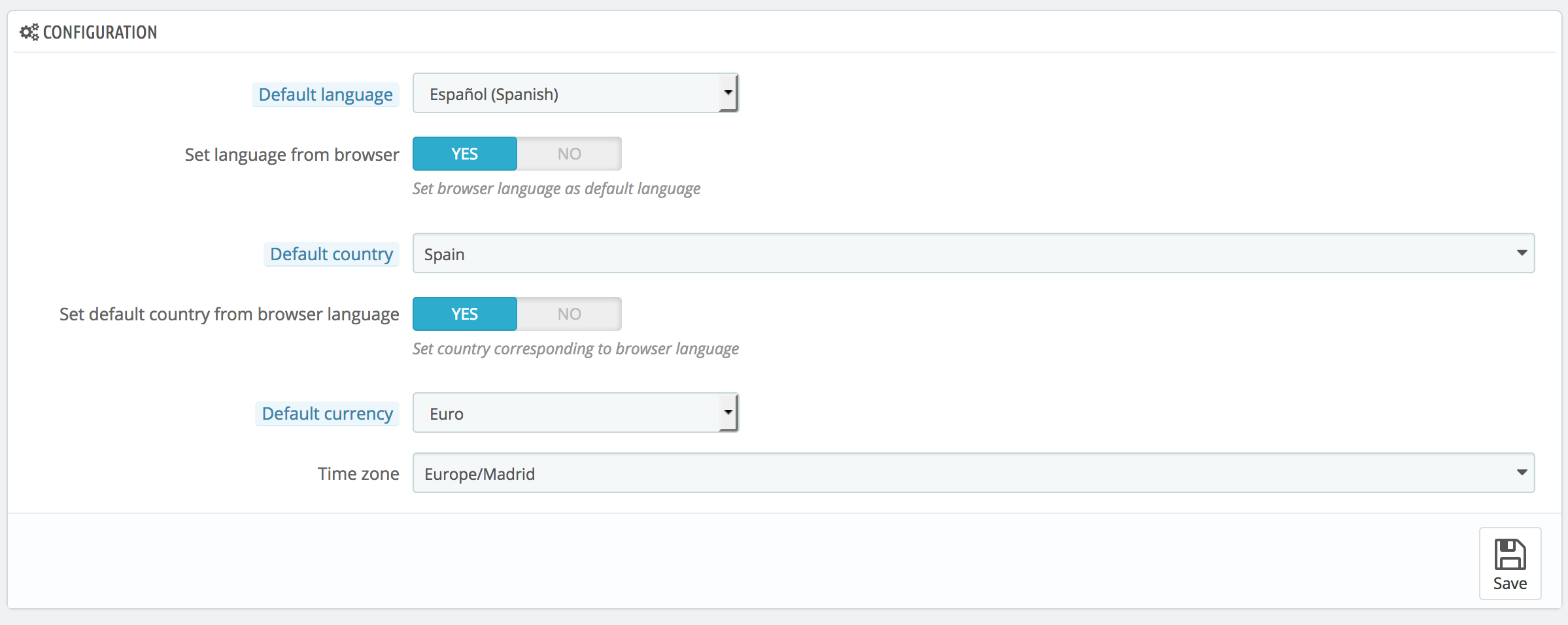
If Set language from browser is enabled in that same section, each visitor will see the shop in their browser's language if it is installed. Disable it if you want everyone to see it in Spanish.
3. Change the back office language
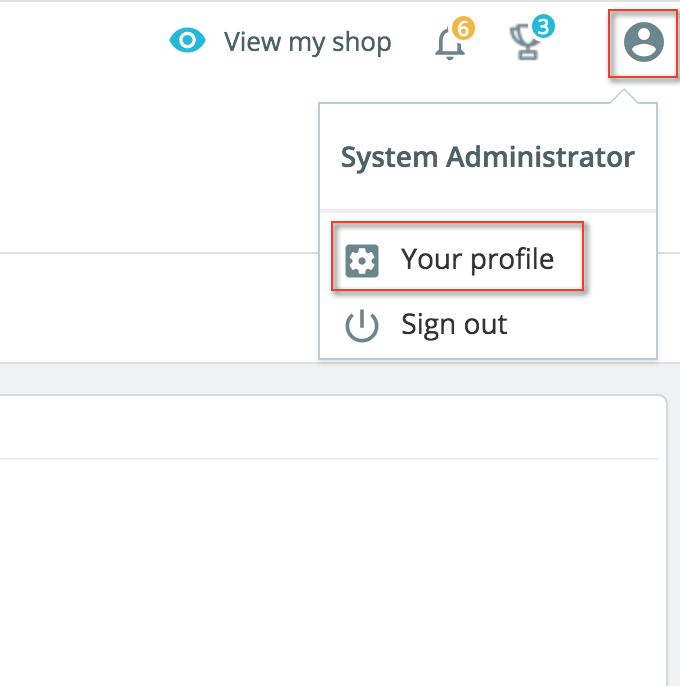
The back office is still in English, because each user has their own language. Click your user icon at the top right and go to Your profile:
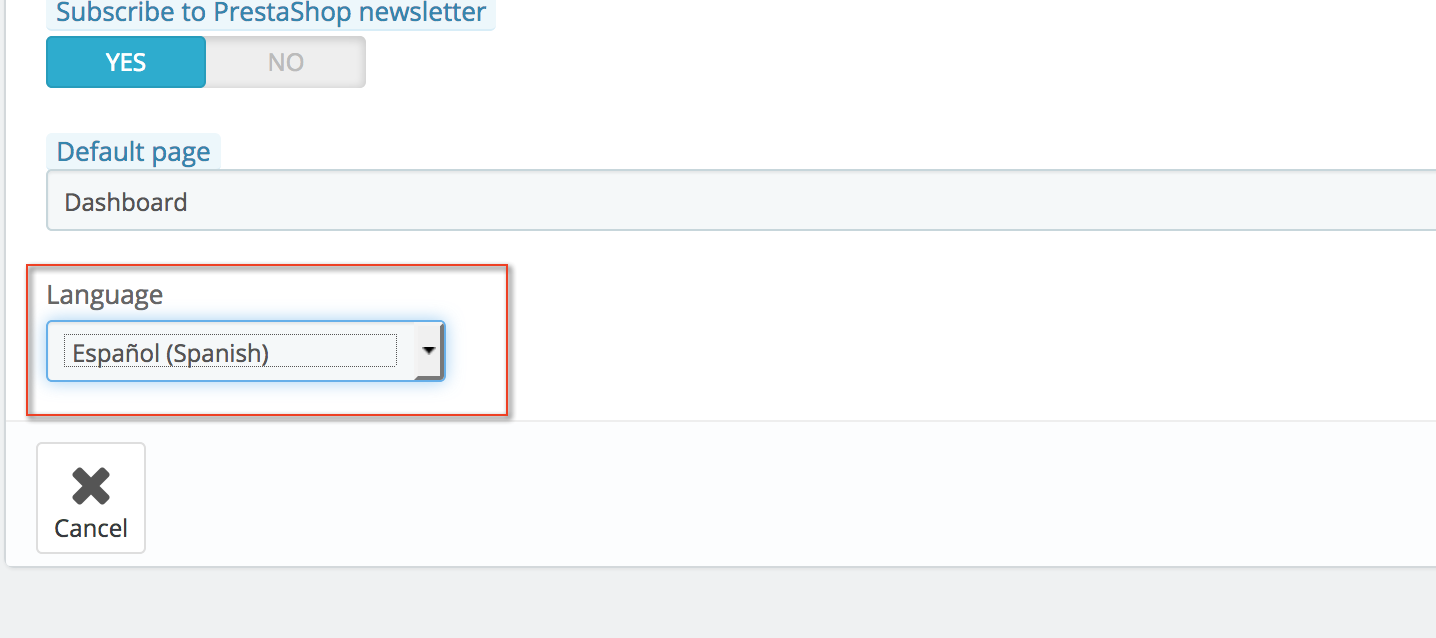
At the bottom, in Language, choose Español (Spanish) and save. The back office will be shown in Spanish.
If there are other employees, each one must change it in their profile, or you can do it in Advanced Parameters > Team, editing each employee.
If part of the shop is still in English
Installing the language translates PrestaShop's texts, but not your content: product, category and page names and descriptions have a field for each language, and you will need to fill in the Spanish one. Any missing texts from the theme or third-party modules are translated in International > Translations.
For older versions of PrestaShop, see change PrestaShop to Spanish. The PrestaShop languages guide has more details.
You may also find useful
- PrestaShop: switch to Spanish in older interfaces Finds the language options in older PrestaShop interfaces and separates the shop translation, the co...
- Mail Alerts: get notifications of orders, stock and returns in PrestaShop Install and configure PrestaShop's Mail Alerts module to receive an email with every new order, out-...
- Set up PrestaShop to send email via SMTP Make PrestaShop's emails (orders, sign-ups, passwords) go out over authenticated SMTP and stay out o...
- Show image and price in PrestaShop 1.6, 1.7, 8 and 9 instant search Code to make PrestaShop's instant (AJAX) search show each product's image and price: in 1.7, 8 and 9...
Something wrong or out of date? Tell us and we will review it.