

Development and databases
Change a website's PHP version with checks and rollback
Select your service in Hosting and open PHP from the service menu. You can also get there from Technical details, in its PHP tab. On a multi-account hosting plan, go in from the customer's account page: each account has its own PHP entry.
The screen starts with Your websites and applications: each website, with the application it runs, the PHP version it actually uses and where that version comes from. The first row is the default version, the one used by websites that do not have their own version. Every row ends with the Change button.
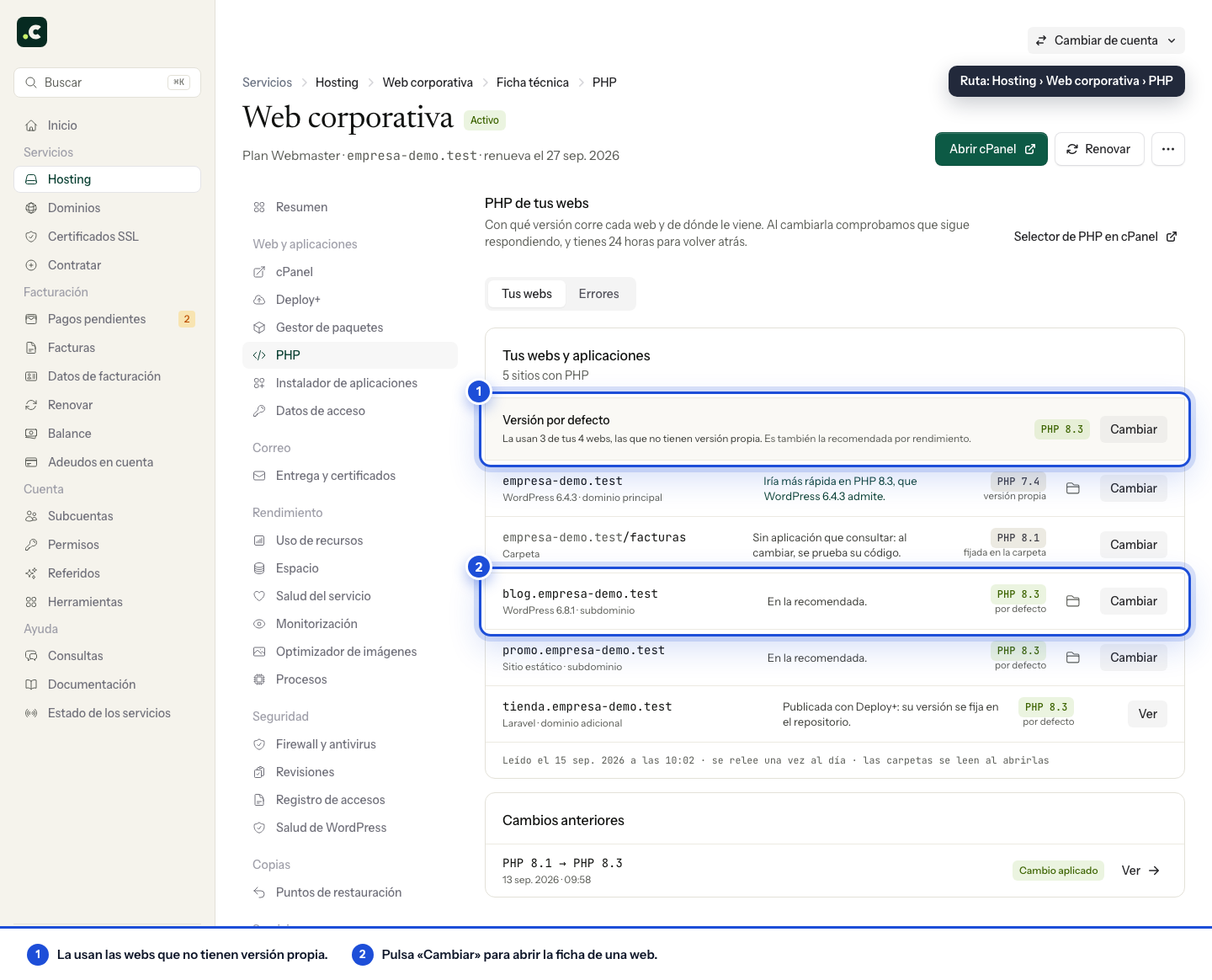
Where each website's version comes from
- Default version: the website uses your hosting's general version and changes when you change it.
- Own version: the website has its version set in the
.htaccessof its folder and does not change when you change the default version. - Inherited: the website is inside a folder with its own version and uses that folder's.
If a website runs on a version its application does not declare as compatible, the row says so. If its application supports a faster version than the one it uses, the row shows that too.
Change a website's version
Click Change on the website's row. Its page has four tabs: Version, Extensions, Limits and Errors.
In Version you see which version it runs on and, below, the version scale: the range its application declares (WordPress, PrestaShop, Magento, Joomla, Drupal or Laravel, when we recognise it), the version it uses now and the one we recommend for that website. The recommended one is the best-performing version within what its application supports.
Click the target version on the scale: the change opens right below, on the same screen. If the website uses the default version, we ask you what the change applies to:
- Only that website: the website gets its own version. The others stay on the default version.
- All websites using the default version: the default version changes and, with it, all those websites.
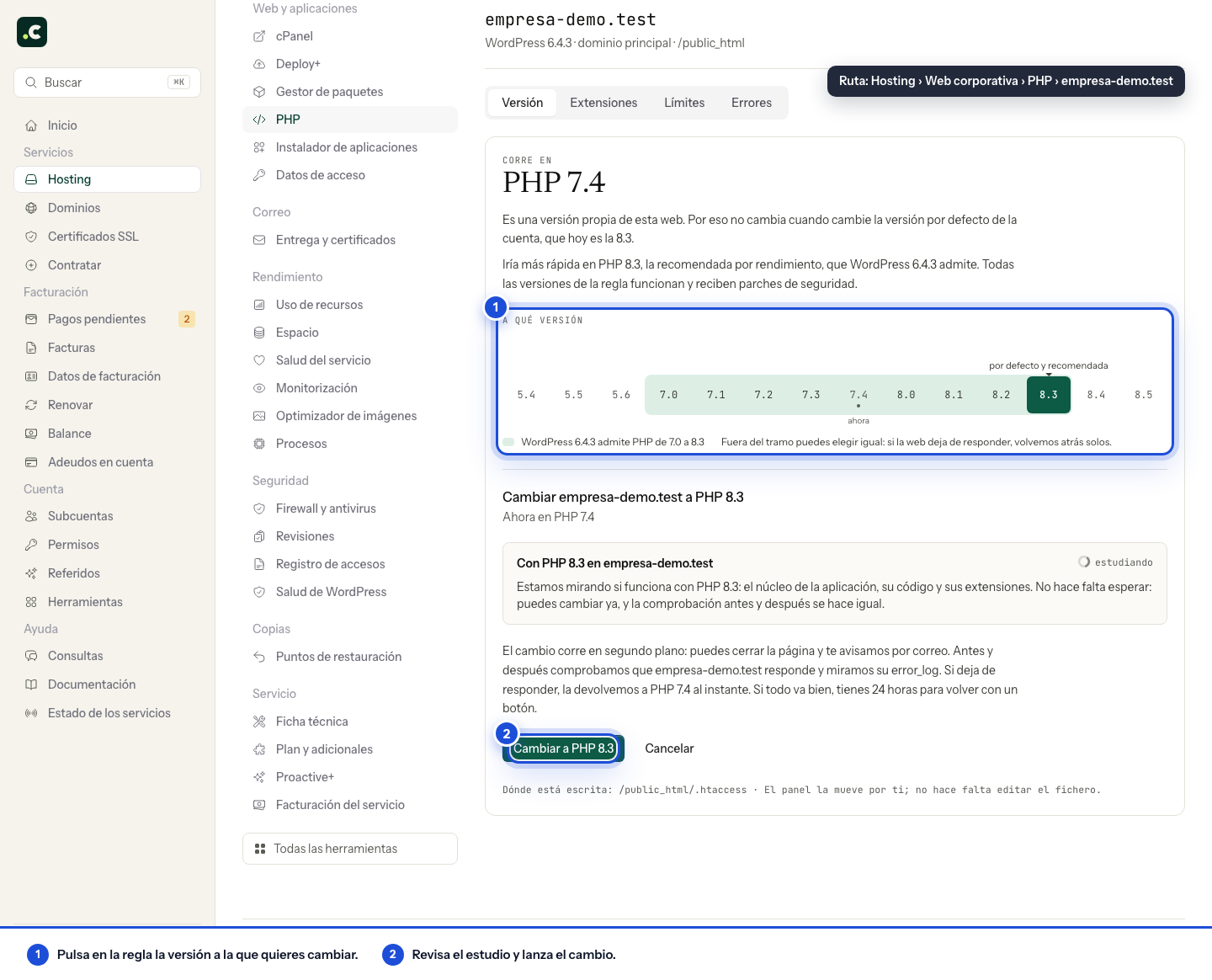
If the website already has its own version, the change applies only to it. With Use the default version you remove that own version and the website goes back to following the general one.
To change the general version directly, click Change on the Default version row, the first in the list.
If the website is published with Deploy+, its page does not offer the change: each deployment replaces its folder. See PHP version on a website published with Deploy+.
All versions work
All the versions we offer work and receive security patches from CloudLinux. What decides which one suits you is your application: its requirements, its plugins or modules and its code. You can choose a version outside the range the application declares; the check afterwards still protects you.
The compatibility study
When you choose the version, we start studying the change in the background: the version the application's core supports, its plugins' requirements, whether its code uses anything the new version rejects and which extensions would be lost. It takes less than a minute and you see it below, website by website.
You do not need to wait for it to make the change. If the study finds something that will break, you have to tick Change anyway to continue.
Extensions are stored per version
PHP extensions are enabled per version and do not carry over from one to another. When you switch, we try to enable on the target version the ones you had active that are still available. If an extension does not exist in the new version, the study warns you, because the part of your website that uses it will stop working.
A version's extensions and limits apply to the whole account: if another website uses the same version, a change to its extensions or limits affects it too. The page tells you which websites share each version.
Check the result
The change runs in the background: the change's page shows which step it is on, and you can close the page, because we email you when it finishes. Before and after, we check that the affected websites respond and look at their error log. If a website that was responding stops doing so, we roll back on our own straight away.
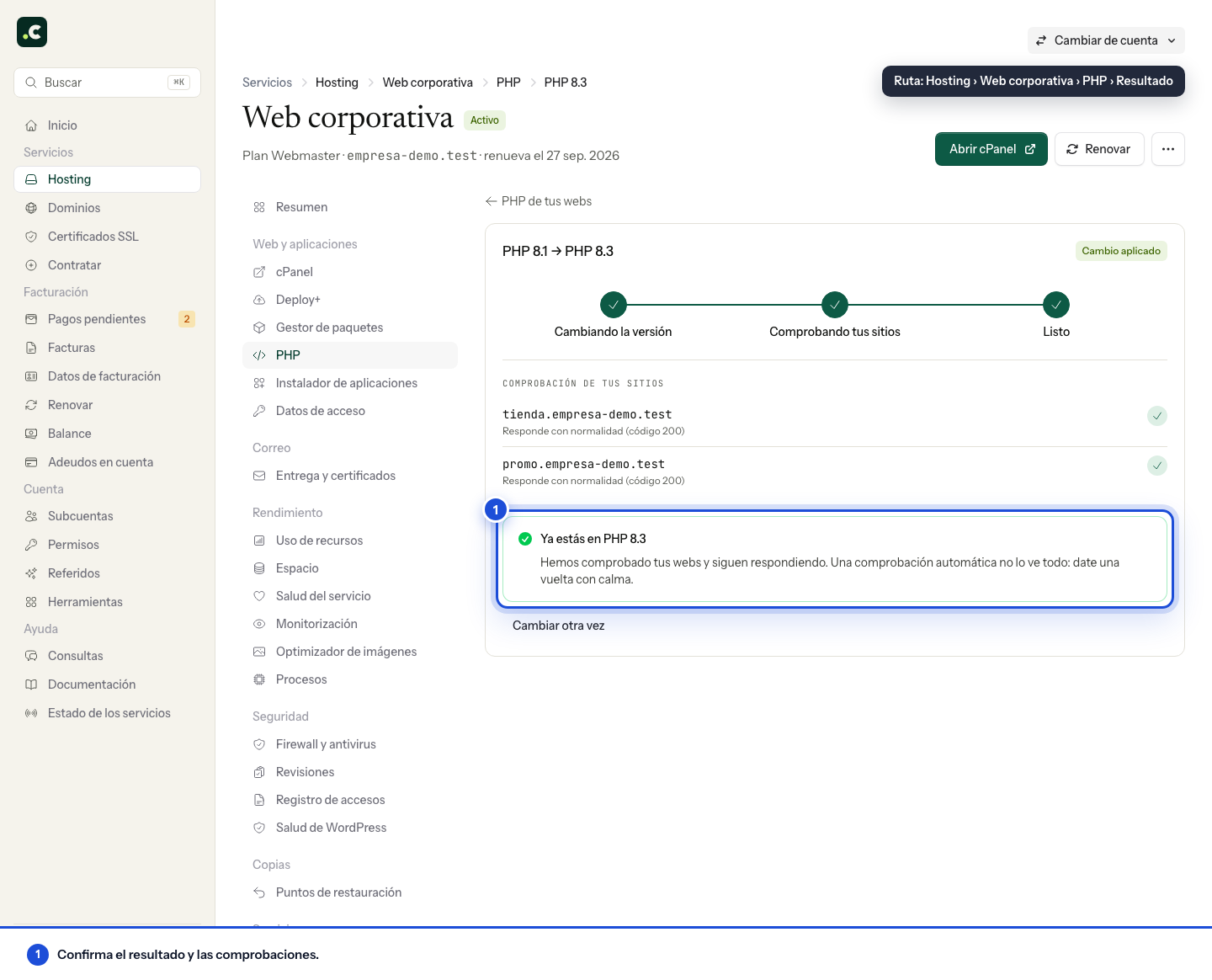
If all goes well, you have 24 hours to go back to the previous version with one button. Rolling back restores the PHP version, but it does not undo changes you made inside the application during the trial.
An automatic check does not go through forms, private areas or scheduled tasks. Review admin access, forms, checkout and background processes. If you use cron jobs with an absolute PHP path, check them separately: they do not change with the website's version.
Before you start, keep a restorable backup of the application. If the change is undone on its own or cannot be applied, read the reason on the change's page and open a ticket if you do not know how to fix it.
You may also find useful
- Different PHP versions per directory or domain Assign a different PHP version to a website or any folder from the client area or with AddType in .h...
- PHP binary paths for each version Use the absolute path of each PHP version's binary when running cron jobs, commands or scripts that...
- PHP version on a website published with Deploy+ Why the client area does not set the PHP version on a folder published by Deploy+, and how to set it...
- PHP versions available on all hosting services See the available PHP versions, why they all work and receive patches, and how to choose the right o...
Something wrong or out of date? Tell us and we will review it.