

Performance and monitoring
Proactive+: monitoring and technical review of incidents
Proactive+ combines monitoring of the selected domains with a technical review of the incidents detected. The idea is that the team can investigate a problem without relying only on you spotting it and opening a ticket.
Monitoring does not guarantee that every fault will be detected or fixed straight away. A website may respond correctly and still have a problem in a private feature, a purchase or an integration that is not part of the check.
Enable a domain
- In the client area, open the hosting and go to Proactive+.
- Check the slots available and find the domain you want to monitor.
- Enable protection and wait until it shows as Active.
- Open Configure to save instructions and review permissions.
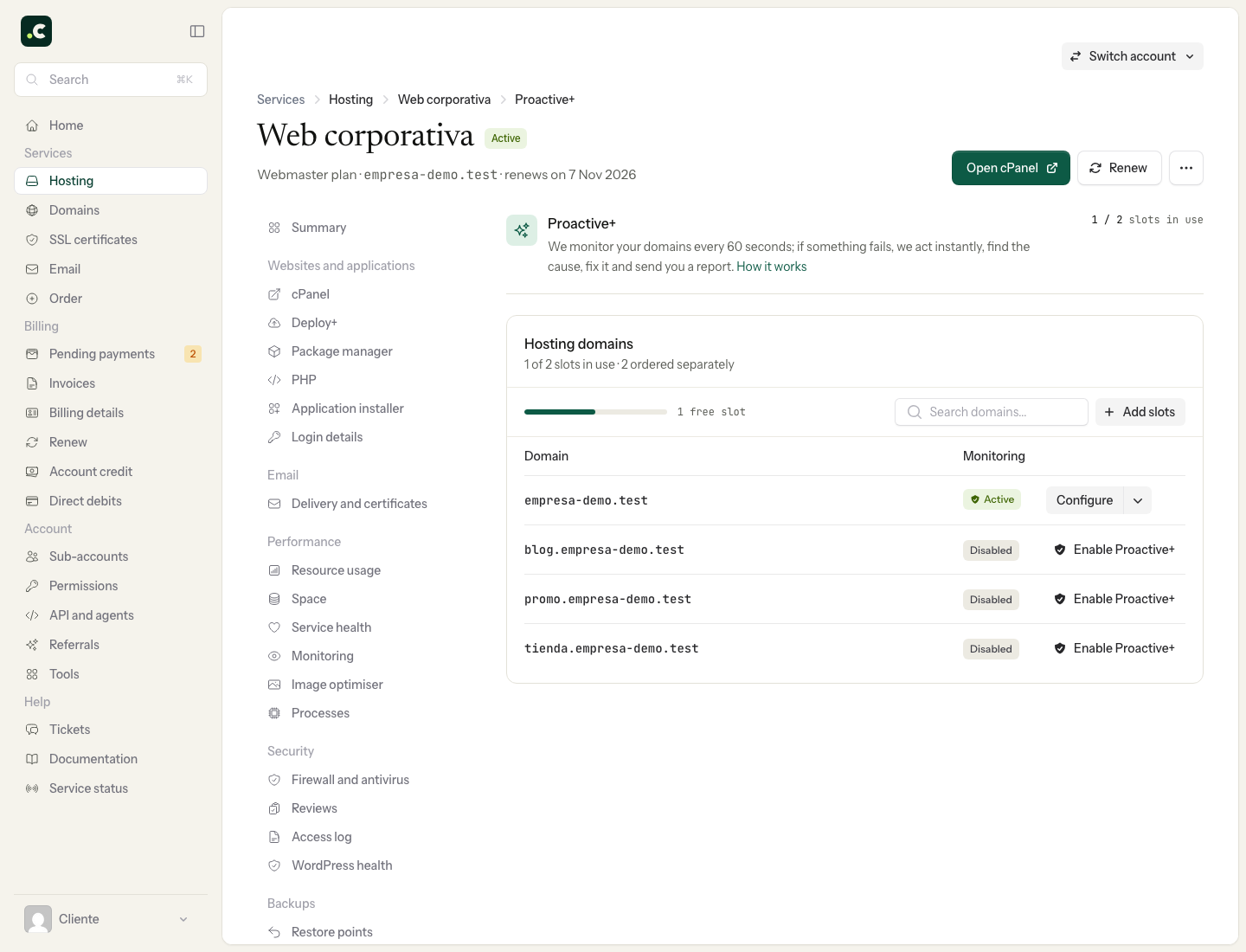
The Max and Elastic plans include five slots, depending on the service configuration. Other plans can be extended with add-ons. Check the slots, price and terms in the panel before ordering; enabling a domain and ordering extra capacity are separate steps.
What happens when there is an incident
The system runs periodic checks and applies confirmation controls to reduce alerts for one-off failures. A confirmed incident goes to technical review. The team analyses its scope and acts according to the project's needs and permissions.
It may need information, access or your decision before taking action. Do not assume that monitoring checks every image, runs JavaScript or reproduces the checkout process. For a fault you notice that has not been detected, send the URL, the time and the steps to reproduce it.
Project notes
In Configure, use Additional notes to explain important integrations, technical quirks, sensitive times and recovery conditions. Keep those notes up to date.
For example: "The shop receives orders all day; before restoring the database, the orders placed after the backup must be considered." Do not store passwords or tokens in free-text notes.
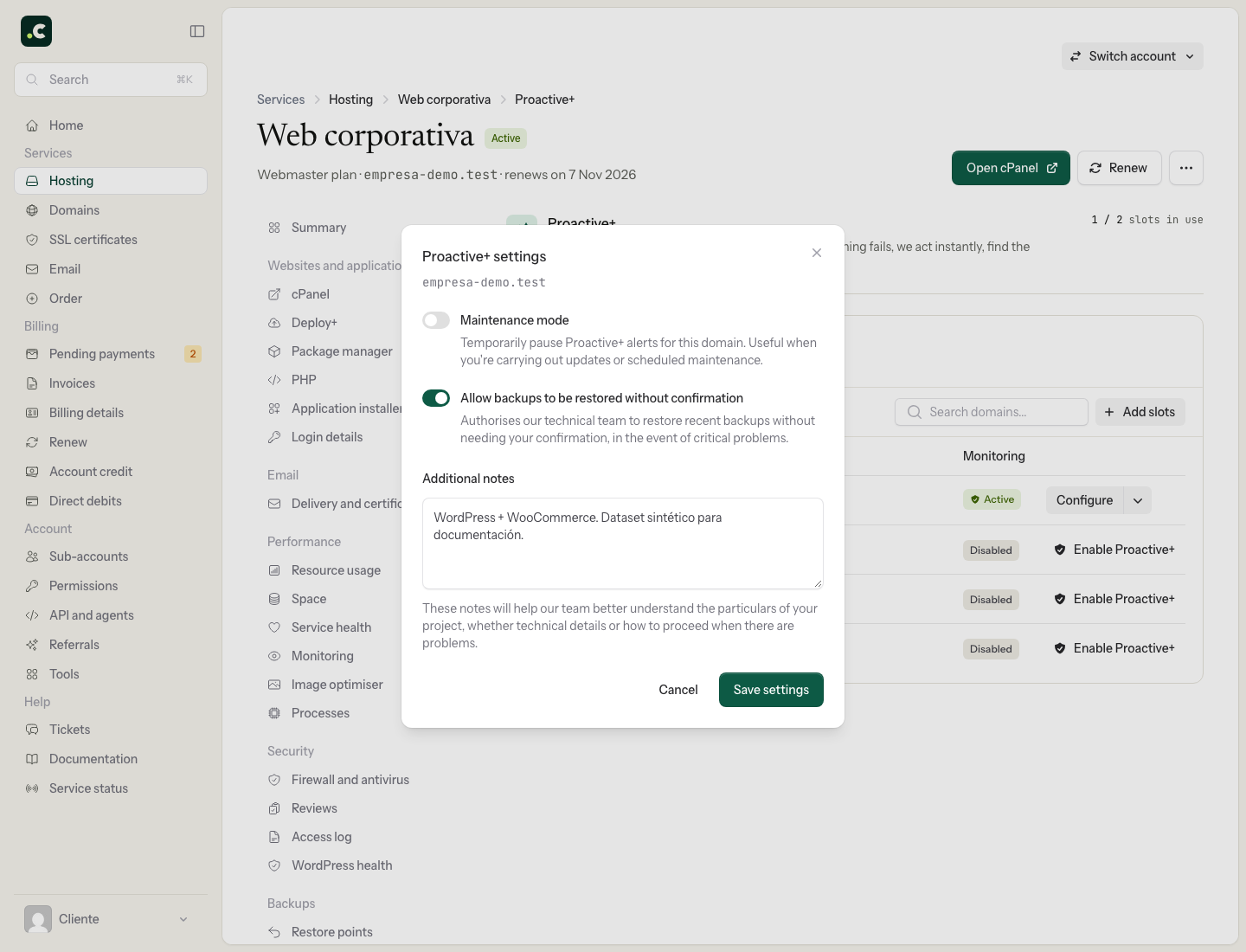
Permission to restore backups
The Allow backup restores without confirmation option authorises the technical team to restore recent backups in the event of critical problems without waiting for further confirmation. It does not mean a robot will automatically restore for any alert.
Before enabling it, bear in mind that a restore can replace current files or data with those in the backup and affect later orders or changes. Document the project's needs and review the permission if its activity changes. Actions not covered by the permissions granted may require confirmation.
Maintenance and disabling
For scheduled work, use Maintenance mode or Pause alerts (maintenance). This option pauses Proactive+ alerts for the domain; on its own it does not put the website into maintenance or stop orders coming in.
When you finish, resume the alerts and check the status. If you want to remove monitoring, disable the domain: the panel warns that its notes and preferences will be deleted and the slot freed. Keep any information you want to reuse.
Disabling a domain does not necessarily mean cancelling an add-on you ordered. Review the billed services separately if you want to change what you have ordered.
You may also find useful
- Interpret WordPress Site Health warnings Interpret WordPress Site Health warnings about themes, PHP, modules, updates, HTTPS, the REST API an...
- Site Quality Monitoring Analyse availability, performance, SEO, links, JavaScript and security, and understand which Site Qu...
- Analyse slow PHP requests with X-Ray Trace PHP requests with X-Ray to find slow SQL queries, functions, files or external calls, keeping...
- Interpret response time in PageSpeed, Pingdom and GTmetrix Tell apart TTFB, HTTP waiting time, latency and full load, and compare locations and caches before b...
Something wrong or out of date? Tell us and we will review it.