

Performance and monitoring
Setting up website monitoring
Hosting monitoring makes periodic requests to a URL and records its response, content and SSL status. It lets you receive alerts about incidents and recoveries without having to keep opening the website.
It is not a full browsing or purchase test: one URL may respond while another feature fails. Choose a page that properly represents what you need to watch.
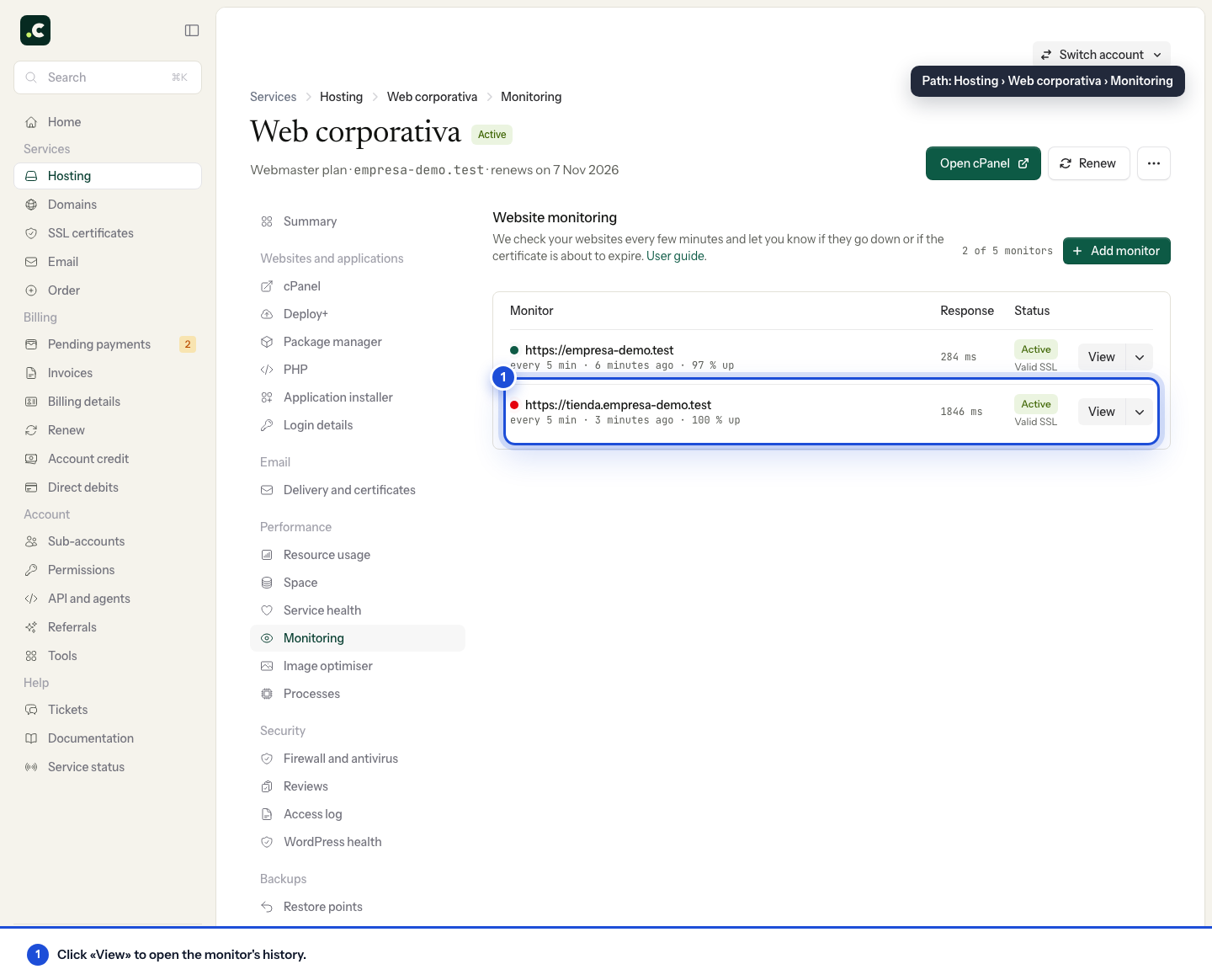
Create a monitor
In the client area, open the hosting and go to Monitoring. Click New monitor and fill in:
- Page to watch: domain and path, without the HTTPS prefix the form already shows.
- Notify: an email address you will check for incidents and recoveries.
- Content checks: optional conditions to detect a wrong response even if it returns a success code.
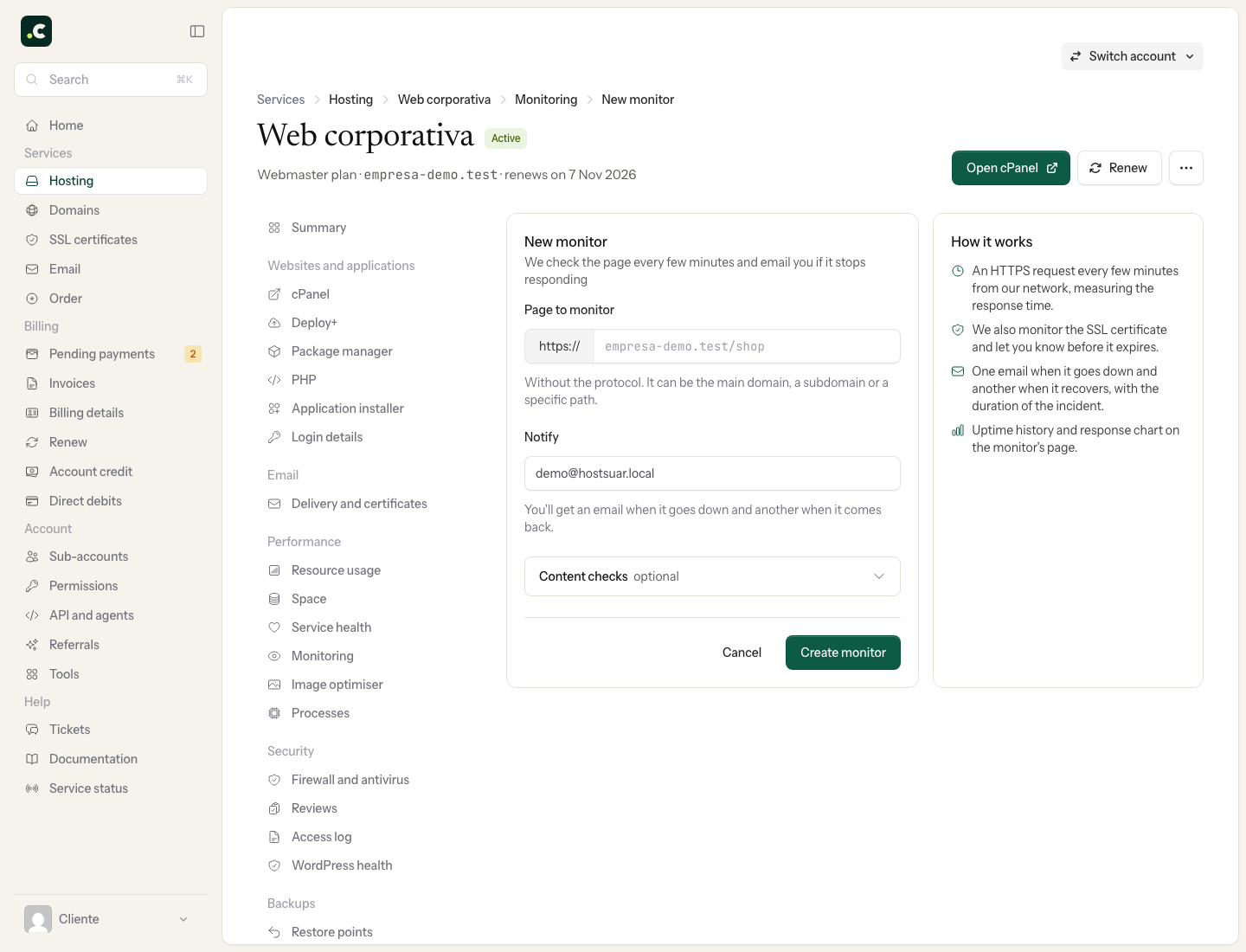
Use a public, read-only URL, not an action that deletes, buys or changes data. Do not include passwords or tokens in the address.
Choose the content checks
Must contain requires the given text to be found; Must not contain detects text that should not appear. Use a stable phrase specific to the page, not a price or a campaign that changes often.
The check looks for a literal, case-sensitive match in the response body. It does not run JavaScript or interpret the page as a browser would. Text created later by JavaScript, split across HTML tags or encoded differently may not match what you see on screen.
Test the conditions before relying on them. If you edit the website and change the phrase, update the monitor too to avoid false alarms.
History and alerts
The list shows the status and recent data. Open the detail view to check the HTTP response, time, availability, certificate and incidents.
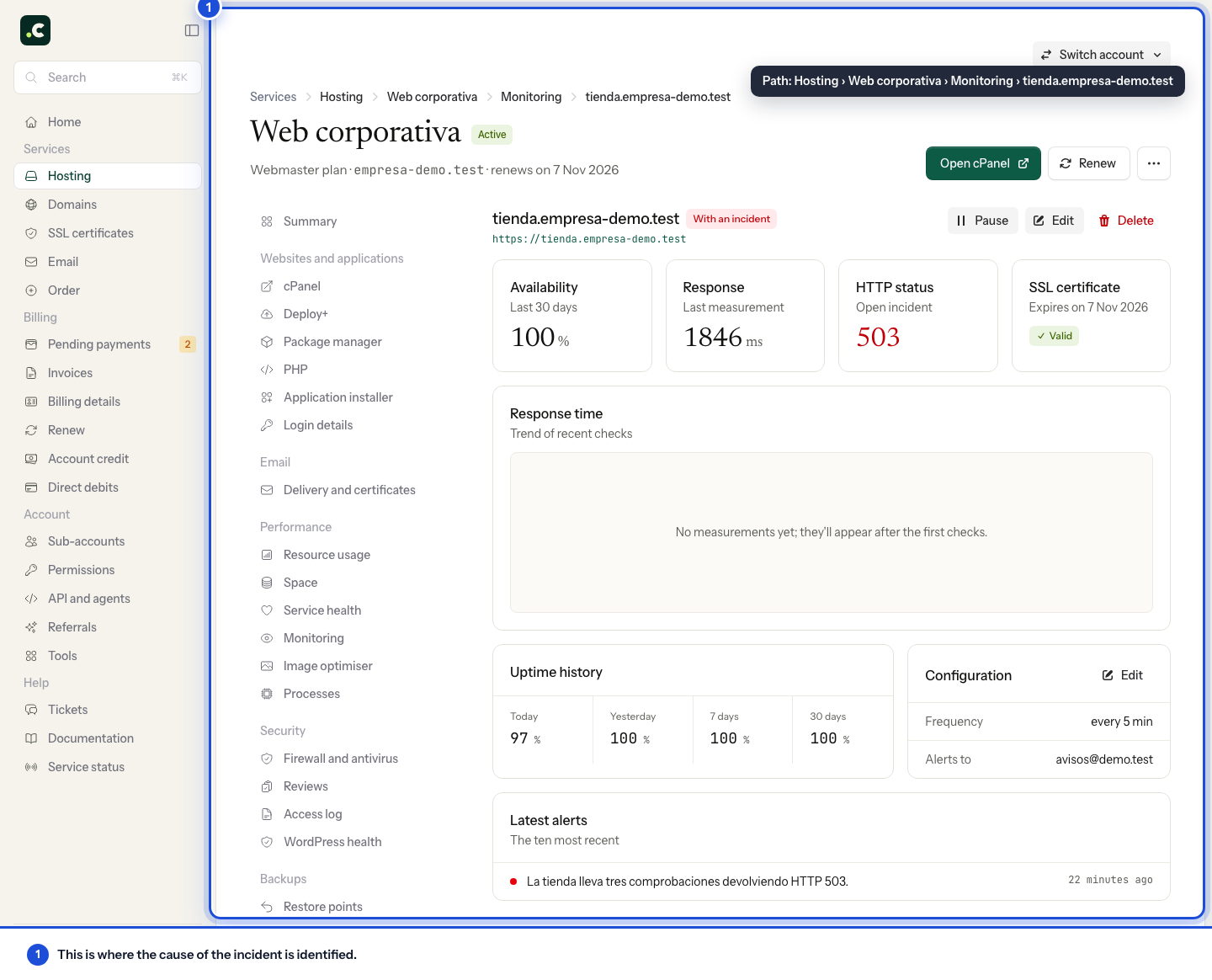
The system runs checks and confirms failures before raising an alert, so the alert will not necessarily arrive on the first failed attempt. When it confirms the recovery, it sends another email to the configured recipient.
The SSL status and expiry date are shown in the monitor. Check that date and the certificate's renewal; do not replace its maintenance with waiting for an alert. The response time is that of the monitor's request, not the full load of images and JavaScript.
Service limits
| Plan | Monitors | Usual interval |
|---|---|---|
| Inicia | 1 | 10 minutes |
| Webmaster | 5 | 5 minutes |
| Avanza | 10 | 1 minute |
| Max | 10 | 1 minute |
| Multi-account | 10 per managed account | 5 minutes |
Check the limit your panel shows for other options or older plans. These intervals are how often checks are scheduled, not a guarantee of an alert or a fix within that time.
With multi-account hosting, open the client's account to see its monitors:
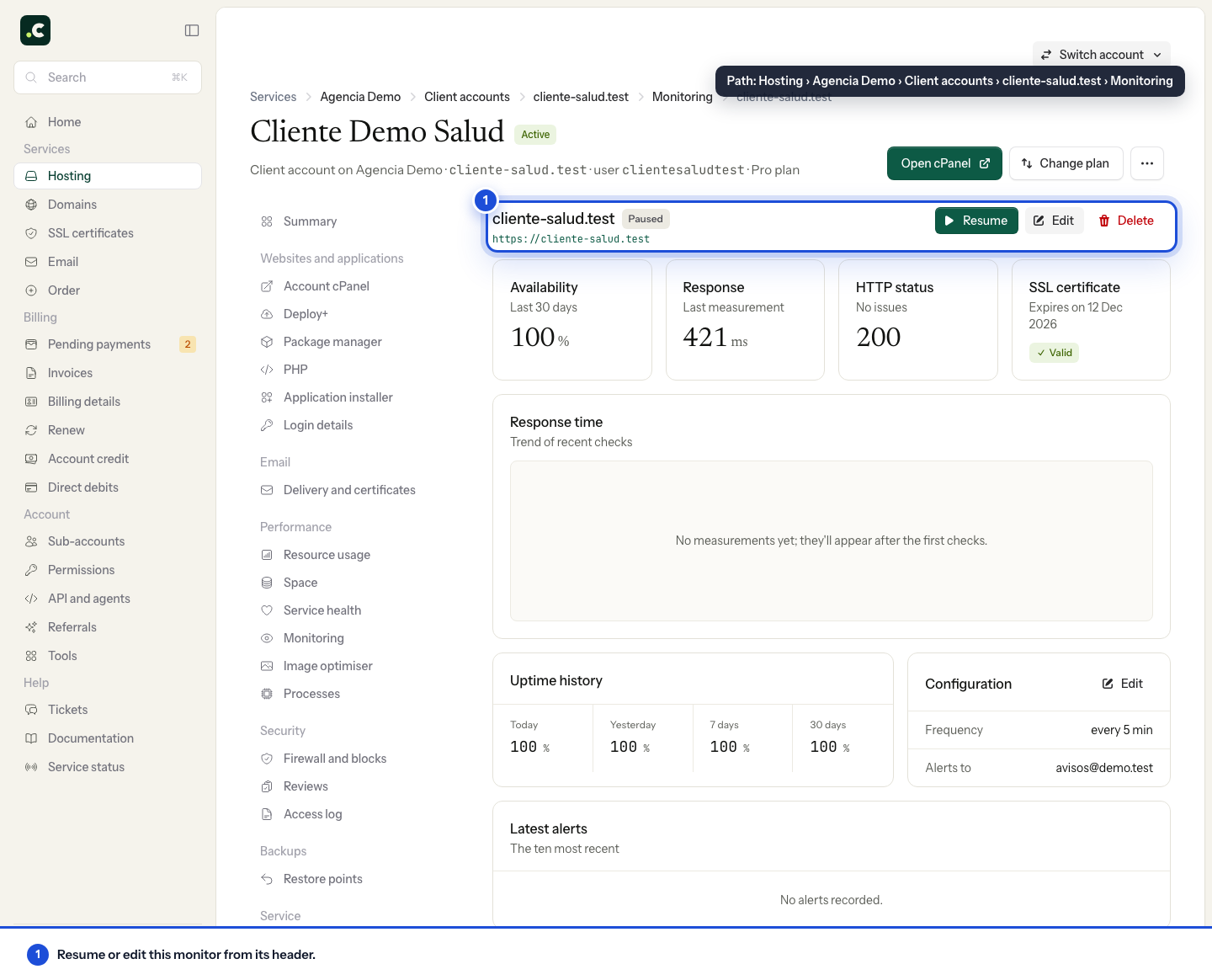
Edit, pause and resume
You can change the URL, the recipient and the conditions, or pause a monitor during maintenance. Resume it when you finish and check that it is recording results again. Deleting it is not the same as pausing it; keep the history you need first.
Each check makes a real request. It usually costs little, but a very expensive URL or one with side effects needs a different approach. If you are looking for a technical review of incidents, see Proactive+, whose scope is different from the monitor's automatic alert.
You may also find useful
- Interpret WordPress Site Health warnings Interpret WordPress Site Health warnings about themes, PHP, modules, updates, HTTPS, the REST API an...
- Google PageSpeed Insights: what it is, a practical example and fixes What PageSpeed Insights measures, what LCP, INP, CLS and the other metrics mean, and how to fix its...
- Interpret response time in PageSpeed, Pingdom and GTmetrix Tell apart TTFB, HTTP waiting time, latency and full load, and compare locations and caches before b...
- PHP X-Ray: find what makes your site slow, step by step How to use X-Ray in cPanel to analyse your site's slow PHP requests and see which plugin, SQL query,...
Something wrong or out of date? Tell us and we will review it.