

Migrate email from the panel with imapsync
The Migrate email (IMAP) tool copies messages and folders between mailboxes. Before using it, follow the migration walkthrough to prepare accounts, capacity and the MX change.
Open the tool and prepare the accounts
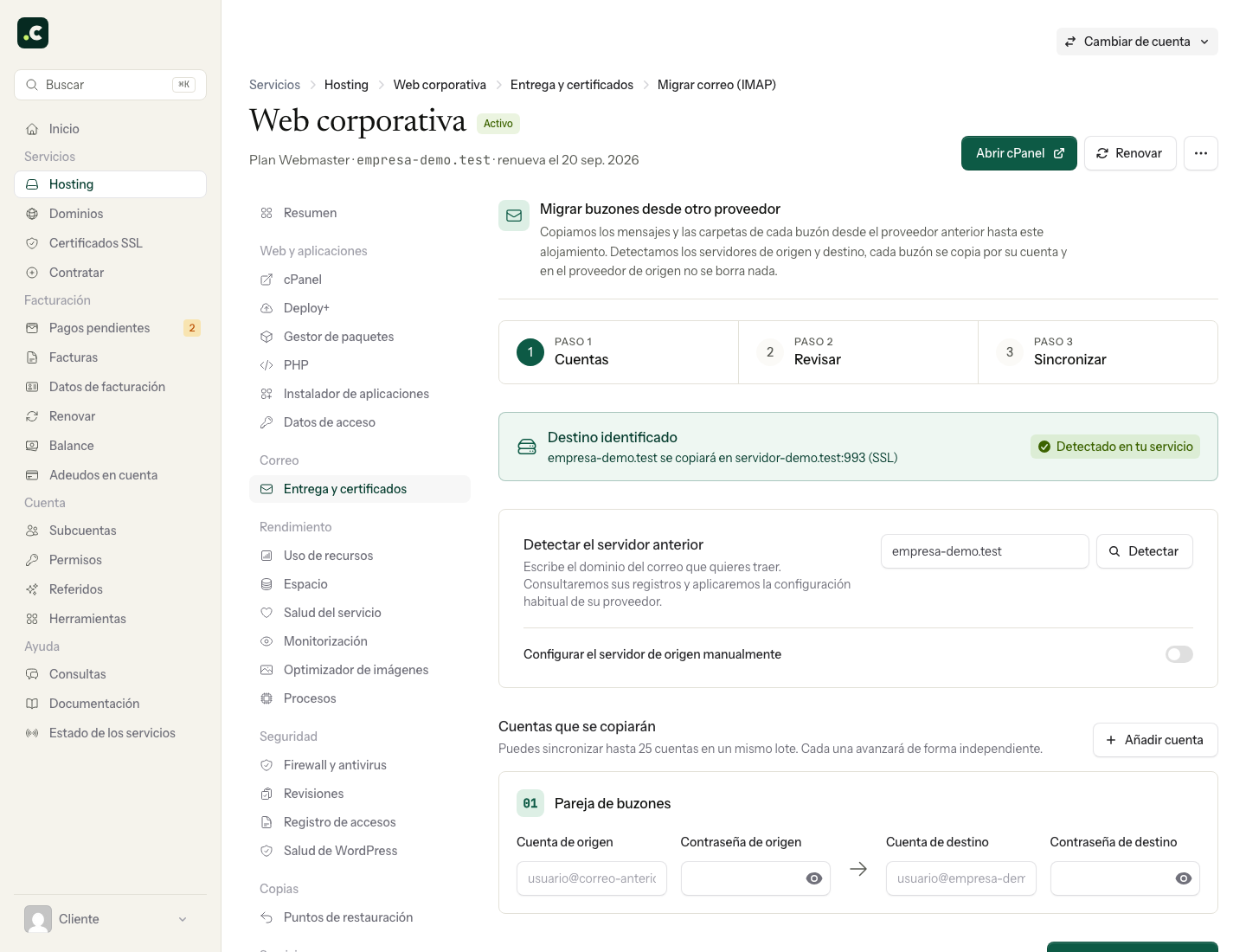
In Hosting, open the service and go to Delivery and certificates > Migrate email (IMAP). On a multi-account plan, select the destination account first.
If you have professional email without hosting, the same tool is in Email, on the domain's page, under Bring over email. There, the destination can only be that domain's mailboxes.
The form tries to detect the source server from the domain: while the domain still points to the previous provider, the username and password of each source mailbox, plus the destination mailbox already created, are usually enough. Have the provider's IMAP details (server, port and encryption) to hand in case detection does not find it, and use them in the manual configuration if you have already changed the DNS: from that point on the domain points to Hostsuar and detection would find our server, not the previous one.
Test before starting the copy
Add the source and destination pairs and review the summary. Test connection tries to authenticate to both mailboxes without copying any messages. A successful test proves access, not that there is enough quota or that every folder will be moved.
Once you have checked the destination and the selection, use Start batch. Review the status for each account and its final log, including any issues. If one fails, fix the cause before repeating it.
What is copied and what is left out
Messages exposed over IMAP, folders and compatible flags are copied. Contacts, calendars, rules, signatures and files that exist only in a POP client are not migrated.
The panel copy excludes folders whose name contains spam, regardless of case. For that reason it may also exclude a legitimate folder containing that string. Review the skipped folders and, if you need to copy them, use imapsync from the terminal with explicit criteria.
The interface uses each mailbox's credentials. The OAuth2 flow with a JSON service account for Workspace requires its own terminal procedure.
Repeat and check during the switch
You can repeat the synchronisation to copy outstanding messages. It is not a two-way mirror and does not delete from the destination what is deleted at the source. Check a sample with attachments and the important folders; avoid reorganising them during the move.
Keep the source active until it stops receiving because of DNS caches, and run one last copy. Then test sending and receiving from your devices.
Only enter credentials in the protected form or through the secure channel support tells you about. Revoke temporary credentials when they are no longer needed. Do not cancel the previous provider just because the batch shows as finished: first check the content and actual delivery.
You may also find useful
- Migrate your email without losing messages when you change provider How to prepare the mailboxes, make a first copy, synchronise the final messages and move your email...
- Use imapsync over SSH to copy email between providers Shows how to copy a whole mailbox with imapsync over SSH, using TLS and protected files for the cred...
- Archive a domain's incoming and outgoing email in cPanel Set the scope and retention of cPanel's email archive and check how to access it without mistaking i...
- Save your email to your computer before deleting it from the server Compare a local archive, POP download and backup, and check messages and attachments before freeing...
Something wrong or out of date? Tell us and we will review it.