

Download your email to your computer and delete it from the server
If you want to free up space or stop keeping old email on the server, but without losing it, you have three options:
- Copy to local folders over IMAP: you choose which messages to keep on your computer and you can still read them in your email program. This is the most common option.
- Set up the account with POP: the program downloads new messages to your computer and deletes them from the server.
- Download a copy of the mailbox from JetBackup: a compressed file to keep, in case you ever need it.
Bear in mind that once they are deleted from the server, those messages will only be on your computer. If the computer fails and you have no copy, we will not be able to recover them from our backups.
Copy your messages to local folders over IMAP
This way you keep the messages you choose on your computer and then delete them from the server.
- Set up the account in your email program (Thunderbird, Outlook, Apple Mail…) over IMAP, with your address and password. If it asks for more details, you will find them in mail server connection settings.
- Create a local folder that does not belong to the account: in Thunderbird, inside Local Folders; in Apple Mail, under On My Mac (menu Mailbox > New Mailbox); in Outlook, in a
.pstdata file (File > Account Settings > Data Files). - Select the messages you want to keep and use Copy To to the local folder (in Thunderbird, right-click > Copy To). Dragging also works, but depending on the program it moves instead of copying.
- Repeat with Sent and with any folders you have created yourself, not just the Inbox.
- Wait for the download to finish and open a few messages in the local folder, especially those with attachments, to check that they are complete.
- Delete the messages from the server folders and empty the Trash. Until you empty it, they still take up space.
Then check how much space the account uses, as explained in free up space in an email account.
Download your email with POP
The POP protocol downloads a copy of each message to your computer and then deletes it from the server. That way the email takes up no space on your hosting and only exists on your computer.
When you add the account in your email program, choose POP instead of IMAP. Usually your address and password are enough; if it asks for servers and ports, they are in mail server connection settings.
Before the first download, check the Leave messages on server option (in Thunderbird, under Account Settings > Server Settings; in Outlook, under More Settings > Advanced). Untick it if you want them deleted from the server, or set a number of days so they are deleted after that period.
Two things to bear in mind:
- POP only downloads the Inbox. Sent and any folders you have created on the server are not downloaded: save them first with the IMAP method in the previous section.
- If you read your email on several devices, those using IMAP will stop seeing the messages that POP downloads and deletes. The differences are explained in POP or IMAP.
Download a copy of the mailbox from JetBackup
If what you want is to keep the account's content in a file, without reading it every day, download a backup of the mailbox:
- Log in to cPanel and open JetBackup 5.
- Click Email Accounts.
- Select the email account and the backup date, and click Download.
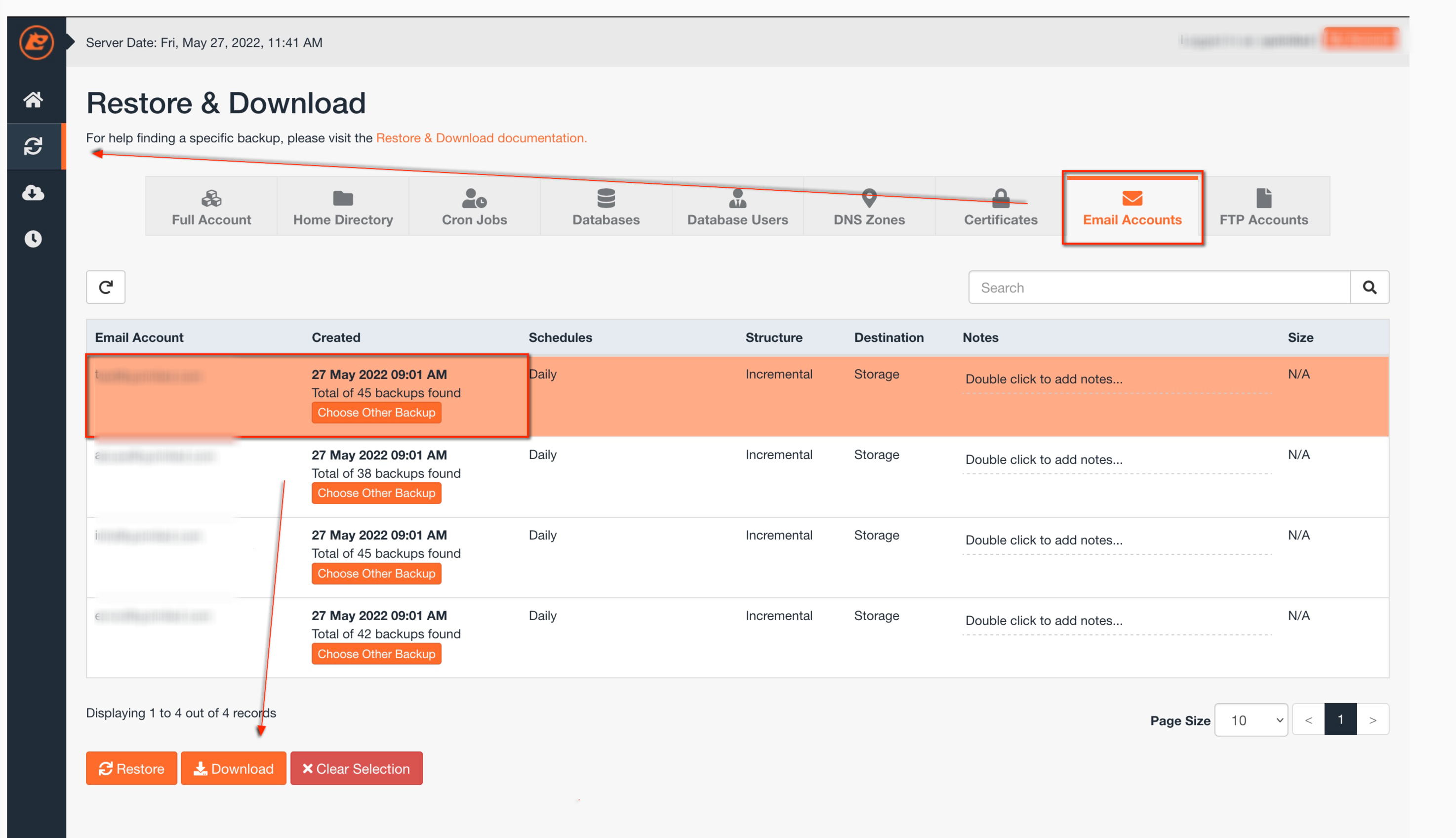
JetBackup prepares the file in the background. When it finishes, you will find it under Downloads in JetBackup: download it and keep it on your computer.
The backup contains the mailbox as it was on the chosen date: messages received afterwards are not in it. If you are going to empty the account, choose the most recent backup. The file is a compressed archive with the messages in maildir format, not something Outlook or Mail can open directly; it is for restoring later.
With the backup saved, you can delete the messages or remove the account.
If you are going to delete the account
If you are going to delete the email account from the server and not just its content, remove it from your email program too, or it will show a connection error every time you open it. Before that, make sure the messages are in a local folder (IMAP section) or in the program's local folders if you used POP: removing an IMAP account from the program also deletes its folders on the computer.
You may also find useful
- Migrate Google Workspace email with imapsync (OAuth2 service account) Step by step guide to creating a service account with domain-wide delegation in Google Cloud, author...
- Migrate your email without losing messages when you change provider How to prepare the mailboxes, make a first copy, synchronise the final messages and move your email...
- Move your email from Gmail to Hostsuar with imapsync (app password) Prepare your Gmail or Google Workspace account to copy all its email to Hostsuar with imapsync by cr...
- Use imapsync over SSH to copy email between providers Shows how to copy a whole mailbox with imapsync over SSH, using TLS and protected files for the cred...
Something wrong or out of date? Tell us and we will review it.