

Configure SpamAssassin: threshold, Spam folder and auto-delete
Spam Filters is the antispam included in every hosting plan. Under the hood it runs SpamAssassin, a well-proven analysis system that filters out the vast majority of unwanted mail.
Turn it on and choose what to do with spam
In cPanel, open Spam Filters:
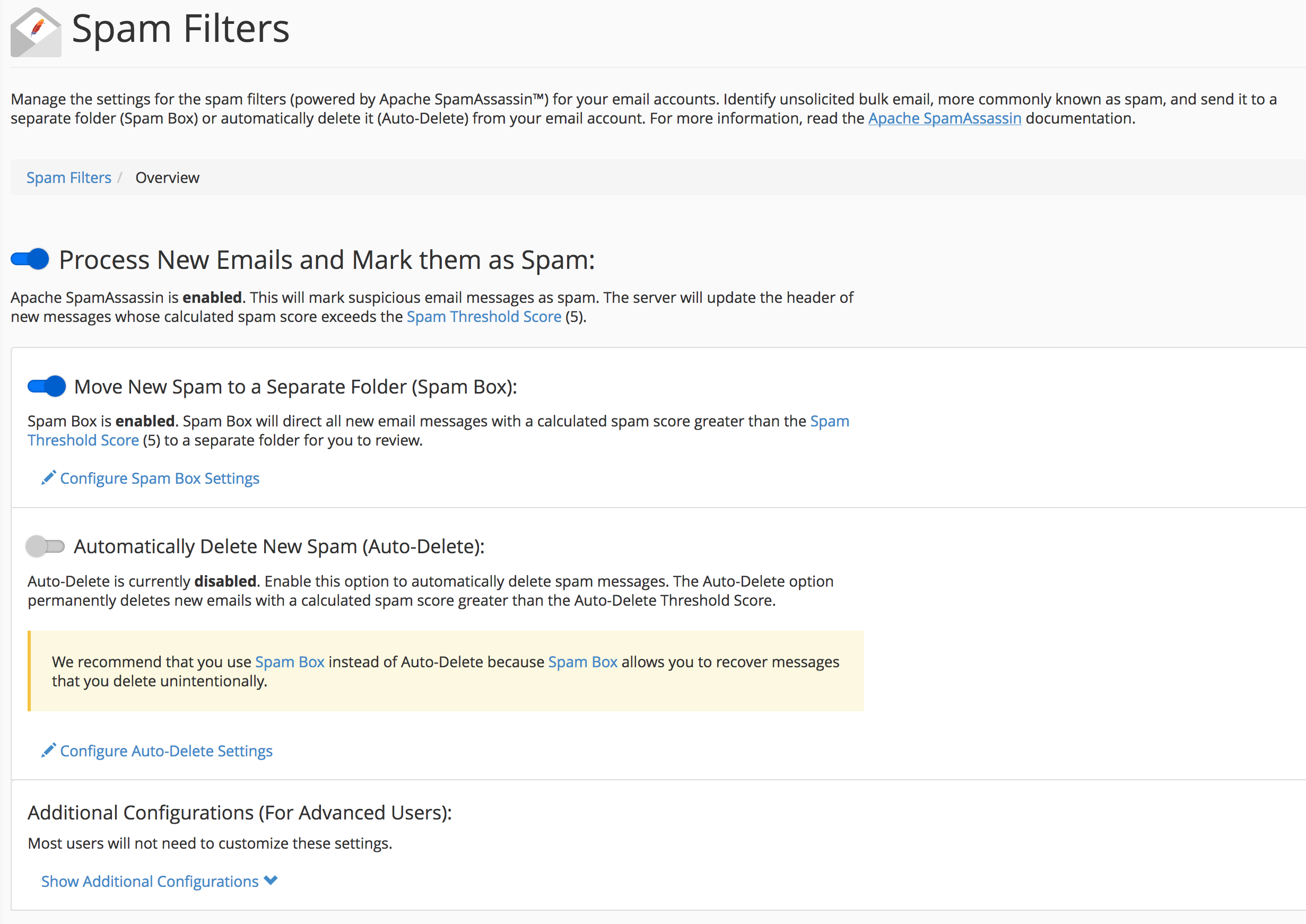
- Turn on Process New Emails and Mark them as Spam. From then on, SpamAssassin analyses every incoming email and gives it a score.
- Choose what to do with the emails it detects as spam:
- Move New Spam to a Separate Folder (Spam Box): moves them to a spam folder in the mailbox. This is the recommended option, because you can review it and recover a good email that slipped in.
- Automatically Delete New Spam (Auto-Delete): deletes them as soon as they arrive, with no way to recover them. It has its own threshold (in Configure Auto-Delete Settings), separate from the general threshold. If you turn it on, give it a high value so it only deletes the most obvious spam.
Adjust the filtering level
Every email gets a score. If it equals or exceeds the threshold (5 by default), it is considered spam. The lower the threshold, the stricter the filter.
- You get a lot of spam: lower the threshold gradually (for example, from 5 to 4) until you find the point where it filters well without good emails ending up in the spam folder.
- Lots of good emails go to spam: raise it (for example, to 6 or 8).
To change it:
- In Spam Filters, click the Spam Threshold Score (5) link.
- Choose the new value from the drop-down.
- Click Update Scoring Options.
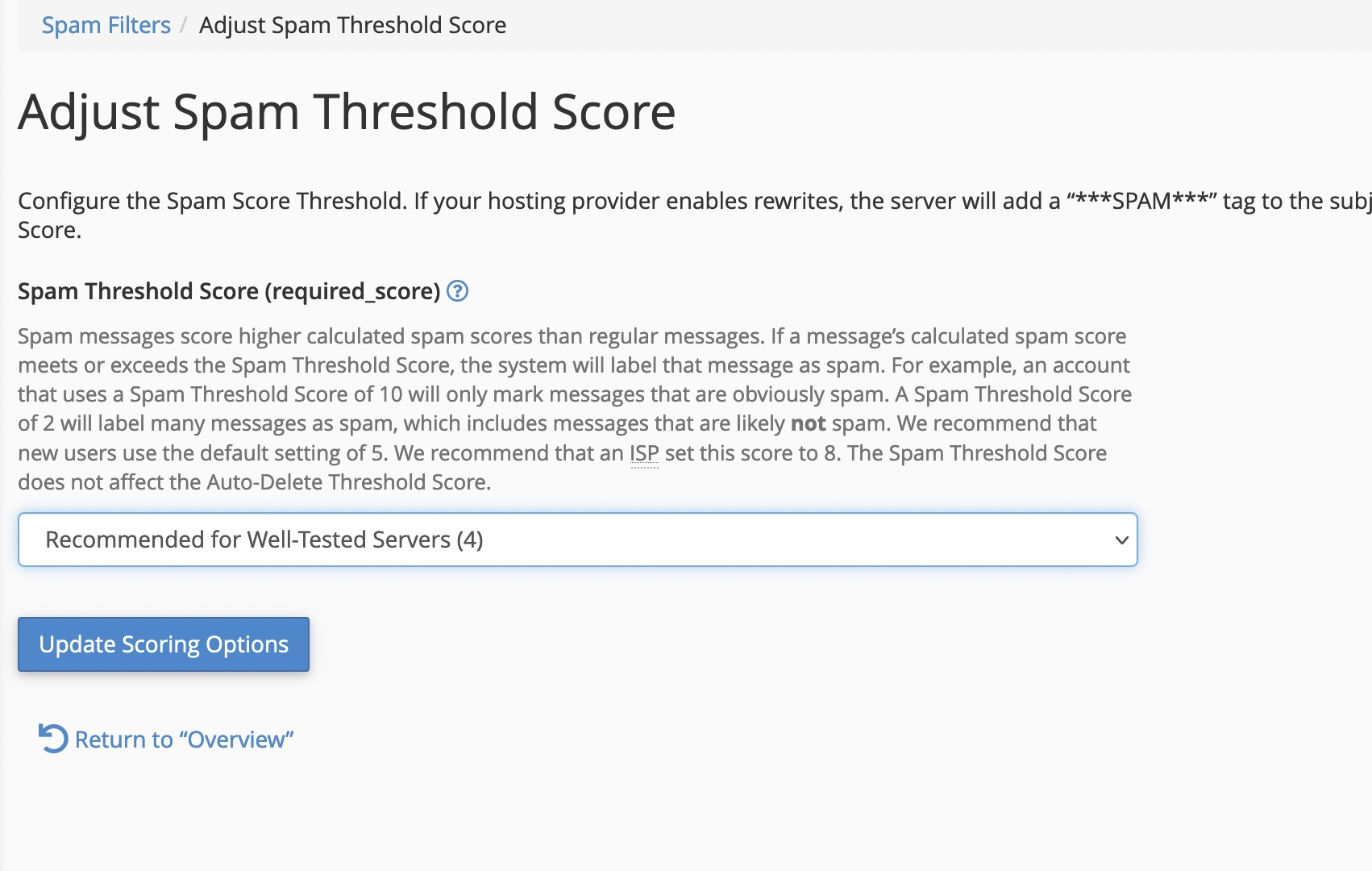
Change it one point at a time and watch new emails for a few days before touching it again. The change does not affect emails that had already arrived.
Correct its mistakes from Roundcube
SpamAssassin starts from a common set of rules, but everyone receives different emails (language, content, attachments). That is why it learns from its mistakes when you correct them:
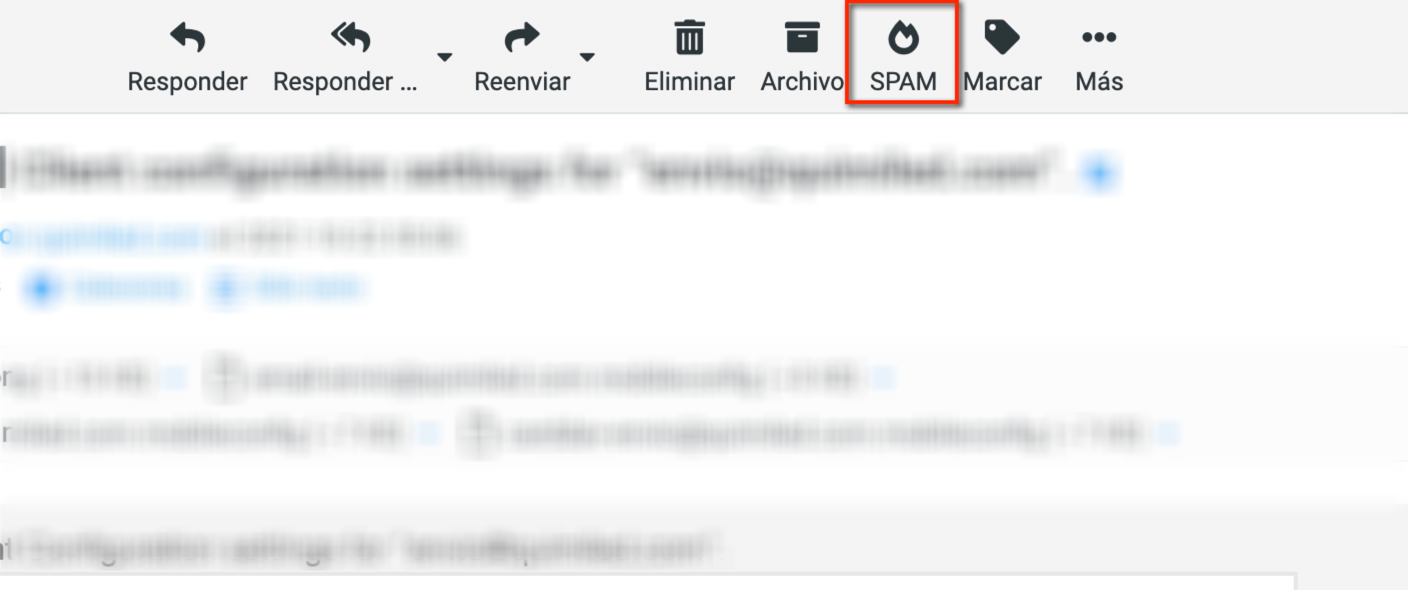
- If spam reaches your inbox, select it in Roundcube and click SPAM in the top bar.
- If a good email has gone to the spam folder, open the folder, select the email and click Not spam.
You will find more detail, and how to add senders or domains to the allowlist or blocklist, in improve the SpamAssassin antispam.
If emails are missing
If an email is missing and you have Auto-Delete turned on, it may have deleted it: raise its threshold or turn it off. If it is not on, check the mailbox's spam folder and your email filters.
You may also find useful
- Improve the SpamAssassin antispam: train it and use whitelists and blacklists Teach SpamAssassin by marking emails as spam or not spam from webmail, and add senders or whole doma...
- Add a safe sender in SpamAssassin Shows how to lower the SpamAssassin score of a specific sender address and explains why this list do...
- BoxTrapper: sender verification and reviewing the queue Describes how BoxTrapper holds unknown senders until they are verified and how to manage its lists,...
- Review outgoing messages held by the spam filter Explains how to review in Imunify360 the outgoing messages held by the spam filter, view their conte...
Something wrong or out of date? Tell us and we will review it.