

Domains and DNS
Managing and setting up domains and subdomains in cPanel
cPanel's Domains section brings together everything that used to be split between addon domains, aliases (or parked domains) and subdomains. Now they're all created from the same form, and what changes is the folder you assign to them:
| You want... | What to do |
|---|---|
| A separate website on another domain (formerly an addon domain) | Create the domain with its own folder. |
| Another domain to show the same website (formerly an alias or parked domain) | Create the domain ticking Share document root. |
A separate section or website under your domain, such as blog.yourdomain.com (subdomain) |
Create the subdomain with its own folder. |
| A domain to send visitors to another website | Create the domain ticking Share document root and then set up a redirect. |
The domain has to point to your hosting (with our DNS or with an A record to the server's IP) for the website to load. Adding it in cPanel doesn't change its DNS.
Domain list
When you open Domains you'll see all the domains and subdomains on the account, the folder of each one, whether they have a redirect, and shortcuts to manage them.
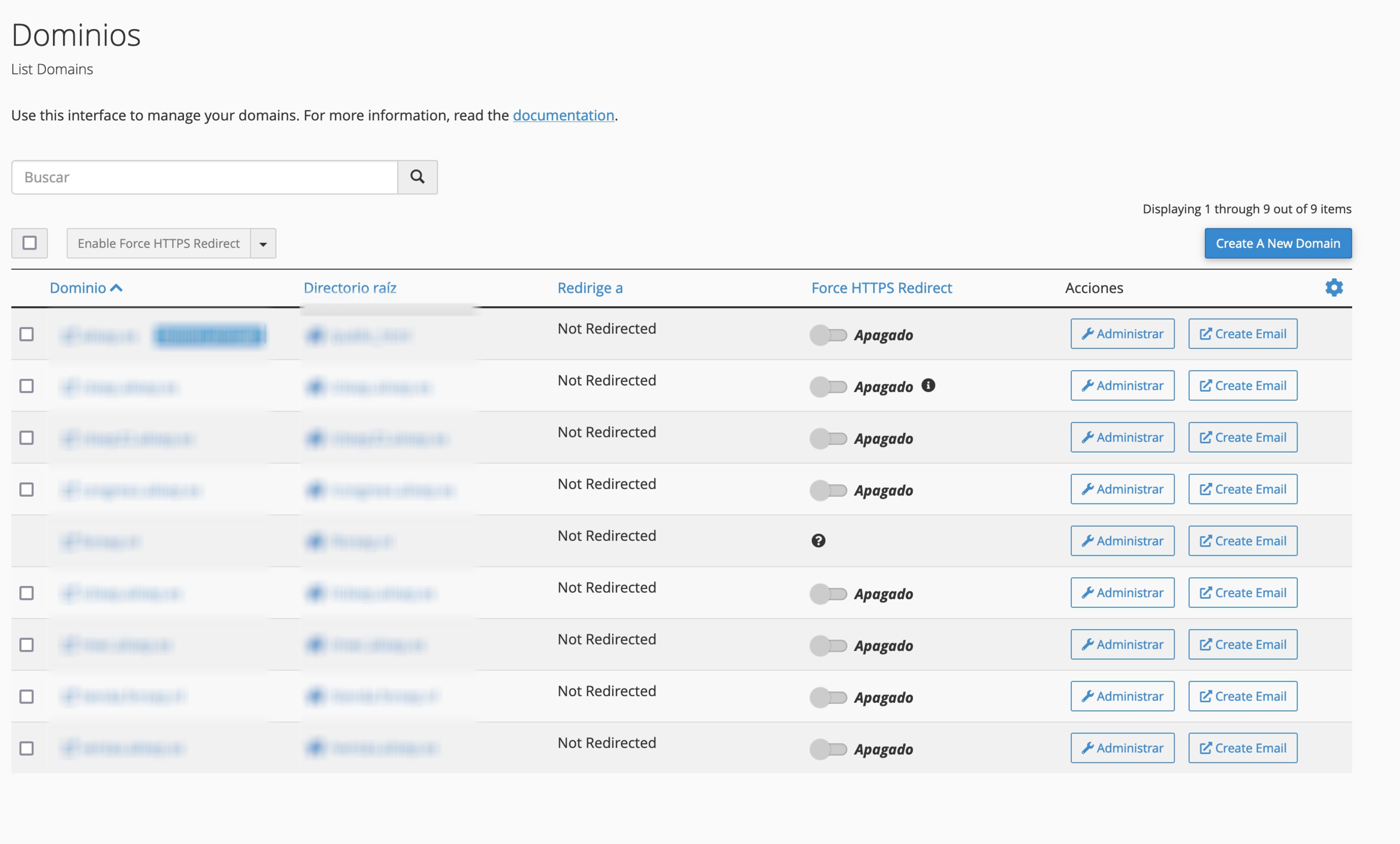
Add a domain or subdomain
Click Create a New Domain, at the top right.
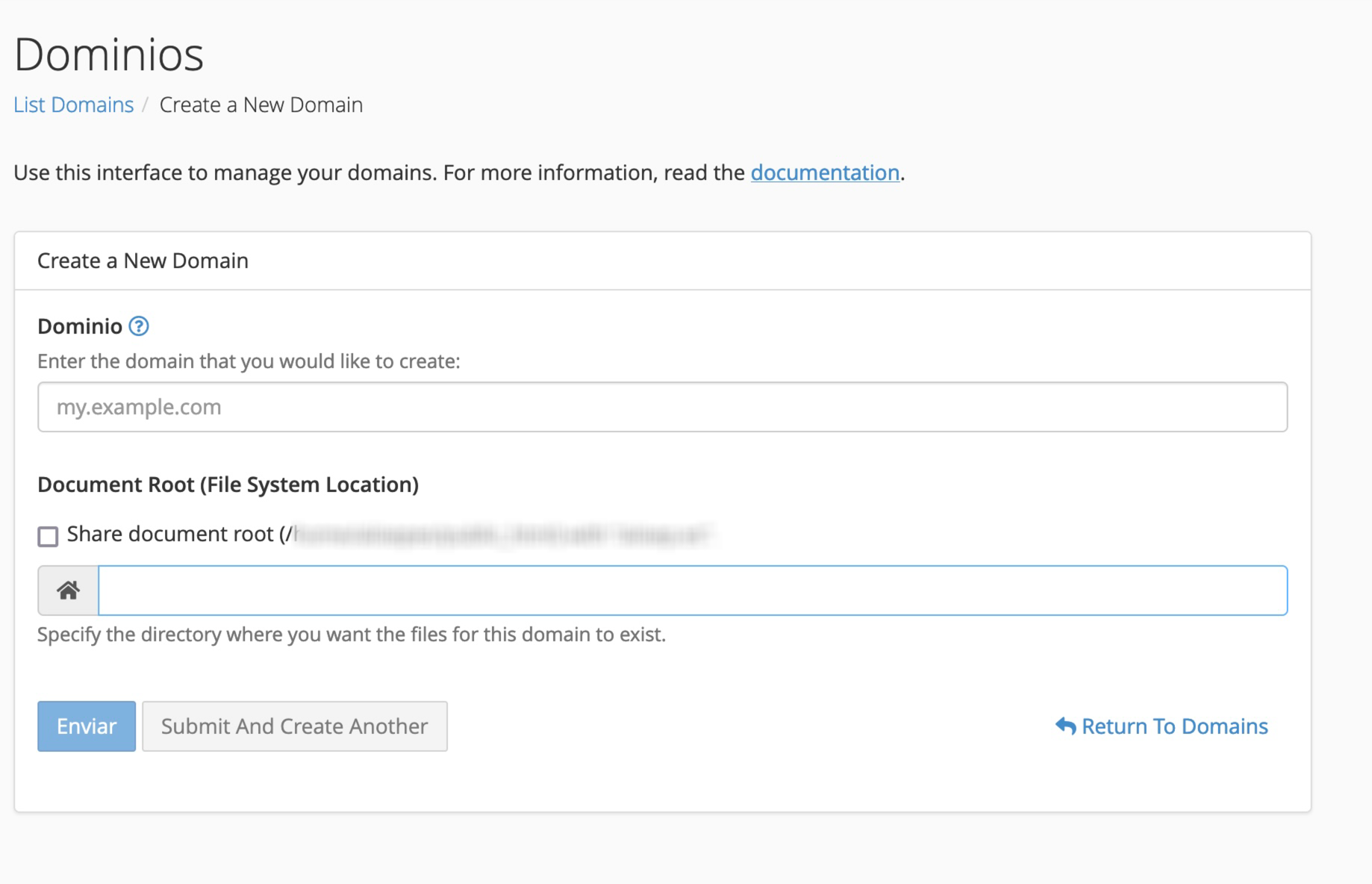
- In Domain, enter the full domain or subdomain, without
http://orwww: for exampleanotherdomain.comorblog.yourdomain.com. - Choose the folder:
- Tick Share document root to use
public_html, the same folder as the main domain. - Or leave it unticked and enter the domain's own folder, for example
anotherdomain.com. It can be a folder that already exists; if it doesn't, cPanel creates it.
- Tick Share document root to use
- Click Submit.
In a few minutes the domain will be working and, if it already points to the hosting, AutoSSL will give it a free SSL certificate.
If the form lets you choose between Registered domain and Temporary domain, choose Registered domain. Adding a domain here doesn't register it: it only sets it up on the hosting.
If you want to put the new domain's website in the root of the account instead of inside public_html, see where to host a new domain.
Managing each domain
Force HTTPS
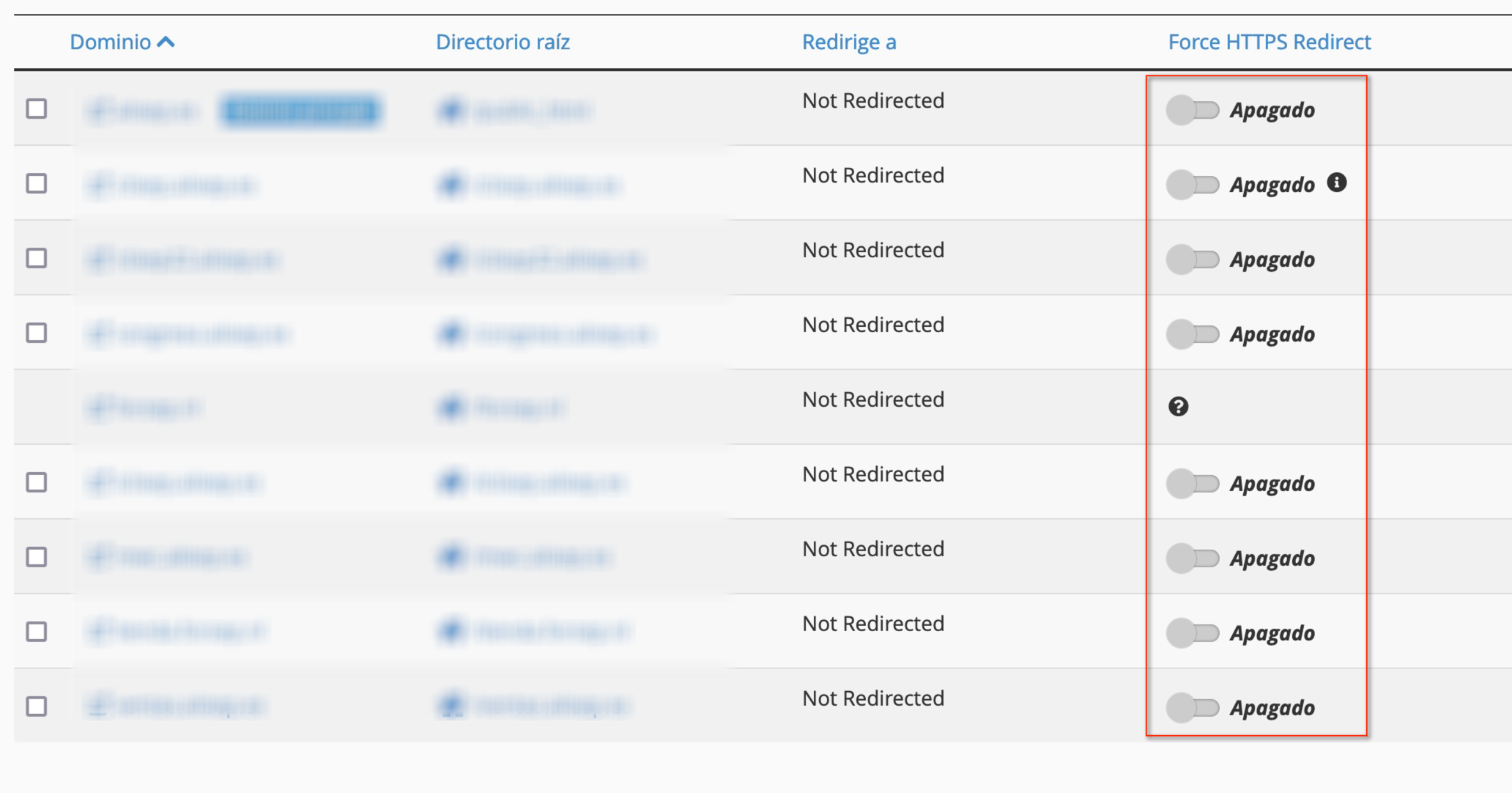
In the list, next to each domain, there's the Force HTTPS redirect switch. Turn it on so that anyone visiting over http:// is always sent to https://. Do this once the domain already has its SSL certificate installed.
Change the domain's folder
Click Manage on the domain and change the directory. This is useful for reorganising the account's folders or changing the website a domain shows.
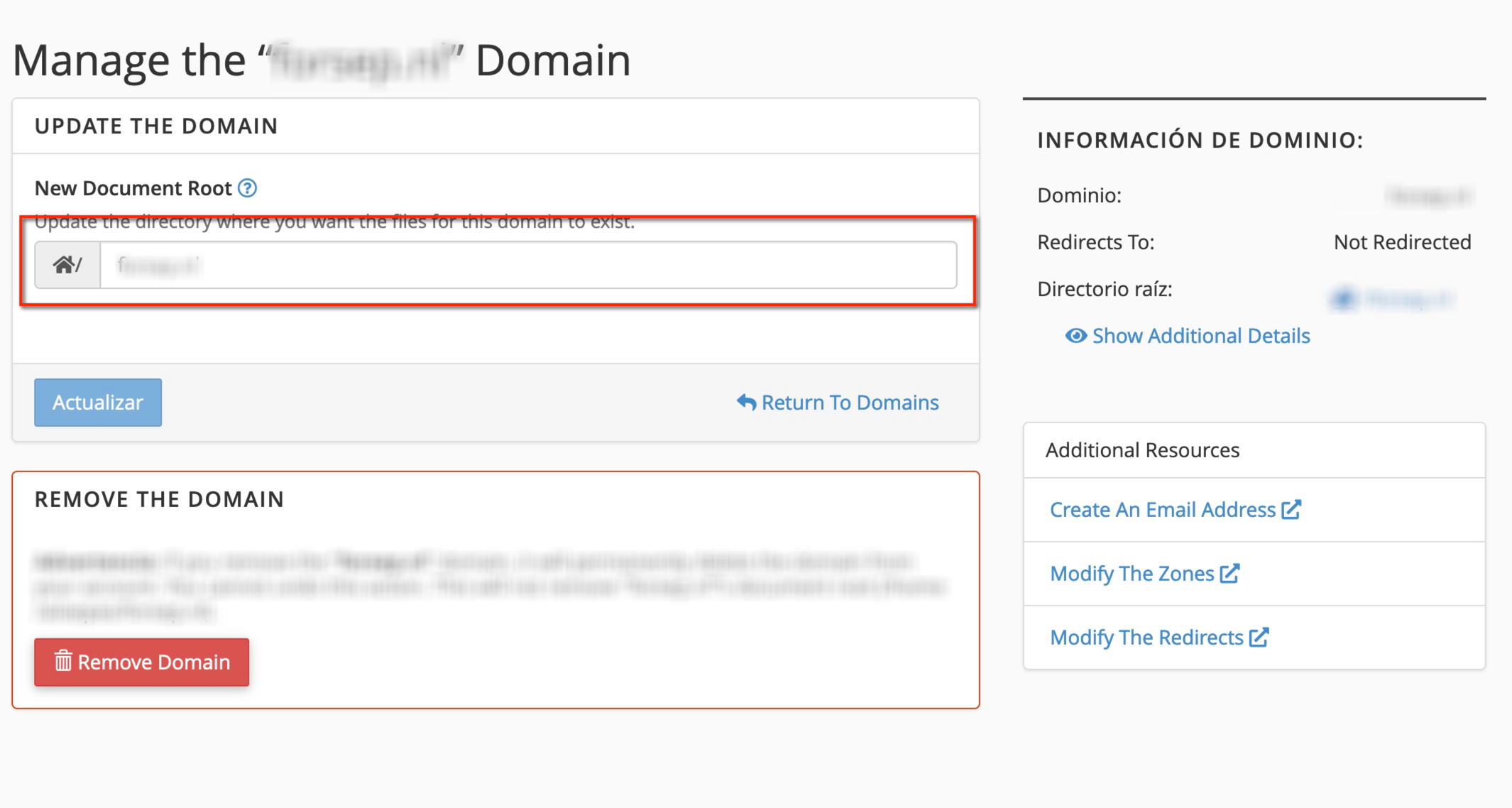
The change doesn't move the files: move them to the new folder yourself first, or the domain will show an empty folder.
Create email accounts
Create Email takes you to the email accounts form with the domain already selected. Each domain has its own mailboxes, even if it shares a web folder with another.
Remove a domain
Click Manage on the domain and, at the bottom, Remove domain.
The domain's files, folders and databases aren't deleted: if you no longer need them, delete them by hand. That domain's mailboxes no longer show in cPanel, so back up the email first if you're going to need it. Removing it from the hosting doesn't cancel the domain's registration. The account's main domain can't be removed from here.
You may also find useful
- Domains in cPanel: find the folder and manage each website How to read cPanel's domain list, find a website's folder and choose the right way to manage it.
- Connect a Hostsuar domain to Shopify Explains which DNS records to connect to Shopify, where to edit them depending on the nameservers, h...
- Connect a Hostsuar domain to Webflow Guides you through connecting manually to Webflow using the project's current values, the authoritat...
- Domain vs hosting: what a website needs What you get with a domain and with hosting, how they connect and what to check if your website and...
Something wrong or out of date? Tell us and we will review it.