

Domains and DNS
Dynamic DNS, managed from the client area
Dynamic DNS (DDNS) lets you create and manage subdomains that point to dynamic IP addresses straight from your client area, for domains without associated hosting.
This tool is especially useful for remote access to home devices, home servers, NAS devices, security cameras or any service that needs to be reachable from the internet but has an IP that changes from time to time.
Requirements
- A domain registered in your account
- No associated hosting service (for domains with hosting, use dynamic DNS from cPanel)
- A device or system able to make periodic HTTPS requests
Where to find it
- Log in to your client area
- Go to the Domains section
- Click Manage on the domain you want to set up
- In the domain's side menu, DNS and domains group, open Dynamic DNS
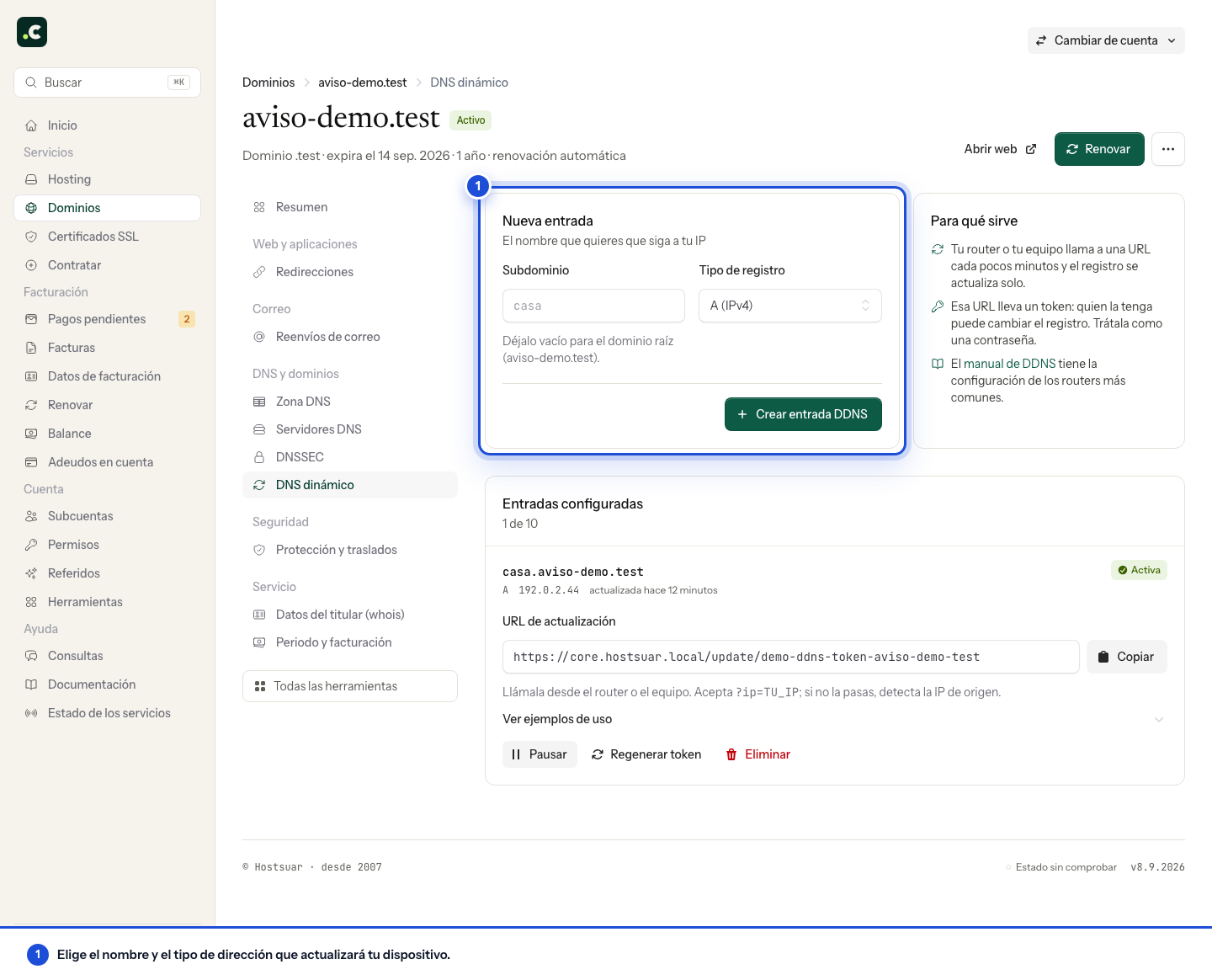
Basic setup
In the New entry card, fill in the following fields:
- Subdomain: the subdomain name (optional; leave it empty for the root domain)
- Examples:
servidor,nas,dev,cam01 - For the root domain: leave the field empty
- Examples:
- Record type: choose between:
- A (IPv4): for the connection's public IPv4 address
- AAAA (IPv6): for IPv6 addresses (e.g. 2001:db8::1)
Click Create DDNS entry to generate the token. The DNS record is created or updated when the first valid request arrives; until then the entry may not show a current IP.
Limits
- Up to 10 DDNS entries per domain
- No duplicates: you can't create several entries for the same subdomain and record type
- Domains without hosting only: this feature isn't available for domains with associated hosting
Managing DDNS entries
The entries you create are listed below, under Configured entries, with how many of the 10 available entries you've used. Each row shows:
- Full name: hostname.tudominio.com
- Record type: A or AAAA
- Current IP: the last IP recorded, or "no IP yet" if no call has arrived so far
- Last update: how long ago it last changed
- Status: an Active or Paused label
Update URL
Each entry has its own update URL, with a Copy button next to it. Copy it from there: it's the URL you set up on your device or system to keep the IP up to date by calling it. It looks like this:
https://ddns.hostsuar.com/update/TOKEN_UNICO_32_CARACTERES
Below it, See usage examples expands the same URL ready to use with cURL, Wget, the browser and the status query.
Treat it like a password: anyone who knows the token can change where the record points. Don't publish it or include it in accessible logs; regenerate the token if it is exposed.
Setting up devices
Home routers
If your router supports a custom DDNS provider that works with an HTTPS URL, you can set it up like this:
- Open your router's settings
- Look for the Dynamic DNS or DDNS section
- Select Custom
- Enter the full update URL
- Set the update interval (recommended: 5–10 minutes)
NAS devices
Synology DiskStation
- Go to Control Panel > External Access > DDNS
- Select "Customize"
- Enter the update URL
- Set the interval
QNAP
- Go to Control Panel > External Access > DDNS
- Select "Custom DDNS"
- Set the URL and parameters
Custom scripts
Using cURL (Linux/macOS)
#!/bin/bash
# Script para actualizar DNS dinámico

URL="https://ddns.hostsuar.com/update/TU_TOKEN_AQUI"

# Actualizar con detección automática de IP
curl --fail --show-error --silent "$URL"

# O especificar IP manualmente
# curl -s "$URL?ip=TU_IP_AQUI"
Using PowerShell (Windows)
$url = "https://ddns.hostsuar.com/update/TU_TOKEN_AQUI"
Invoke-WebRequest -Uri $url -UseBasicParsing
Cron job (Linux)
To run every 5 minutes:
# Editar crontab
crontab -e

# Añadir línea:
*/5 * * * * /usr/bin/curl -s "https://ddns.hostsuar.com/update/TU_TOKEN"
URL parameters
IP parameter
You can specify the IP in two ways:
# Parámetro ip
https://ddns.hostsuar.com/update/TOKEN?ip=192.0.2.44

# Parámetro myip (compatibilidad)
https://ddns.hostsuar.com/update/TOKEN?myip=192.0.2.44
Automatic detection
If you don't specify any parameter, the system automatically detects the IP the request comes from:
https://ddns.hostsuar.com/update/TOKEN
Checking a DDNS entry's status
As well as updating the IP, you can check the current status of any DDNS entry without changing anything.
Status URL
https://ddns.hostsuar.com/status/TOKEN
Status response
{
  "hostname": "servidor.tudominio.com",
  "current_ip": "192.0.2.44",
  "type": "A",
  "enabled": true,
  "last_updated": "2025-01-15T14:30:45.000Z"
}
Response fields
- hostname: full name of the configured subdomain
- current_ip: last IP address recorded
- type: DNS record type (A or AAAA)
- enabled: entry status (true/false)
- last_updated: ISO date of the last update (null if it has never been updated)
Use cases
- Monitoring: check that your device is updating correctly
- Debugging: check the current recorded IP without making changes
- Automation: build it into scripts to validate before updating
API responses
Successful update
{
  "success": true,
  "message": "DNS record updated successfully",
  "hostname": "servidor.tudominio.com",
  "ip": "192.0.2.44",
  "type": "A"
}
IP unchanged
{
  "success": true,
  "message": "IP address is already up to date",
  "hostname": "servidor.tudominio.com",
  "ip": "192.0.2.44",
  "type": "A"
}
Common errors
{
  "error": "Invalid token",
  "code": "INVALID_TOKEN"
}

{
  "error": "DDNS entry is disabled",
  "code": "DDNS_DISABLED"
}

{
  "error": "Invalid IP format for record type",
  "code": "INVALID_IP"
}
Advanced management
Pause or activate an entry
You can pause or activate any entry without deleting it:
- Pause: stops new updates, but the last A or AAAA record stays published
- Activate: resumes normal operation
Regenerate the token
If you suspect your token has been compromised, you can regenerate a new token:
- Click Regenerate token
- Confirm with Regenerate
- Update the settings on all your devices with the new token
⚠️ Important: once you regenerate the token, the old one stops working immediately.
Delete an entry
To delete a DDNS entry completely:
- Click Delete
- Confirm the action
- The entry and its associated DNS record are permanently deleted
Troubleshooting
How dynamic DNS works
It's important to understand that DDNS only manages DNS records that point to IP addresses. The service:
- Sets a 60-second TTL to allow fast updates
- Doesn't provide SSL/HTTPS certificates: these must be set up on the destination server
- Only resolves names to IPs: the website or services must be running at the destination IP
DNS propagation and caching
Although we set a 60-second TTL for DDNS records, some factors can affect how quickly updates take effect:
DNS caches
The record uses a 60-second TTL, but old answers can still linger in resolvers, routers, operating systems and applications. There is no guaranteed global time by which all of them stop using the old address.
Common problems
The IP doesn't update
- Check the token: make sure you are using the right token
- Check the status: the entry must be active
- Check connectivity: the device must have internet access
- Validate the IP: use IPv4 for A records and IPv6 for AAAA records
- Check caches: wait at least the TTL and query several resolvers; an old answer can stay longer in some caches
"Not secure" error or HTTPS problems
- DDNS doesn't provide SSL: HTTPS certificates must be set up on your server
- Use Let's Encrypt: for free certificates on your server
Invalid token error
- Check the URL: copy the URL exactly as shown in the client area
- Regenerate the token: if the problem persists, regenerate a new token
The domain resolves but there is no content
- Check the server: the web service must be running at the destination IP
- Check ports: make sure the necessary ports are open
- Firewall: check the firewall settings on the router and the server
Before you publish an IP
Check that the domain uses the DNS zone managed by this tool and that the name you chose isn't already used for another service. The address 192.0.2.44 in the examples is reserved for documentation: replace it with your real public IP; it won't connect to your device.
With automatic detection, run the request from the connection whose address you want to publish. A VPN, a proxy or an external server can change the IP that is seen. For an AAAA record, check that the request or the parameter corresponds to a public IPv6 address of the service, not a temporary address of another device.
DDNS doesn't get around CGNAT or open ports on your router. If the IP updates but the service doesn't connect, test connectivity from another network before regenerating the token. NAS and router menus vary by model and version: confirm that they support the URL and the update method, rather than assuming any "DDNS" option is compatible.
In automations, avoid including the token in public logs, handle HTTP errors and check the status if you need to confirm the last value. Pausing updates keeps the published IP; it doesn't take the service offline.
You may also find useful
- Create and edit DNS records with Zone Editor Edit the DNS zone in cPanel, understand each record type and check the impact before replacing or de...
- Manage DNS records for a domain without hosting: A, AAAA, CNAME, TXT, MX and SRV Where to create or edit DNS records from the client area, how to write their names and what to check...
- Point your website to another server without moving your email Separate the website and email records so you can change where the site is hosted without sending me...
- Set up records with the DNS assistant Paste the records a provider has given you or use a recipe, review the impact on the current zone an...
Something wrong or out of date? Tell us and we will review it.