

Domains and DNS
Manage DNS records for a domain without hosting: A, AAAA, CNAME, TXT, MX and SRV
You can manage the DNS zone from the client area if the domain is active, uses our nameservers and has the zone tool set up without associated hosting. If it is hosted on a cPanel account, its records are managed in Zone Editor. If it uses external DNS, you need to edit them with that provider.
Go to Domains > Manage > DNS zone, in the DNS and domains group of the domain's page.
If a provider has sent you instructions
The Have you been asked to create some records? card opens the DNS assistant. You can paste the instructions or pick an available recipe and review the proposed changes before applying them.
Use the manual editor when you already know which records you need. Don't add every record from an example if you've only been asked for one.
Create or edit a record
- Find the record by name and type. You can use the search box and filters.
- To change an existing value, open Edit record from its row's menu. For a new one, click Add record.
- Check the name, type, TTL and value. MX and SRV records show their own specific fields.
- Click Save. Then use Refresh and check that the expected value appears.
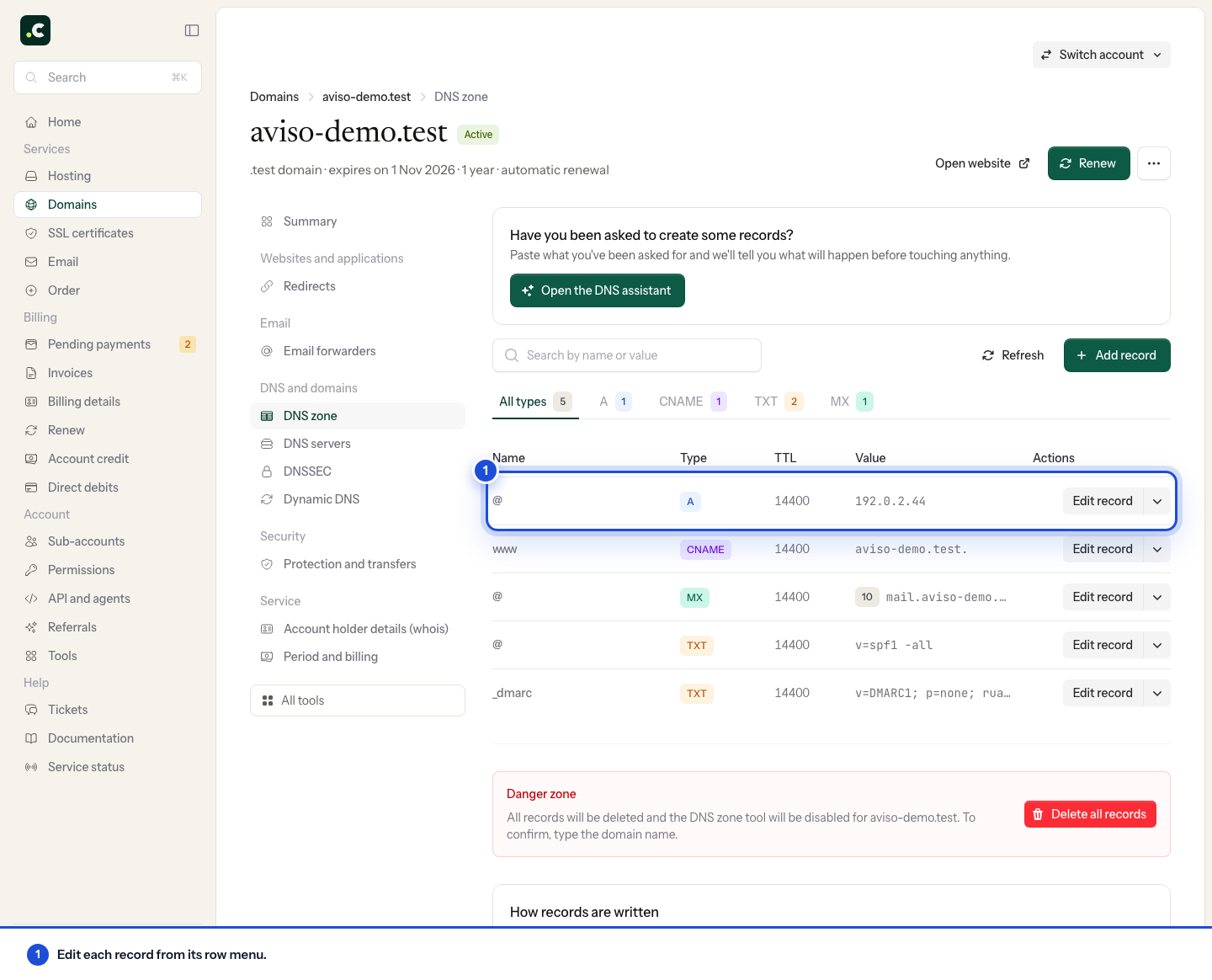
What to enter in each field
| Type | What the value means |
|---|---|
| A | An IPv4 address |
| AAAA | An IPv6 address |
| CNAME | Another hostname, without protocol or path |
| TXT | The verification or configuration text provided by the service |
| MX | The server that receives email, and its priority |
| SRV | The service's target, port, priority and weight |
In the name, @ stands for the root domain. You can enter a short subdomain such as www, or its full name. For SRV, keep the service and protocol name given by the provider, for example _servicio._tcp.
The TTL is in seconds and controls how long an answer can be cached. Lowering it now doesn't remove answers that other resolvers have already stored with the previous TTL.
The SPF, DKIM and DMARC helpers create TXT records. Before adding an SPF record, check whether one already exists: authorised senders must be merged into that configuration, not added as several separate SPF records.
Check and correct
Refreshing the list rereads the zone; it doesn't clear public caches. Check DNS resolution and then the affected service. If you don't see any changes, first confirm that you edited the authoritative provider and the right name.
You can't change an existing record's type from its edit form. If you need to replace it with another type, plan the replacement and any conflicts before deleting it.
Delete a record or move the zone to the hosting
Deleting a row affects that record only. Delete all records, under Danger zone, deletes the zone and disables this tool; it asks you to type the domain to confirm.
Don't use the full deletion to fix a record. If you're going to link the domain to a hosting account, save all the values and arrange for them to be recreated in cPanel before disabling this zone. Include email, verifications, forwarders and redirects that need to keep working. If you're unsure about the order, check with support before deleting.
You may also find useful
- Create and edit DNS records with Zone Editor Edit the DNS zone in cPanel, understand each record type and check the impact before replacing or de...
- Delegate a subdomain with NS records Prepare a subdomain delegation to other nameservers without changing the main domain's nameservers.
- Dynamic DNS, managed from the client area How to create dynamic DNS for a domain without hosting, update its IP through a secure URL and fix p...
- Point your website to an external server while keeping email on the hosting Change only the website's DNS records to another provider's server and keep email working on your ho...
Something wrong or out of date? Tell us and we will review it.