

Websites and applications
Updating PHP in WordPress, older versions and the warning message
WordPress commonly shows messages such as "PHP update recommended. Your site is running an outdated version of PHP (X.X.X), which does not receive security updates. It should be updated". The warning compares the version with PHP's official lifecycle and is still useful, even if the server applies additional maintenance.
At Hostsuar, every PHP version available in cPanel receives security patches from CloudLinux, including those that no longer have official maintenance. CloudLinux maintains its own branches with HardenedPHP and applies the security fixes. The WordPress warning is based on PHP's official lifecycle and does not take that additional maintenance into account, so using an older version offered on our service does not by itself mean a hosting security problem.
This maintenance protects the interpreter, but it does not update WordPress, plugins or themes, nor does it fix vulnerabilities in their own files. That is why we recommend keeping them up to date. A more recent PHP version can also improve performance and let you use components that no longer support older branches.
Prepare and test a more recent version
Before changing PHP, we recommend updating WordPress, the plugins and the installed themes to versions that work with the current PHP. This improves the chances of supporting a more recent branch, although compatibility depends on the components your website uses. If you are going to update those components, take a backup first: those updates can change files and data.
From cPanel > Select PHP Version, choose the version you want to test and apply the change with one click. The setting takes effect immediately. Note the version you were using so you can go back to it. The steps are in PHP, select version, modules and basic configuration.
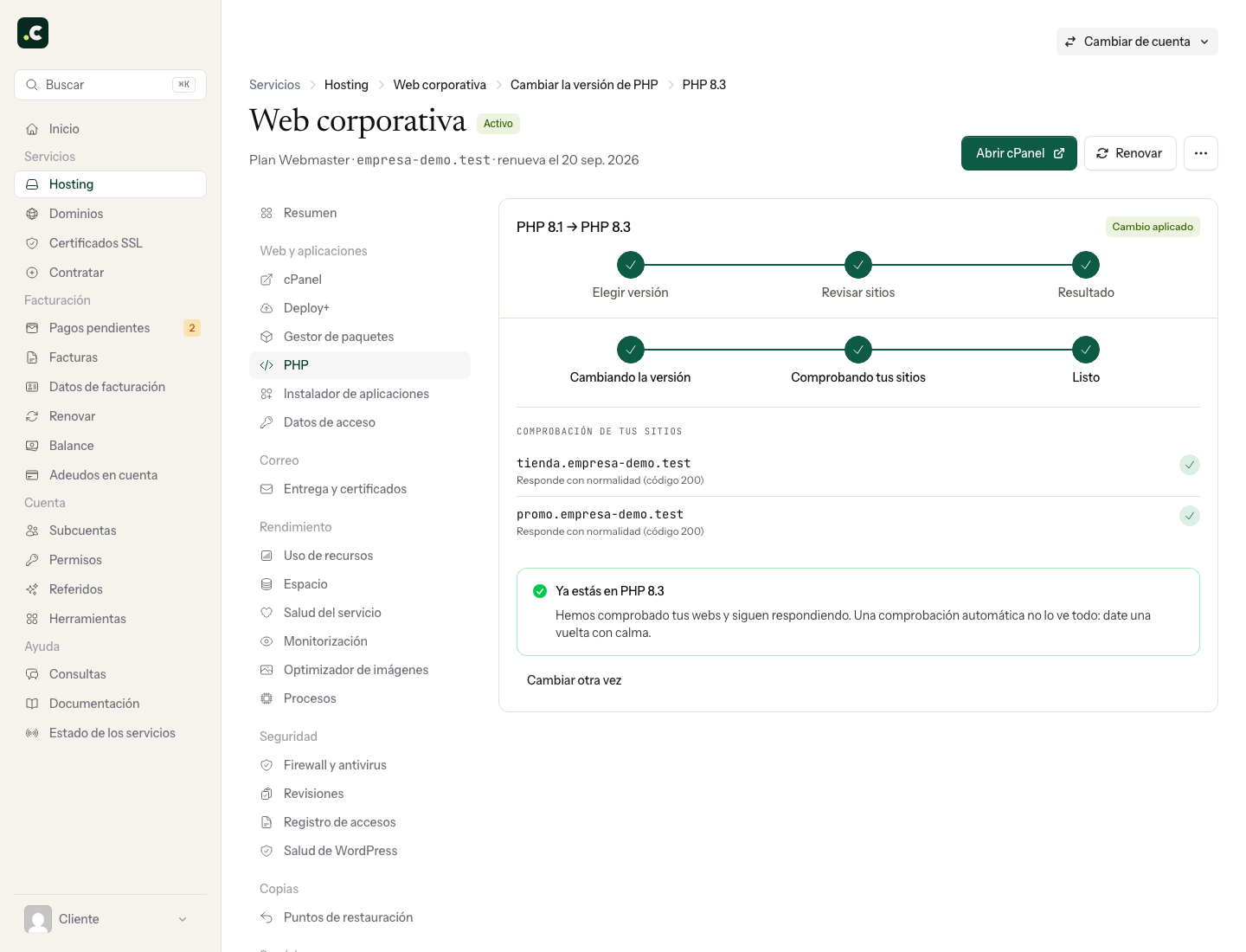
That selector changes the account's default version. If you host several websites and want to change only one, do it from its row in Hosting > PHP in the client area, as explained in Change a website's PHP version.
Then check the website, access to WordPress and the important features you use, such as forms or payments. If an error appears, go back to the previous version to restore the setting and then try branches lower than the one that failed, one at a time, until you find one that works with your installation. If a specific incompatibility prevents you from moving forward, it will have to be resolved in the affected component. The manual change from cPanel does not include an automatic rollback.
Choosing the previous PHP again restores that setting; it does not undo updates to WordPress, plugins, themes or content changes. If the website cannot tolerate an interruption during the test, or there is a known incompatibility being fixed, it is best to test on a copy first.
You can confirm which version that website uses in WordPress under Tools > Site Health > Info. If it has its own version, it may differ from the account's default.
You may also find useful
- Control WordPress automatic updates Explains how to limit automatic core updates to minor versions, test major changes and avoid indefin...
- Order for updating WordPress, WooCommerce, plugins, themes and PHP Organises a safe update of WordPress, WooCommerce, extensions, theme, translations and PHP, with bac...
- Change the uploads folder and media organisation in WordPress Explains how to turn off date-based folders, change the WordPress uploads path and adjust files and...
- Deactivate a WordPress plugin without accessing the dashboard Helps you regain access to WordPress through recovery mode or by temporarily renaming the plugin's d...
Something wrong or out of date? Tell us and we will review it.