

Websites and applications
FacturaScripts: install the free invoicing and accounting software on your hosting
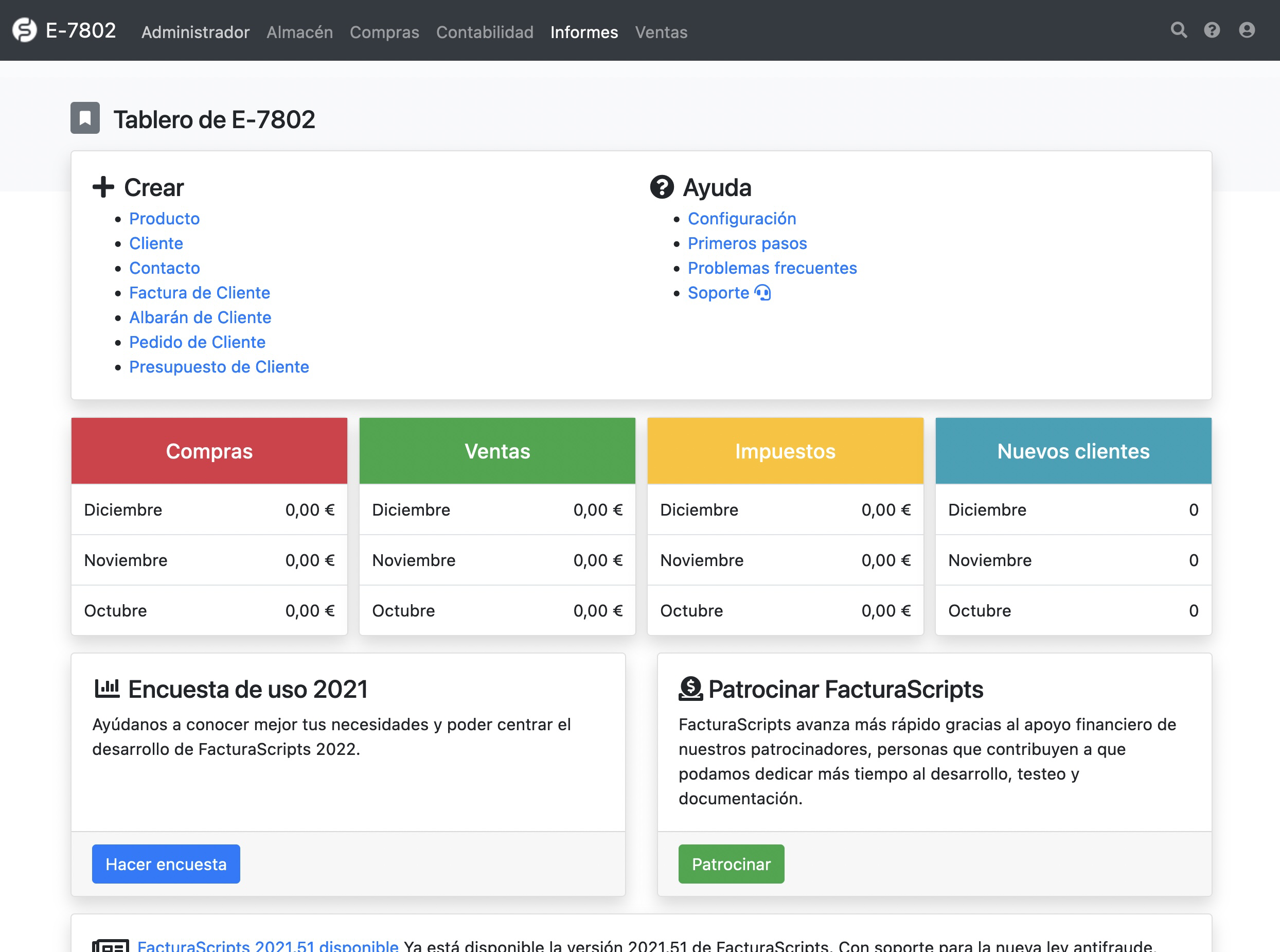
What FacturaScripts is
Most accounting and invoicing programs that can be installed on a hosting are designed for the United States and fit poorly with Spanish regulations. FacturaScripts is the exception: free PHP accounting and invoicing software focused on Spain (it has plugins to adapt it to Argentina and Peru too).
It lets you create quotes, orders, delivery notes and invoices, keep the accounts and the inventory, and produce reports. The best part is its plugins, free or paid, which add features such as SEPA remittances, forms 303, 130 or 347 for the Spanish Tax Agency or submission to Verifactu.
As a PHP application, it works on any of our hosting plans.
Install FacturaScripts
1. Download and upload the files
Download the zip of the latest version from the official FacturaScripts website.
Decide where you want it:
- In
public_html, if you want it to open directly attudominio.com. - In a subfolder, for example
public_html/contabilidad, to open it attudominio.com/contabilidad. - On a subdomain, such as
contabilidad.tudominio.com, which you will need to create first in cPanel > Domains.
The folder must be empty. Upload the zip with cPanel's File Manager and extract it with the same tool, or upload it already unzipped via FTP. If extracting creates a facturascripts folder inside, move its contents one level up: the index.php file has to sit directly in the folder you chose.
2. Create the database
Create a database and a user with the MySQL Database Wizard. In the privileges step, tick ALL PRIVILEGES. Note down the database name, the user and the password: cPanel adds your username in front of them, for example usuario_facturas.
Use a database just for FacturaScripts, not the one for your website or your shop.
3. Run the installer
Open the address where you uploaded it in your browser. The FacturaScripts installer will appear:
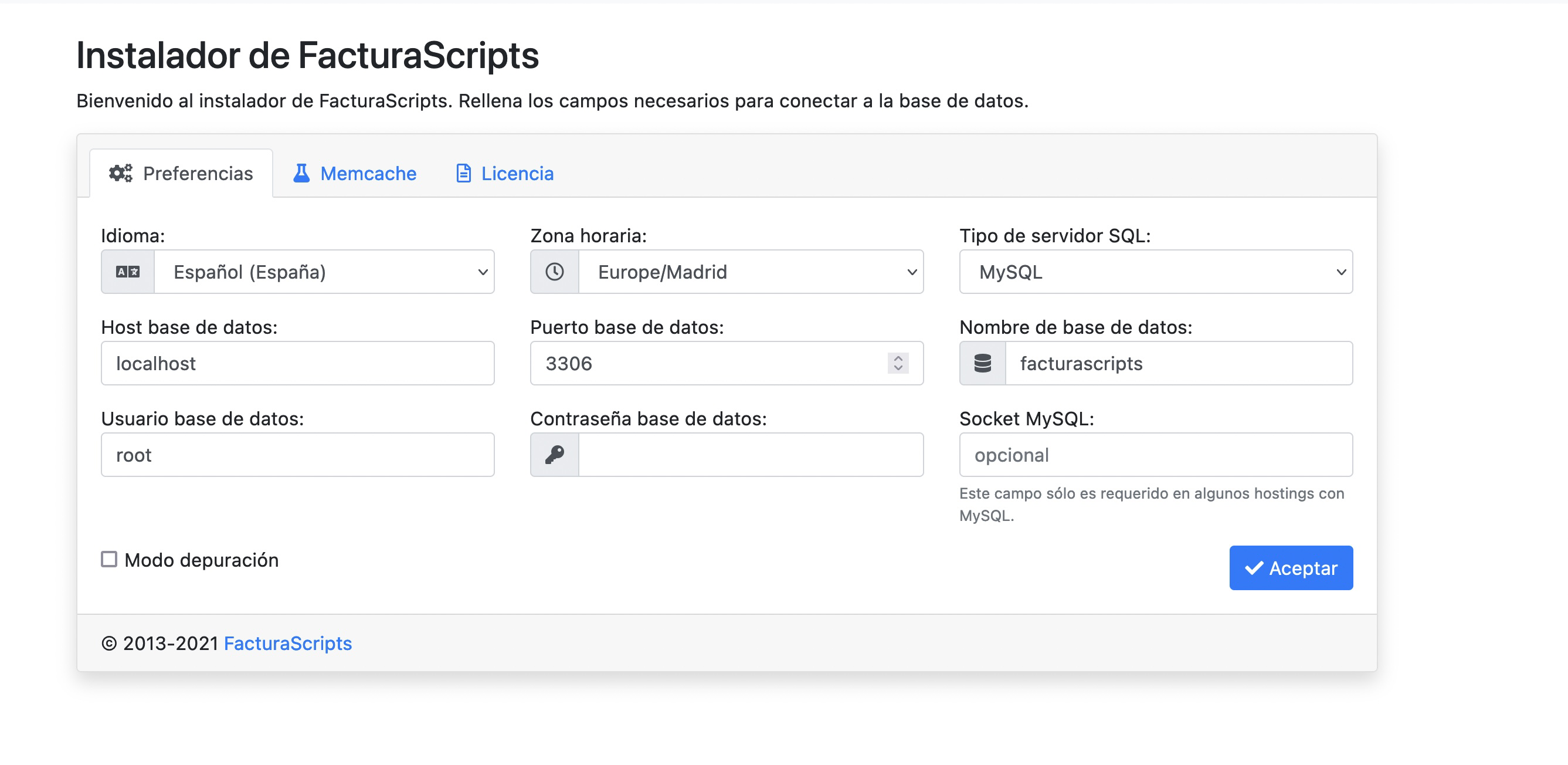
You only need to fill in:
- Database name: the one you created, with the prefix (
usuario_facturas). - Database user: the user, also with the prefix.
- Database password: its password.
Leave Host as localhost and Port as 3306, and click Accept.
If the installer does not appear or shows an error, check that the PHP version and its extensions meet the FacturaScripts requirements. FacturaScripts recommends PHP 8.3.
4. First login: company details and password
When it finishes, FacturaScripts creates the user admin with the password admin. Log in with them. The first time, it will ask you for your company's basic details and a new password:
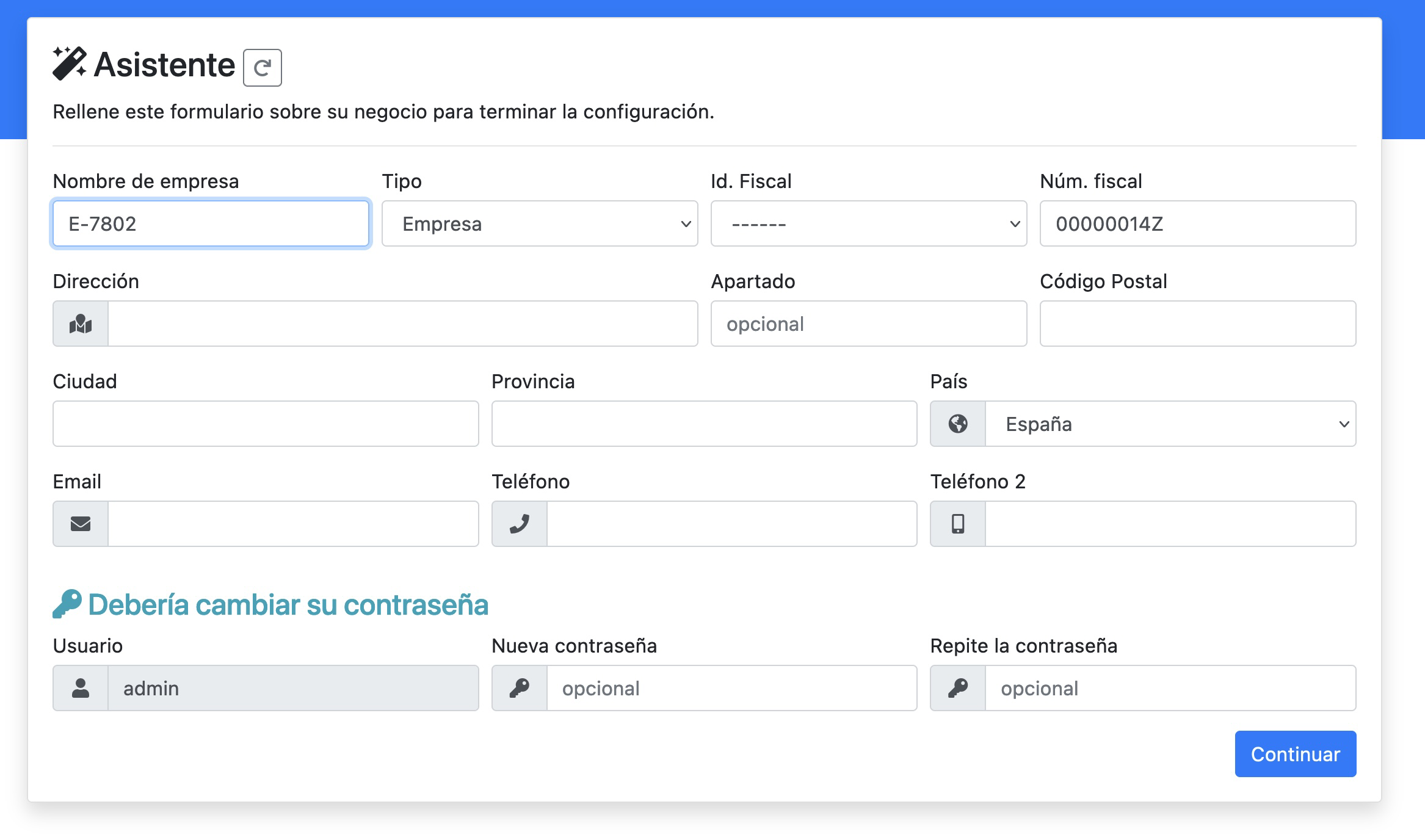
Change the password at this step: while it is still admin, anyone who finds the address can get into your accounts. If you want to protect it while you set it up, enable cPanel's Directory Privacy on that folder before opening the installer.
With this, you have it up and running.
Get ready for Verifactu
FacturaScripts has an official, free plugin for Veri*Factu. It is installed from the application's own plugin list and sends the invoicing records to the AEAT (Spanish Tax Agency) with your digital certificate. Before enabling it:
- Enable the PHP soap extension for the domain in the PHP selector.
- Schedule a cron job that runs every minute. The plugin sends the records from a queue, and the queue only moves forward when the cron runs:
* * * * * /opt/alt/php83/usr/bin/php /home/usuario/public_html/index.php -cron
Replace usuario with your account's username, public_html with the folder where you installed FacturaScripts and php83 with that website's PHP version: a bare php or /usr/local/bin/php may be a different version. You have all the paths in PHP binary paths.
Start in the plugin's test mode and switch to production once submission works. The dates when it becomes mandatory and what each plan includes are in FacturaScripts with Verifactu on your hosting.
You may also find useful
- Install Omeka S from Softaculous Guides you through installing Omeka S from Softaculous, choosing the domain and directory, the check...
- Set up IMAP and SMTP email in SugarCRM Gathers the IMAP and SMTP settings you need to connect each email account to SugarCRM's built-in web...
- Set up Moodle to send email using SMTP Shows which SMTP values to enter in Moodle for its notifications and how to group forum notification...
- Set up phpList to send emails and newsletters Set up phpList to send over authenticated SMTP and in hourly batches (MAILQUEUE_BATCH_SIZE, MAILQUEU...
Something wrong or out of date? Tell us and we will review it.