

Websites and applications
Connect TastyIgniter to the marketplace to install plugins
TastyIgniter is a free online ordering and reservation system for restaurants, built with Laravel. You can install it on any of our hosting plans.
Its flexibility comes from the extensions (plugins) and themes in the marketplace. To install them, you need to connect your TastyIgniter to the marketplace with a Carte Key.
We assume you already have TastyIgniter installed, for example from our Softaculous application auto-installer.
1. Create the account and the site on TastyIgniter
- Create an account on the TastyIgniter website, or log in to yours.
- In your account menu, go to Sites and create a new site.
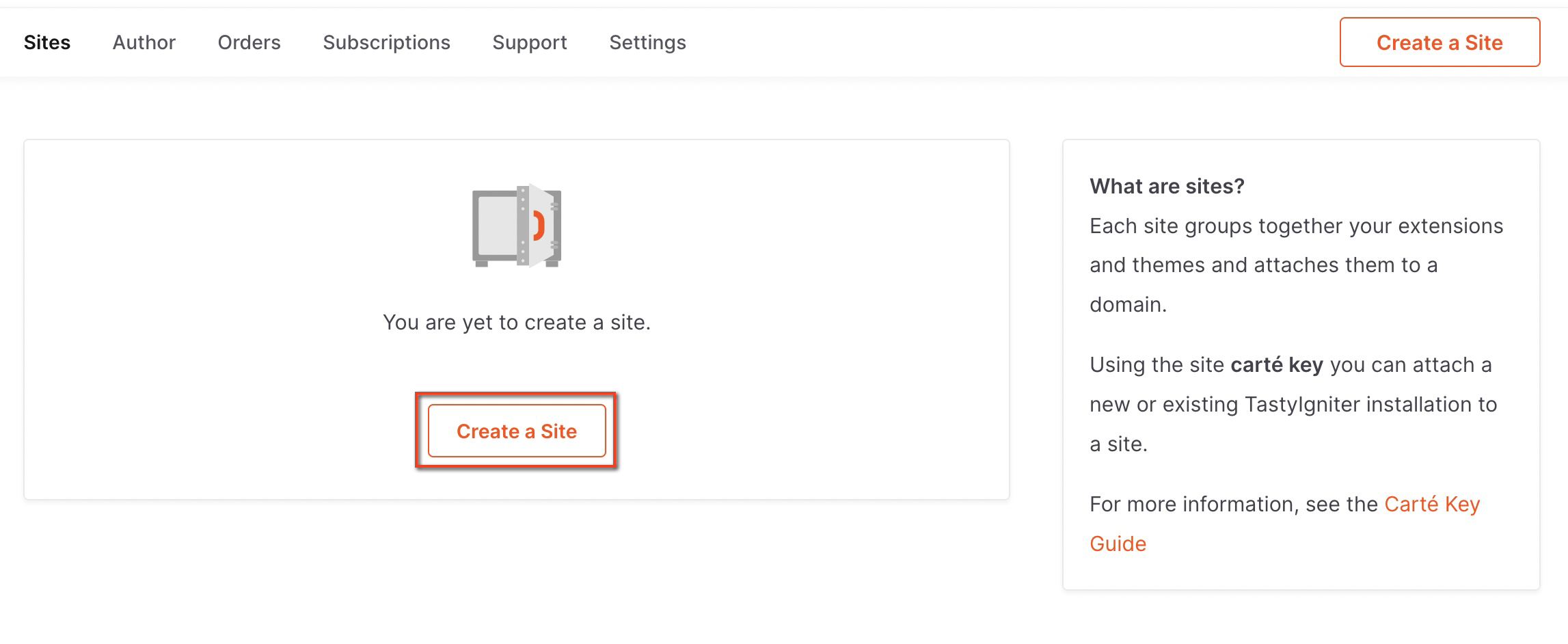
- Type a name to recognise it and, in the URL, the domain where you installed TastyIgniter with the protocol in front, for example
https://www.turestaurante.com. - Save. On the site's page you will see its Carte Key, a 40-character string such as
a26cff52409bd000b0000b7000ae97bdceade86c. Copy it.
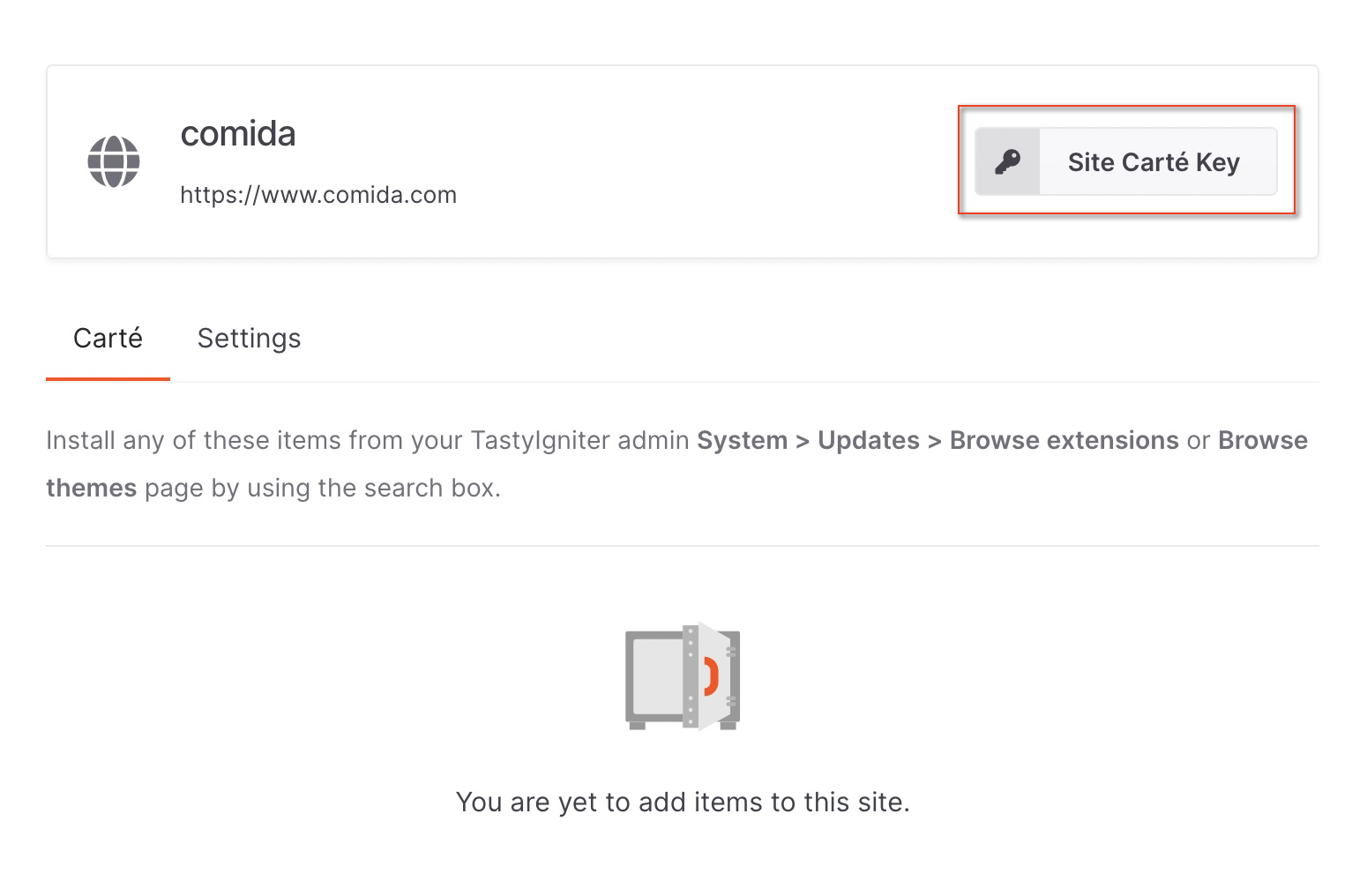
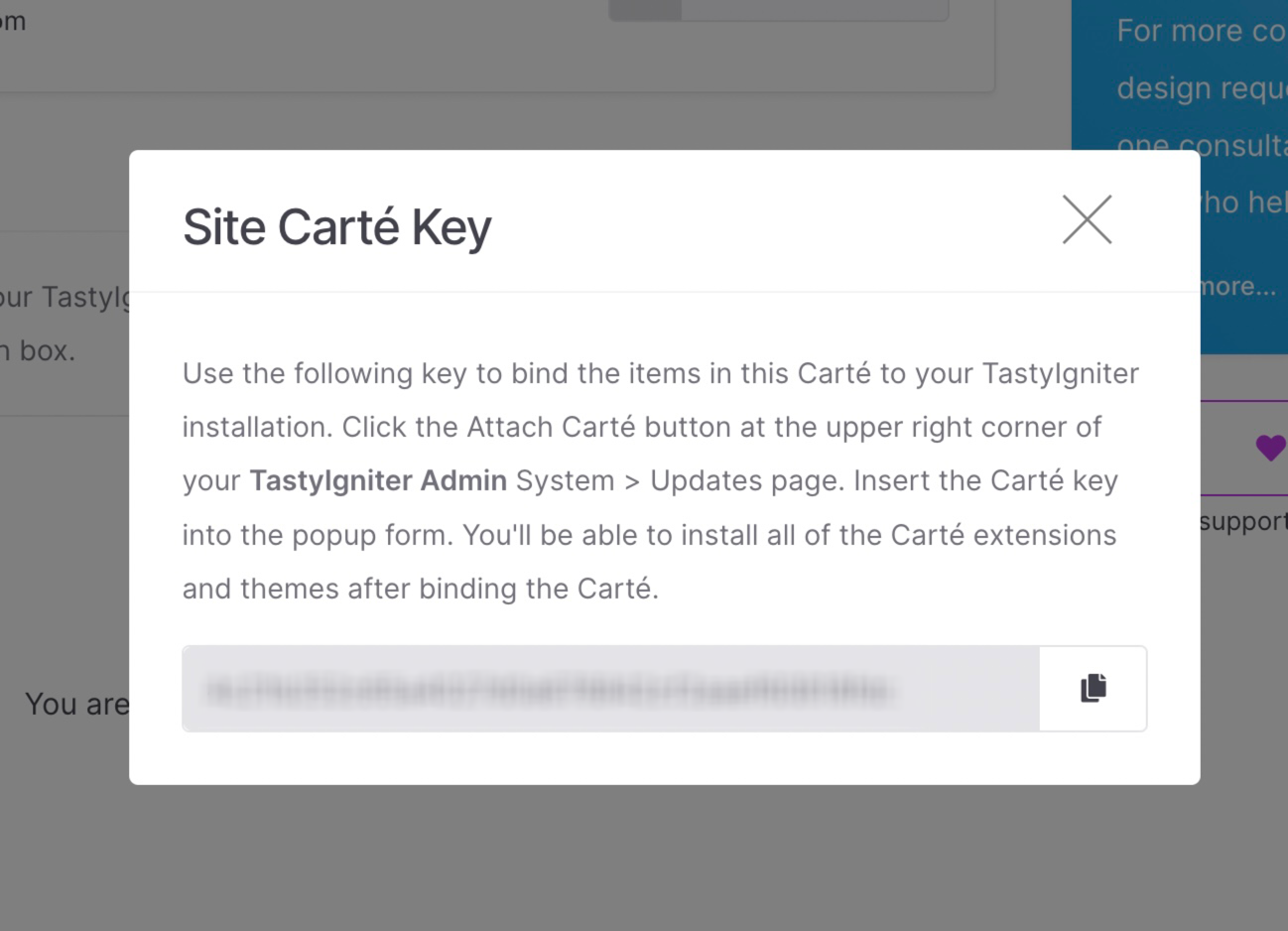
The TastyIgniter website has changed in appearance since these screenshots, but the steps are the same. The key gives access to your site's extensions, including paid ones: do not publish it.
2. Add the key in your TastyIgniter
- Log in to your TastyIgniter admin.
- Go to Manage > Updates (in older versions, System > Updates).
- In the top right, click Attach Carte Key, paste the key and confirm it with the arrow.
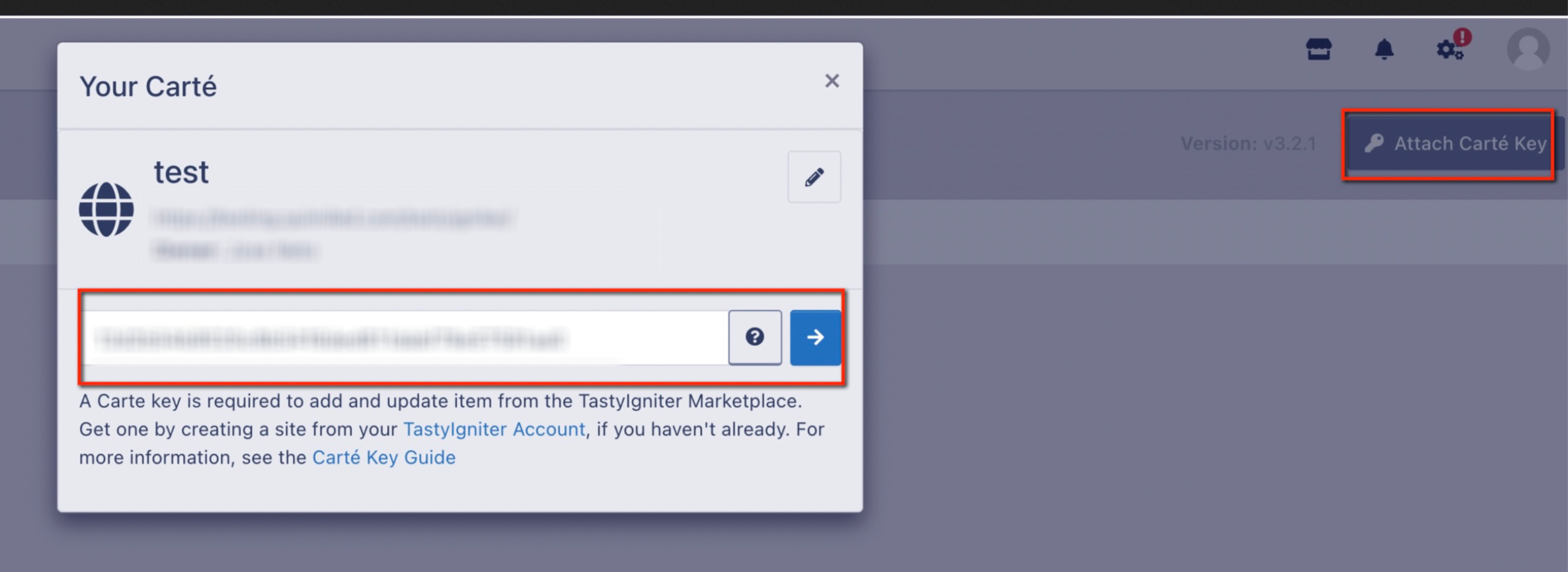
- Click Check Updates.
3. Install extensions and themes
In the marketplace, open the extension or theme you want and click Add to Site to add it to your site. Free ones are added straight away; paid ones go through payment first and take a couple of minutes to appear.
Then, in your TastyIgniter, go to Manage > Updates and click Check Updates: everything you have added to the site will be downloaded and installed. Recommended extensions can also be installed from Extensions.
Make a backup before installing major updates, especially if you have modified the theme.
If installation fails because of Composer
Since TastyIgniter 4.3.3, installing extensions uses Composer and sends the Carte Key in a header that requires Composer 2.9 or later. If installation fails with an authentication error against composer.tastyigniter.com:
- Check the Composer version from the cPanel Terminal:
composer --version
- If it is older than 2.9, download the latest version into the TastyIgniter folder and use it instead of the server's:
curl -sS https://getcomposer.org/installer | php
php composer.phar --version
If you install from the terminal, use php composer.phar install instead of composer install. If installing from the admin panel still fails, contact us and we will look into it.
3. Go back to Manage > Updates, click Attach Carte Key, paste the key and then click Check Updates. This makes TastyIgniter rewrite the auth.json file in the new format.
4. Repeat the installation.
More details in TastyIgniter's Carte Key guide.
You may also find useful
- Install Moodle 5 from Softaculous Check the requirements for Moodle 5, prepare a subdomain with its public folder and install it from...
- Install Omeka S from Softaculous Guides you through installing Omeka S from Softaculous, choosing the domain and directory, the check...
- Set up IMAP and SMTP email in SugarCRM Gathers the IMAP and SMTP settings you need to connect each email account to SugarCRM's built-in web...
- Set up Moodle to send email using SMTP Shows which SMTP values to enter in Moodle for its notifications and how to group forum notification...
Something wrong or out of date? Tell us and we will review it.