

Security and SSL
Restrict the client area to authorised IPs
In My account > Security, the Access only from these IPs section lets you limit where the client area can be opened from. With the list empty this restriction does not apply; once you add addresses, connections that do not match are kept out.
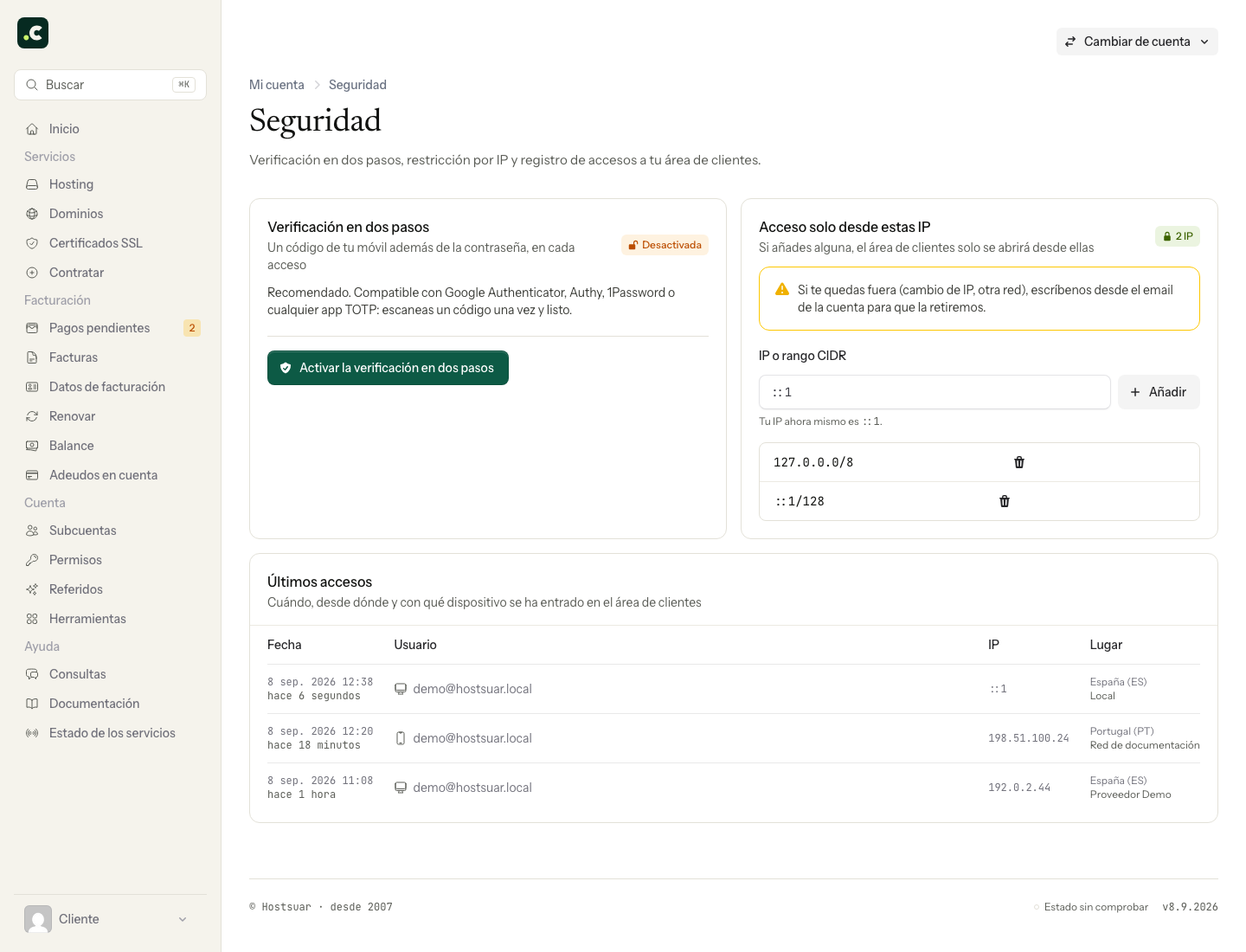
Add your connection's IP
The screenshot is from the local demo environment: do not copy its addresses.
Check the public IP shown on the screen and the other legitimate exits you need. Enter an exact IP or, only if you need to authorise a whole known network, a CIDR range. Click Add and check the list.
Keep the current session open and test a new login from an authorised connection. A VPN, mobile network or connection with a dynamic IP may change exit and lock you out. A wider range reduces that risk at the cost of authorising more connections.
Change or remove the restriction
You can remove an entry from the same section. If you delete the last one, connections from any IP are allowed again, subject to the password and second factor you have set up.
If you have already lost access because of a network change, contact support from the account's email address so we can verify ownership and remove the restriction. Do not widen ranges without knowing which addresses they include.
Scope of the option
This list protects the client area. It is not the hosting firewall whitelist and it does not automatically configure access to the website, cPanel, FTP or email. Keep a unique password and two-step verification: a shared IP does not identify a single person.
You may also find useful
- Add an IP to your hosting firewall whitelist Shows how to authorise, from the client area, a legitimate IP blocked by the firewall so that develo...
- Allow web access to a directory from one IP only Restrict a folder with Require ip, check the IP the server sees and keep a way to revert the change.
- Block an IP from web access in cPanel Create a specific block, check its scope and remove it when it is no longer needed, without confusin...
- Block or allow access by country Explains how to set up a per-domain blacklist or whitelist of countries from the client area and the...
Something wrong or out of date? Tell us and we will review it.