

Backups and migrations
Recover files, databases and email from our backups with JetBackup
At Hostsuar we make daily backups of your hosting and store them encrypted on external servers, using JetBackup. These backups are available for you to recover email, databases, files or settings yourself whenever you need to: something deleted by mistake, an update that went wrong, an attack or an application that has stopped working.
How to open JetBackup
There are two ways in:
- In cPanel, open JetBackup 5.
- In the client area, go to Hosting > Manage > Backups > Restore points and click Open JetBackup.
To recover a website or a mailbox you also have simpler wizards in the client area.
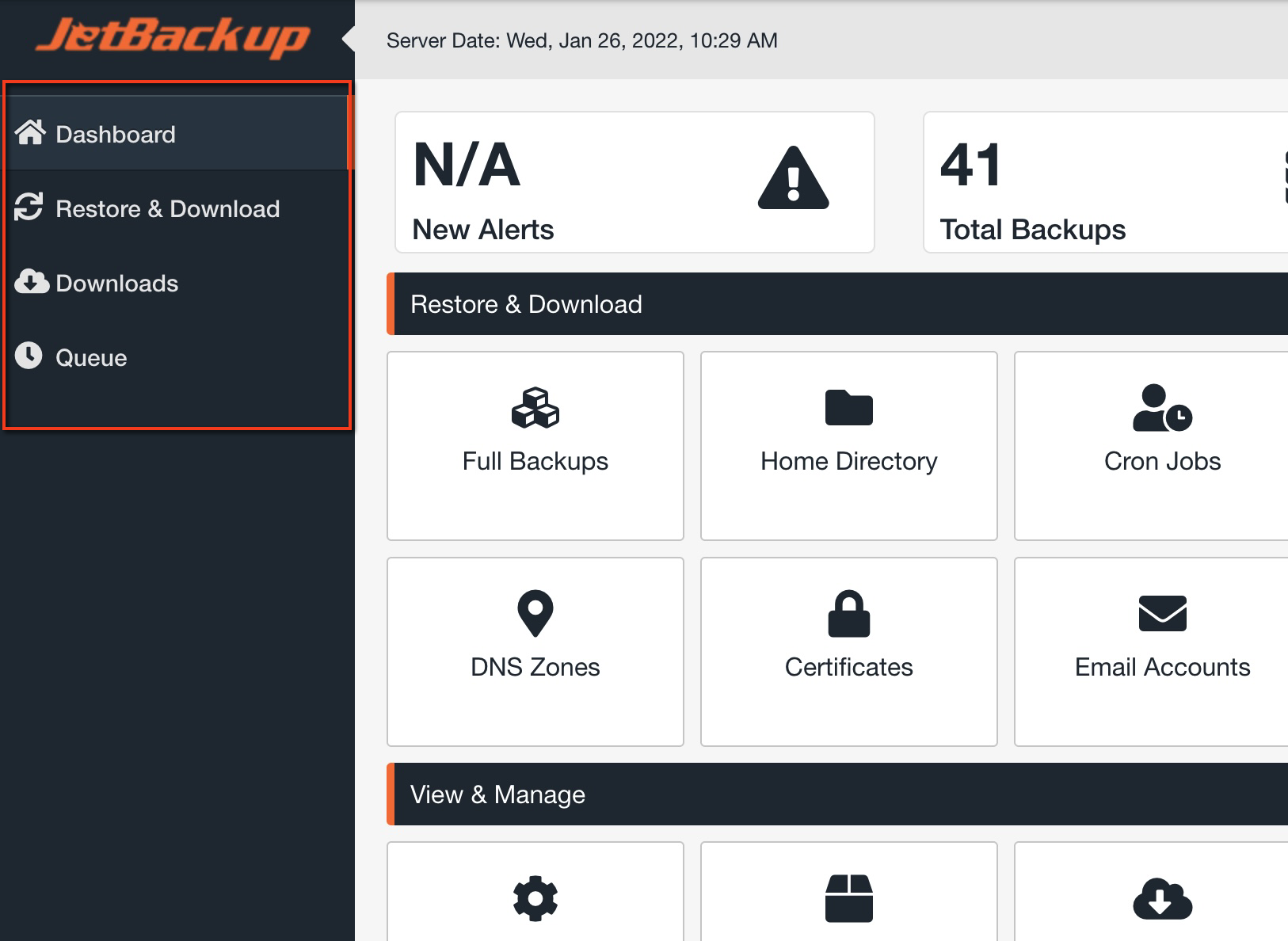
Inside JetBackup you will see these sections:
- Dashboard: the home page, with shortcuts.
- Restore & Download: to restore or download content from a backup.
- Downloads: to download the files you have requested.
- Queue: the task queue, where you follow the progress of restores and downloads.
Recover only what you need
Day to day, you will usually need to recover something specific: a deleted folder, a database after a failed update, some deleted emails. In Restore & Download there is a tab for each type of content:
| Tab | What it recovers |
|---|---|
| Home Directory | Files and folders |
| Databases | Databases |
| Email Accounts | Email accounts with all their messages |
| Cron Jobs | Scheduled tasks |
| Database Users | Database users |
| DNS Zones | DNS zones |
| Certificates | SSL certificates |
| FTP Accounts | FTP accounts |
If you are going to recover a whole website (for example, a WordPress site after a failed update), restore its files and its database from the same date. Bear in mind that restoring the database replaces anything saved after that date: orders, comments, new users…
Files or folders
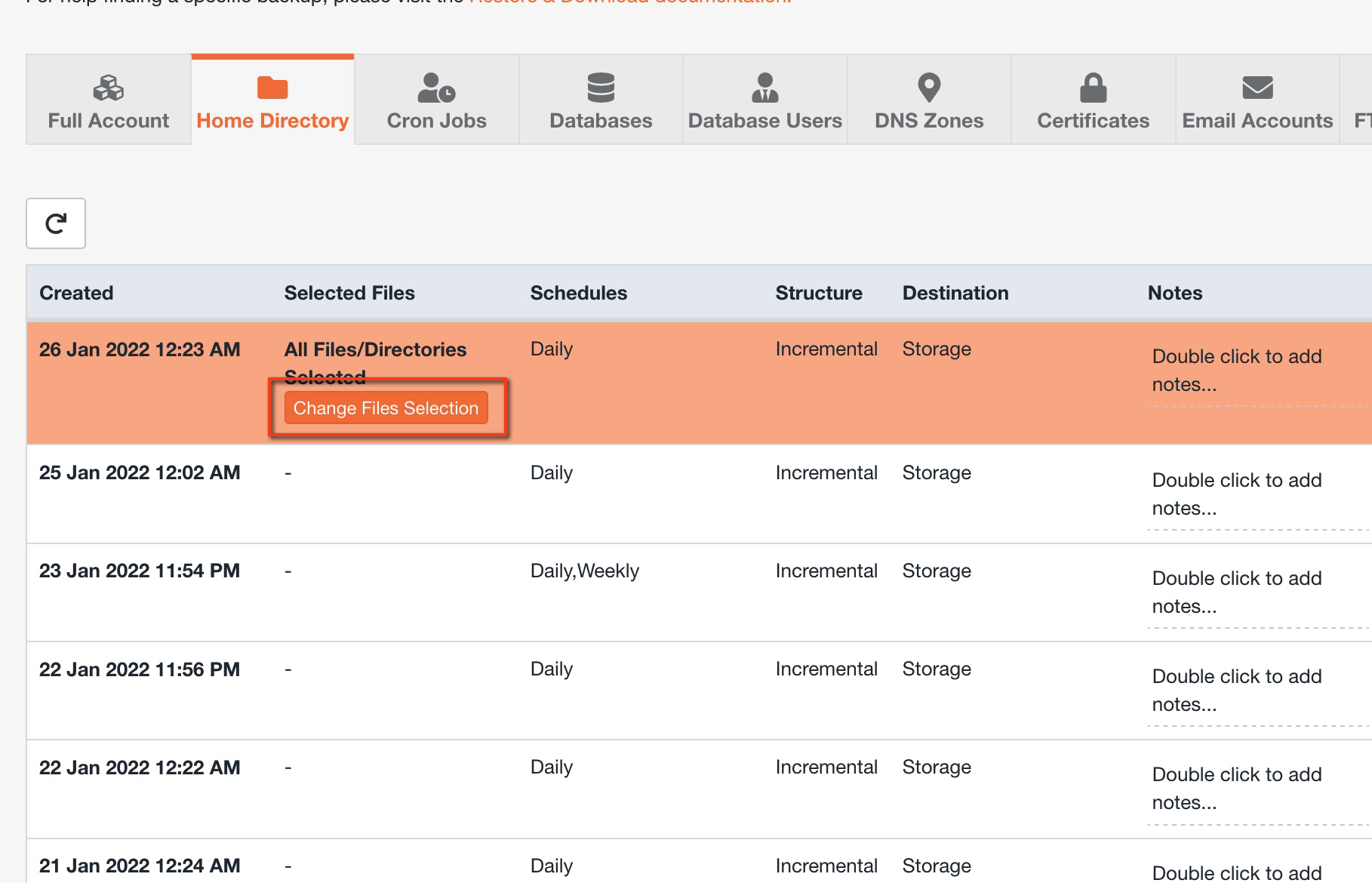
- Open the Home Directory tab and choose the date you want to go back to.
- If you want to restore the whole directory, skip to step 4. If you only want some files or folders, click Change File Selection to open the file browser.
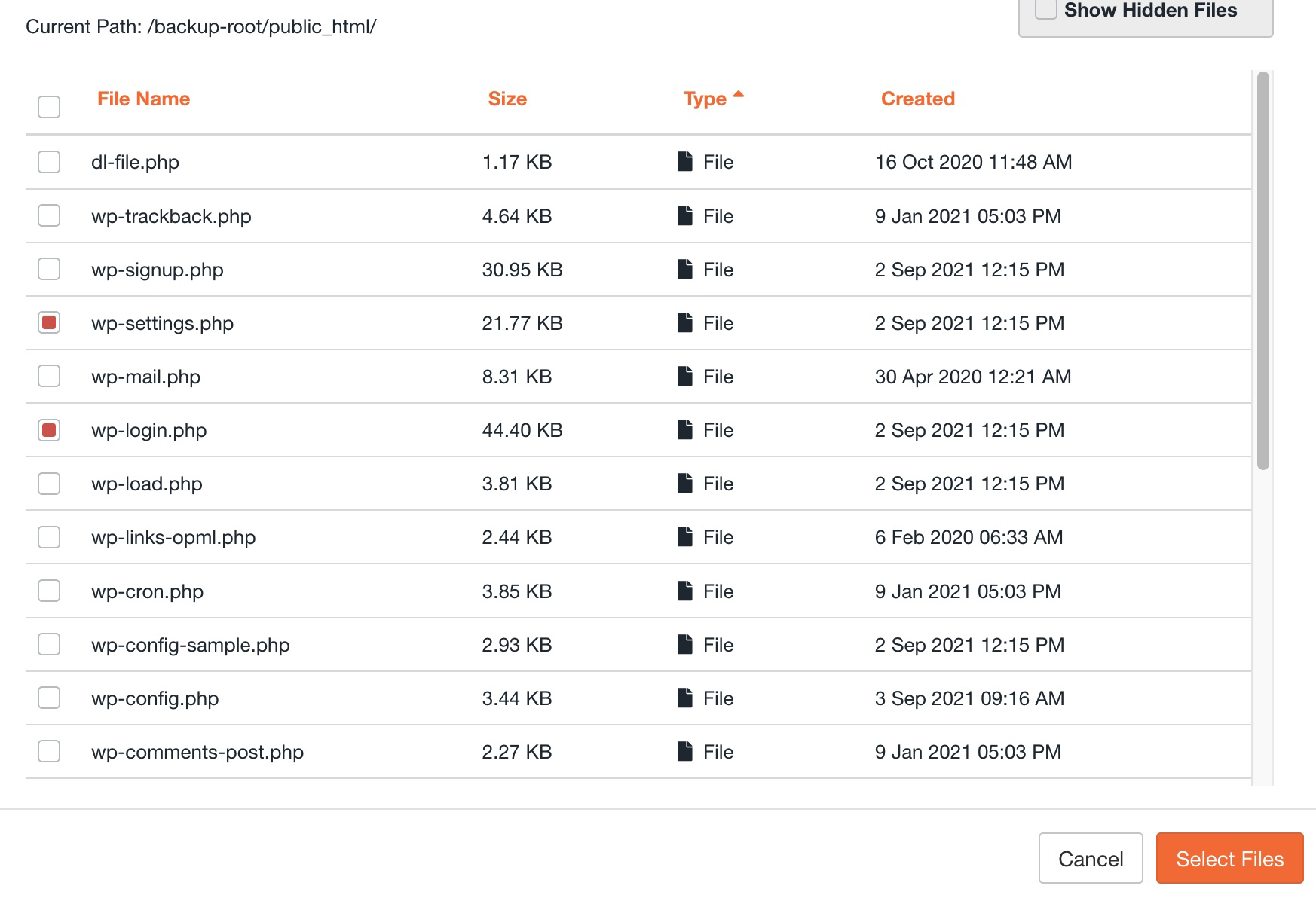
- Browse the folders by clicking their names, tick what you want to recover and confirm with Select Files.
- Click Restore, check the confirmation window and click Restore Selected Items.
- Follow the progress in Queue.
Databases
- Open the Databases tab. You will see the databases from the most recent restore point.
- Check the backup date. If you need a different one, change it with Choose Other Backup.
- Select the database you want to restore. To select several, hold down Cmd (Mac) or Ctrl (Windows) while you click.
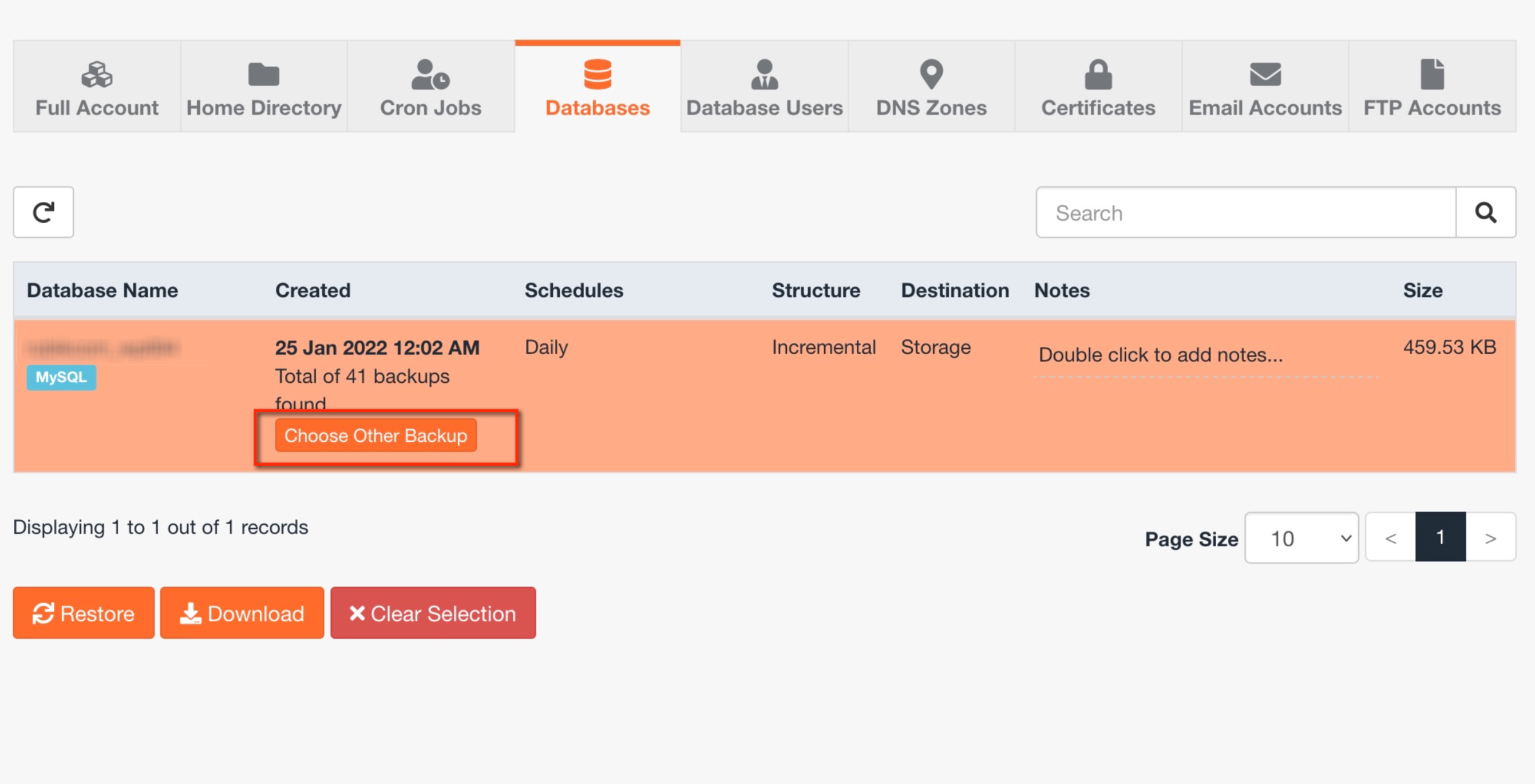
- Click Restore, check the confirmation and click Restore Selected Items.
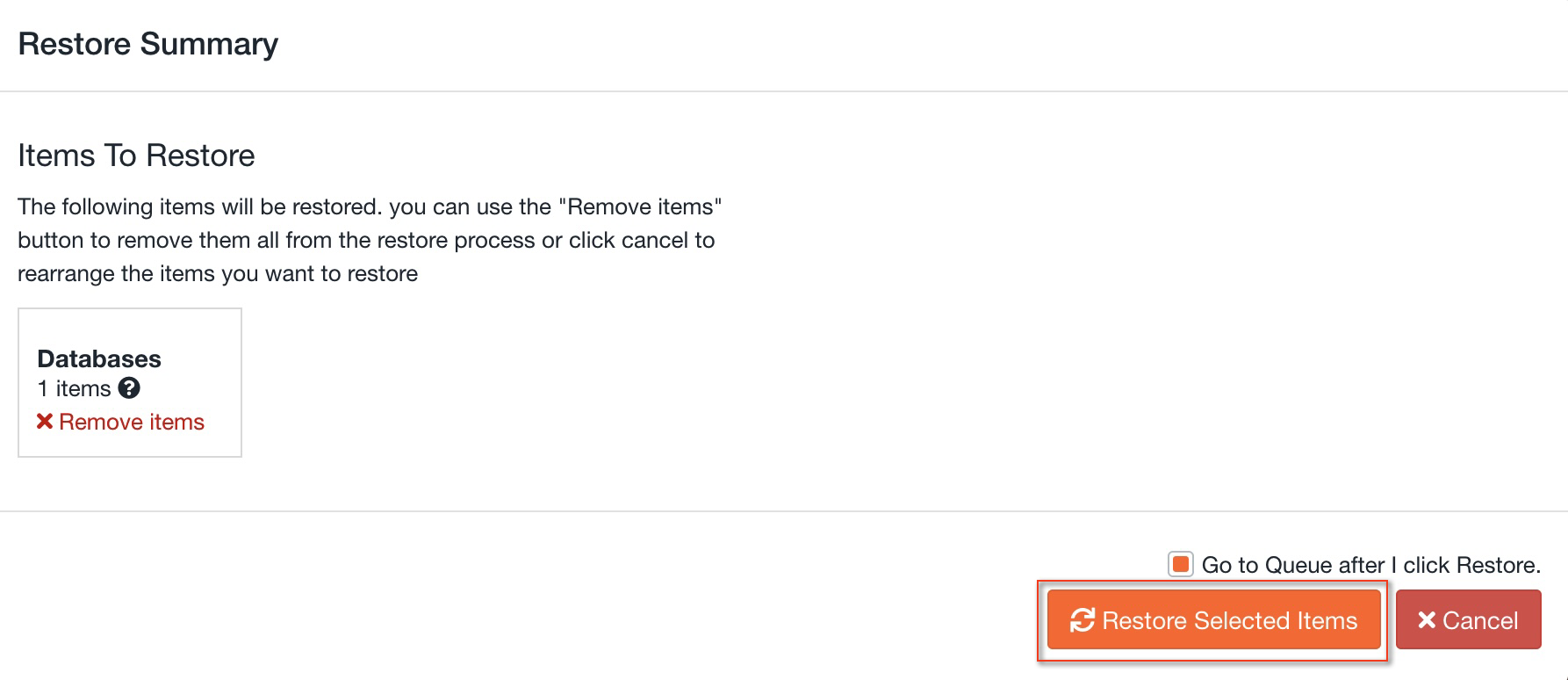
If you don't know which database your website uses, look it up in its configuration file (in WordPress, the DB_NAME line in wp-config.php).
JetBackup restores the complete database, not individual tables. If you only need to recover one table, download the database (we explain how further down), create a new empty database, import it there with phpMyAdmin and copy the table you need from it.
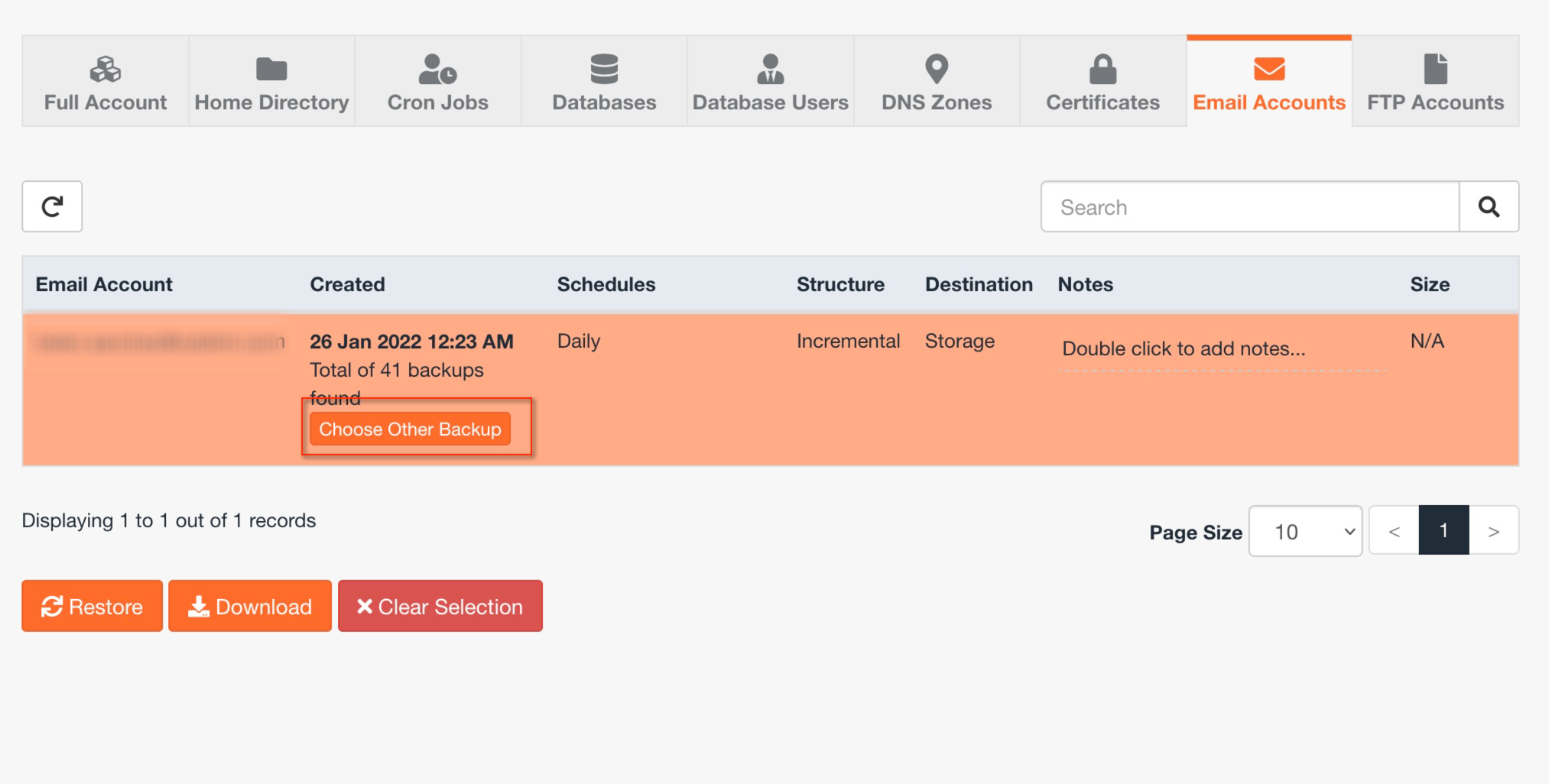
- Open the Email Accounts tab. You will see the accounts from the most recent restore point.
- Check the date and change it with Choose Other Backup if necessary.
- Select the account or accounts (with Cmd or Ctrl for several).
- Click Restore. In the confirmation window, tick Merge backup data with live account data if you want to keep the emails that arrived after the backup.
- Click Restore Selected Items and follow the progress in Queue.
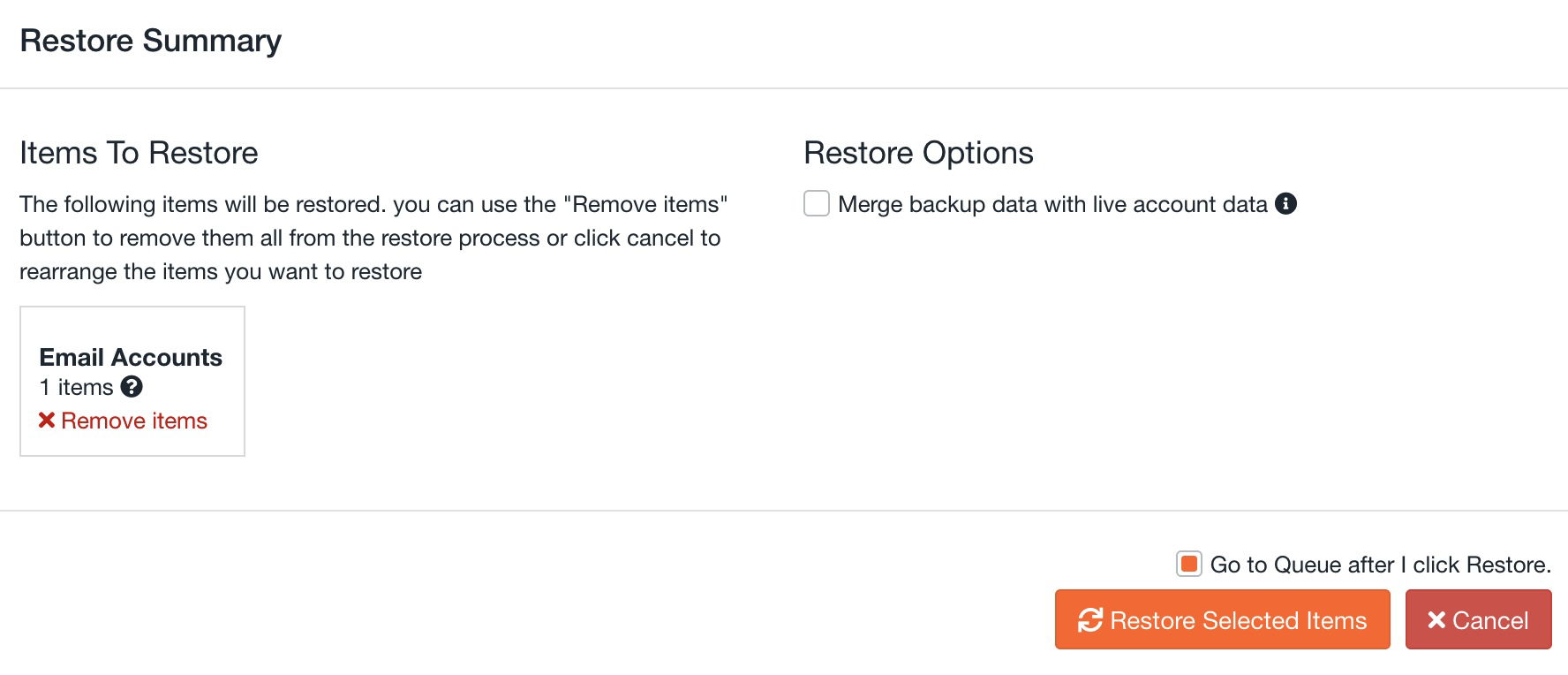
With Merge enabled, only the emails in the backup that are no longer in the mailbox are copied: you get back the ones you deleted without losing any of the new ones. Without that option, the whole mailbox is replaced by the contents of the backup and you lose anything received afterwards.
Restore the full account
Only use this if you need to take your whole hosting back to an earlier date (email, databases, files and settings). If the account has several websites or mailboxes, they will all go back to that date.
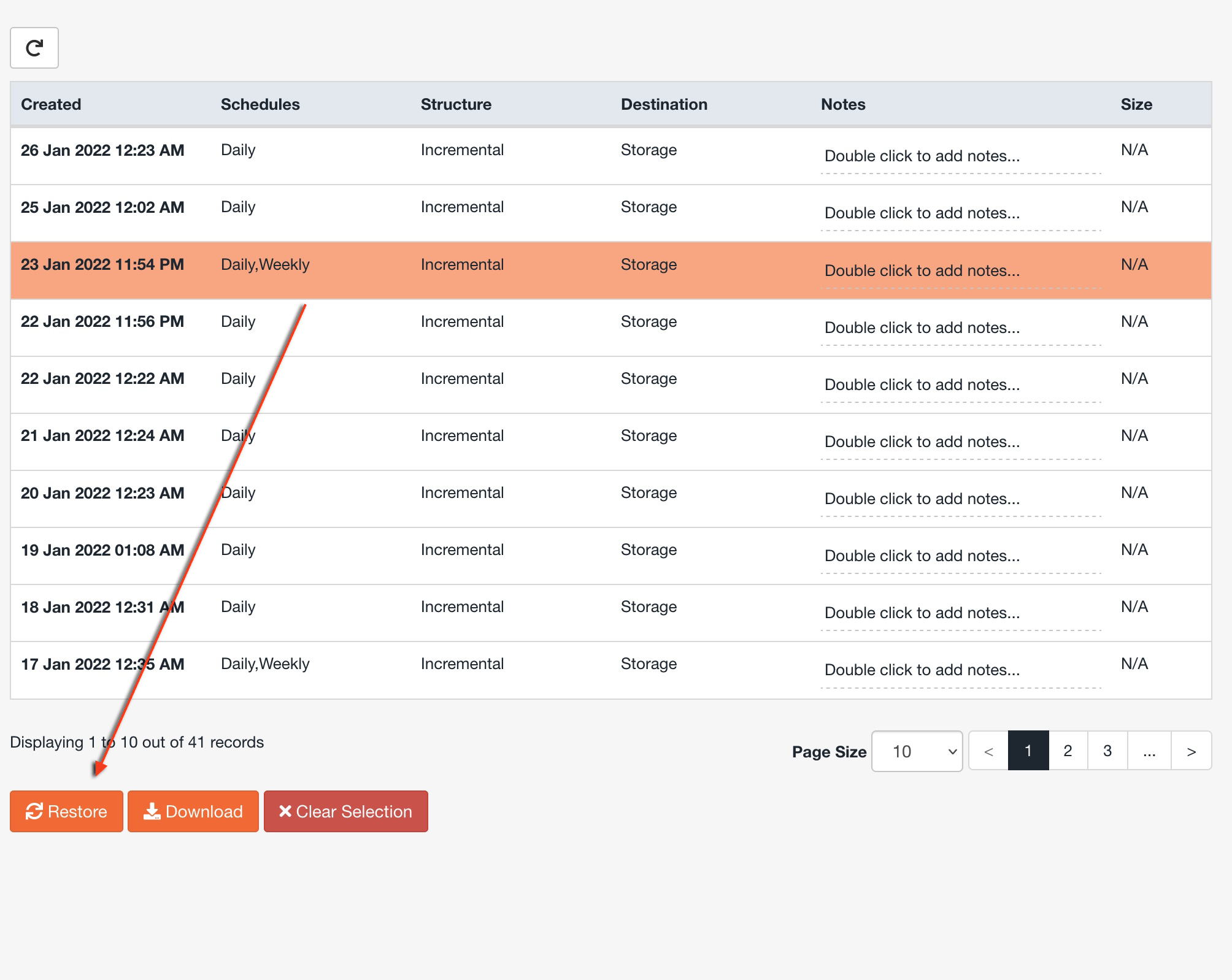
- In Restore & Download, open Full Account (or Full Backups).
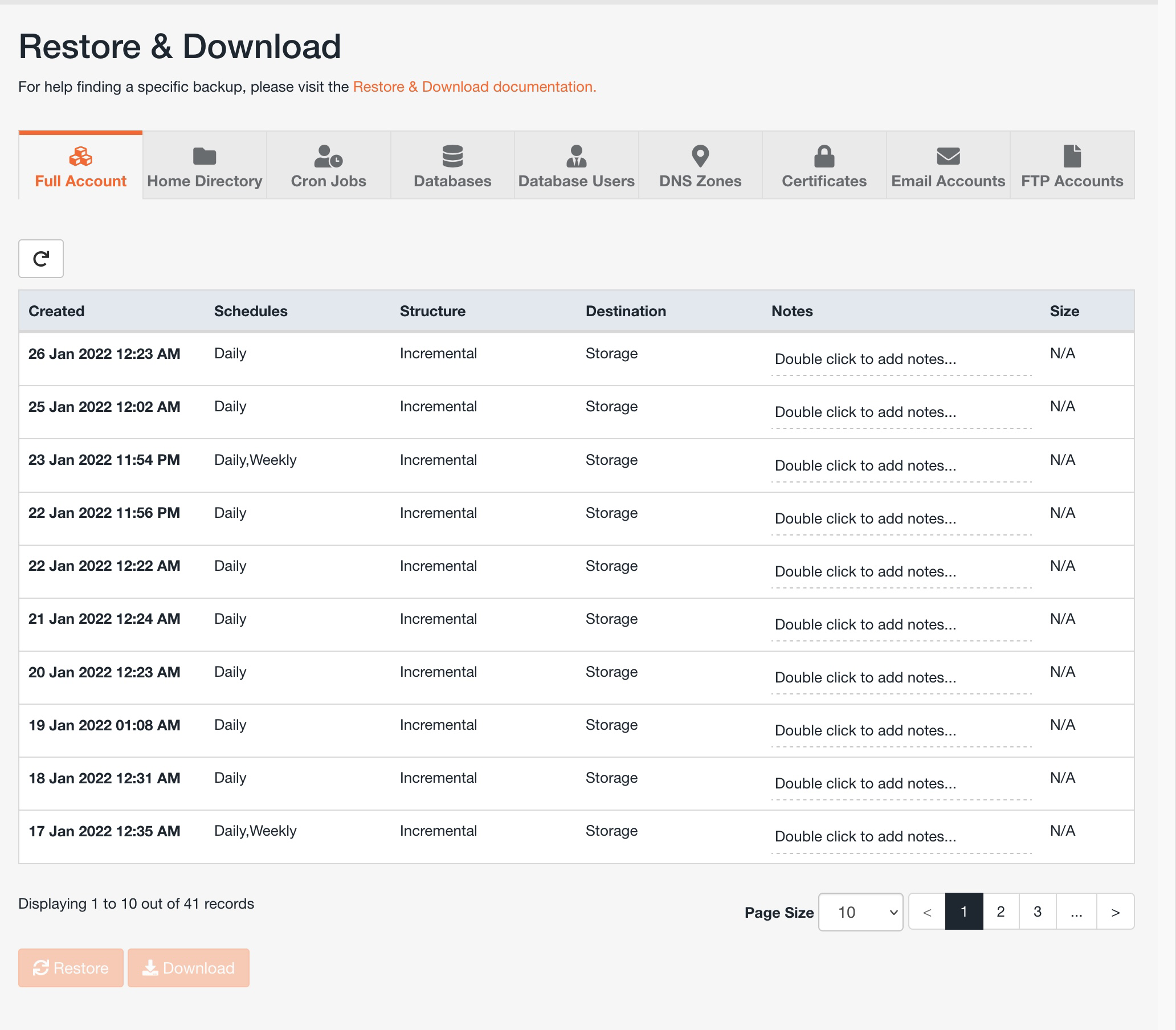
- Click the date you want to restore and then Restore.
- A summary opens with everything that is going to be restored. With Remove items you can take out anything you don't want to restore. For example, to restore everything except the files, click Remove items in the Home Dir Files box. Removing it from the summary doesn't delete anything from your account.
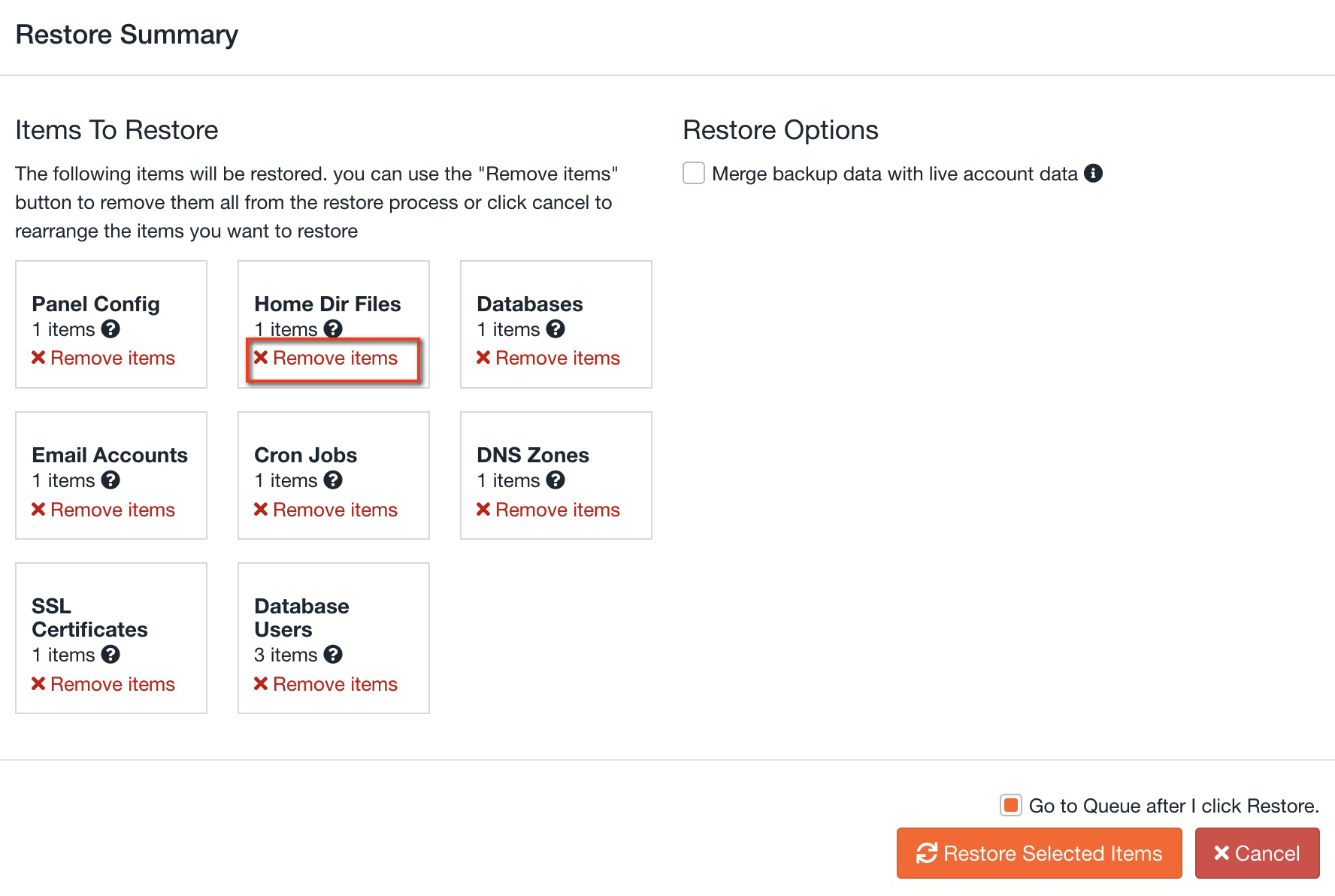
- On the right you have the Merge backup data with live account data option. Tick it if you want to merge the backup with what is there now; for example, to recover deleted emails without losing the ones received afterwards.
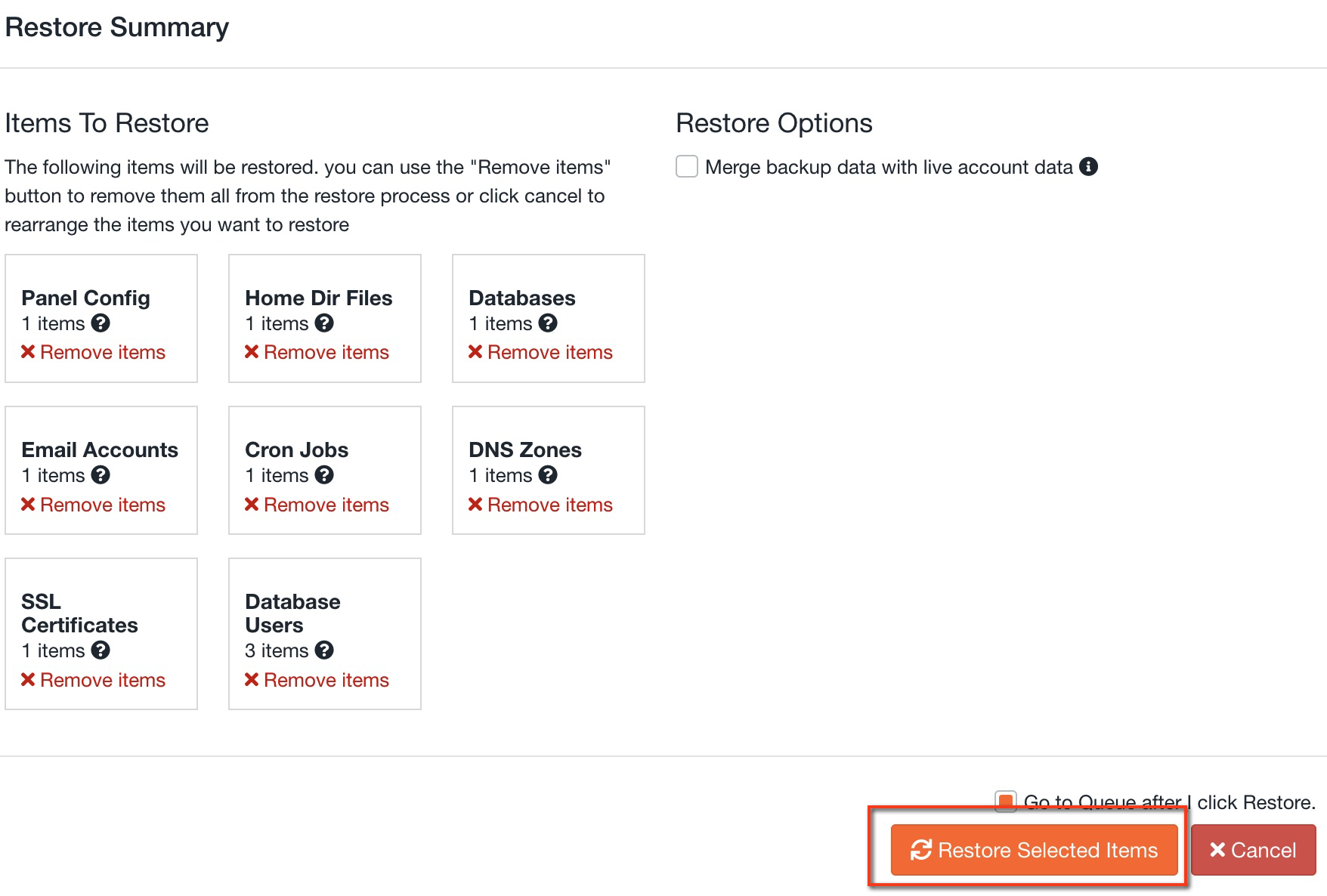
- Click Restore Selected Items and follow the progress in Queue.
It usually takes a few minutes, but on large accounts it can take longer. Don't start it twice because it is taking a while.
Download a backup
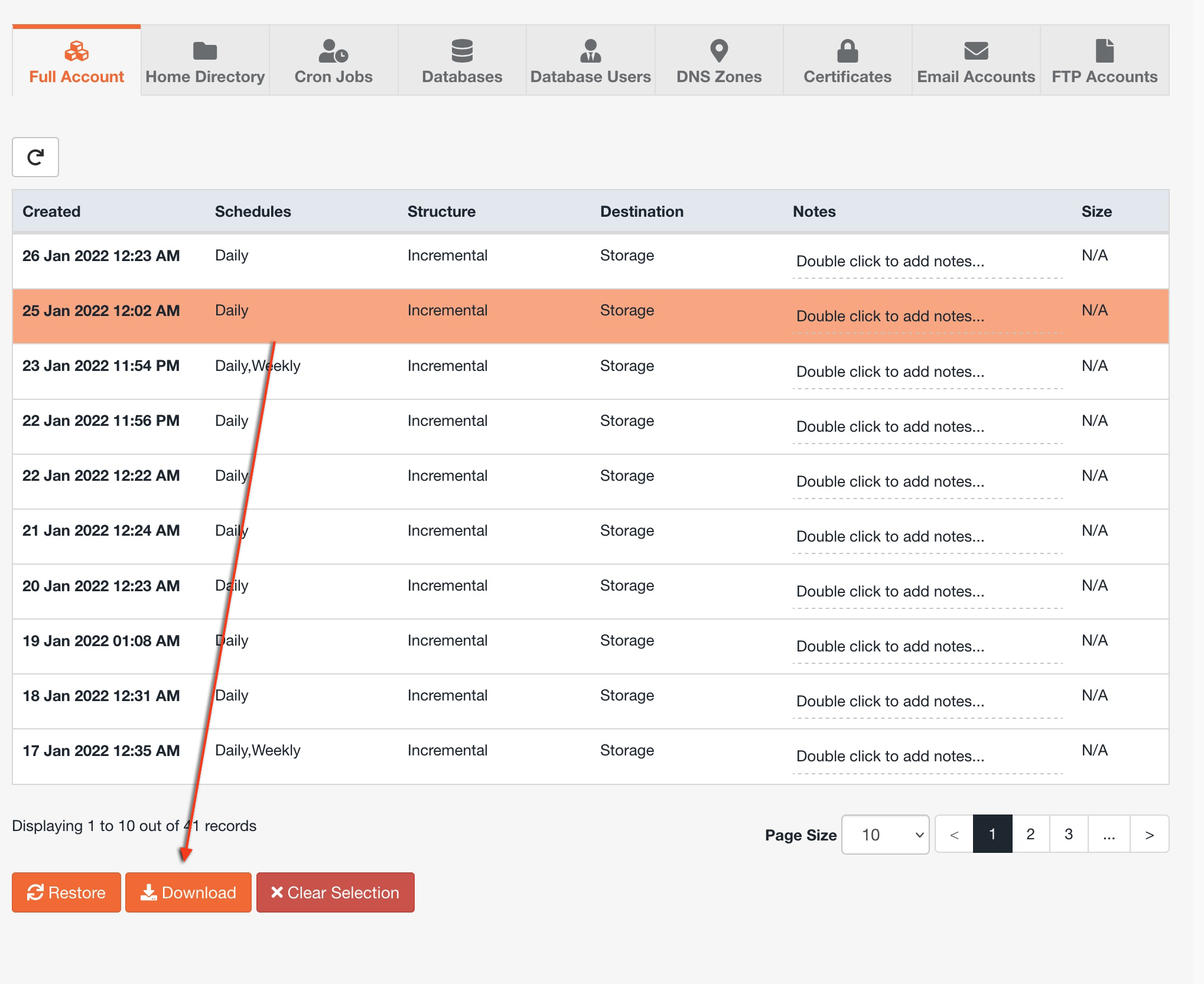
- In Restore & Download, open Full Account, select the date and click Download.
- You will see the content that will be included in the compressed file. Use Remove items to take out what you don't need: the download will be quicker and smaller.
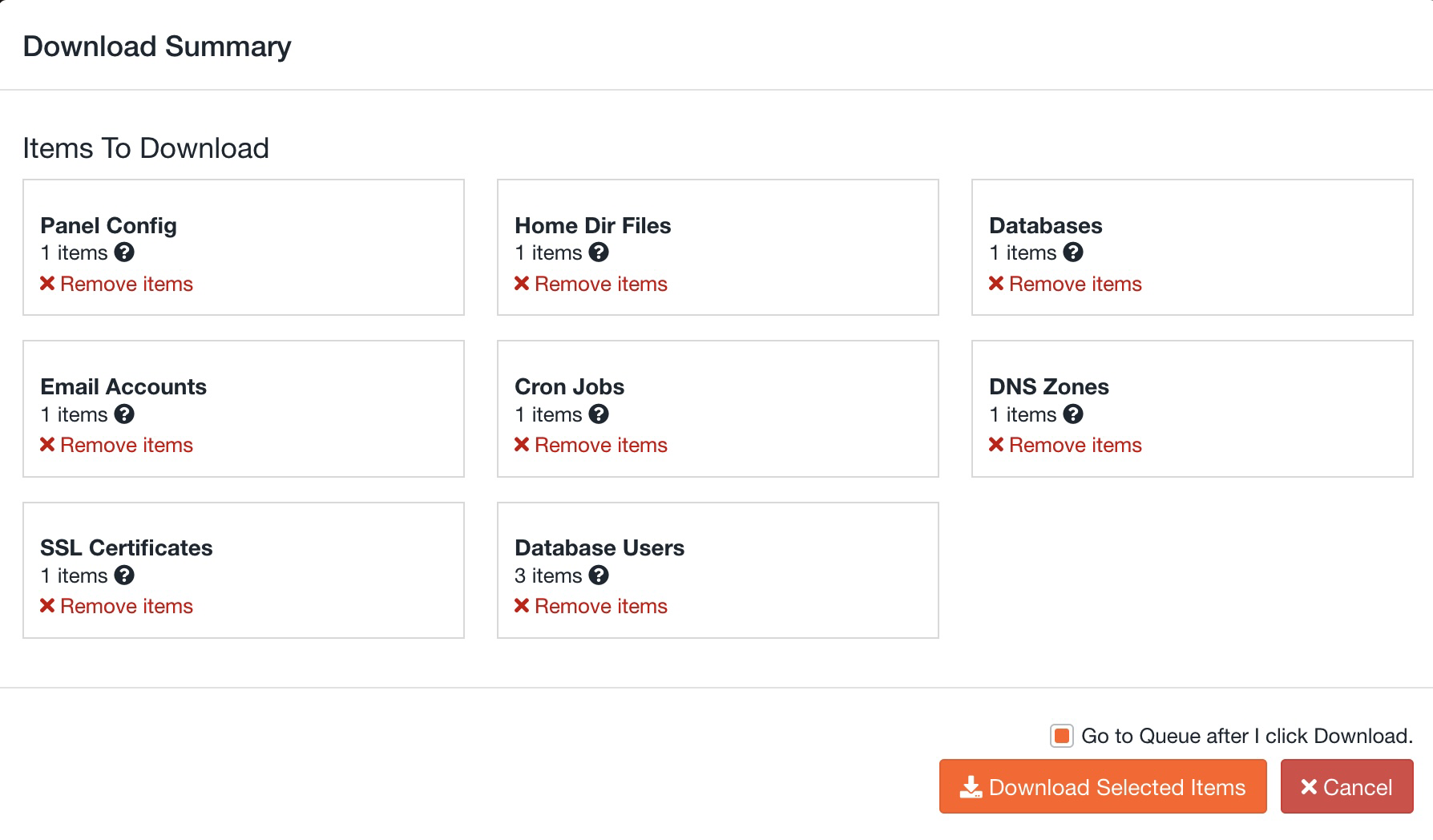
- Click Download Selected Items and follow the progress in Queue.
- When it finishes, go to Downloads and download the file.
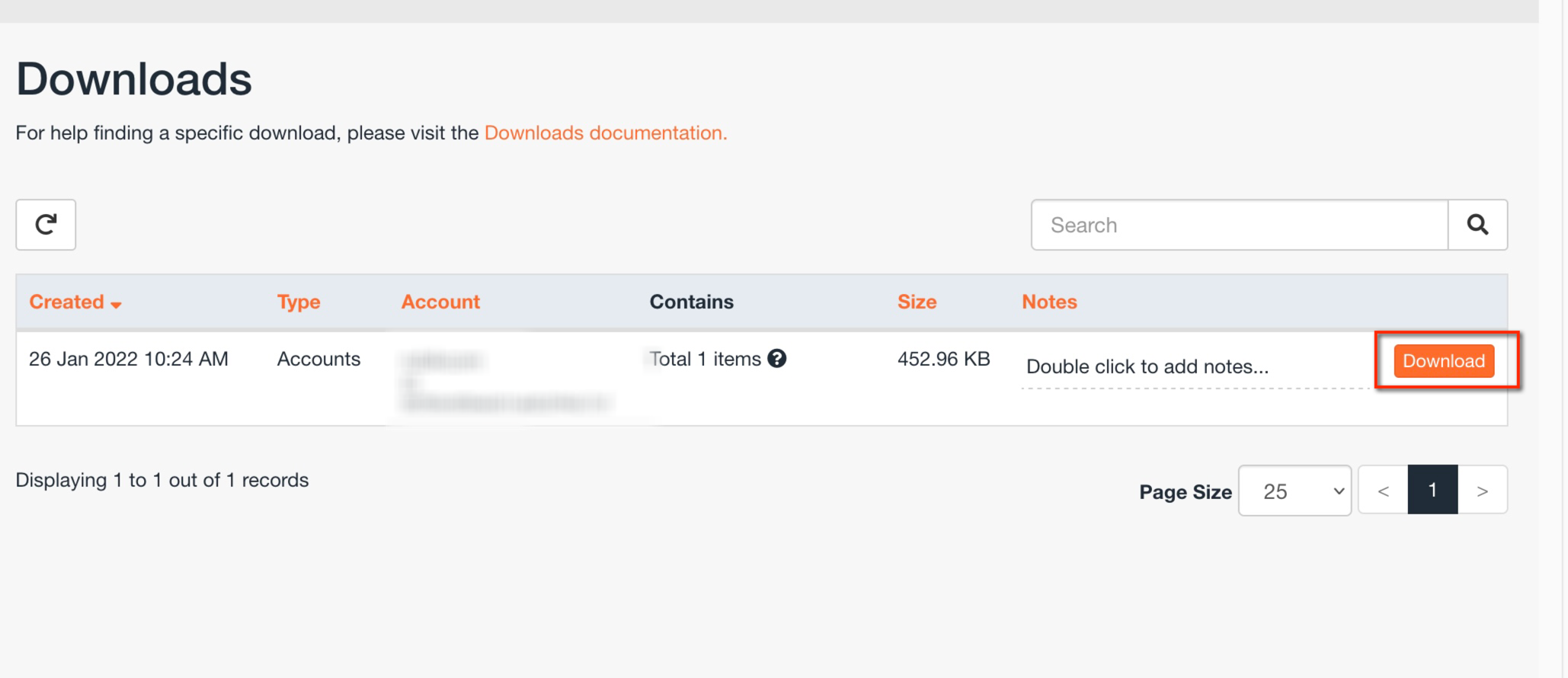
You can also download just a database or a mailbox from its tab, with the same Download button.
Create an on-demand backup
As well as the daily backups, you can create a backup whenever you like, for example just before updating your website or making an important change. If something goes wrong, you restore it and undo the change.
- On the JetBackup home page, click Create Backup On Demand.
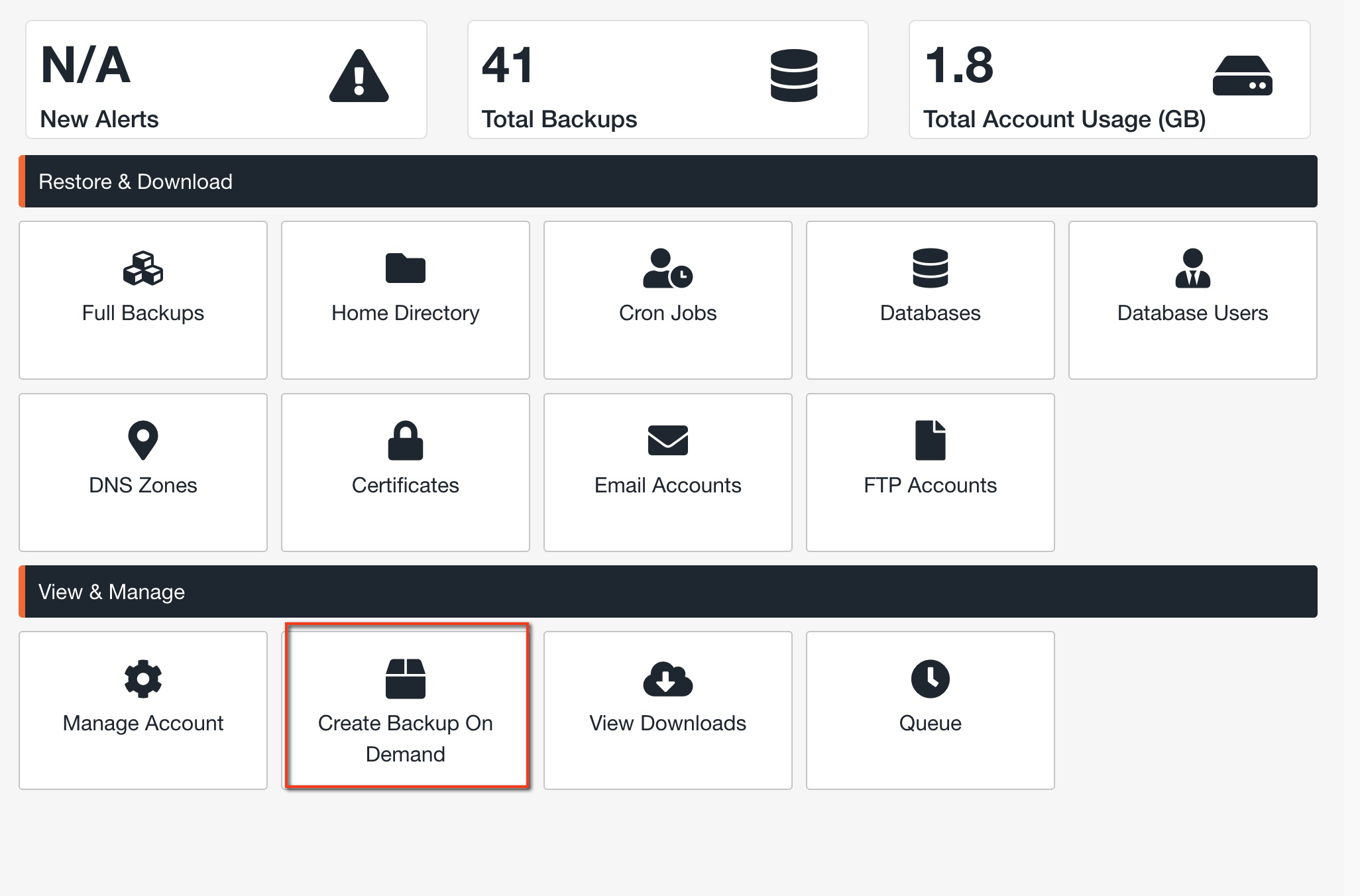
- Confirm and follow the progress in Queue.
- When it finishes, the new restore point will appear with its date and time, and you can restore or download it like any other.
You can have up to 2 on-demand backups and they expire after a few days. If you want to keep a backup for a long time, download it.
Follow tasks in the queue
Every restore or download you request appears in Queue, with its progress. From there you can also cancel a task that hasn't finished yet.
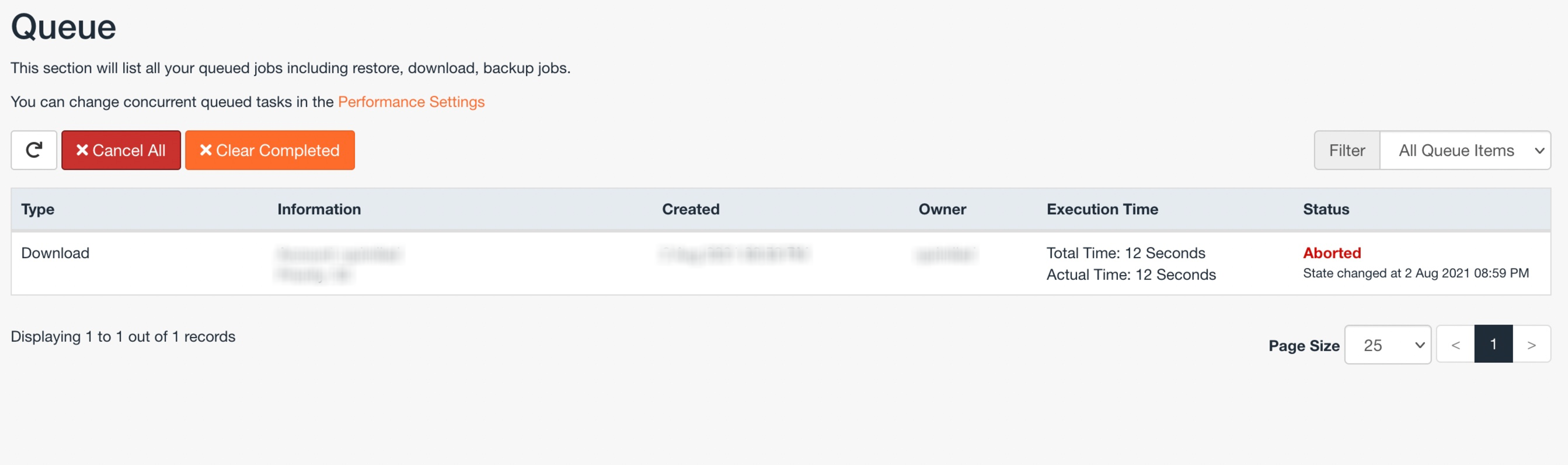
Cancelling a restore doesn't undo what has already been restored. If a task fails, open a ticket saying what you were trying to recover and from which date.
You may also find useful
- cPanel Backup Wizard: create and restore backups Use cPanel's Backup Wizard to make a full backup or one of just your files, databases or email filte...
- Automate backups with cPanel and cron Request backups with UAPI and decide how to check they have finished, transfer them and keep version...
- Hosting backups: what to keep and how to restore it Choose between Hostsuar's backups and your own, check what they contain and plan a recovery with the...
- Change the WordPress domain or URL Choose between the dashboard, wp-config.php and phpMyAdmin to change the WordPress URL, and replace...
Something wrong or out of date? Tell us and we will review it.