

Domains and DNS
Manage the domain list and export it to CSV
Go to Domains to see the registered names and transfers in your account. The tabs separate Active, Pending, Expired and Cancelled.
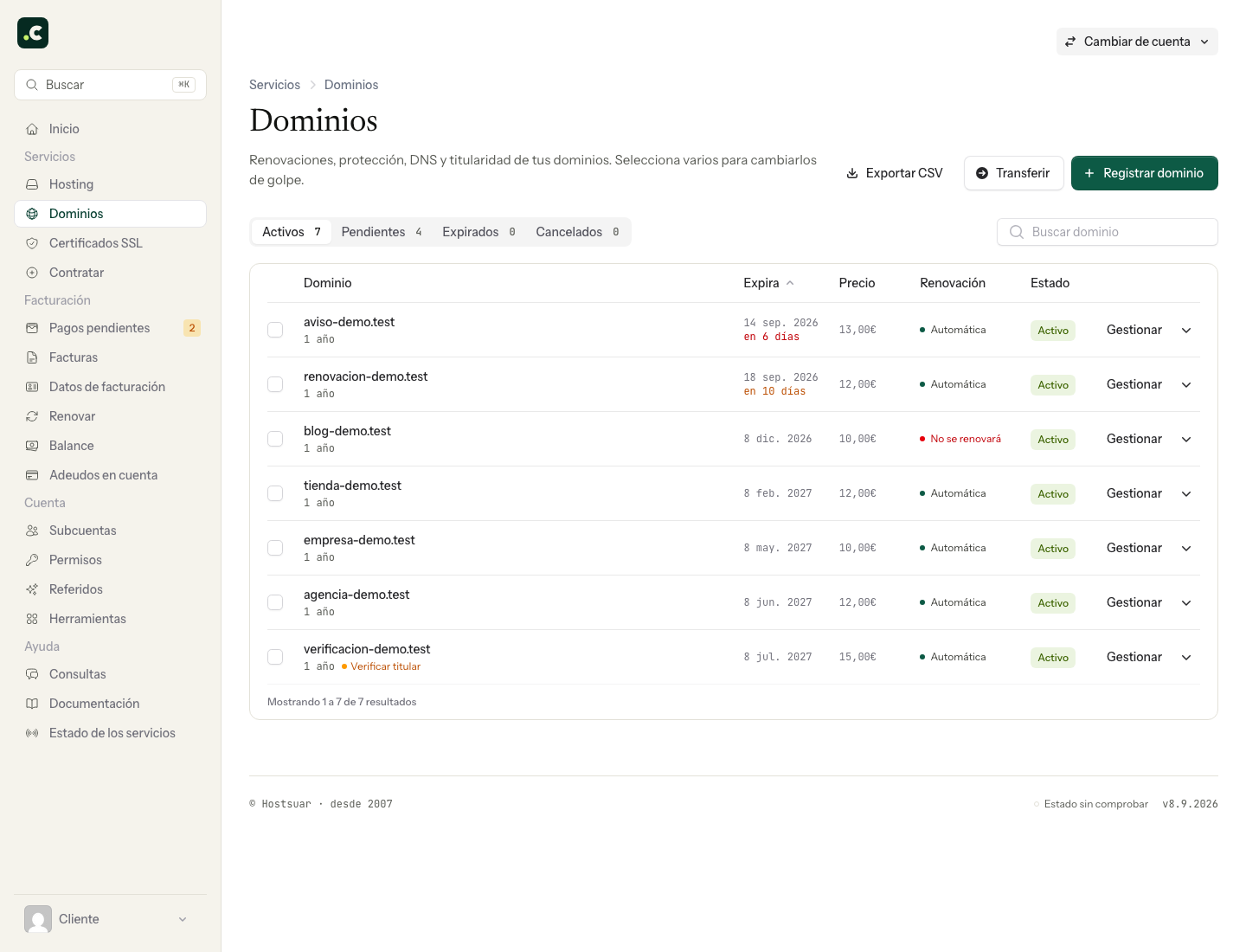
Search and sort
Use the search to find a specific name. You can also sort by domain, expiry date, price or renewal.
Each row shows the status, the expiry and the renewal. Notices flag, among other cases, a pending contact verification, transfer lock turned off or the progress of a transfer.
Click Manage to open the domain's page. For an active domain you will find, depending on its configuration, the nameservers, the zone, the DNS assistant, forwarders and the renewal and billing options.
Export to CSV
The export includes domain, lock, renewal, period, price, expiry, status and nameservers.
The CSV contains only the active domains your user has access to. It does not include pending, expired or cancelled domains, even if you can see them in other tabs.
Bulk actions are also limited to selectable active domains.
Check the export
Open the CSV in a spreadsheet and check that domain, date, price and nameservers are in separate columns. If they are not, use the text import and select the comma as the separator.
The export gathers the active domains your user can access; do not read it as an exact copy of the search filter you saw on screen. It is a snapshot and does not contain the full DNS zone records or transfer credentials.
Before a bulk action, check the selected domains and then review the result for each one. A completion notice is no substitute for checking for individual errors.
You may also find useful
- Cancel a domain's renewal Shows how to turn off, from the client area, the renewal of a domain you want to let expire and avoi...
- Correct a mistake before registering or renewing a domain Warns that a paid registration or renewal enters an automatic queue and may no longer be cancelled o...
- Respond to a Red.es special cancellation procedure Guides you through responding to a cancellation opened by Red.es: recover the holder's access, corre...
- Understand the price of a premium domain Explains why certain names have a special registration or transfer price, what makes them premium an...
Something wrong or out of date? Tell us and we will review it.