

Websites and applications
Softaculous: basic guide to installing and managing applications from cPanel
Softaculous is the application auto-installer included in all our hosting plans. With it you can install any of its hundreds of applications in a few clicks, including the most popular ones: WordPress, Joomla, Drupal, PrestaShop, Moodle…
You will find it in cPanel under the name Softaculous Apps Installer.
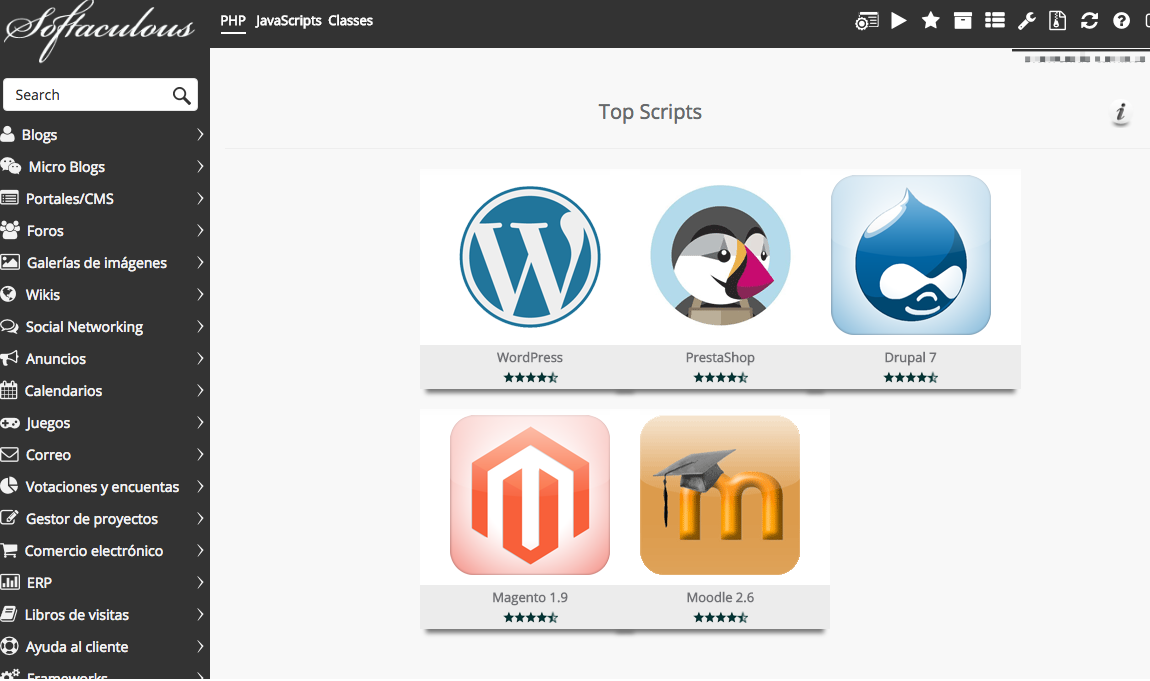
Install a new application
- Find the application with the search box or browse the categories.
- Click Install.
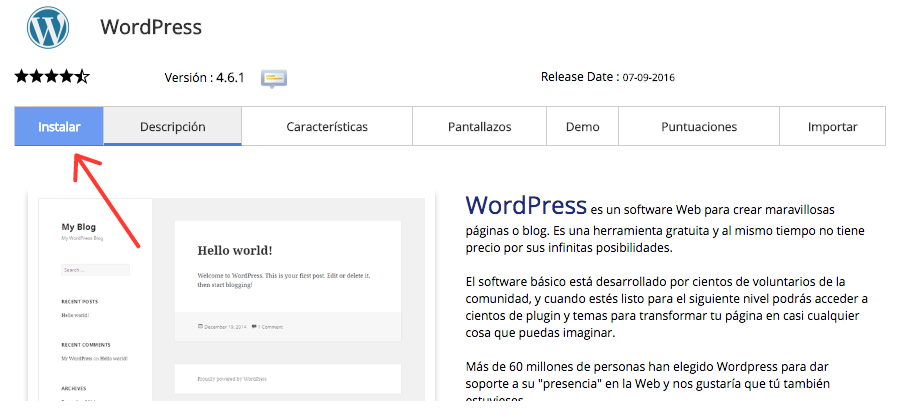
- A form opens. Softaculous fills in almost everything by itself, but check these fields:
- Domain: where it will be installed. If you have several domains, choose it from the drop-down.
- Directory: this is the field that causes the most confusion. See the table below.
- Admin username and password: the details for logging in to the application's administration. Use a strong password and write them down.
- Admin email: use one you read; notices and password recovery will arrive there.
- Language: if it appears, choose the one you want.
| Where you want the application | Domain | Directory |
|---|---|---|
At tudominio.com |
Your domain | Empty |
At tudominio.com/blog |
Your domain | blog |
At blog.tudominio.com (created beforehand in cPanel > Domains) |
The subdomain | Empty |
Do not type the full domain in Directory. If Softaculous warns that there are already files in that folder, check what they are before continuing: you could overwrite another website.
- You can leave the advanced options as they are.
- Click Install. In a few minutes the application will be up and running, and the final screen will show you the website's address and that of its administration.
If your domain does not appear in the drop-down, check why it does not appear in cPanel.
The list of installations
The rest of the actions are done from the list of installations, which you open with the box icon in the top bar of Softaculous:
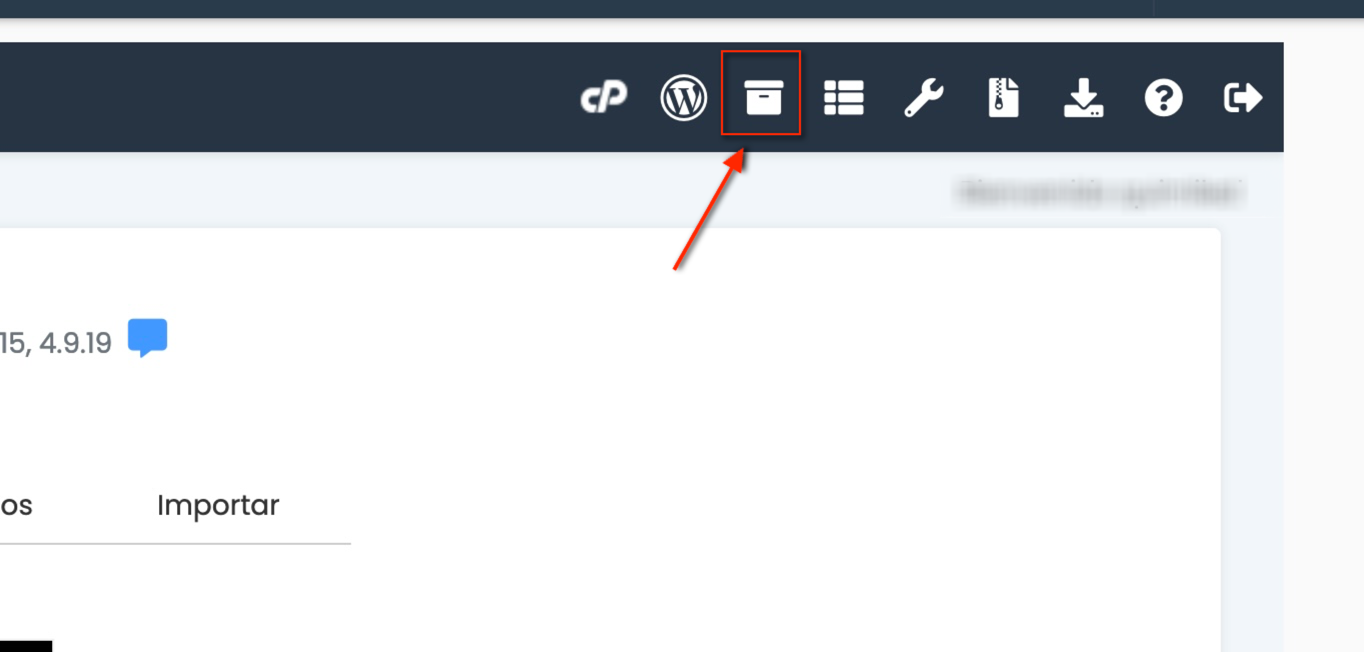
Next to each installation you will see several icons: staging environment, clone (two blue sheets), backup (green file), edit (pencil) and remove (red bin).
Remove an application
- In the list of installations, click the red bin of the installation you want to delete. Check the URL carefully.
- Softaculous asks for confirmation and lets you choose what to delete: the folder with the files, the database and its user. If another website shares the database, untick it.
- Confirm, and in a few minutes it will be removed.
If you only want it to stop appearing in Softaculous, without deleting anything, untick all the boxes before confirming.
Clone an application
Cloning duplicates an application in another domain or folder. It is useful for making changes without touching the live website or for starting a new project from another one. The clone has its own files and its own database: what you change in one does not affect the other.
- In the list of installations, click the clone icon (two overlapping blue sheets).
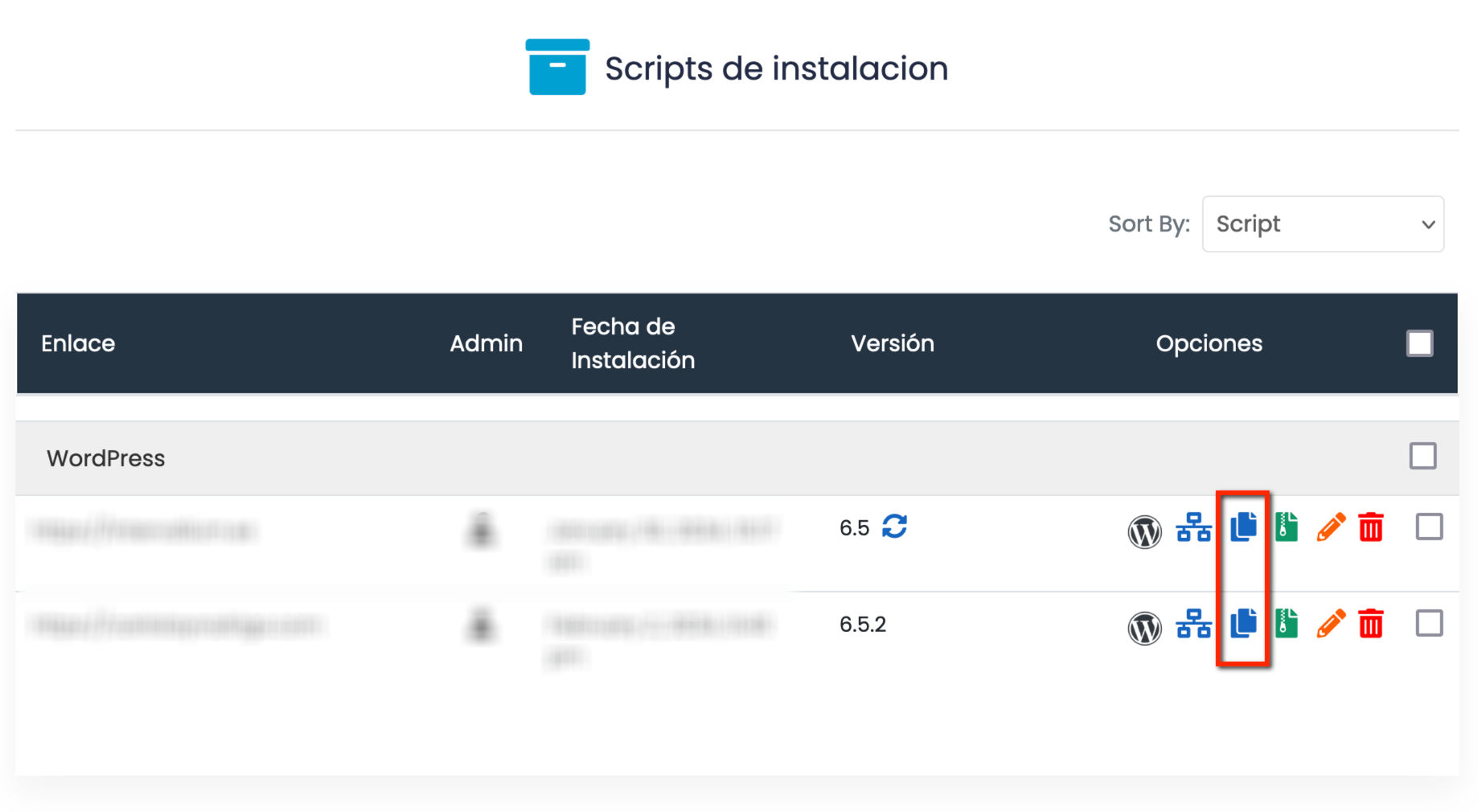
- Enter the destination domain and directory and click Clone.
To clone to the root of a domain or to a subdomain, leave Directory empty. The destination must be empty, and you need to create the subdomain beforehand in cPanel > Domains.
If the website is a shop or takes payments, disable real payments and emails to customers in the clone. More details in how to clone an application. To test changes and then move them to the real website, a staging environment is better.
Import an application that already exists
If you installed the application manually or with another tool, you can import it so that it appears in Softaculous and you can use backups, cloning or staging with it.
- Find the application in Softaculous, for example WordPress.
- Go to the Import tab. If it does not appear, that application does not support importing.
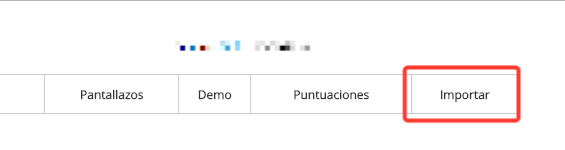
- Choose the domain and directory where it is installed and click Import.
- Check that it appears in the list of installations.
Import an application from another server
Softaculous can bring over an application from another hosting provider with just its FTP details. We explain it step by step in automatic migration of applications from a remote server.
Backups of an application
- In the list of installations, click the backup icon (green file).
- Choose whether you want to back up the database, the files or both and wait for it to finish.
To download or restore a backup, open the list of backups with the compressed file icon in the top bar. There you will see all the backups with their download and restore options.
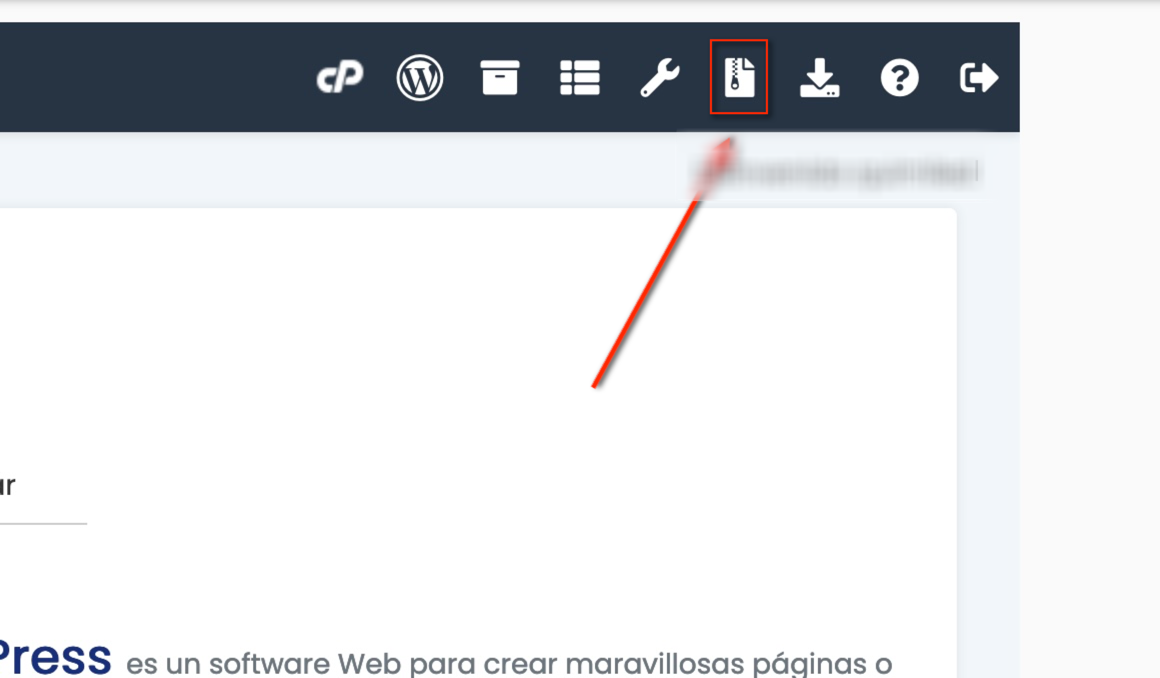
Restoring replaces the current state of the website with the one in the backup: anything you have changed since then is lost.
Where backups are stored
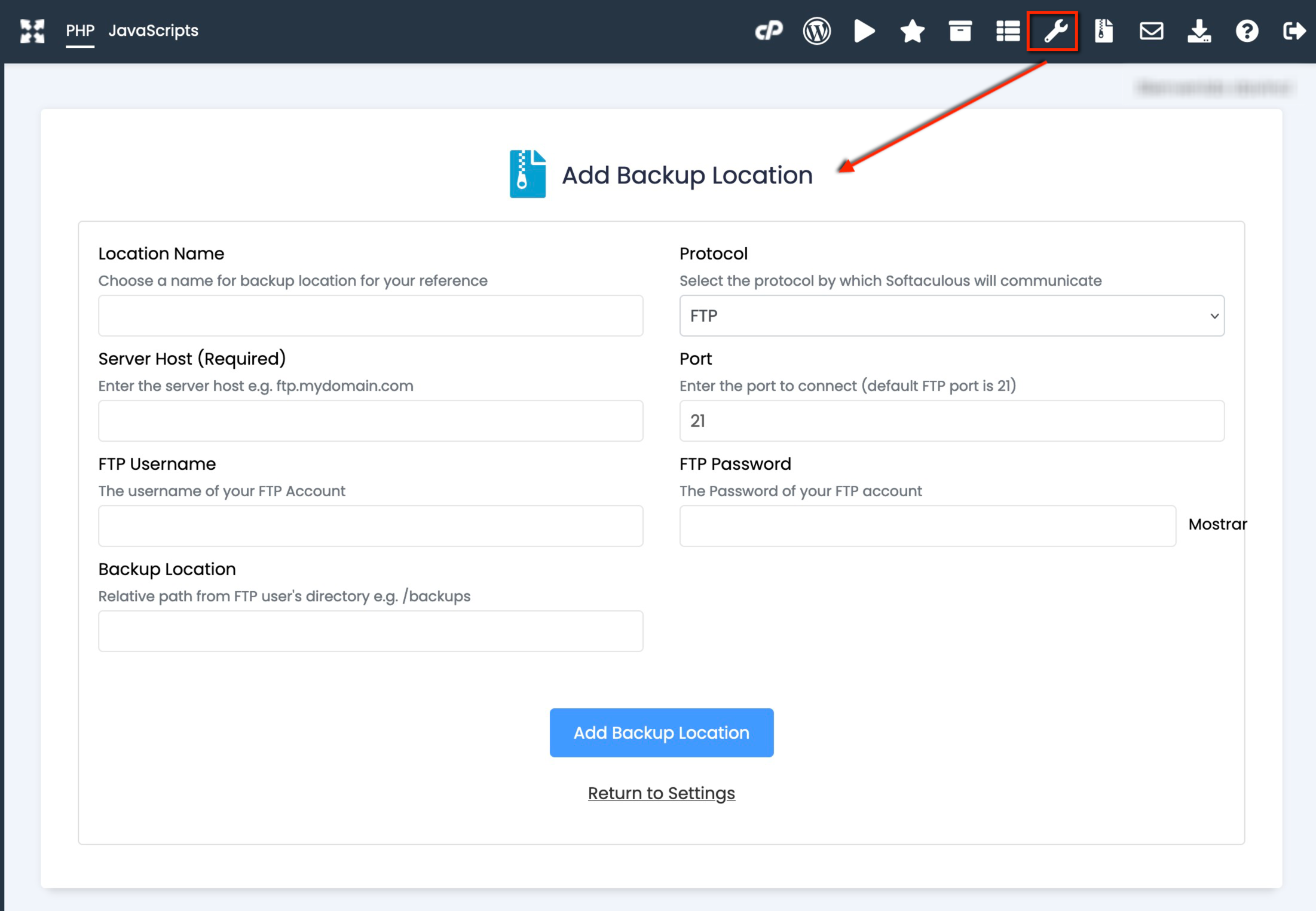
By default, Softaculous stores backups in the softaculous_backups folder at the root of your hosting, and they take up space on your plan. You can also send them to external storage with:
- FTP, SFTP or FTPS
- Dropbox
- Google Drive
- WebDAV
- Microsoft OneDrive
- Amazon S3 and compatible services, such as Backblaze
WordPress Manager
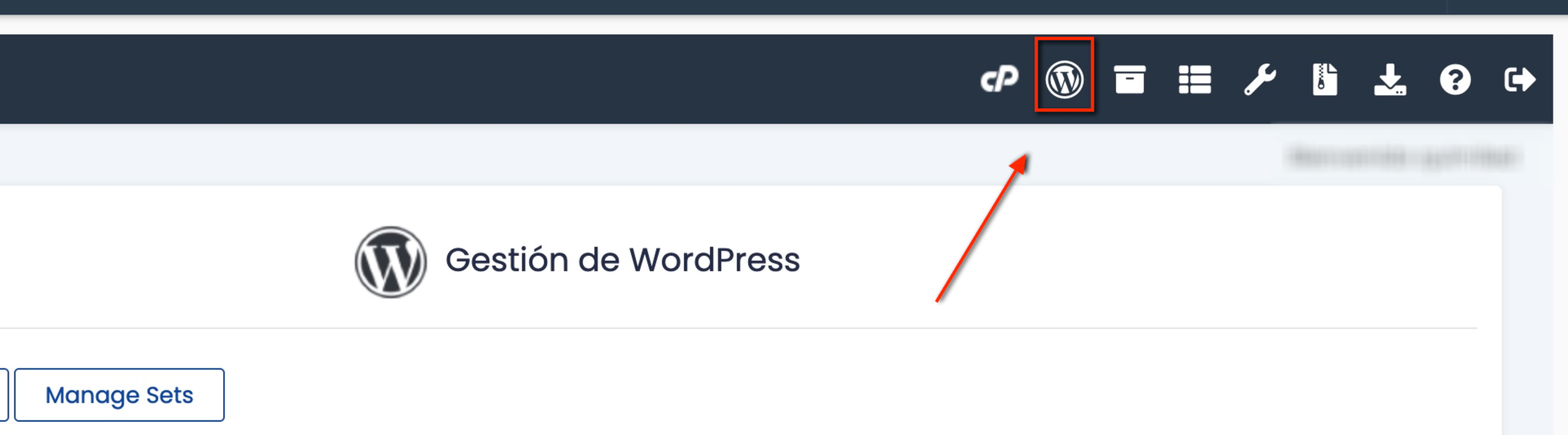
WordPress Manager is the Softaculous tool for managing your WordPress installations (updates, plugins, themes, security). We explain it in the WordPress Manager guide.
You may also find useful
- Develop a website on a temporary URL and move it to the final domain Explains how to develop on a temporary URL and which references, settings and caches to check when m...
- Install Moodle 5 from Softaculous Check the requirements for Moodle 5, prepare a subdomain with its public folder and install it from...
- Install Omeka S from Softaculous Guides you through installing Omeka S from Softaculous, choosing the domain and directory, the check...
- Softaculous WordPress Manager How to use Softaculous WordPress Manager: import existing websites, install with plugin sets, change...
Something wrong or out of date? Tell us and we will review it.