

Troubleshooting
Gmail: "You no longer have access to… select a different From address"
This error appears when you have set up an address on your domain in Gmail to send from (Send mail as) and Gmail can no longer use it:
You no longer have access to ejemplo@dominio.com. To send this email, select a different From address and try again.
Gmail sends those emails by connecting to your domain's mail server with the username and password you gave it. The error appears when that connection fails: you have changed the account's password, the domain was expired for a few days, the server has changed or there is a one-off fault at Gmail.
Google is withdrawing this feature in January 2027. From that date Gmail will stop allowing Send mail as with addresses from other providers, including those on your domain at Hostsuar, and until then it may restrict new configurations. That is why you should first correct the address without deleting it (step 1): if you remove it, Gmail may not let you add it again. More details in Google's announcement and, at the end, how to keep using your email.
1. Correct the SMTP details without deleting the address
-
In Gmail, click the gear icon and then See all settings.
-
Go to the Accounts and Import tab and find the Send mail as section.
-
Next to the address that gives the error, click edit info and then Next Step until you reach the SMTP server details.
-
Fill them in as follows:
- SMTP Server:
mail.tudominio.com(replacetudominio.comwith your domain). - Port:
465. - Username: the full address, for example
ejemplo@dominio.com. - Password: the current password for that email account (not your Google one).
- Select Secured connection using SSL.
- SMTP Server:
-
Save the changes and send a test email from that address.
If you do not remember the password, change it in cPanel > Email Accounts and check that you can log in to Webmail with it before entering it in Gmail.
2. If it still fails: remove and add the address again
Only do this if step 1 has not solved it, because while the feature is being withdrawn Gmail may not let you add it again.
- In See all settings > Accounts and Import > Send mail as, click delete on the address that gives the error.
- Click Add another email address. Type the name you want your recipients to see and the address, and leave Treat as an alias ticked.
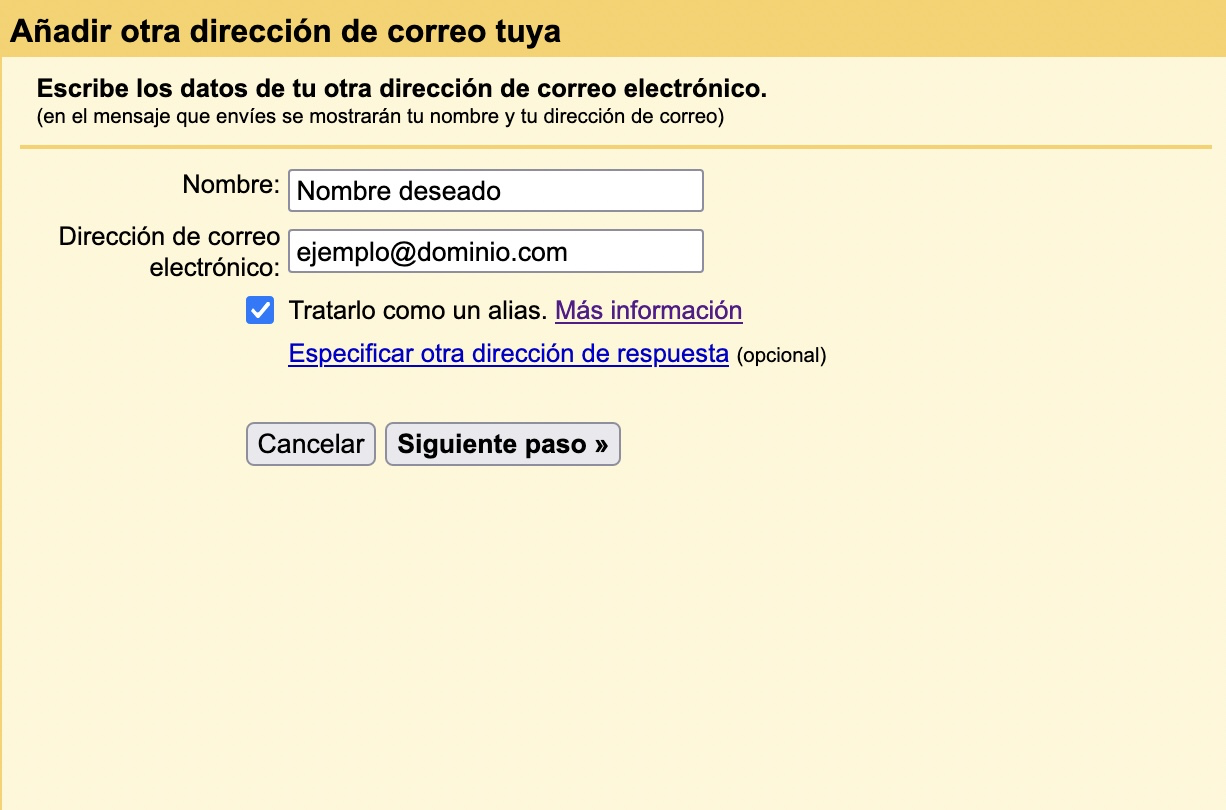
- In the next step, enter the same SMTP details as in step 1 and click Add Account.
- Gmail will send a confirmation code to that address. Open it from your domain's Webmail and enter it in Gmail to finish.
From then on you will be able to send again without errors.
How to keep using your email after January 2027
When Google withdraws Send mail as, to read and send your domain's email you will need to use:
- Hostsuar's Webmail from the browser.
- An email program using IMAP and SMTP with the same server details: Outlook, Thunderbird, Apple Mail or your phone's email app.
If you were also bringing your emails into Gmail with POP or Gmailify, they will also stop working on that date. Make sure any messages you only have in Gmail are saved before the change.
You may also find useful
- .eml files blocked by mail servers Why the server rejects an email with an .eml attachment, how to forward it so that it arrives (norma...
- Authentication error when sending email from Outlook or Thunderbird If Outlook or Thunderbird will not send, keep asking for the password or return error 535, enable ou...
- Check whether Avast is blocking SMTP sending in Outlook or Thunderbird Isolate an SMTP timeout by checking the connection first and running a temporary test of Avast's Mai...
- Check whether an email account is sending authenticated spam Tell bounces caused by a forged sender apart from authenticated sending, and contain a compromised a...
Something wrong or out of date? Tell us and we will review it.