

Backups and migrations
JetBackup for WordPress: restore our backups from the WordPress dashboard
At Hostsuar we make daily backups of every hosting account with JetBackup. You can always restore them from cPanel or from the client area, but if your website runs on WordPress there is a more direct way: the official JetBackup plugin lets you see our backups and restore them from the WordPress dashboard itself.
The plugin restores only the files and database of that WordPress installation, without touching the rest of the account. It is what you need if a WordPress or plugin update has broken the website, if you have deleted content by mistake or if the website has had some kind of problem.
The plugin comes in a free and a paid version. The free version is enough to restore our backups.
If you cannot get into the WordPress dashboard because the website is down, use the restore wizard in the client area.
Install the plugin
- In the WordPress dashboard, go to Plugins > Add New Plugin.
- Search for JetBackup. The official plugin is called JetBackup – Backup, Restore & Migrate and its author is JetBackup.
- Click Install Now and then Activate.
Connect it to our backups
- JetBackup will appear in the WordPress sidebar menu. Go to JetBackup > Settings, General tab.
- Turn on JetBackup Server Integration. This is the option that connects the plugin to our backup server.
- Save the changes.
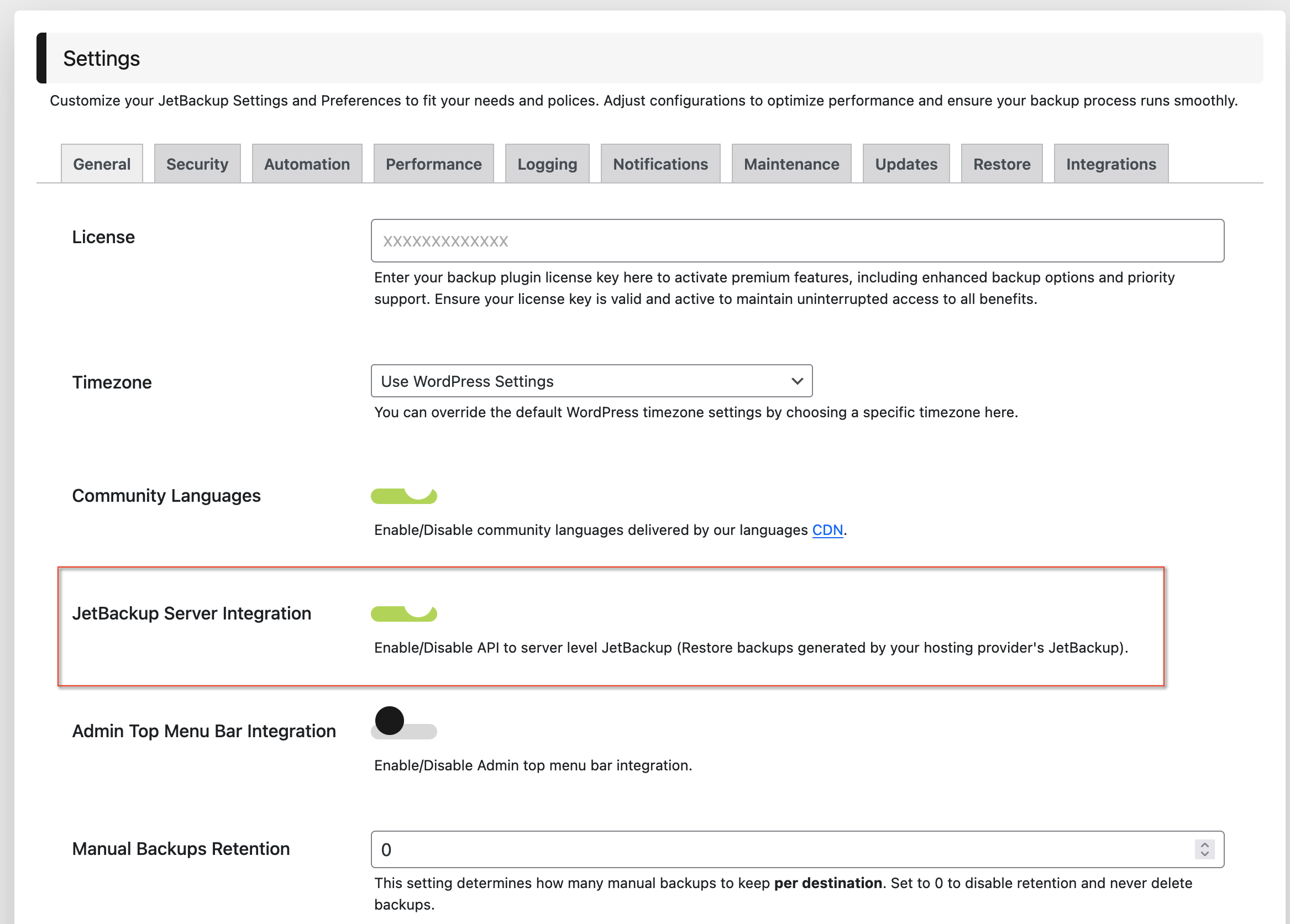
You do not need to configure anything else.
See the available backups
Go to JetBackup > Backups. You will see all the backups: the ones we make every day and the ones you have created yourself with the plugin. Ours are labelled as server backups (JetBackup Server / Hosting Provider), with their date and time, ordered from newest to oldest.
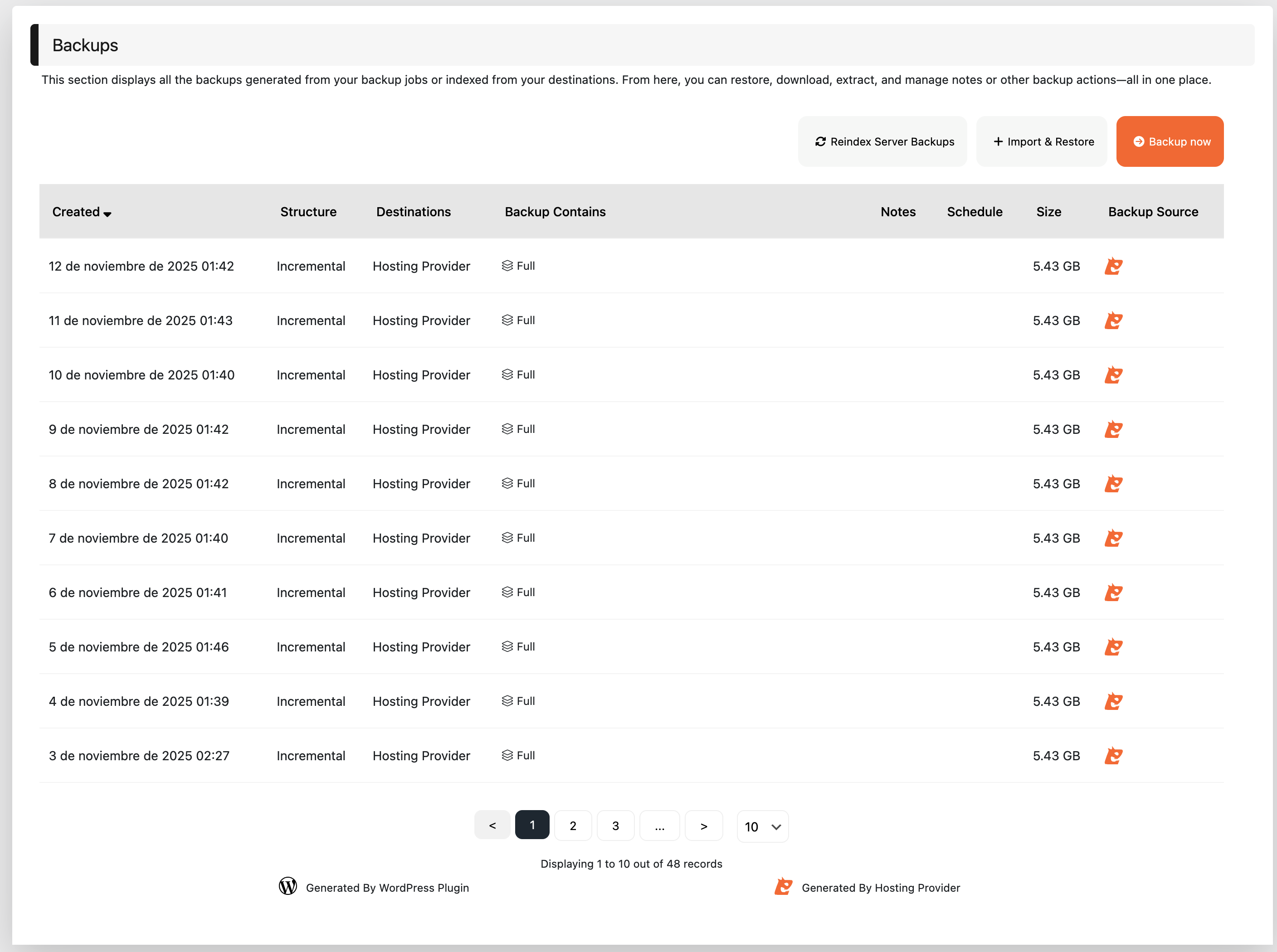
If no server backup appears, check that you have saved the integration. If they still do not appear, get in touch with us: the integration may not be active on your account.
Restore a backup
- In Backups, click the backup from the date you want to go back to and then Restore.
- The Restore Backup window opens, where you choose what to restore:
- Database Restore: Entire Database to restore the complete database, or exclude some tables.
- Files Restore: Entire Backup to restore all the files, or exclude some folders with the Select button.
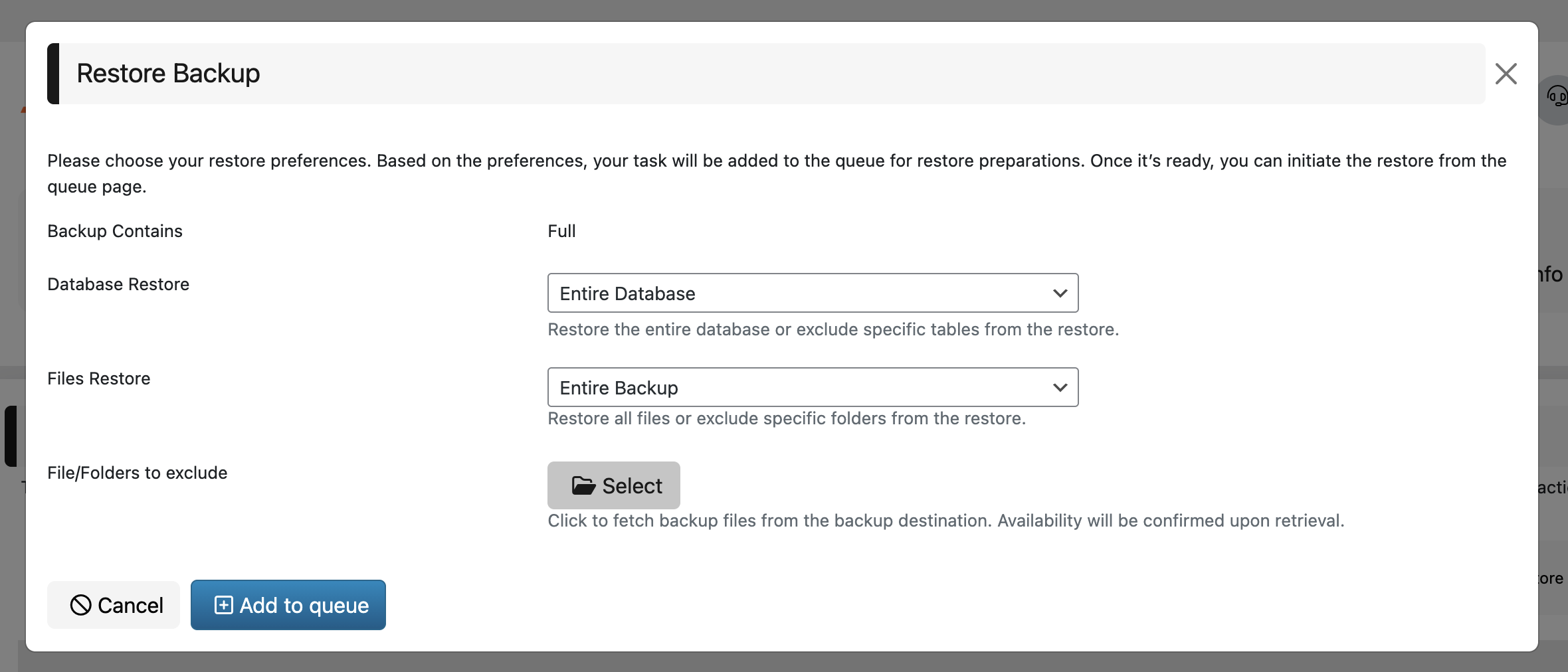
- Click Add to queue. The plugin prepares the restore in the background.
- Go to JetBackup > Queue. When the task is ready, start the restore from there.
To undo a failed update, you would normally restore the complete files and database. Bear in mind that everything saved on the website after the backup date (posts, comments, WooCommerce orders, users) will be lost. If you run a shop, check first which orders have come in since that date.
Follow the progress
In JetBackup > Queue you will see the task with the In Progress status while it is being restored. On small or medium-sized websites it usually takes a few minutes; on large websites, longer. In the meantime, avoid making changes to the website.
When it changes to Completed, your WordPress will be as it was on the backup date. Go to the website and check that it works and that you have got back what you were looking for.
If you need to cancel a restore in progress, use Abort on the task. Whatever has already been restored is not undone when you cancel.
Other things the plugin does
As well as restoring our backups, the plugin can:
- Create your own backups whenever you like, for example just before a major update.
- Schedule automatic backups and store them outside the hosting: Google Drive, Dropbox, Amazon S3, OneDrive, Box, pCloud or FTP/SFTP. The destinations and options available depend on whether you use the free or the paid version.
- Migrate WordPress to another domain or server.
A backup made from the plugin only includes that WordPress installation: it does not include your email accounts or the hosting settings.
Finer-grained restores
To choose individual files, recover deleted emails without losing new ones, or restore other databases or DNS zones, use JetBackup 5 from cPanel. We explain how in recover content from our backups.
You may also find useful
- Restore a website or recover email from the client area Check the site, folder, database and date before restoring, or recover messages while keeping recent...
- cPanel Backup Wizard: create and restore backups Use cPanel's Backup Wizard to make a full backup or one of just your files, databases or email filte...
- Automate backups with cPanel and cron Request backups with UAPI and decide how to check they have finished, transfer them and keep version...
- Change the WordPress domain or URL Choose between the dashboard, wp-config.php and phpMyAdmin to change the WordPress URL, and replace...
Something wrong or out of date? Tell us and we will review it.