

Add an external server to the SPF record from cPanel
The SPF record is a TXT-type DNS record listing the servers that may send email on behalf of your domain. The server receiving an email checks whether the server delivering it is on that list; if it isn't, it may reject the message or send it to spam. It is one of the basic defences against spoofing of your domain.
In most cases you don't need to change anything: we set up each domain's SPF strictly so that what you send from the hosting is authorised. You can check it is correct, along with DKIM and PTR, in Email Deliverability.
You only need to change it if another service sends email with your domain: Google Workspace, Microsoft 365, Mailchimp, Brevo, your shop's platform or your CRM. In that case, you have to add that service to the existing SPF.
Add an external service
- In cPanel, open Email Deliverability and click Manage next to the domain.
- In the SPF section, click Customize.
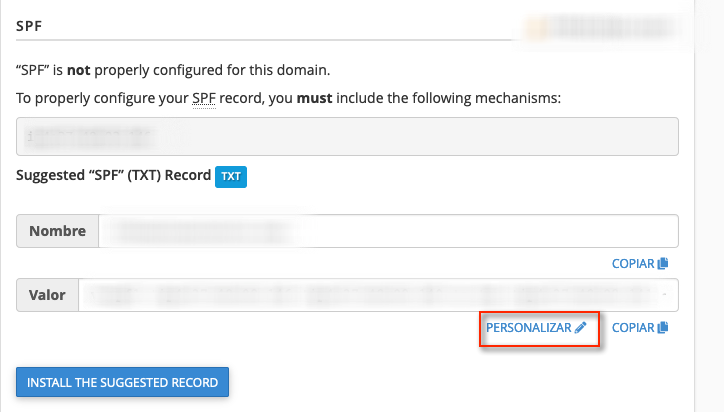
- You will see the current record and, below it, the fields to extend it:
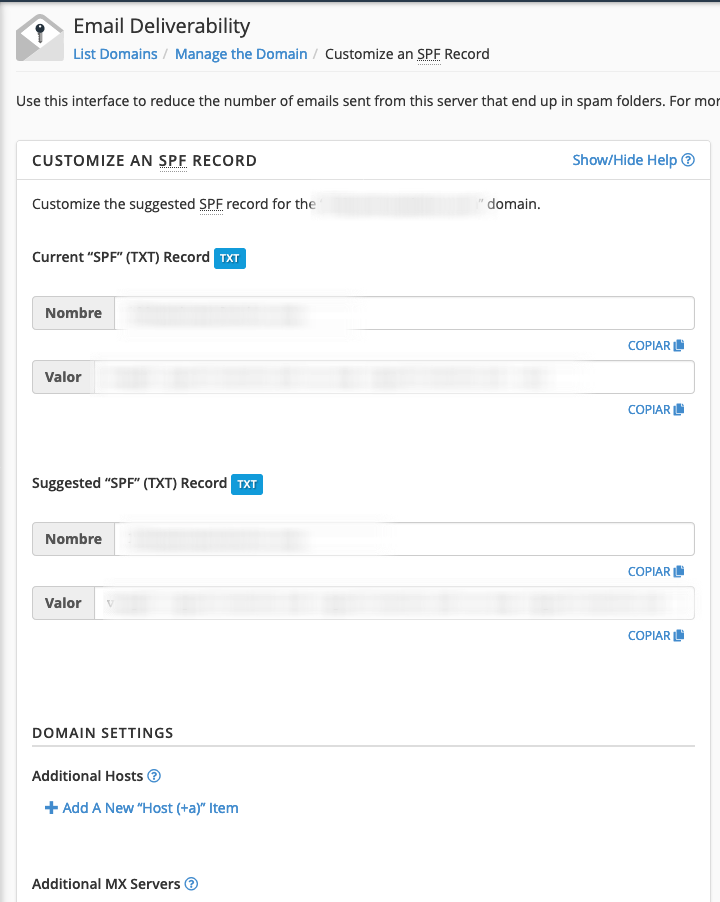
- Additional Hosts: specific server names.
- Additional MX Servers: MX servers of another domain.
- Additional IP Address Blocks (IPv4 and IPv6): IP addresses or ranges, for example
203.0.113.0/24. - Include List (INCLUDE): the include domain your provider gives you. This is the most common option.
- Add what your provider tells you in the corresponding field. For example, for Google Workspace you only need to add
_spf.google.comto Include List (INCLUDE):
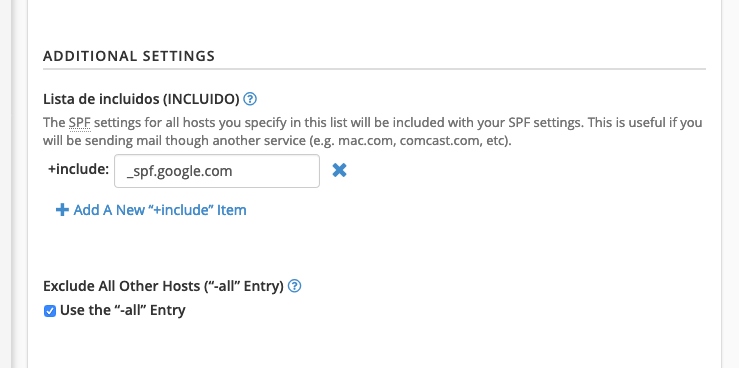
- Save with the button at the bottom of the page (Install a Customized SPF Record or similar, depending on the cPanel version).
Some common INCLUDE values (always confirm them in the provider's documentation, as they can change):
| Service | INCLUDE |
|---|---|
| Google Workspace | _spf.google.com |
| Microsoft 365 | spf.protection.outlook.com |
| Mailchimp (Mandrill) | spf.mandrillapp.com |
The result is a single record with everything together, for example:
v=spf1 +a +mx +ip4:203.0.113.10 include:_spf.google.com -all
Three common mistakes
- Two SPF records: your domain can only have one TXT record starting with
v=spf1. If a provider tells you to "create this SPF record", don't create it separately: add itsincludeto the one you already have, as explained above. With two records, SPF fails for every email. - More than 10 lookups: each
include,a,mx,existsandredirectcounts as one DNS lookup, including the ones inside eachinclude. If the total goes over 10, SPF returns an error. Our SPF checker reads your record live, follows eachincludeand tells you how many lookups it adds up to. - Adding Google because you read your email in Gmail: there's no need. If Gmail sends with your address through our SMTP server, the sender is still Hostsuar. And if Gmail sends it from its own servers, adding Google to SPF won't stop it landing in spam either: we explain it here.
Never use +all to get rid of an error: it means any server in the world can send on behalf of your domain.
If your domain doesn't use our DNS
If your domain's DNS is on Cloudflare or with another provider, changing the SPF in cPanel has no effect: the record that counts is the one at that provider. Make the same change there, editing the TXT record that starts with v=spf1. We explain it in SPF for domains that don't use our DNS.
Check that it works
After a few minutes, check the record with the SPF checker. Then send an email from each service (your usual email, the website, your newsletter tool…) to a Gmail account, open the message, click the three dots and Show original: the SPF line should show PASS.
SPF works together with DKIM and DMARC. For the DMARC part, see set up the DMARC record.
You may also find useful
- Changes to the requirements for sending email to Gmail and Yahoo Summarises Gmail's and Yahoo's current requirements on authentication, DNS, TLS, reputation and easy...
- How to check and improve email deliverability Guide to reviewing SPF, DKIM, DMARC and PTR in cPanel, analysing a message with our email test and d...
- SPF and DKIM: what they authenticate and where to set them up Tell SPF, DKIM signing and DMARC alignment apart, and choose the setup that matches the service that...
- SPF record for domains that do not use our DNS Gives the SPF mechanism to add in Cloudflare or other external DNS to authorise mail sent from Hosts...
Something wrong or out of date? Tell us and we will review it.