

Security and SSL
Unmaintained WordPress plugins: how to spot them and why they are a risk
Keeping WordPress up to date is easy: it takes a couple of clicks from the dashboard. Even so, there are websites with everything up to date that get attacked. Very often the culprit is an abandoned plugin or theme.
The WordPress catalogue has tens of thousands of plugins, most of them free, and it is normal for their authors to drop them over time. An unmaintained plugin does not just stop getting new features: if a security flaw is discovered, nobody is going to fix it. And since there is no new version, WordPress will not tell you about any pending update.
Before installing a plugin
In Plugins > Add New, click the plugin's name (or More Details) and look at two details in the right-hand column:
- Last updated: when the author released the latest version.
- Tested up to (or Compatible up to): the latest version of WordPress the author has tested it with.
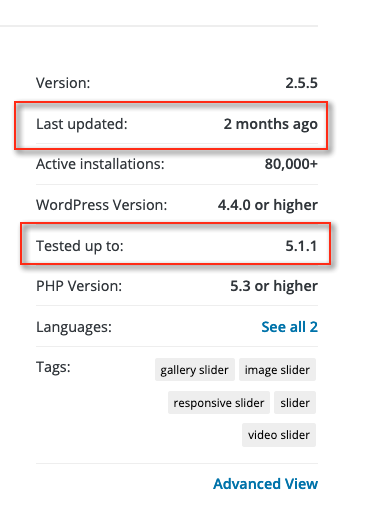
As a guide, from our experience:
- More than 6 months without an update: take a careful look at whether the author is still active (replies on the support forum, publishes changes).
- More than a year, or tested only with old versions of WordPress: look for another option.
- If the page says "This plugin hasn't been tested with the latest 3 major releases of WordPress" or "This plugin has been closed", rule it out.
Among several plugins that do the same thing, choose the one that is updated regularly and has the most active installations.
Check the plugins you already have
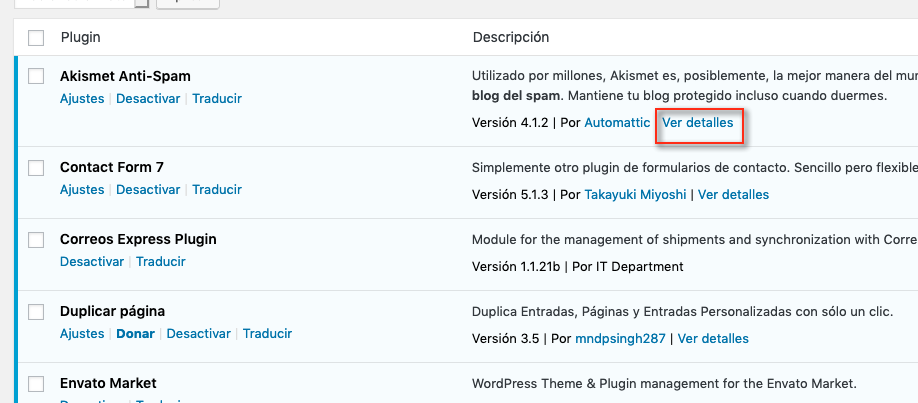
Do it every few months. In Plugins, click View details under each plugin:
The same page opens, with the date of the last update:
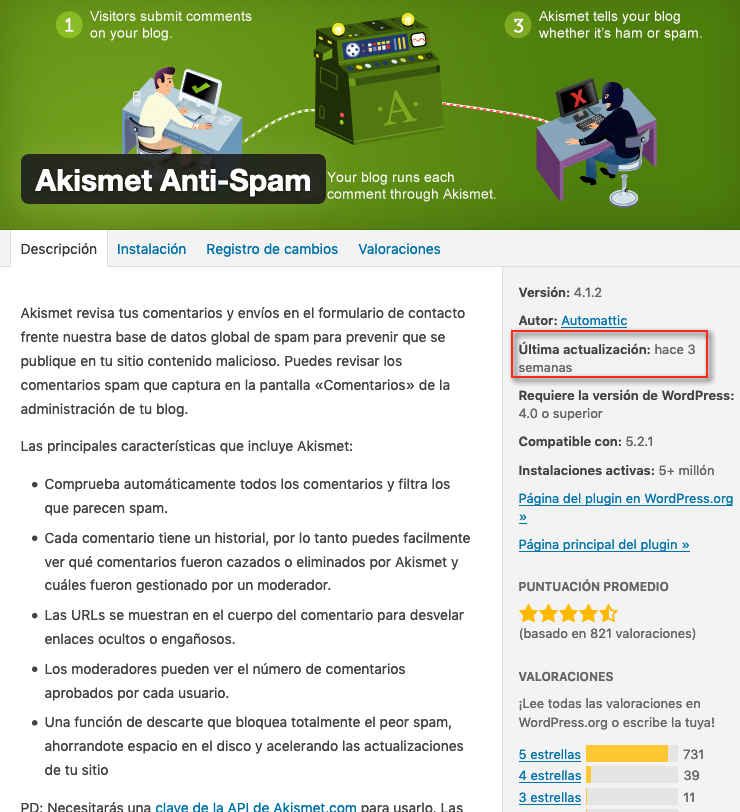
If a plugin has no View details, it does not come from the official catalogue (it is paid or from another source): check the date of the latest version on the author's website and that your licence is still active, because without it you will not receive updates.
Do the same with themes in Appearance > Themes, including the ones you do not use.
If you have SSH access, you can see all plugins with their version and whether they have a pending update in one go with WP-CLI:
wp plugin list --fields=name,status,version,update
To find out whether a specific version has a known security flaw, look it up in WPScan or Patchstack.
What to do with an abandoned plugin
- If you do not use it: deactivate it and delete it. A deactivated plugin still has its files on the server and can be exploited just the same.
- If you need it: look for an active alternative that does the same thing, install it, check that the website works (forms, content, payments) and then delete the old one. Make a backup first, in case the uninstaller deletes data you need.
The same goes for themes: keep only the one you use and, at most, a default WordPress theme (Twenty Twenty-Five or similar) as a fallback.
If you suspect you have already been attacked through a plugin, follow the guide on cleaning WordPress after an attack.
You may also find useful
- Protect wp-admin and wp-login.php with the WPS Hide Login plugin Change the WordPress login address with WPS Hide Login so that wp-admin and wp-login.php return an e...
- Renaming wp-login.php to protect access: how to do it today without breaking WordPress Why renaming wp-login.php by hand is no longer a good idea and how to achieve the same thing: change...
- Secure WordPress and keep its access under control Brings together measures to harden WordPress through updates, unique passwords, 2FA and extra protec...
- Configure session cookie security in GLPI Check HTTPS and GLPI's effective PHP configuration to resolve Secure cookie warnings, without confus...
Something wrong or out of date? Tell us and we will review it.