

Security and SSL
Set up reCAPTCHA in PrestaShop 1.6 with eicaptcha
CAPTCHA systems are the most direct way to stop spam: the familiar test that checks whether the person filling in the form is a human and not a robot. In PrestaShop they are especially necessary, because shops are a common target for bots that create hundreds of fake accounts a day and submit contact forms in bulk.
The problem is not just having to delete those accounts. Bots use up the shop's CPU and memory, and every fake sign-up makes PrestaShop send a welcome email to non-existent Gmail, Hotmail and similar addresses. Those providers reject the messages and end up treating the shop's domain as suspicious, so your legitimate emails start landing in your customers' spam folder.
PrestaShop 1.6 no longer receives security updates. The CAPTCHA stops automated sign-ups and form submissions, but it does not protect against the version's vulnerabilities. Use it to cut the spam now and plan the shop's upgrade.
To protect the shop we will use the free eicaptcha module, which integrates Google reCAPTCHA into PrestaShop's forms.
Download and install the module
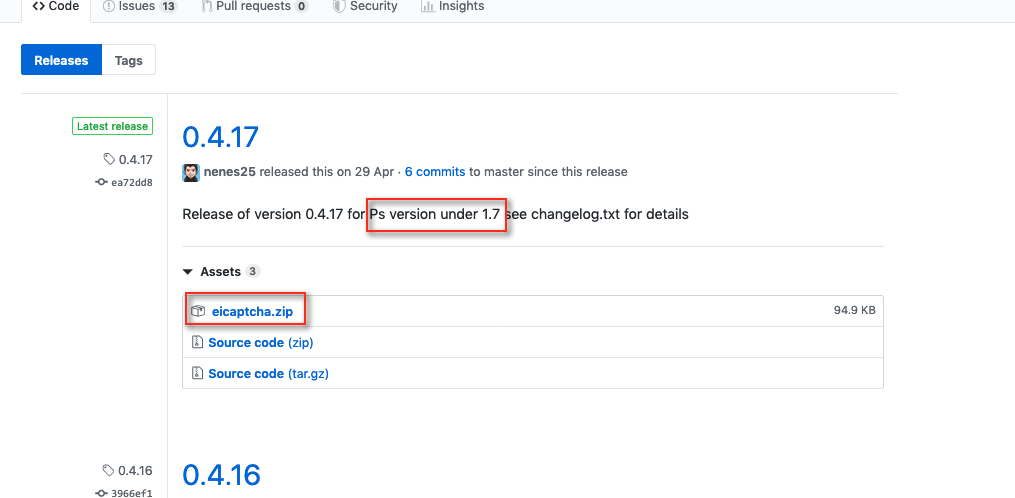
Download the module from its official GitHub page:
The module has two branches: 2.x is for PrestaShop 1.7 and 8, and 0.4.x is for PrestaShop 1.6 (the description says "PS version under 1.7"). For PrestaShop 1.6 the latest version is 0.4.17; download that version's eicaptcha.zip file. A 2.x version installed on 1.6 will not work.
Install the module like any other: in the PrestaShop back office go to Modules and Services, click Add a new module and upload the zip you downloaded.
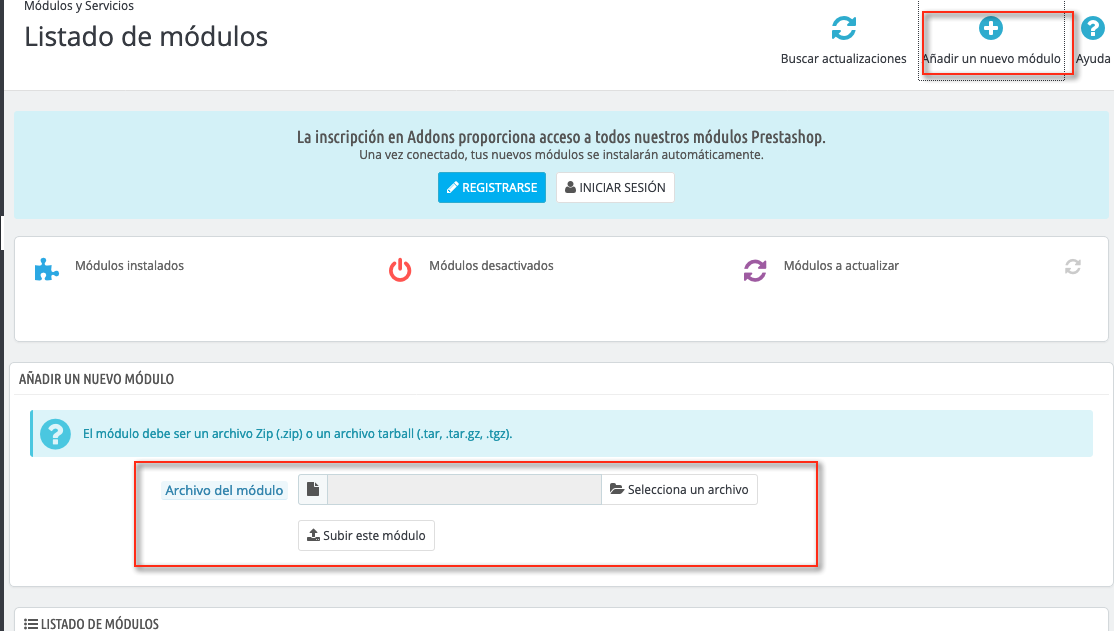
You can also unzip it and upload the eicaptcha folder by FTP or from the cPanel File Manager to PrestaShop's modules directory.
If it was not enabled when you installed it, find it in the module catalogue and click Install or Enable:
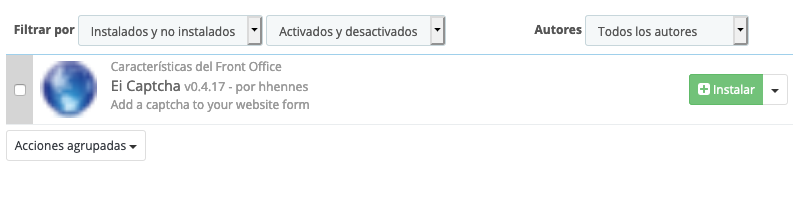
When it finishes, the module's configuration will open and ask for the reCAPTCHA keys. We get them in the next step.
Get the reCAPTCHA keys
Go to the reCAPTCHA admin console with a Google account (any Gmail account will do) and register a new site:
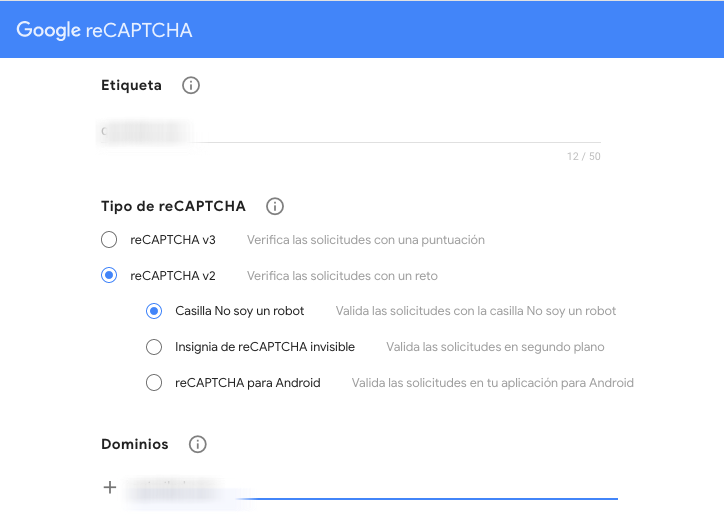
- In Label, enter a name that lets you recognise it, for example the shop's domain.
- In reCAPTCHA type, select Challenge (v2) and then "I'm not a robot" Checkbox. Version 0.4.x of the module only supports reCAPTCHA v2: v3 keys will not work.
- In Domains, add the shop's domain, for example
tutienda.com. reCAPTCHA also accepts its subdomains, such aswww.tutienda.com.
Accept the terms and click Submit. Google will show you two keys: the site key and the secret key. Copy them and note which is which.
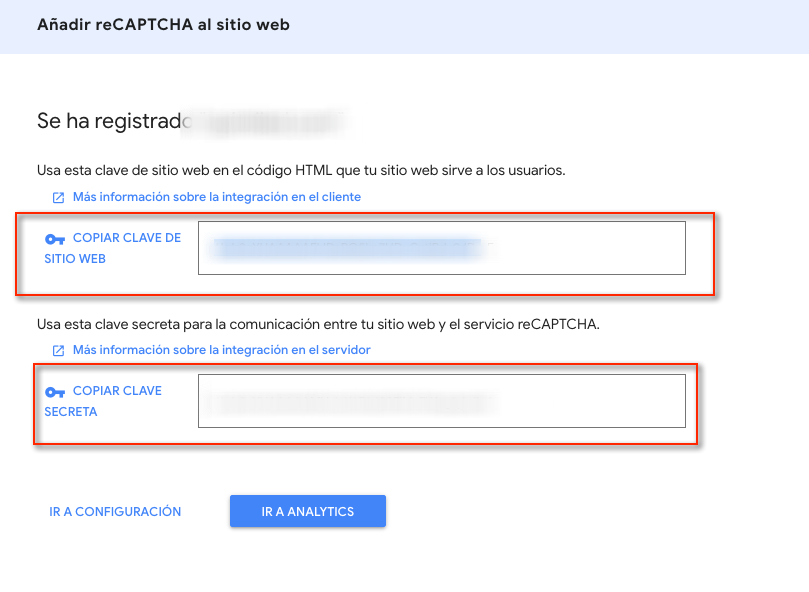
Google's interface has changed since these screenshots, but the fields are the same.
Configure the module
Go back to the eicaptcha configuration in PrestaShop and fill in:
- Public key: the site key.
- Private key: the secret key.
- Enable the captcha on the forms you want to protect, at least account creation and the contact form.
- Enter the captcha's language code, for example
en.
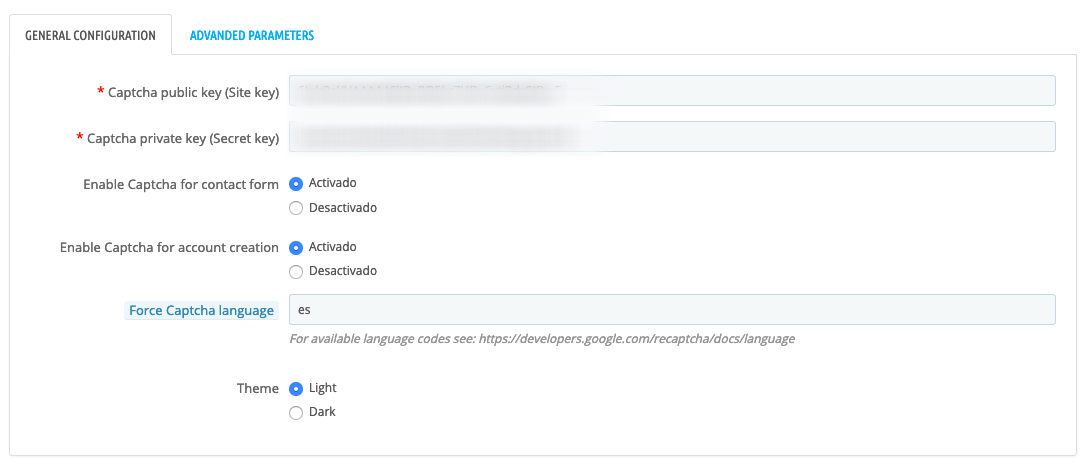
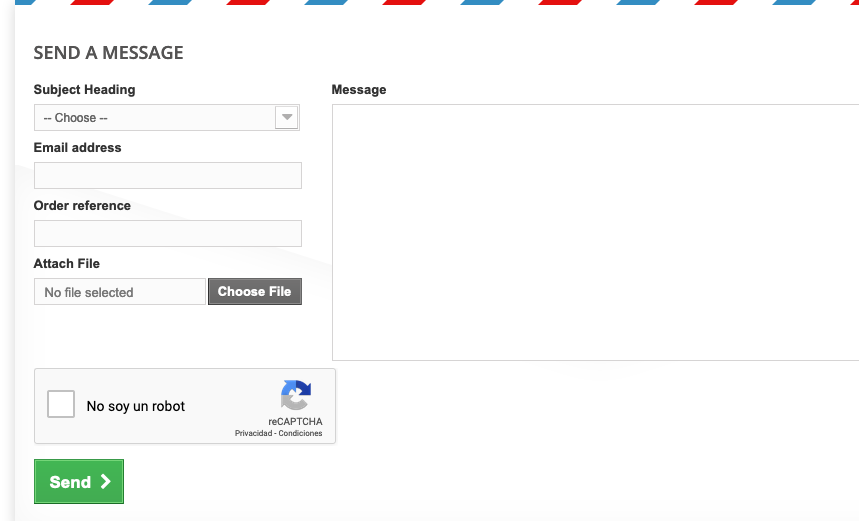
Save the changes. From then on the forms will show the "I'm not a robot" checkbox:
Check that it works
- Open the shop in a private window and go to customer registration and the contact page: the reCAPTCHA checkbox should appear.
- Try to register without ticking the box: PrestaShop should show an error and not create the account.
- Tick the box and complete the registration: the account should be created as normal.
If the checkbox does not appear, clear the PrestaShop cache in Advanced Parameters > Performance and check that the theme does not have a modified registration or contact template that leaves out the module's hook. If you see the error "Invalid domain for site key", the shop's domain does not match the one registered in reCAPTCHA.
If fake accounts keep coming in
If fake sign-ups keep appearing after enabling the captcha, the bots are not going through the form. Check the exact version in Advanced Parameters > Configuration Information: the last release of the 1.6 branch is 1.6.1.24, which fixes the mass registration flaw these bots were exploiting. If your shop has an earlier version, back it up and upgrade it to 1.6.1.24 while you prepare the move to a supported version.
Fake accounts are usually easy to spot because the first or last name contains links or advertising text. Before deleting them in Customers > Customers, filter by registration date and check that they have no orders.
You may also find useful
- Stop spam sent from PrestaShop forms Explains how to confirm whether bounces come from a PrestaShop form and how to contain the abuse wit...
- Historical notice about mass registrations in PrestaShop 1.6 and 1.7 Documents the flaw fixed in PrestaShop 1.6.1.24 and 1.7.5.2 and explains what to do if you still fin...
- Identify and stop abuse of a website's forms Explains how to tell whether bounces come from an abused form and how to protect it with server-side...
- Critical vulnerability in PrestaShop 1.6.0.10 to 1.7.8.6 (Smarty MySQL cache) How to close the July 2022 PrestaShop vulnerability (SQL injection plus the Smarty MySQL cache): the...
Something wrong or out of date? Tell us and we will review it.